43D Printing with Bambu Studio
Adding your .stl files into Bambu Studio to "slice" the file into a 3D printable object, then connecting to a Bambu printer over the local network in LAN mode, and getting a clean first layer.
A slicer turns a 3D model into instructions for the printer: where to move, how fast, how much plastic to push, and how hot to be. Bambu Studio (or alternatively: OrcaSlicer) does that job and sends the result to the printer.
Printer safety
- Never touch the printer while it is in operation. The nozzle runs at 200 to 260 degrees Celsius and the bed at 60 to 100.
- Never reach in to clear something mid-print. Cancel the print, wait till the printer has fully cooled, and then you can grab your part.
- Loose hair needs to be tied up when watching the printer.
Before you start
- Your STL file from the 3D modelling tutorial
- A computer with Windows or macOS installed (this will not work on a Chromebook)
4.1Set Up Bambu Studio#
-
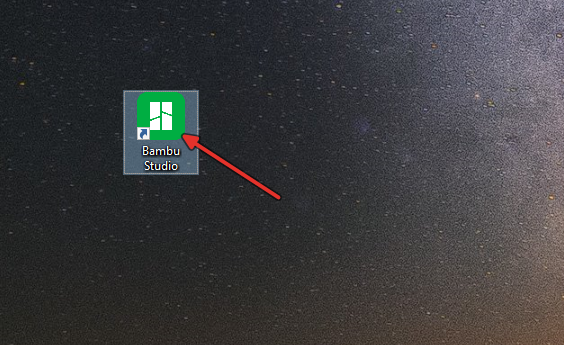
On your desktop, find the “Bambu Studio” icon. Double click it to launch it. It will take a moment to start, be patient, do not click it again.
-
If this is your first time launching the program on this computer, you will be met with a Setup Wizard. It may take a little to load but it will eventually open, be patient.
If you get a notice asking you to update your software, just click “Skip”. Same thing if you’re asked to install a new configuration package, just click “Cancel”
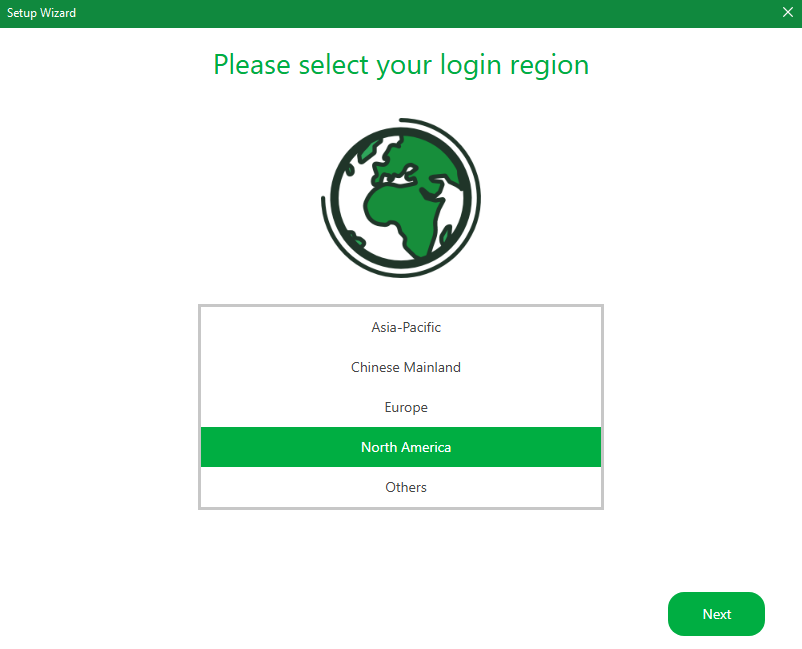
Click “North America” and then click next.
-
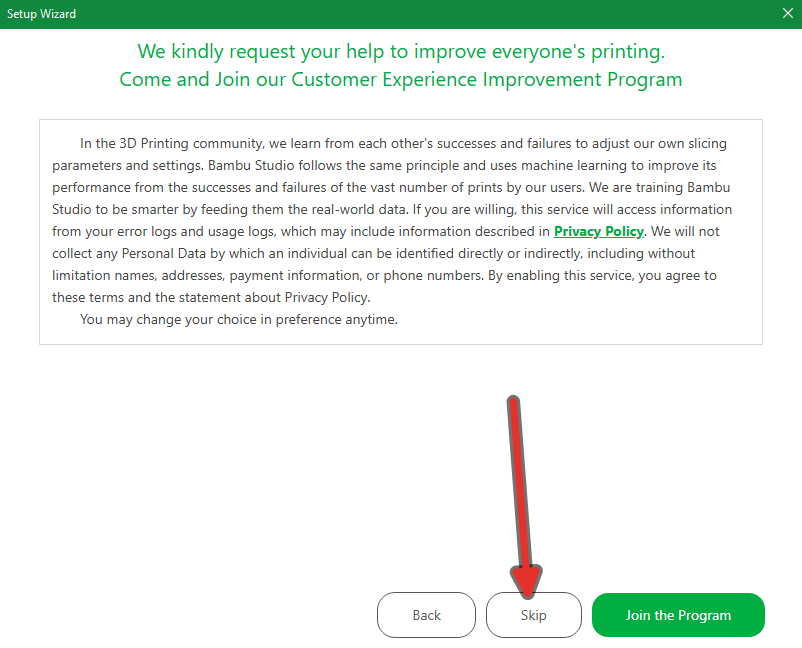
On the page “Help Improve 3D Printing for Everyone” page, click “Skip”.
-
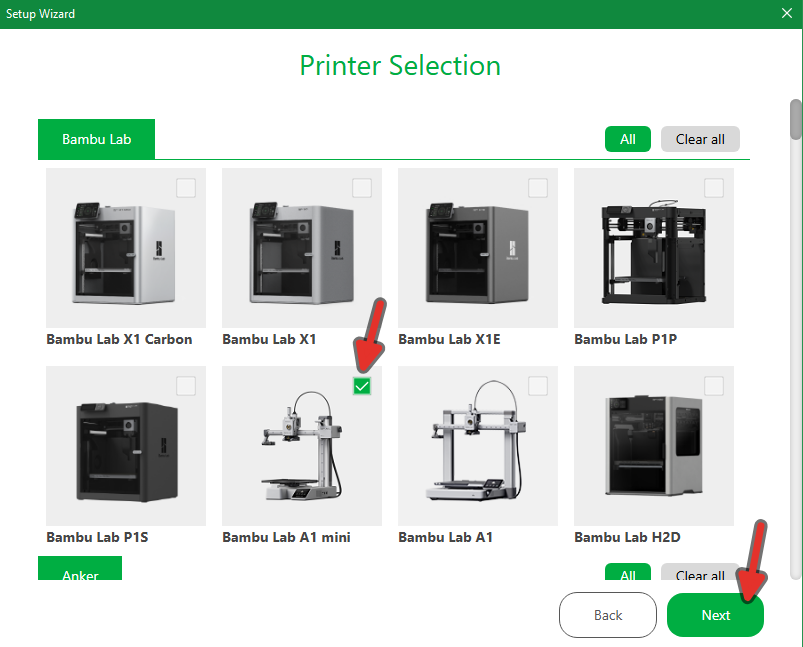
Under “Printer Selection”. Find the “Bambu A1 Mini” and select it, then click next. Select the 0.4 mm nozzle profile if prompted.
-
Under Vendor, deselect “All”, then select “Bambu” and “Generic”. Under Filament Type, deselect all “All”, then select “PLA”. In the top right corner, select “Select All”, then click “Next”.
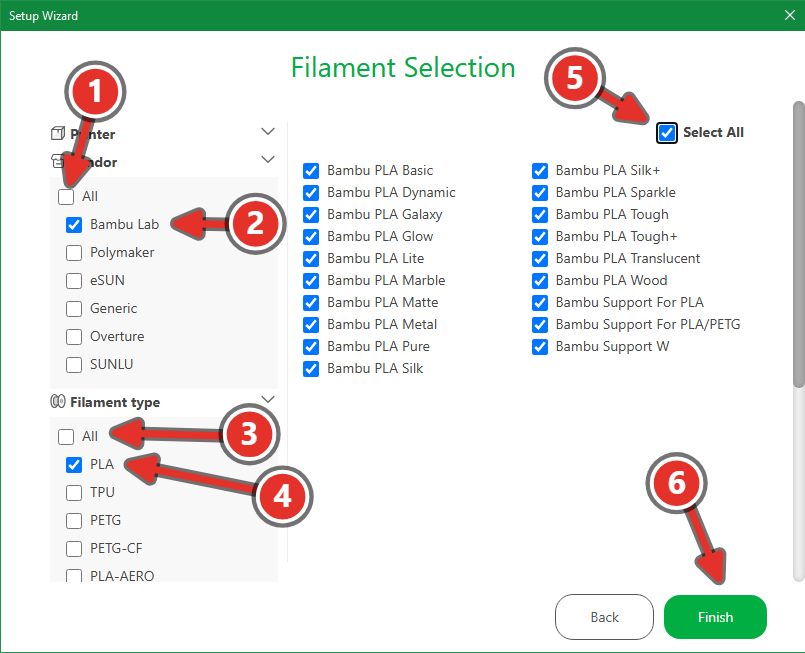
-
On the next page, uncheck “Install Bambu Network Plugin”. It is not needed. Then click Finish.
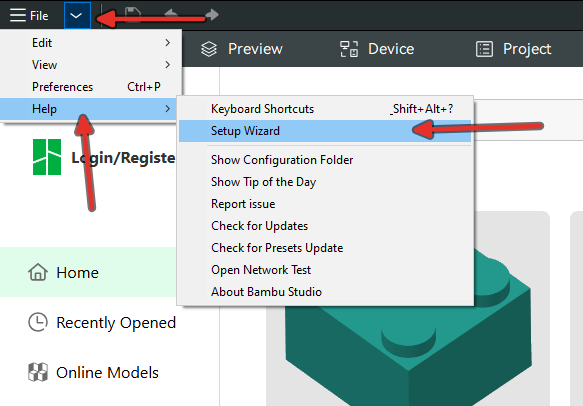
If you have messed up any of the steps above, or need to redo or reaccess any of the following, you can find it from the main menu by clicking the button next to “File” in the top left corner, then “Help” > “Setup Wizard”
4.2Load the model#
-
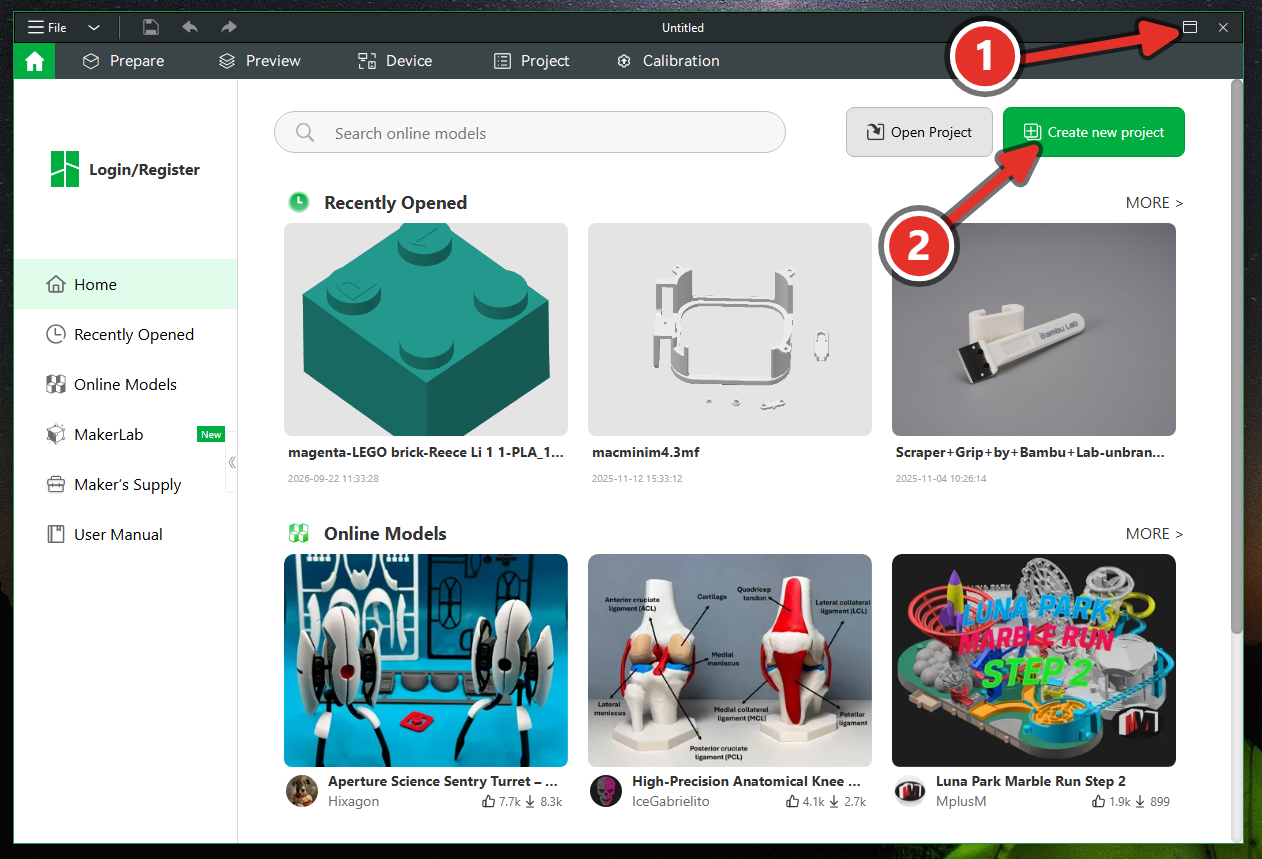
Maximize your window so that it occupies the full screen, then click on “Create New Project”
-
In the top left corner, click on File > Import > Import 3MF/STL/STEP/SVG/OBJ/AMF, find your STL file in your Downloads folder, click on it, then “Import”. You should see your model on the plate.
Quick Check
If your imported file is enormous or microscopic, your slicer program will offer to scale it, which usually means the export units were wrong or you have the wrong dimensions in your file. This is where you close Bambu Studio and go back to TinkerCAD to fix your file before continuing.
4.3Place the Print#
Orientation (where your print is placed) decides how strong the print is, how good it looks, and whether it needs supports. This matters more than any setting in the slicer.
Tools on the left toolbar:
| Tool | Shortcut | Use |
|---|---|---|
| Move | M | Position on the plate |
| Scale | S | Resize. Keep the proportions locked unless you mean it |
| Rotate | R | Turn about any axis |
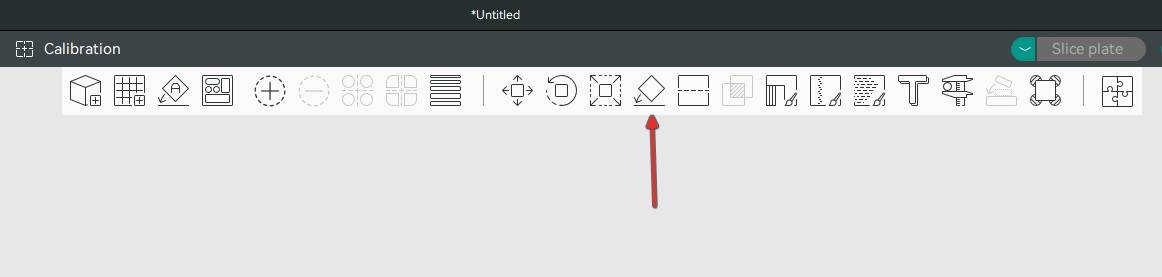
| Lay on face | F | Click a face and it goes flat on the bed. The fastest way to orient anything |
| Auto arrange | A | Spaces multiple objects out on the plate |
If you modelled your LEGO Brick correctly, is already oriented properly for the best printing, you may skip to Slicer Settings. If you are printing a different model, continue reading.
Use the Lay On Face (F) tool to put the largest flat face on the bed. Select the white face that has the most area. More contact area means better adhesion and less chance of the part coming loose when it is printing. Use your best judgement here or call your teacher over to chat.
4.4Slicer Settings#
Work down the left hand panel.
4.4.1Printer, Nozzle and Plate#
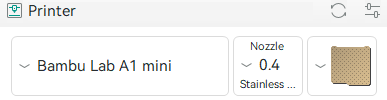
Confirm the model and nozzle diameter match the machines we’re using. You should be using Bambu A1 Mini, 0.4mm Nozzle and Textured PEI Plate.
4.4.2Filament#
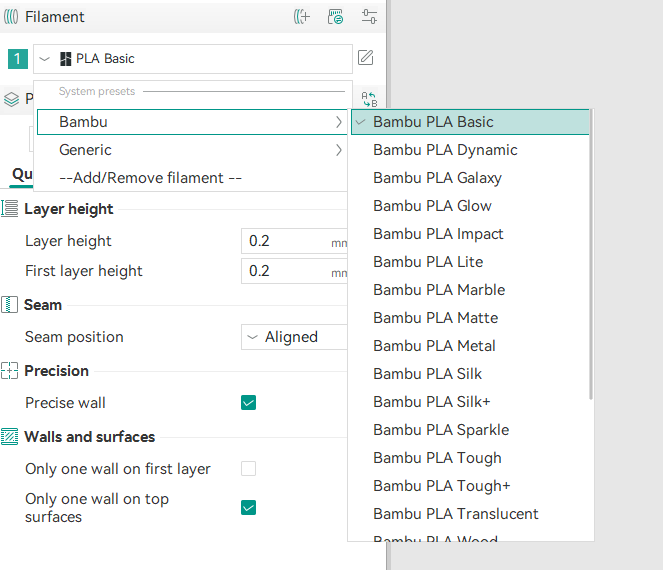
Set this to what is physically loaded in the printer, check with your teacher to see what filament is being used for your prints. Most of the time, we are using Bambu PLA Matte.
4.4.3Process#
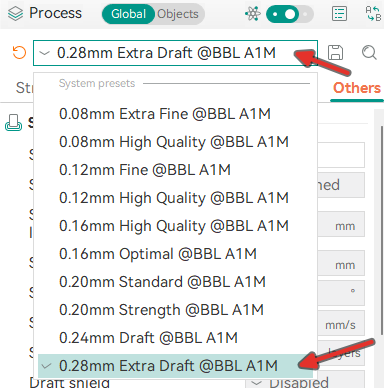
Layer height affects the quality of the print but increases the print time. Thinner layers (smaller numbers) will have less noticeable layer lines, but will increase print time significantly. For your LEGO Brick (and most things you will print in the class), chose the 0.28mm Extra Draft layer height profile.
| Layer Height | Level of Detail |
|---|---|
| 0.08 | Almost invisible layer height, only useful for prints that are purely cosmetic |
| 0.12 | Almost invisible layer height, only useful for prints that are purely cosmetic |
| 0.16 | High quality, useful for your final version of a print |
| 0.20 | The default, good for testing. |
| 0.24 | Lower quality, useful for testing. |
| 0.28 | Lowest quality, but quickest printing, use this setting for almost all of your prints except for ones that need to look nice |
4.4.4Quality Tab#
These are settings that affect the quality of the print. For almost every print, you can leave these as defaults. Consult the table below for what each setting does and how it affects your final print:
| Setting | Function | Impact on Quality, Time, & Properties |
|---|---|---|
| Layer height | Sets the thickness of each standard horizontal layer in millimeters. | Smaller layer heights dramatically improve vertical resolution and surface smoothness, but significantly increase overall print time. |
| Initial layer height | Sets the thickness of the very first layer laid down on the build plate. | A thicker initial layer improves bed adhesion and absorbs minor bed leveling irregularities with virtually no impact on overall print time. |
| Mixed color sublayer | Generates thinner intermediate sub-layers to blend colors in multi-material prints. | Smooths color gradients and reduces material bleed-through between contrasting colors, but increases slicing complexity and total print time. |
| Seam position | Determines where the start and end points of wall perimeters (Z-seam) are aligned on each layer. | Hiding or aligning the seam reduces visible surface bumps to improve visual quality with no impact on print speed or part strength. |
| Only one wall on top surfaces | Reduces outer perimeter loops down to a single wall on horizontal top layers. | Creates a cleaner top surface finish by maximizing the area covered by continuous top infill patterns, slightly reducing print time. |
| Only one wall on first layer | Forces the first layer to use a single perimeter line regardless of global wall settings. | Maximizes the contact area for the first-layer solid infill pattern to achieve a more uniform bottom surface aesthetic with negligible impact on print time. |
4.4.5Strength Tab#
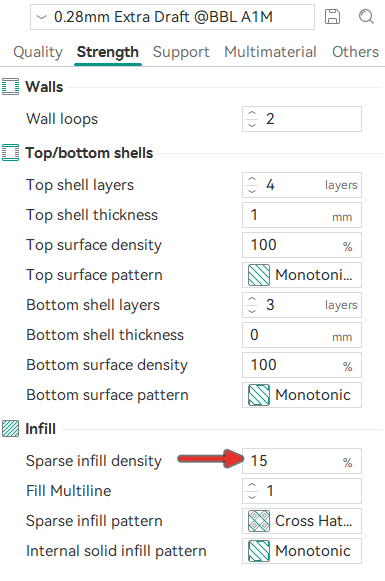
These can generally be left the same. The table below explains what each setting does. For a LEGO Brick, set the “Sparse Infill Density” to 5%.
| Setting | Function | Impact on Quality, Time, & Properties |
|---|---|---|
| Wall loops | Sets the number of continuous outer perimeter lines. | Increasing this enhances side-wall surface smoothness, boosts wall strength, and improves watertightness, but adds to total print time. |
| Alternate extra wall | Adds an additional perimeter loop on alternating layers. | Improves inter-layer bonding between infill and walls to boost vertical strength with only a minimal increase in overall print time. |
| Embedding the wall into the infill | Extends wall paths into adjacent infill regions to interlock them. | Significantly strengthens the connection between walls and infill to prevent delamination, though it can slightly increase print time. |
| Top surface pattern | Sets the extrusion line pattern for the top visible layer. | Alters the visual finish and light reflection of the top surface with negligible effect on print speed or part strength. |
| Top shell layers | Sets the minimum number of solid top layers. | Higher layer counts prevent surface sagging (“pillowing”) and improve puncture resistance at the cost of slightly longer print times. |
| Top shell thickness | Defines the target height of the top shell in millimeters. | Guarantees minimum top surface strength regardless of layer height settings, potentially adding print time if extra layers are required. |
| Top paint penetration layers | Sets how many layers deep painted color regions extend into top shells during multi-color prints. | Ensures painted top colors remain vibrant without base bleeding, though higher values increase filament waste and print time in multi-color prints. |
| Bottom surface pattern | Sets the line movement pattern for the bottom surface layer. | Controls the visual texture of the first layer with no noticeable impact on structural strength or print speed. |
| Bottom shell layers | Sets the minimum number of solid layers on the build plate. | Improves base floor rigidity and prevents internal infill from showing through while slightly increasing print time. |
| Bottom shell thickness | Defines target thickness of the bottom shell in millimeters. | Ensures a consistent floor thickness across variable layer heights, slightly increasing print time if extra solid layers are needed. |
| Bottom paint penetration layers | Sets how many layers deep painted color regions penetrate into bottom shells during multi-color prints. | Prevents base material from bleeding through bottom painted features in multi-color prints, slightly increasing print time and material flushes. |
| Internal solid infill pattern | Sets the line pattern for solid bridging layers beneath top shells. | Provides a flatter foundation for top shells, marginally improving surface smoothness without significantly affecting print time. |
| Sparse infill density | Sets the internal fill percentage inside the model. | Higher density significantly increases internal strength and top surface support, but substantially increases print time and material use. |
| Fill multiline | Extrudes infill paths using multiple parallel lines per pass. | Thickens internal structural lines to increase rigidity and can shorten print time through long, continuous extrusion paths. |
| Sparse infill pattern | Sets the 3D geometric shape of the internal support structure. | Dictates multidirectional strength and impacts overall print speed based on the geometric complexity of the pattern. |
Change one thing at a time if you’re experimenting
If a print goes wrong and you changed six settings, you will have a hard time figuring out which setting is giving you trouble. Change one setting, print, look at the result, then decide.
4.4.6Support tab#
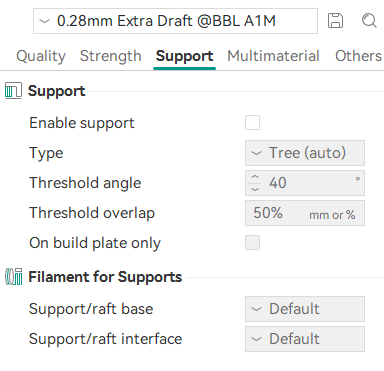
Supports are needed for parts where there are large overhangs. It takes a bit of practice and thinking to figure out what kinds of supports are best, and whether they are even needed at all. A good 3D printed object creates minimal waste, so design your parts with supports in mind.
For the LEGO Brick, leave “Enable support” unchecked. The overhangs on a 2x2 LEGO brick are mostly bridges that can be printed without issue. You will notice a small cosmetic issue underneath the bricks, but it will not affect it’s functionality.
| Setting | Function | Impact on Quality, Time, & Properties |
|---|---|---|
| Enable support | Toggles the generation of removable support structures for overhangs and bridges. | Prevents filament drooping or print failure on steep overhangs to ensure surface quality, though it increases total print time and material consumption. |
| Type | Selects the structural style and generation algorithm for supports (e.g., Tree vs. Normal). | Tree supports generally print faster, use less filament, and leave fewer surface scars, while Normal supports offer better physical stability for broad, flat overhangs. |
| Threshold angle | Sets the maximum overhang angle that can print without triggering support structures. | Increasing the angle reduces support generation to save print time and material, but setting it too high can cause steep overhangs to sag. |
| On build plate only | Restricts support structures to grow only from the build plate rather than model surfaces. | Prevents support scarring on upper model surfaces and reduces print time, though high-altitude overhangs may be left unsupported. |
| Support/raft base | Assigns the filament slot used to print the main body and foundation of the support structure. | Using standard or budget filament minimizes material costs and reduces unnecessary tool swaps during multi-material prints. |
| Support/raft interface | Assigns the filament slot used for the contact layers directly touching the model overhangs. | Using specialized support material yields pristine overhang surface quality and effortless removal, but drastically increases print time due to frequent tool changes. |
4.4.7Others tab#
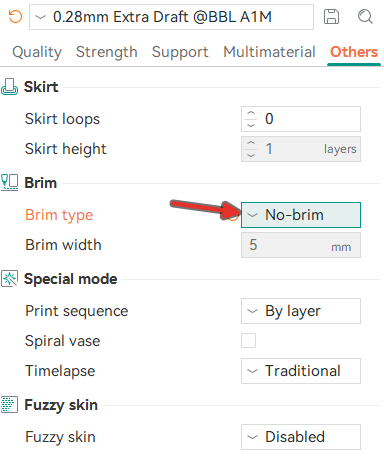
For most prints, including your LEGO brick, we don’t need to use a Brim, but it is enabled by default. Select “No-brim” from “Brim type”.
| Setting | Function | Impact on Quality, Time, & Properties |
|---|---|---|
| Skirt loops | Sets the number of outline loops printed around the object before the main print starts. | Primes the nozzle to ensure smooth initial filament flow before the part prints, adding negligible print time without affecting part quality or properties. |
| Skirt height | Sets the height in layers of the surrounding skirt outline. | Increasing height creates a protective draft shield around the model to prevent thermal warping, slightly increasing print time per layer. |
| Brim type | Selects how an extended single-layer flange attaches to the base of the model (e.g., Auto, Outer, Inner). | Significantly improves bed adhesion to prevent corner warping, though it requires edge trimming during post-processing and adds minimal print time. |
| Brim width | Controls the physical width in millimeters that the brim extends outward from the model base. | Provides greater surface contact area to hold stubborn models to the build plate, marginally increasing print time and material consumption. |
| Prime tower enable | Toggles the printing of a sacrificial wipe tower used during multi-color or multi-material toolhead changes. | Stabilizes nozzle pressure and prevents color bleeding between filament changes, but noticeably increases print time and material consumption. |
| Prime tower width | Sets the width in millimeters of the prime tower structure. | A wider tower provides more purging capacity for dark-to-light filament changes to prevent color bleeding, at the expense of extra material and minor print time additions. |
| Prime tower rib wall | Adds internal structural ribbing inside the prime tower. | Prevents the prime tower from collapsing or warping during long prints, ensuring reliable nozzle priming while adding negligible print time. |
| Purge into objects’ infill | Redirects purged filament during color changes into the hollow interior infill of the model. | Reduces filament waste and shortens overall print time, though dark colors may show through thin outer walls on light models. |
| Purge into objects’ support | Redirects purged filament during color changes into internal support structures. | Cuts print time and material waste without risking surface color defects, as support structures are discarded after printing. |
| Print sequence | Toggles between printing all models layer-by-layer or completing each object sequentially. | Printing “By object” eliminates inter-part stringing and prevents full-plate failures, but requires sufficient toolhead clearance with minimal impact on total time. |
| Spiral vase | Forces the model to print continuously in a single upward spiral path without layer stops. | Drastically reduces print time and eliminates layer seams, but restricts the model to a delicate, single-walled hollow shell with no top surfaces or infill. |
| Timelapse | Configures toolhead movements between layers for video frame capture. | Parking the toolhead between layers creates clean timelapse videos, but noticeably increases total print time and can introduce oozing artifacts. |
| Fuzzy Skin | Selects which vertical surfaces receive a randomized textured effect. | Hides layer lines and creates a grippy tactile texture, but slightly increases print time due to high-frequency nozzle jitter. |
| Fuzzy skin generator mode | Selects the algorithm used to compute the fuzzy surface displacement. | Controls how texture micro-variations adhere to the mesh surface without noticeably affecting print speed or strength. |
| Fuzzy skin noise type | Dictates the mathematical pattern function generating the random surface texture. | Alters the visual randomness and organic feel of the surface texture with no impact on print speed or structural properties. |
| Fuzzy skin point distance | Controls the distance in millimeters between random nozzle displacement points. | Smaller distances create a finer, denser surface texture but increase print time due to higher motor step frequency. |
| Fuzzy skin thickness | Sets the maximum distance in millimeters that the nozzle jitters outward from the wall path. | Larger values make the rough surface texture deeper and more pronounced without noticeably altering overall print time. |
| Apply fuzzy skin to first layer | Toggles whether fuzzy skin displacement is applied to the bottom-most wall perimeter. | Adding texture to the bottom edge can slightly reduce first-layer bed adhesion, but gives the base perimeter a uniform textured look with no impact on print time. |
4.5Slice and check the preview#
-
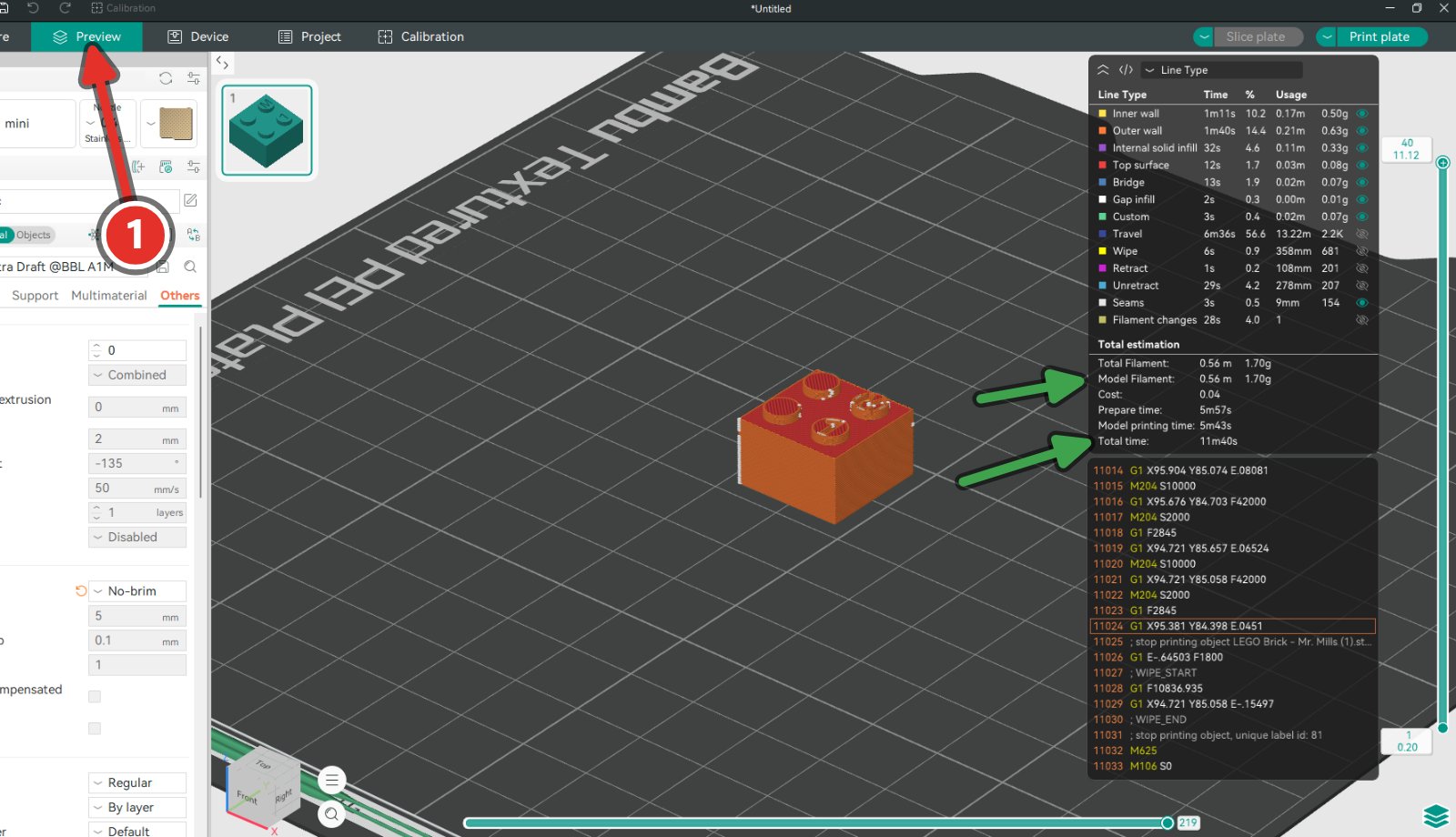
Click Slice plate.
-
Bambu Studio will switch to the Preview tab and shows the toolpath, plus the estimated time and the filament required.
-
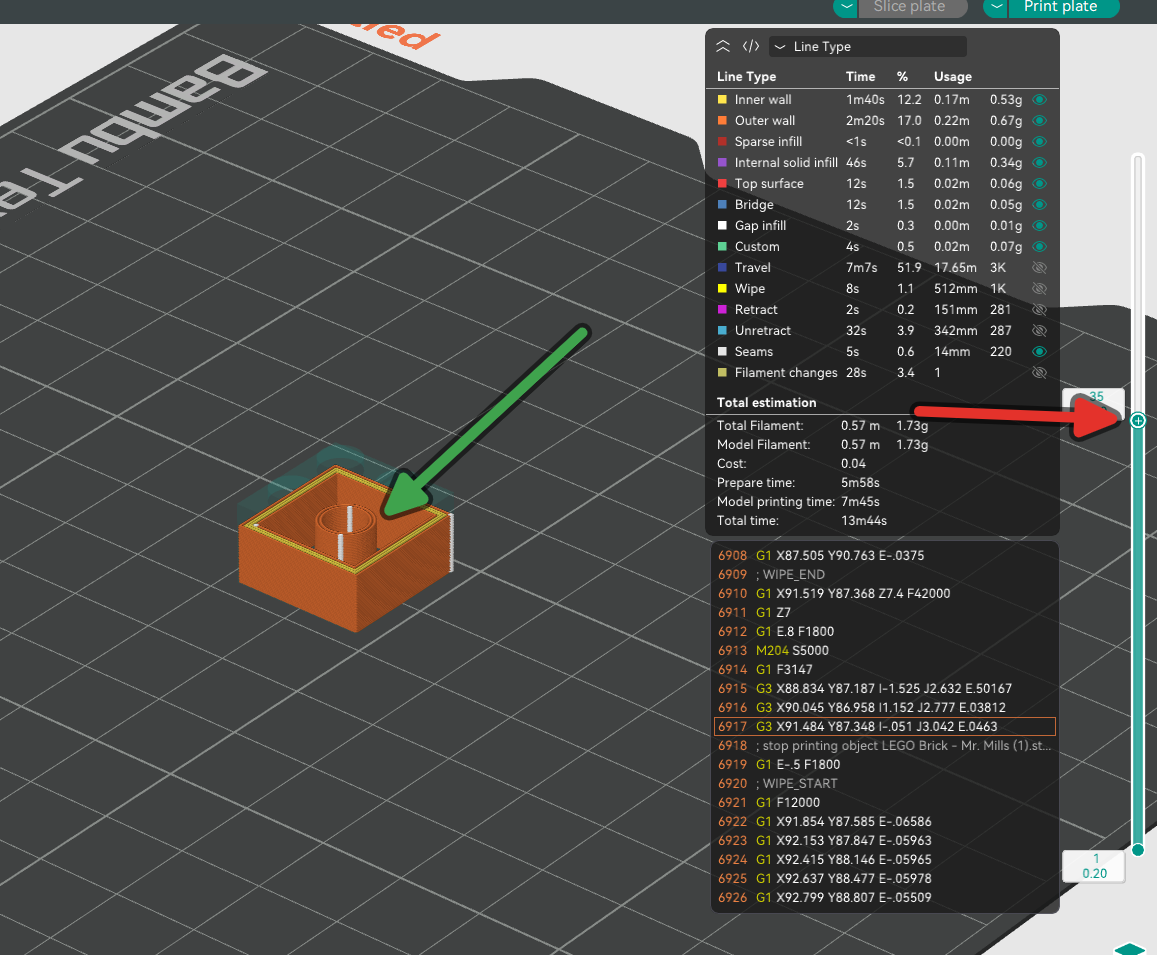
Drag the vertical layer slider on the right from bottom to top and watch the part build. Look for:
- A solid, complete first layer
- No gaps where you expected solid material
- Supports only where you meant them to be
- The part staying within the plate at every height
-
Drag the horizontal time slider on the bottom of the screen to show how each layer is constructed.
Reading the estimate
Always check to see how long your print will take. Your LEGO brick should not take longer than 13 minutes to print. If it is over this time, please review your dimensions and slicer settings.
4.6Send it to the printer#
There are two ways to send your file to the printer, Via the Print Queue, or Via SD Card. You are almost certainly going to be sending your file via the print queue unless your teacher says otherwise.
4.6.1Via the Print Queue#
-
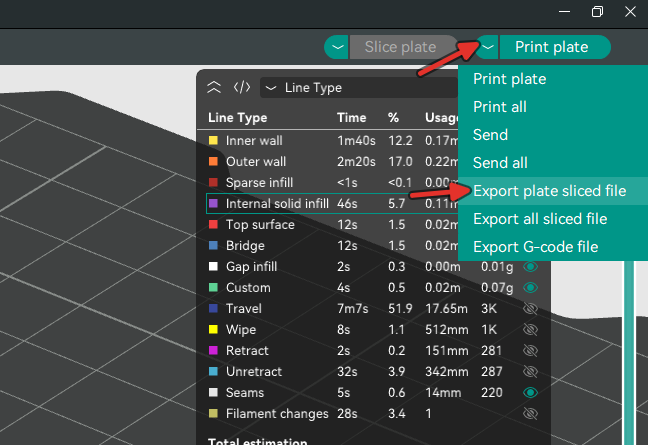
Click the arrow beside the print button and choose Export plate sliced file. Click on the button again to open the save window.
-
A new window opens asking you to save it in a location. Navigate to your
Downloadsfolder or a place on your computer that you know where to find and click Save. You will have created a.gcode.3mffile. -
Visit the classroom print queue website and add your file, follow the prompts. Your file will be added to the queue once it has been approved by your teacher.
4.6.2Via SD Card#
Note: Use this option only if the print queue software is down. You must get approval from your teacher to begin a print this way. Use the instructions above instead.
-
Click the arrow beside the print button and choose Export plate sliced file. For a Bambu printer this produces a
.gcode.3mffile.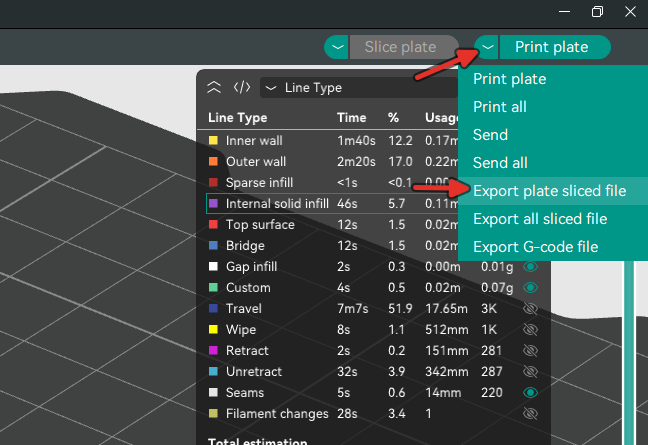
-
Plug in the microSD card to the adapter provided to you by your teacher. Save your .3mf file to the microSD card with your name in the filename.
-
In the status bar, right click “Removable Devices”, click on Eject on the SD card reader. Put the card in the printer, select the file from the printer’s SD card menu, and start it there. Ensure “Dynamic Flow Calibration” and “Auto Bed Levelling” are enabled, do not enable “Timelapse” or “AMS”.
4.7Watch the first layer#
When your print has been approved, your teacher will tell you what printer your job will be loaded in. The first layer decides whether the print succeeds. Stay at the machine until it is down. Do NOT touch the machine while it is operating. If the print has failed, select stop print on the touch screen. WAIT until the machine has completely cooled before removing the print.
-
The printer runs its startup routine: heating, bed levelling, and a purge line. This takes about 5 minutes.
-
Watch the first layer go down. It should look like flattened lines pressed together with no gaps between them and no ridges standing up.
-
Once the first layer is complete and stuck down, you can let it print.
4.8Remove the part#
-
Wait for the bed to cool to room temperature. PLA releases from a PEI plate on its own as the plate cools, because the plastic and the steel shrink by different amounts.
-
Take the plate off the machine.
-
Flex the plate gently over your table. The part pops off.
-
If it does not, cool it further. Do not attack it with a blade.
-
Put the plate back on the printer, lined up on the locating pins.
Never touch the plate surface with your fingers
Skin oil is the single most common cause of prints not sticking, and it transfers instantly. Handle the plate by its edges. If it needs cleaning, use dish soap and warm water, dry it with a lint-free cloth, and do not touch the face afterwards.
4.9Troubleshooting#
| Problem | Cause | Fix |
|---|---|---|
| Print lifts at a corner | Warping, or poor adhesion on a small footprint | Add a brim, clean the plate, check the plate type setting |
| Part will not come off | Plate is still warm | Wait until it is cold, then flex the plate |
| Text on the top is unreadable | Strokes too narrow, or letters too small | Go back to CAD and thicken them |
| Print is a stringy mess | Wrong filament profile selected | Match the profile to the spool that is loaded |
| Nothing extrudes at the start | Filament ran out, or a clog | Stop the print and get me |
| Part is the wrong size | Scaled during import, or exported in the wrong units | Re-export from CAD and reimport without scaling |
4.10Sign-off#
- Sliced file (.gcode.3mf) named with my name
- File uploaded to the print queue (or used an SD card if applicable)
- I watched the first layer, or someone else’s to see how the printer operates
4.11Clean Up#
- Remove your cooled piece from the plate
- If your fingers touched the plate by accident, clean it with soap and water and let it dry
- Refit the plate on to the printer
- Purge line and offcuts in the white bucket of scraps
- Pressed “OK” on the printer to allow the printer to be used by someone else