62D Design in TinkerCAD
Drawing your initials with the Extrude Sketch tool in Tinkercad, building a vinyl sticker no larger than 50 mm square, and exporting it as an SVG cut file.
For this tutorial, you will create a sticker. A sticker is a two dimensional job, different from the work we’ve done in 3D so far. You will craft the sticker from scratch using TinkerCAD. You are not allowed to use the Text shape, an imported font or an imported image. Every line in this design needs to be made by you so you can practice your CAD skills.
6.1Set Up the File#
-
Sign in to Tinkercad, open 3D Designs, click Create, then 3D Design.
-
Click the random name at the top left and rename it
Sticker - your name.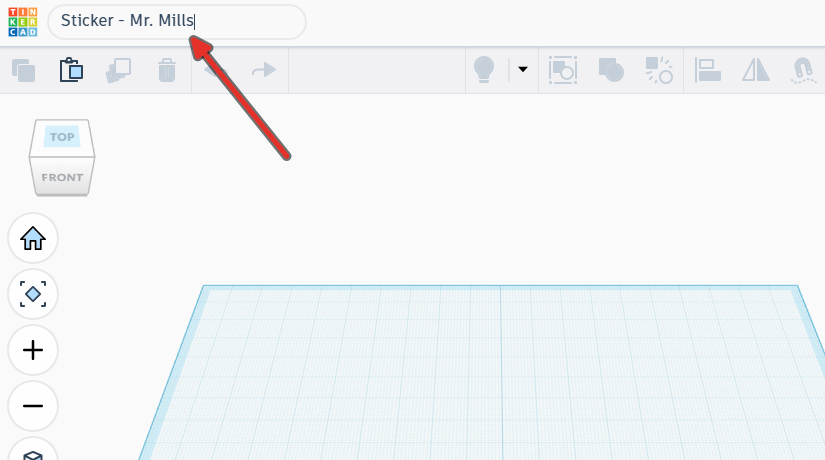
-
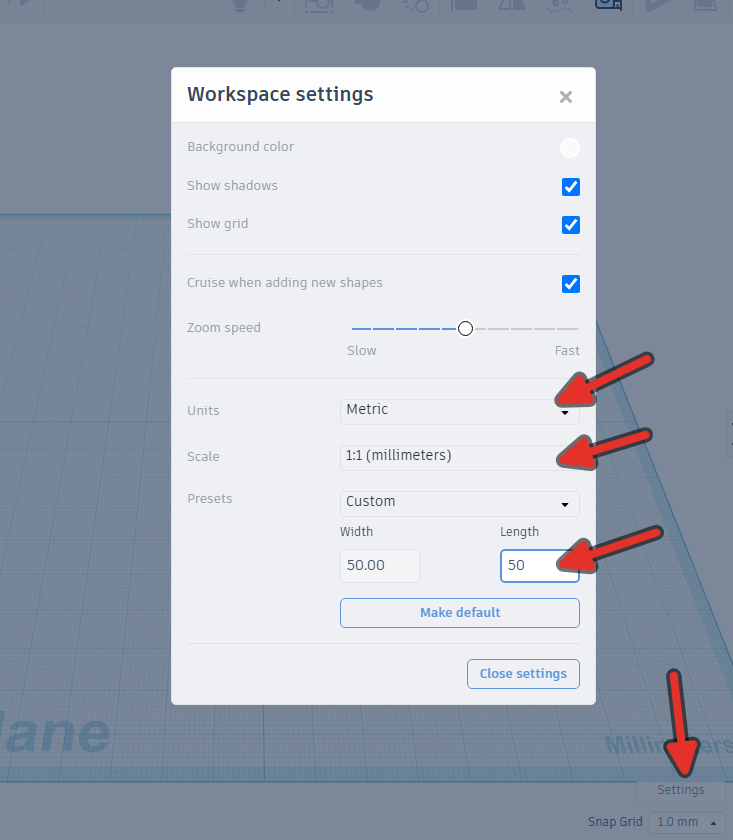
Click Settings at the bottom right of the workspace to open the workspace settings.
-
Set Units to Metric if it is not already.
-
Under the workplane presets, choose Custom and set the grid to 50 mm by 50 mm. The edge of the grid is now your size limit, visible at all times.
-
Set Snap Grid, also at the bottom right, to 1.0 mm.
6.2Extrude Sketch Tool#
-
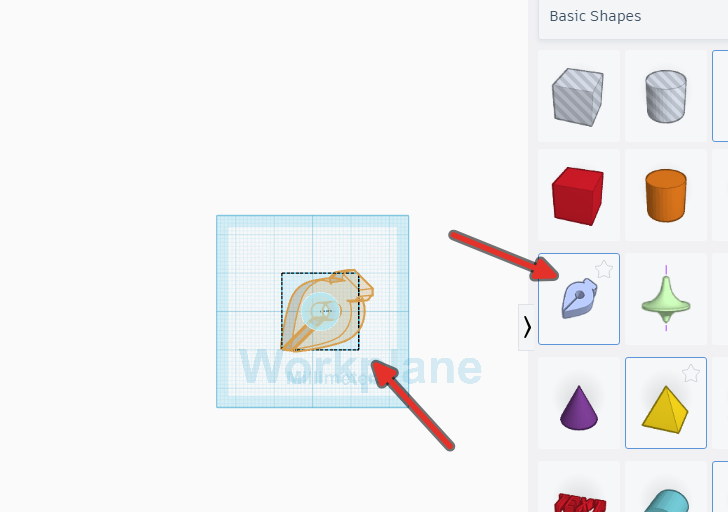
Open the shapes panel on the right and find Extrude Sketch. Its icon is a pen tip.
-
Drag it onto the workplane. Tinkercad switches into the sketch workspace, which is a flat drawing view with its own set of tools and its own grid.
These are the three drawing tools. They all place points, and they differ only in what happens to the path between one point and the next.
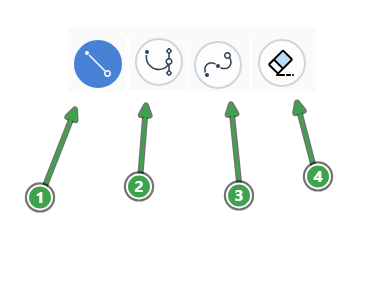
| Tool | How you use it | What it gives you |
|---|---|---|
| Line | Click once at each corner | A straight segment between each pair of points |
| Bezier curve | Press at a point and drag before releasing | A curve whose shape you steer with the two handles you pulled out |
| Smooth curve | Click a few points along the path of the curve | A curve that runs smoothly through every point you clicked |
Three more things you will use constantly:
- Select and move appears as soon as a path is closed. It picks points, segments or the whole shape and moves them. Hold Shift to add to or remove from the selection, or drag a rectangle over several points at once.
- Refine adds points to a segment or removes points from it.
- Press F to fit the whole drawing into the window.
The preview in the corner
A small preview of the finished solid appears in the corner of the sketch workspace while you draw. Use it. If the preview shows nothing, your path is not closed yet, and an unclosed path produces no shape.
6.2.1Drawing Block Letters#
Pick any two alphanumeric characters. It could be your initials, a number that is special to you, etc.
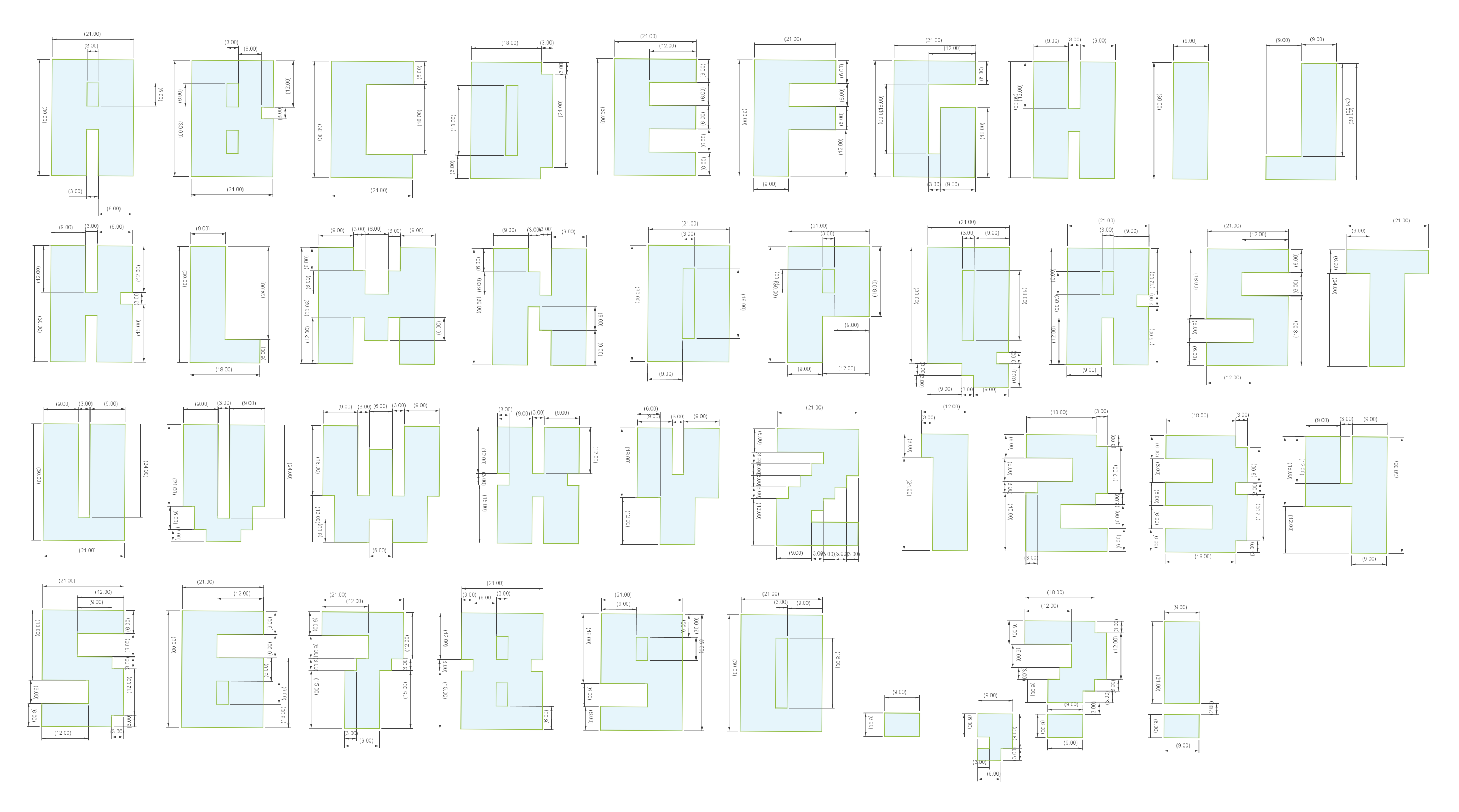
Consult the technical diagram for the block letters to find their dimensions. You can view the image full size in a new tab by clicking here.

-
Choose the Line tool.
-
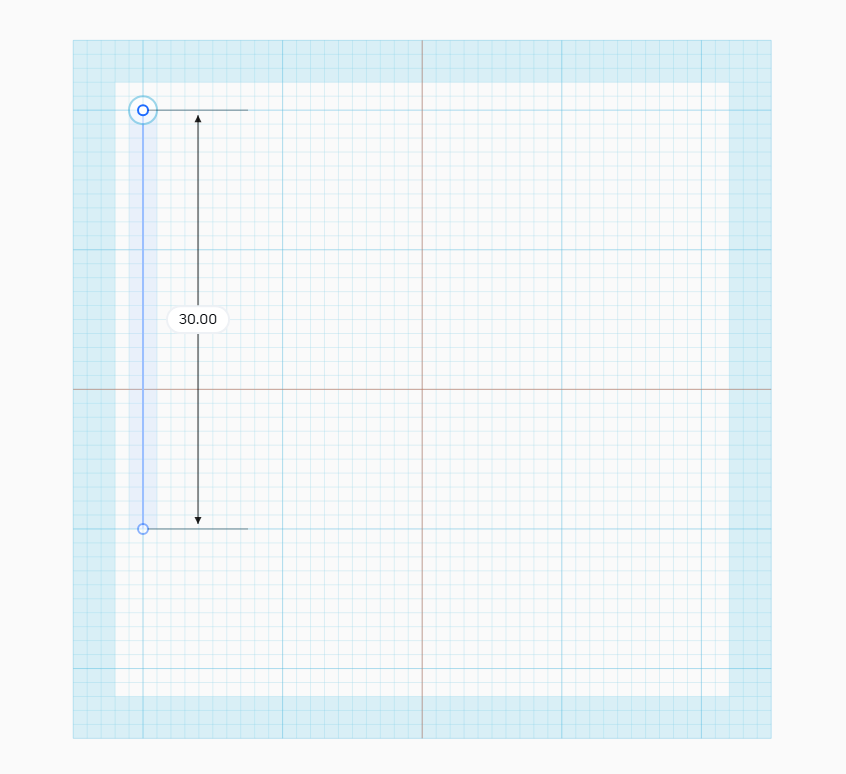
Click once at the first corner of your letter. Do not drag. Dragging is how you move a point you have already placed.
-
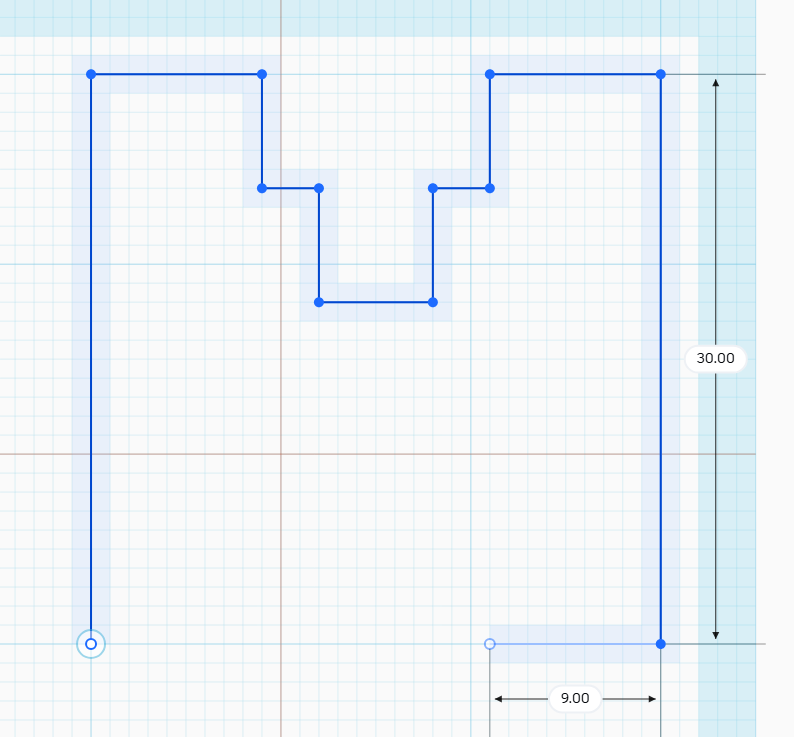
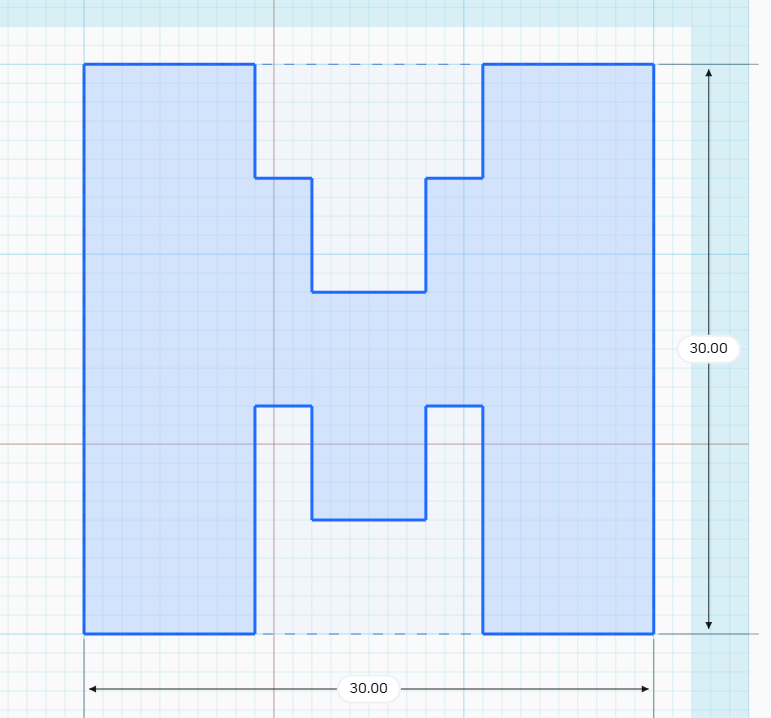
Click each remaining corner in order, going the same way round the letter the whole time, either clockwise or counter clockwise. Use the dimensions provided to you, match it with what you see on the screen. At any point, you can click in the number boxes and manually enter in a dimension.
-
To finish, click back exactly on the first point. The path closes, the shape fills in, and Tinkercad switches to the edit tools.
-
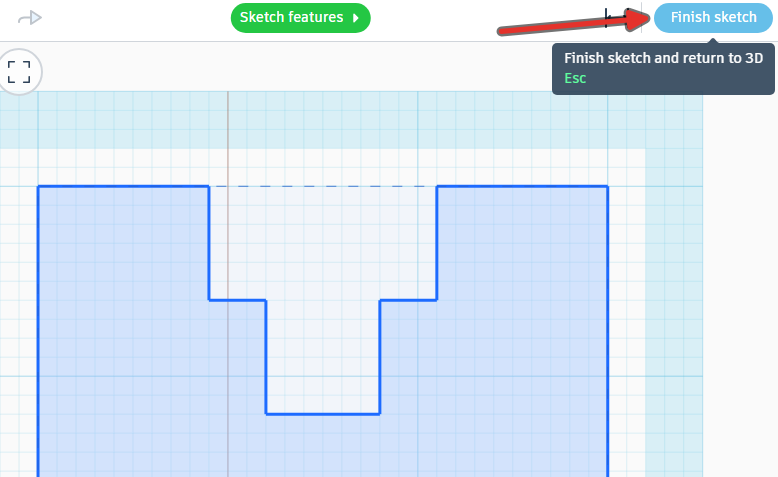
Look at the letter. Nudge any point that is in the wrong place with Select and move. Click Done to finish the sketch. The letter drops onto the workplane as a solid shape.
-
Repeat steps with a new extrude sketch tool for each letter/shape you will add to your design.
-
If your design has any holes (called counters) read this step. If you do not have any, skip to step 9.
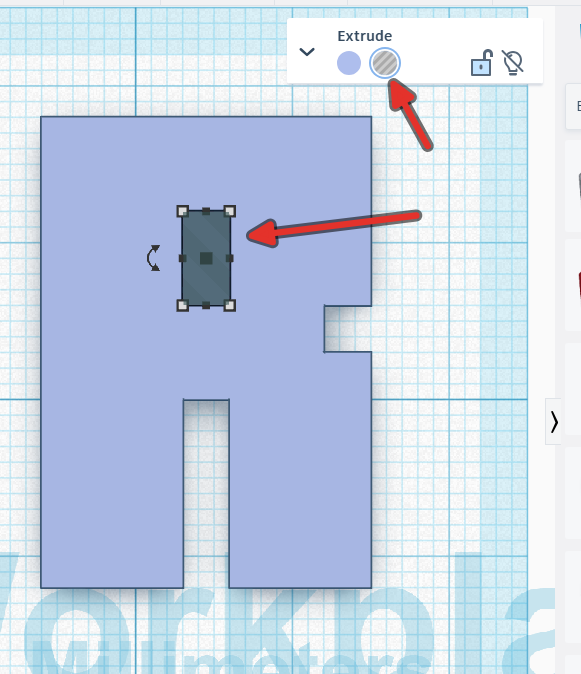
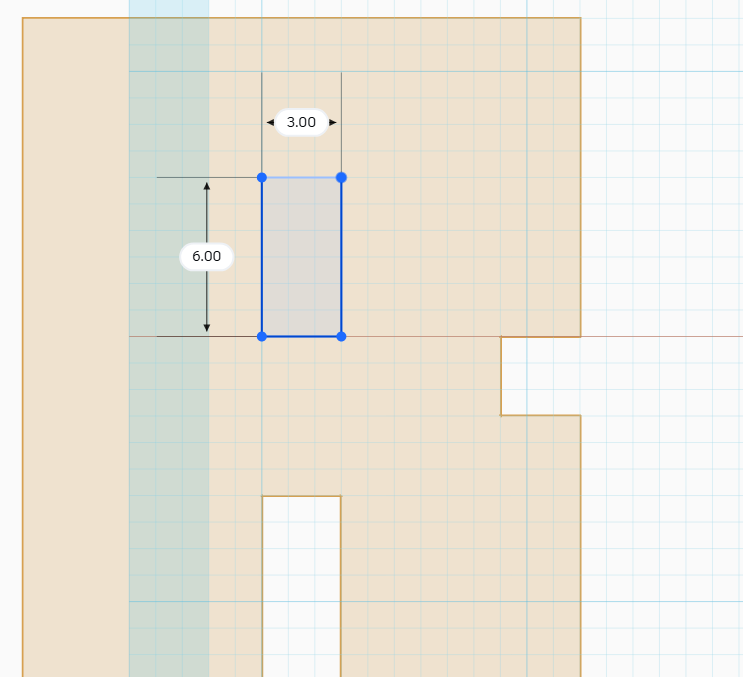
Any holes in letters need to be processed separately as a different sketch, and then using the hole and group tools, cut the “counter” out of the shape body. Create a new sketch extrude tool for each time this happens.
-
Leave the extrude tool editor and select everything with Ctrl + A.
-
Press D to drop the selection onto the workplane. Anything floating above the workplane or sunk below it can vanish from the export.
-
With all of your objects selected, type 5mm into the height box. The toolpath (cut) you are making will not have any height, but it is helpful for us to view the design like this since our CAD program works in 3D.
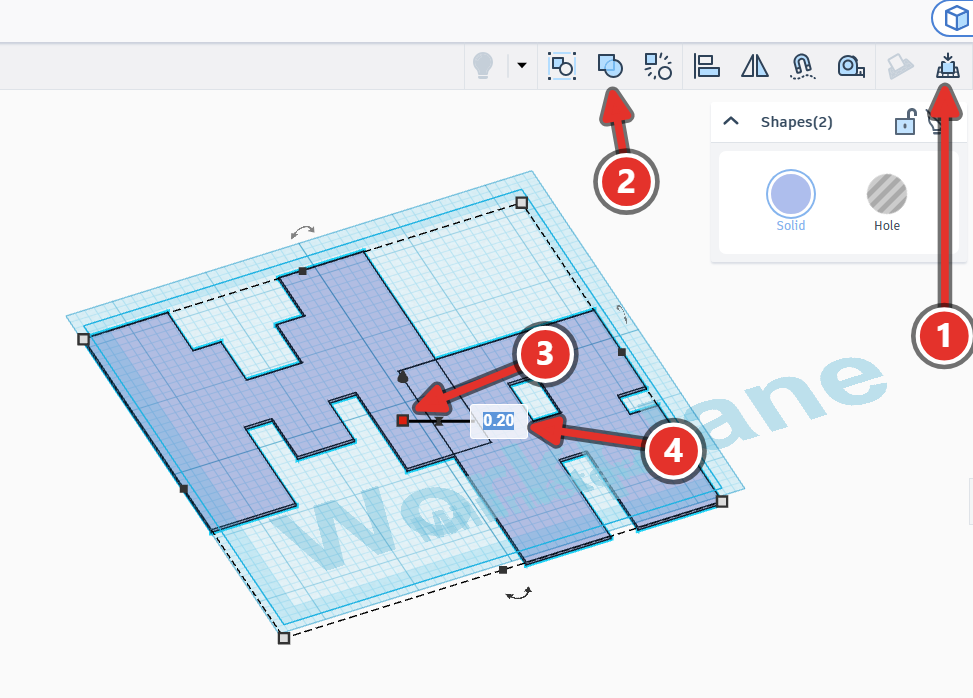
6.2.2Add an Outline#
Your design should fit in a 50mm by 50mm square, so we’ll add a box around your work so that it can be cut away from the vinyl sheet.
-
Add a box primitive to your work plane and place it in the far left corner of the workplane. You may want to click on the “Top” view to get the position right.
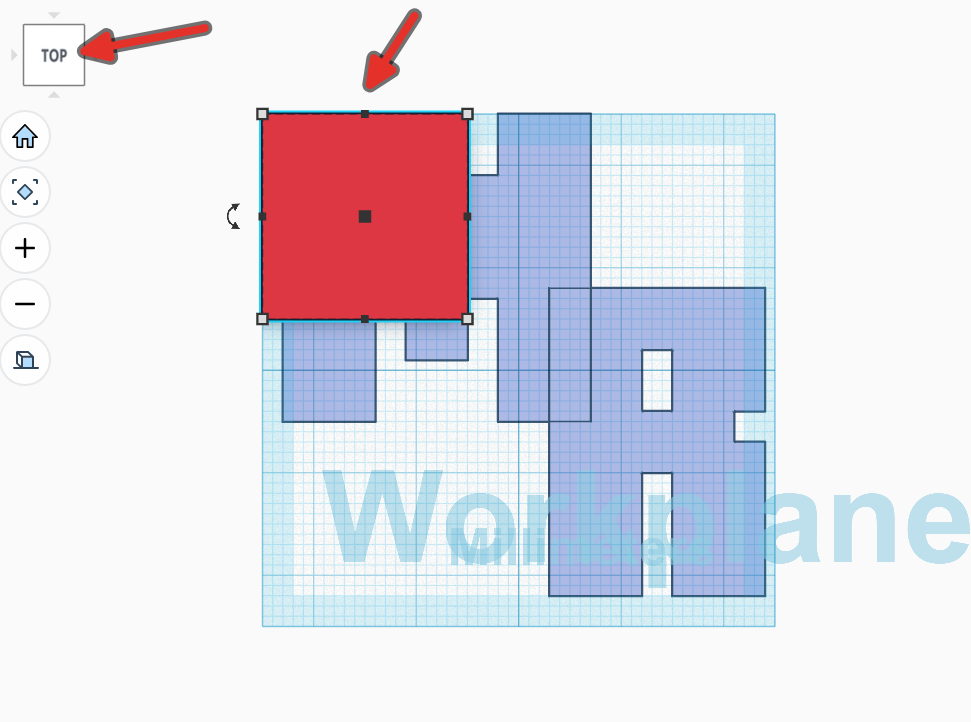
-
Change the dimensions of the box to 50mm wide, 50mm long, and 5mm tall.
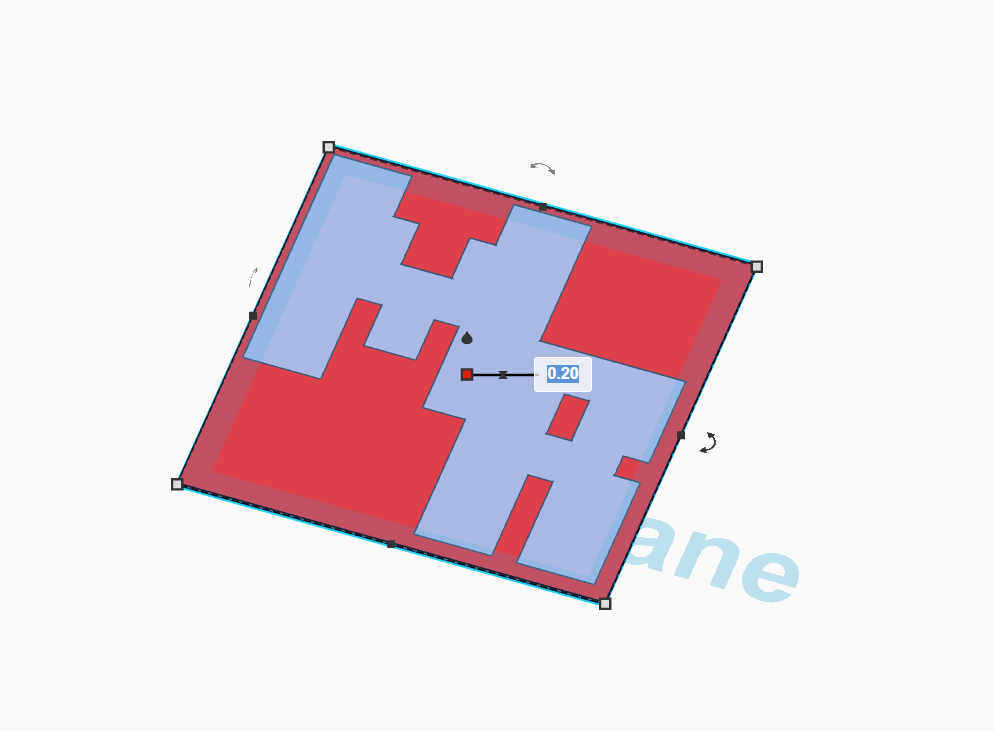
-
Select your design with your characters in it and set it to “Hole”, then select both of your shapes and group it together.
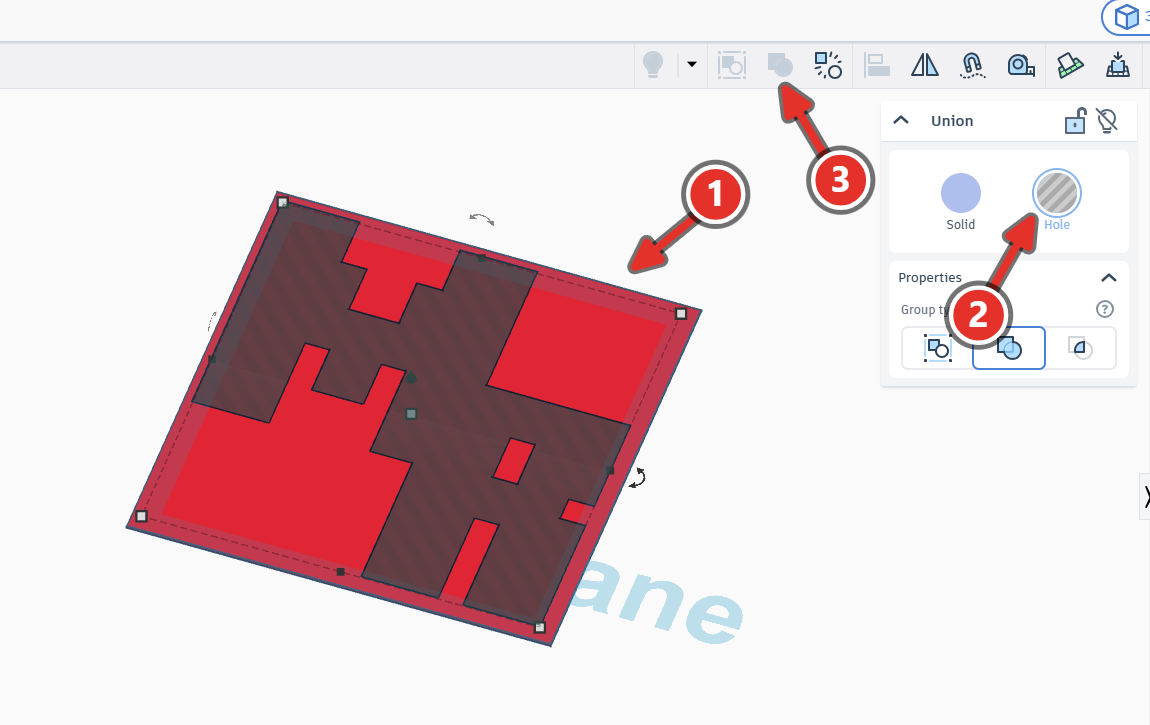
-
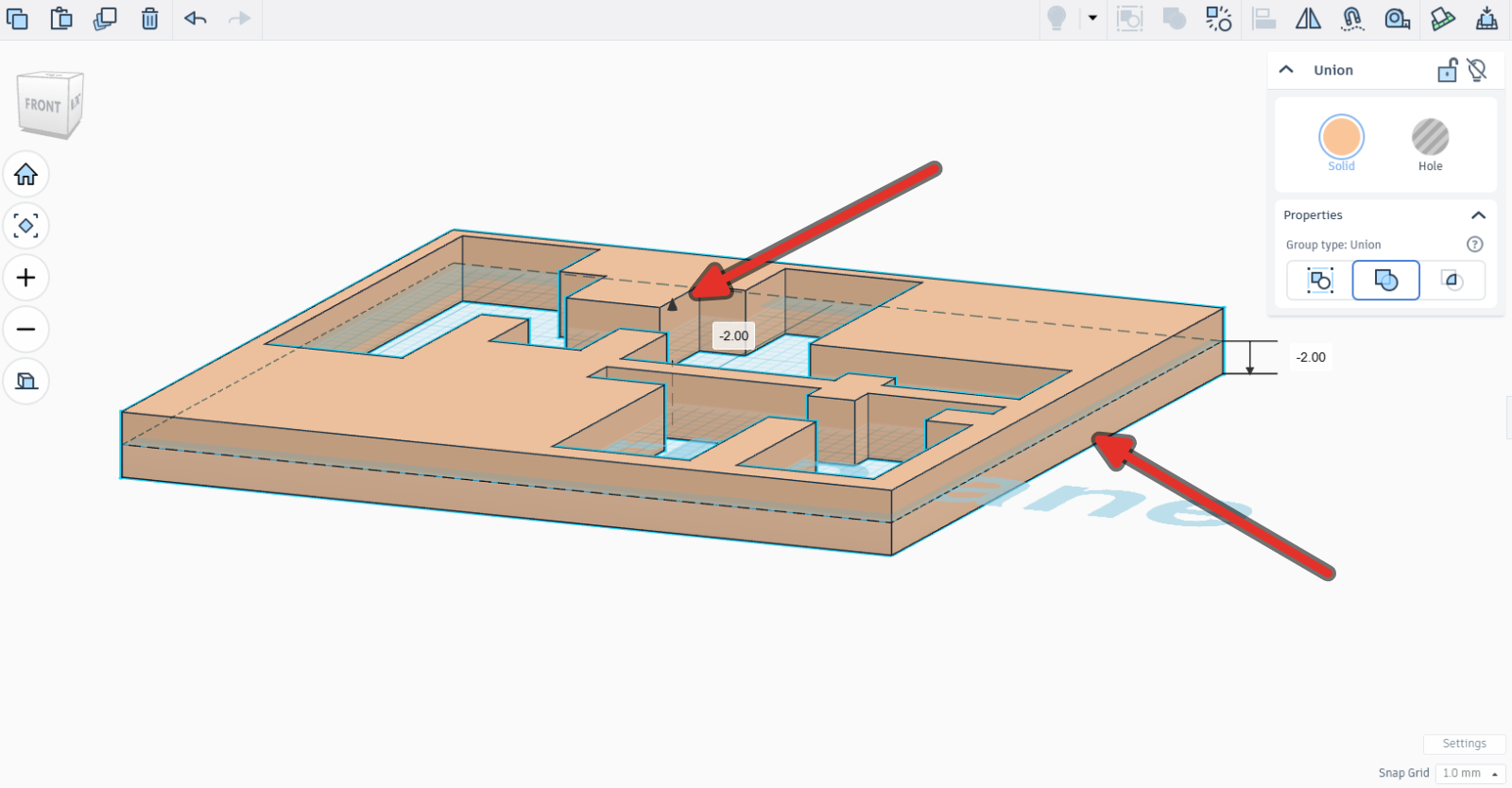
With your design selected, click and hold the cone, and drag it ever so slightly down (~1 or 2mm) so that the workplace intersects the design.
6.3Using the Ruler in TinkerCAD#
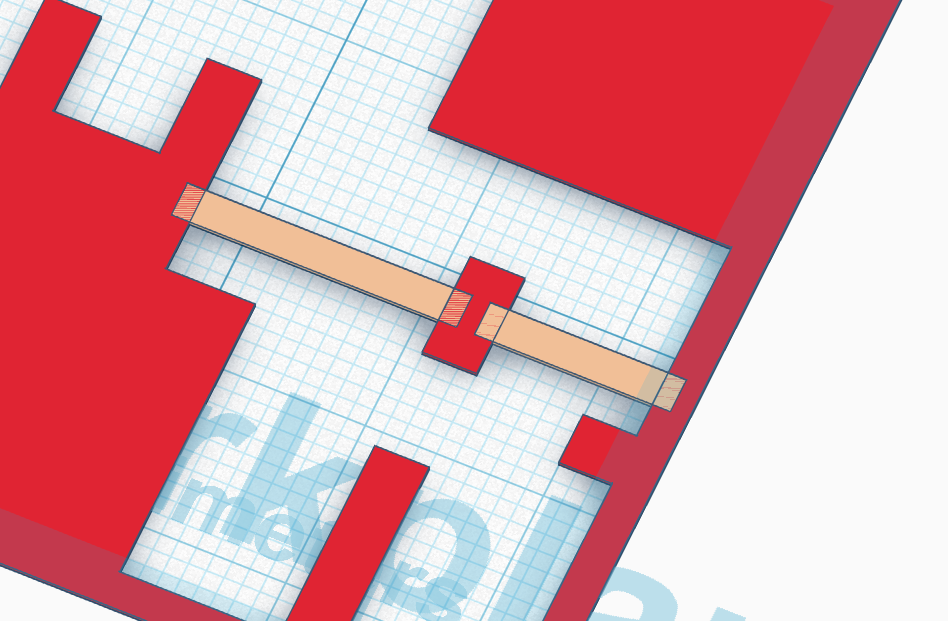
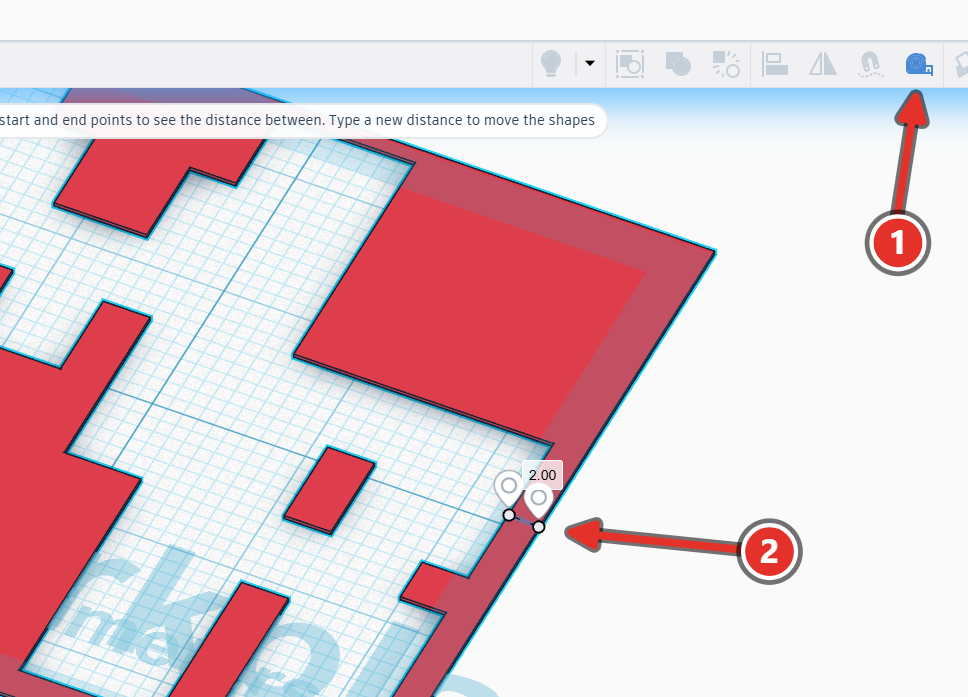
There should be no part of your design that is thinner than 2mm, otherwise you’ll have a difficult time peeling it off the board when it is cut. Use the ruler tool to check all thin parts and make adjustments as needed.
6.4Export the SVG#
-
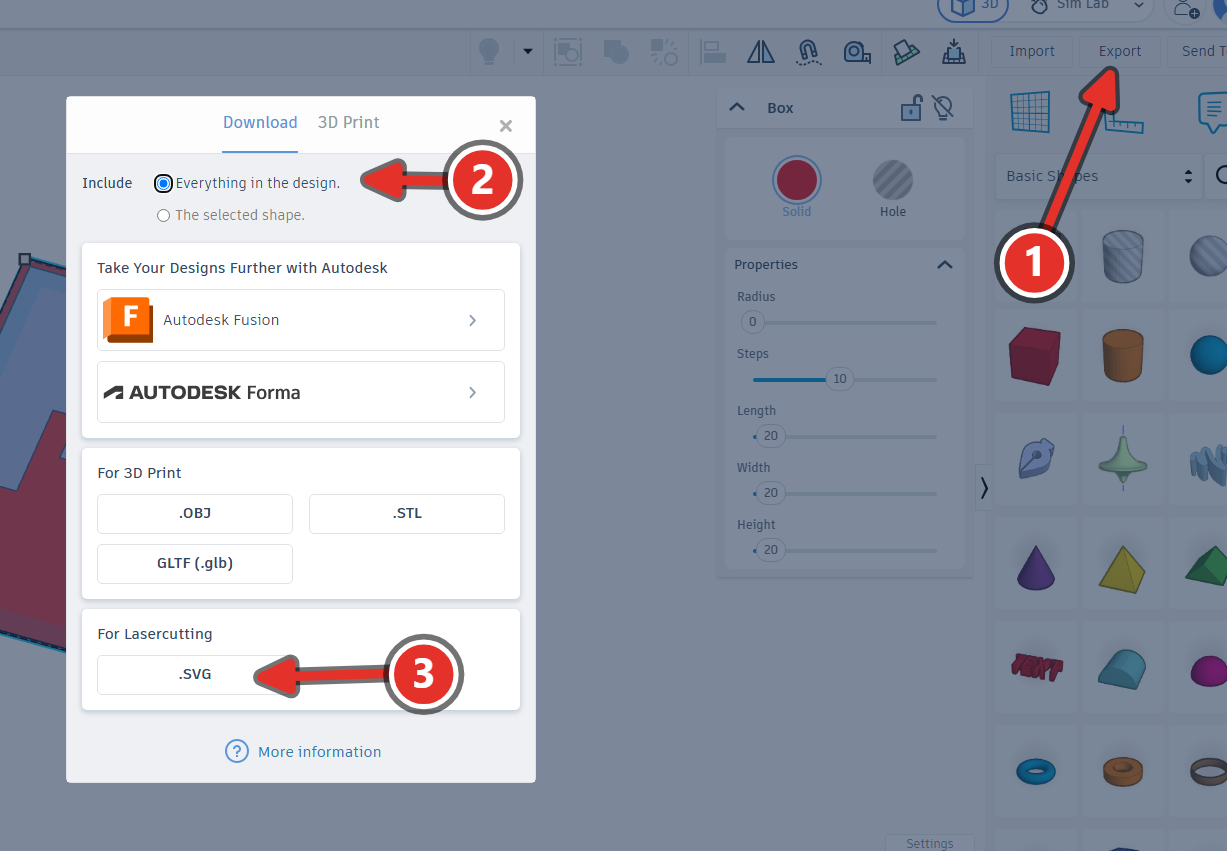
Click somewhere empty so nothing is selected, which exports the whole design, rather than individual shapes.
-
Click Export on the top toolbar.
-
Under Include, choose Everything in the design.
-
Under For Laser Cutting, choose SVG. The file downloads to your Downloads folder, containing your design as red outlines only.
6.5Check It#
Use this website to check what your exported SVG will produce when it is sent to the Cricut.
6.6Send it#
Email me the SVG at kieran.mills@tdsb.on.ca. The email should contain:
- A subject line that summarises it, for example
Sticker from John - A greeting addressing the recipient
- A sentence saying what the email is about, including the size your design should be in millimetres
- Your name at the end
- The SVG attached, correctly named
6.7Sign-off#
- Design named with my name in TinkerCAD
- Initials drawn by me with the sketch tools, no fonts and no imported art
- Design fits inside 50 mm by 50 mm
- SVG exported and named
firstname-sticker.svg - SVG emailed to me, with the size written in the email
6.8Troubleshooting#
| Problem | Cause | Fix |
|---|---|---|
| The sketch produces no shape | The path is not closed | Reopen with Edit Sketch and click the last point onto the first |
| The path closed in the wrong place | A stray click landed on an existing point | Undo with Ctrl+Z and place the point somewhere clear |
| A curve ripples or wobbles | Too many points along it | Select the extra points and remove them with Refine |
| A curve will not follow the letter | Too few points along it | Add points with Refine, or switch the point to Split Handles |
| A corner came out rounded | The point is smooth | Select it and click Make Corner |
| Part of the design is missing from the export | That shape is above or below the workplane | Select everything and press D |
| Letters look joined but export as separate pieces | They touch at one point, or there is a hairline gap | Overlap them by at least 1 mm |
| A letter will not take a typed size | It is part of a group | Ungroup with Ctrl+Shift+G, resize, then group again |
| Everything is 25 times the wrong size | Units are set to Imperial | Change the units in Settings, then retype every dimension |
| The design will not sit inside the grid | It was sized by dragging | Type the length and width instead |
6.9Level Up#
-
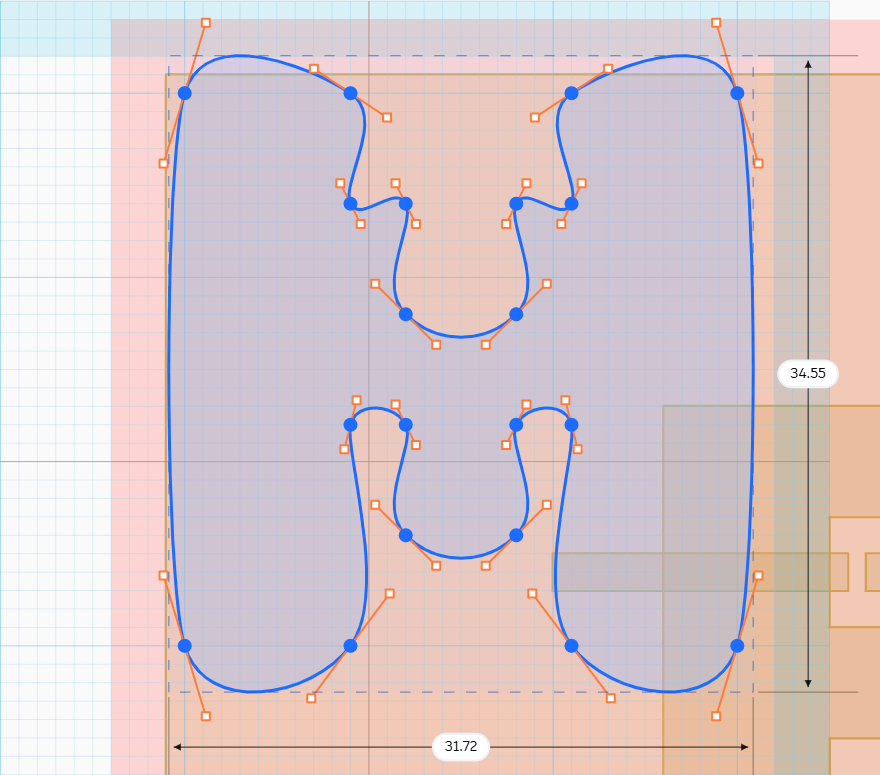
Experiment with the curve tools to redraw your sticker design. Make your sticker circular or add new shapes, designs. Keep in mind that the thinnest part of any of your design should be no less than 3mm, otherwise it will be difficult to remove from the vinyl backing paper.
-
If your design has any counters in it, it won’t peel off uniformly with your design. You can add small slips (don’t make them smaller than 2mm or they will tear) to join the counters to the design.