7Minecraft Redstone Basics
Setting up Minecraft Education and learning how redstone inputs and outputs work.
You will set up a world in Minecraft Education, learn how redstone carries a signal, and build small circuits that use different inputs and outputs.
7.1Set up the world#
-
Launch Minecraft Education from the desktop by double clicking on the icon or by searching for it in the Start menu.
-
Sign in with your TDSB email address if prompted.
-
Before you click Play, note the version you are running in the bottom right corner. You can only play with other students who are running the same version as you.
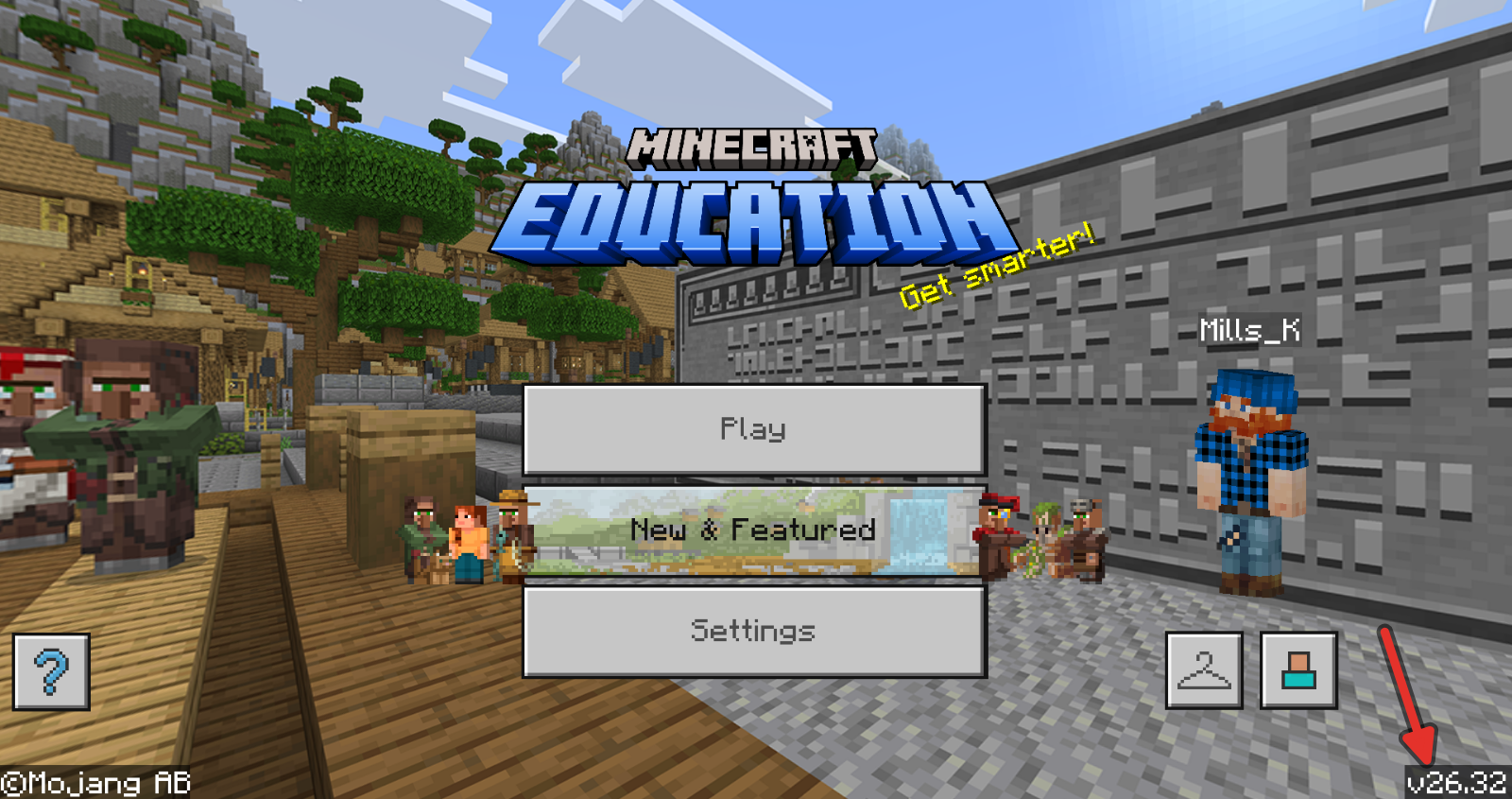
You may work in pairs or in groups of 4. In your groups, you will need to elect one person to be the host of the world. The host will “own” the world files on their student account, so pick someone who is reliable and shows up to class every day. If the host is ever away for any reason, all players that joined that host will be unable to continue their work unless the host has shared the world file.
-
If you are a HOST follow these instructions. If you are not the host, skip to the next step.
-
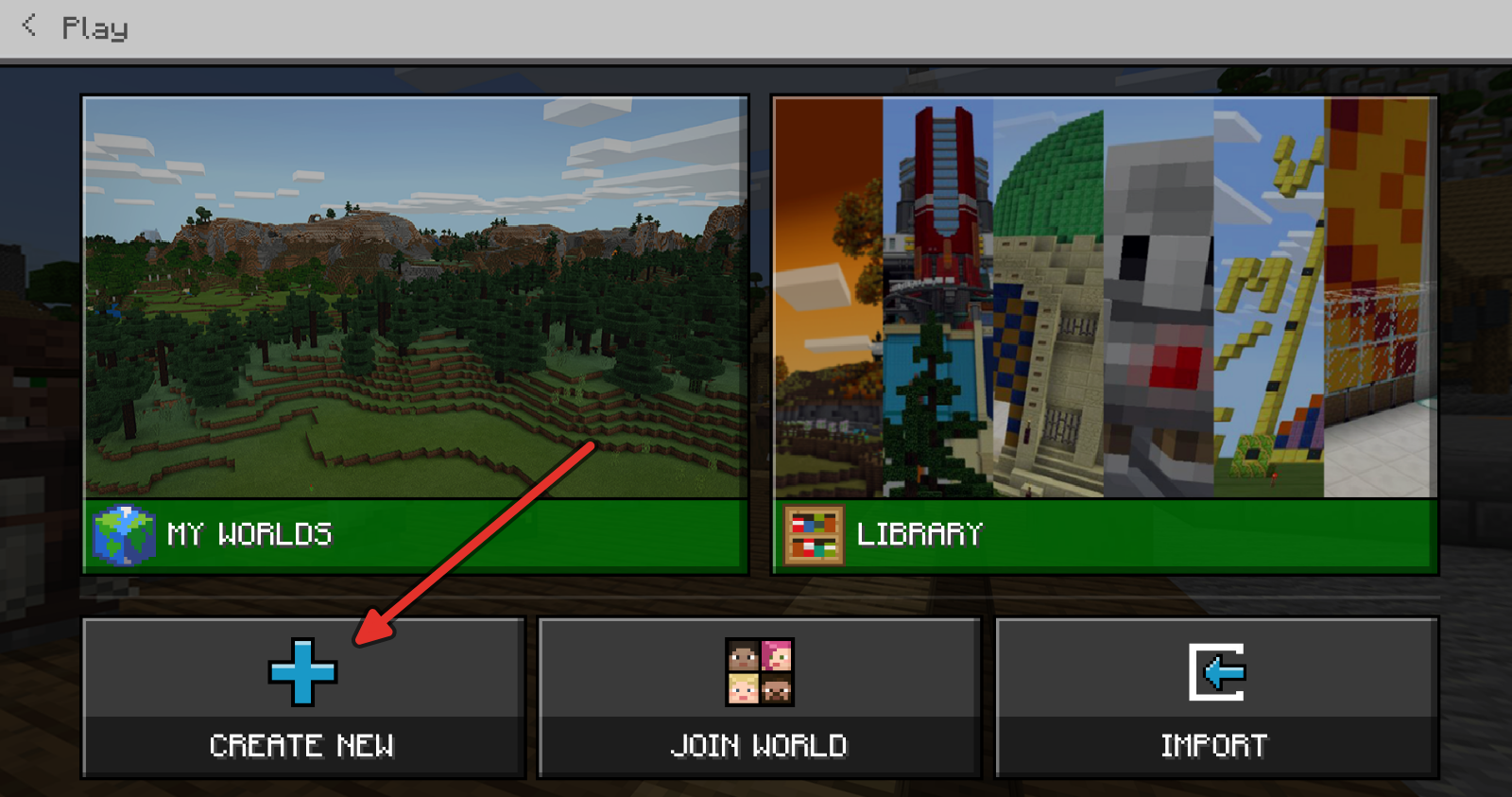
Click on Play, then Create New.
-
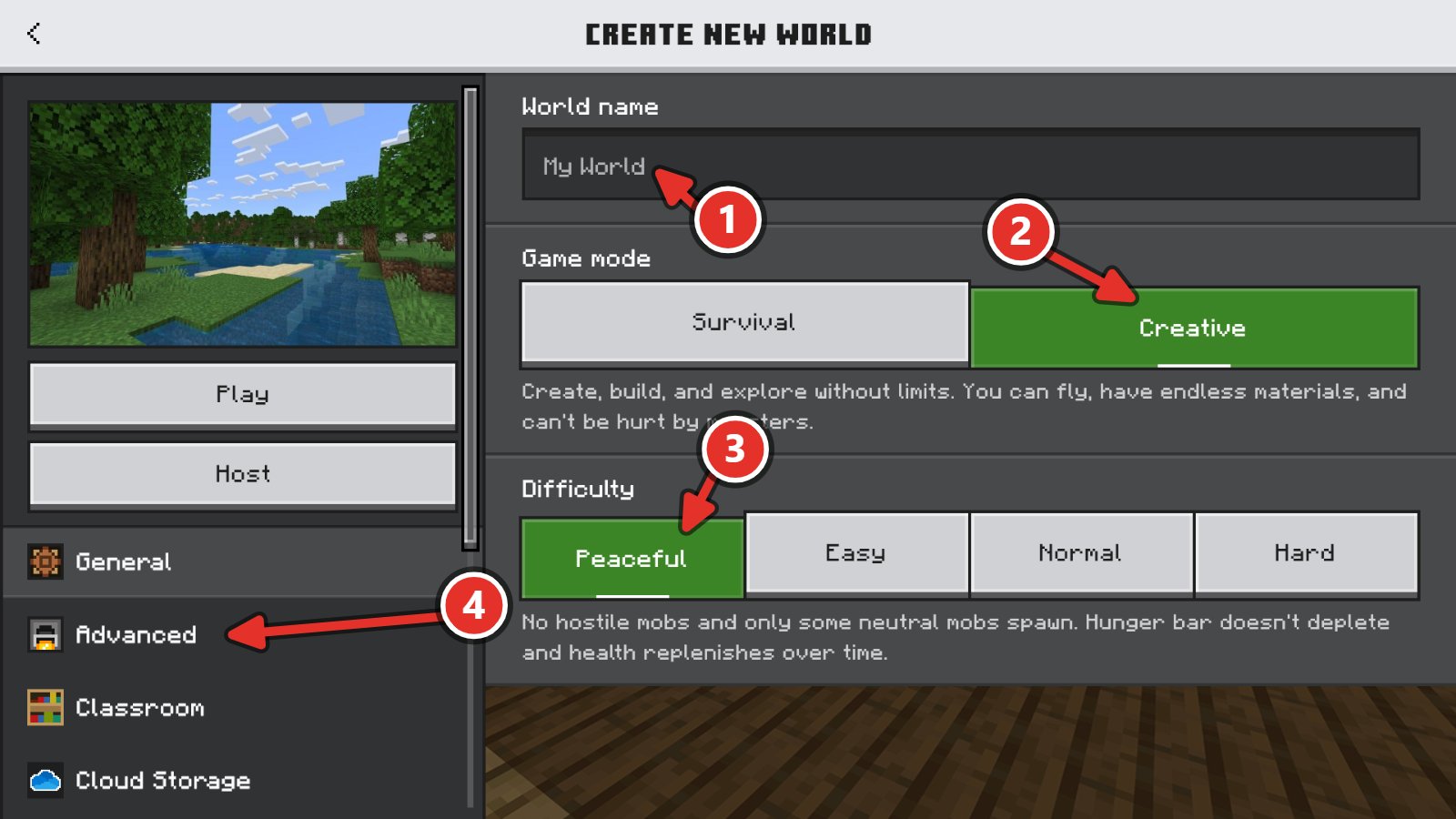
Give your world a name. Set the Game mode to Creative and the Difficulty to Peaceful, then click Advanced.
-
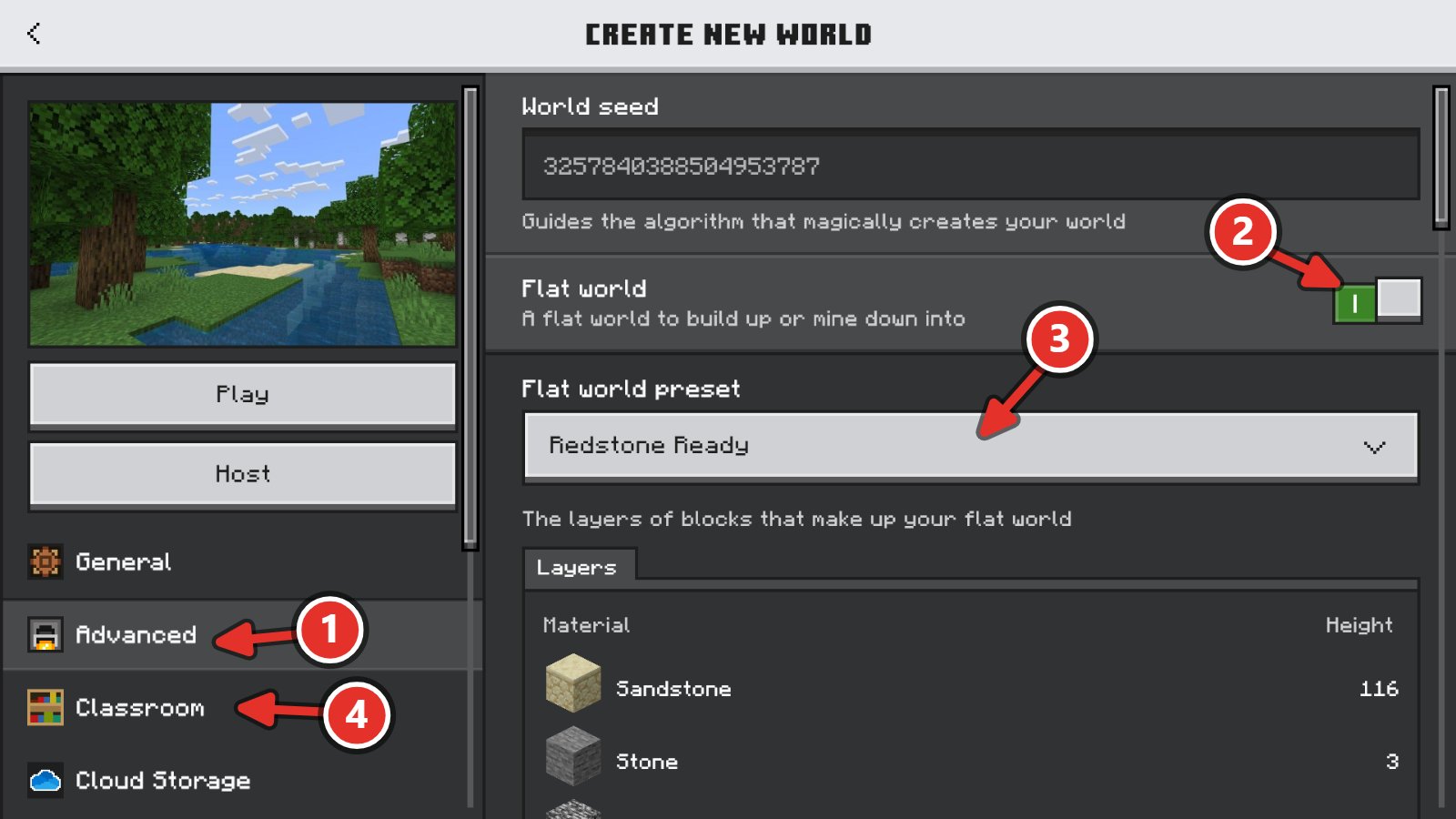
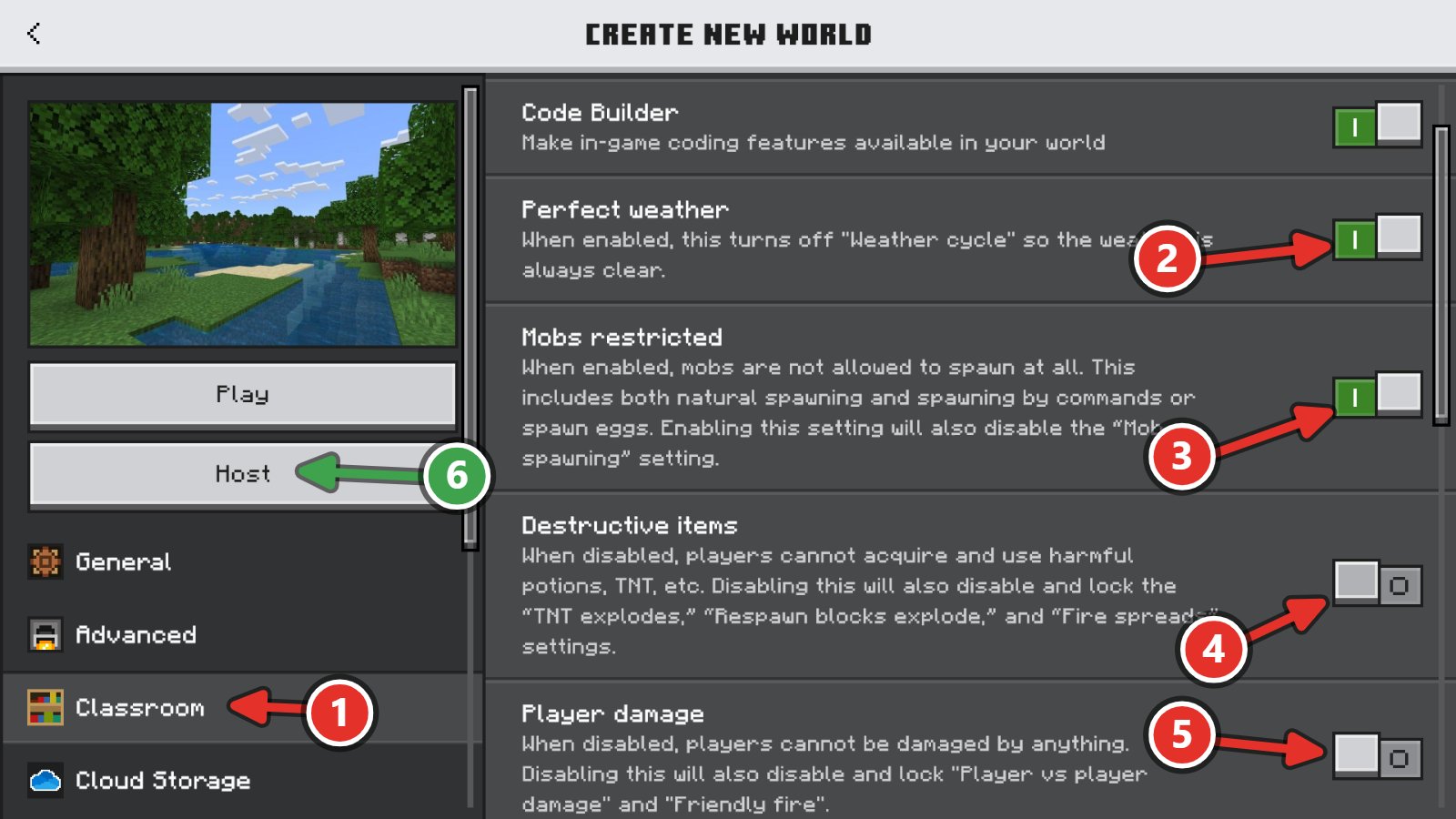
Turn on Flat world and set the Flat world preset to Redstone Ready, then click Classroom.
-
Turn on Perfect weather and Mobs restricted. Turn off Destructive items and Player damage. Then click Host.
-
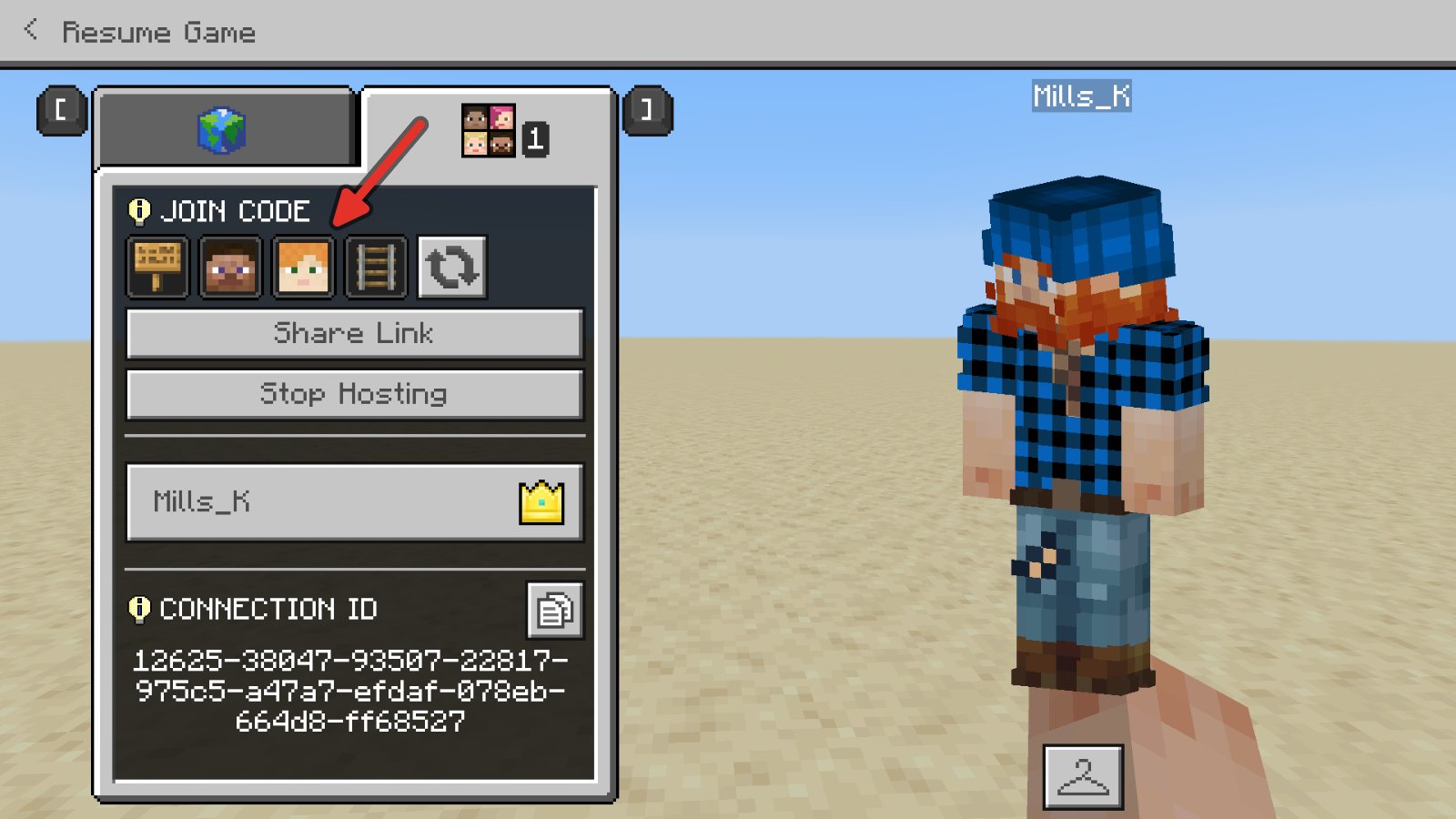
When the game loads in, press Esc and give everyone in your group the join code. This code changes every time you begin hosting.
-
-
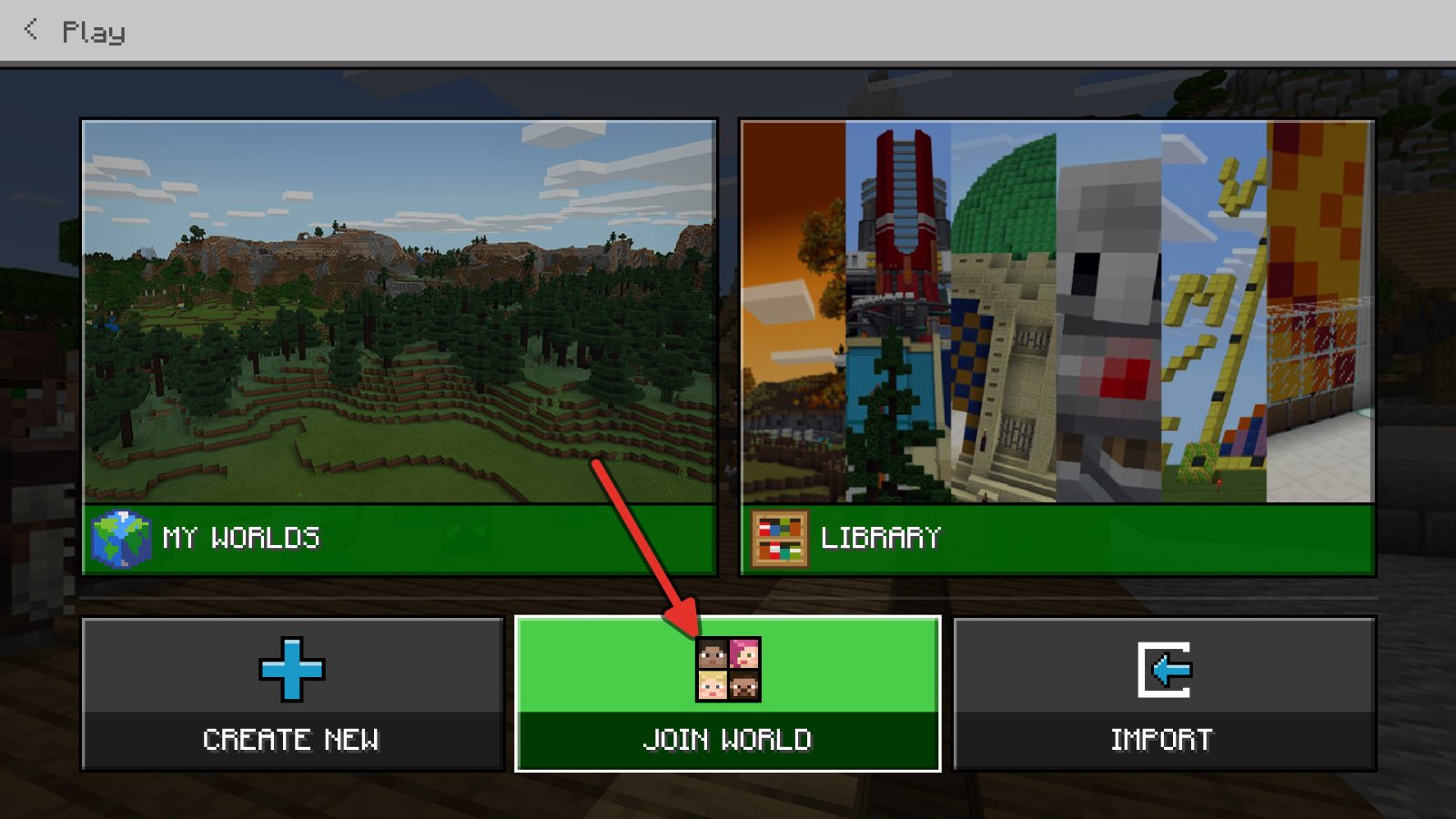
If you are not the HOST, click on Play, then Join World, and enter the join code.
7.2How to Play Minecraft#
If you are new to Minecraft, take a moment to familiarize yourself to the controls. There are on-screen tips to help you play if you press H.
| To | Press |
|---|---|
| Move | W A S D |
| Jump | Space |
| Fly | Double tap Space. Hold Space to go up and Shift to go down |
| Break a block | Left click |
| Place a block | Right click |
| Open your inventory | E |
| Pick a hotbar slot | 1 to 9, or the scroll wheel |
| Copy the block you are looking at | Middle click |
| Pause, or see the join code | Esc |
7.2.1Getting Blocks#
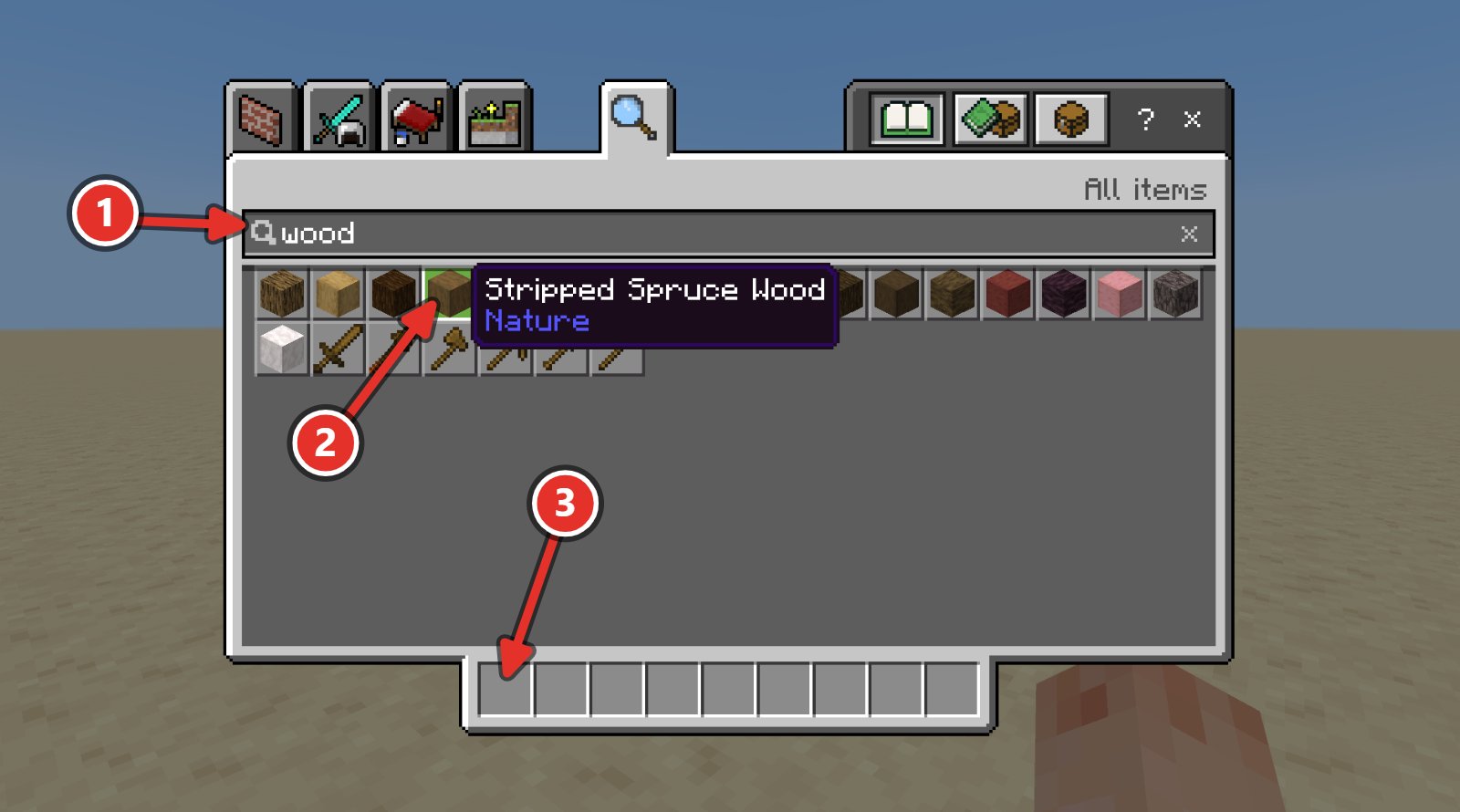
Open your inventory by pressing E, and you will see a long list of block types you can use, you can either type the name of a block into the search box to find it or scroll through each tab, when you have decided on a block you want to use, drag it into your hotbar.
7.2.2Moving Around and Placing Blocks#
If you’re new to Minecraft, practice these techniques:
-
Double tap Space to fly. Hold Space to go up and look down at the world, then hold Shift to come back down. Double tap Space again to stop flying.
-
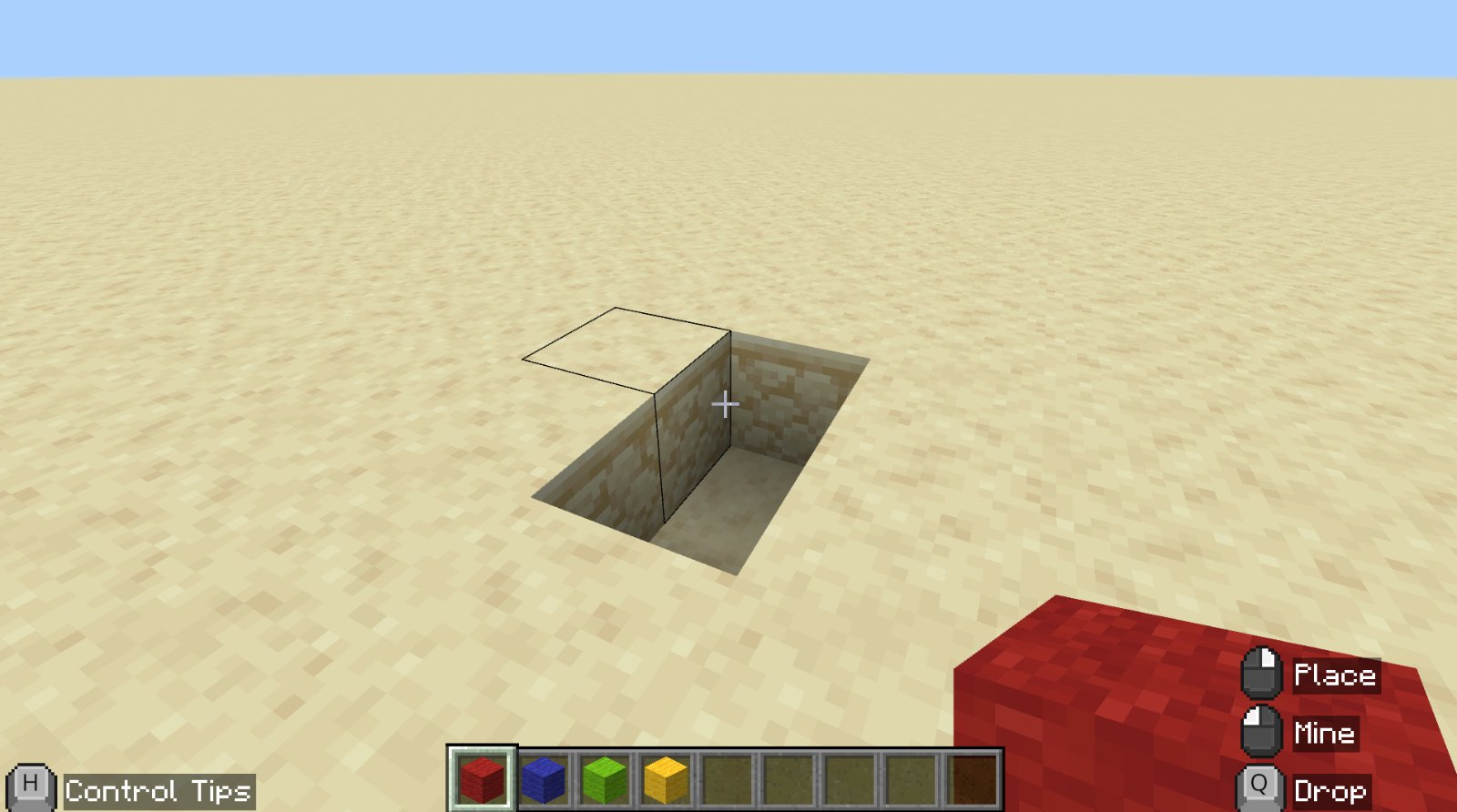
Put Sandstone in your hotbar from the inventory screen. Look at the ground and right click to place a block. Place a few more.
-
Left click a block to break it. Break the blocks you placed, then dig a small hole in the ground.
-
Pressing the middle mouse button on your mouse while looking at a particular block will place that block in your hotbar.
7.3What is Redstone?#
Redstone works like electricity in Minecraft. A redstone signal is either on or off, and the signal gets weaker the farther it travels.
Every circuit has an input that turns the signal on, wire that carries it, and an output that does something when the signal reaches it.
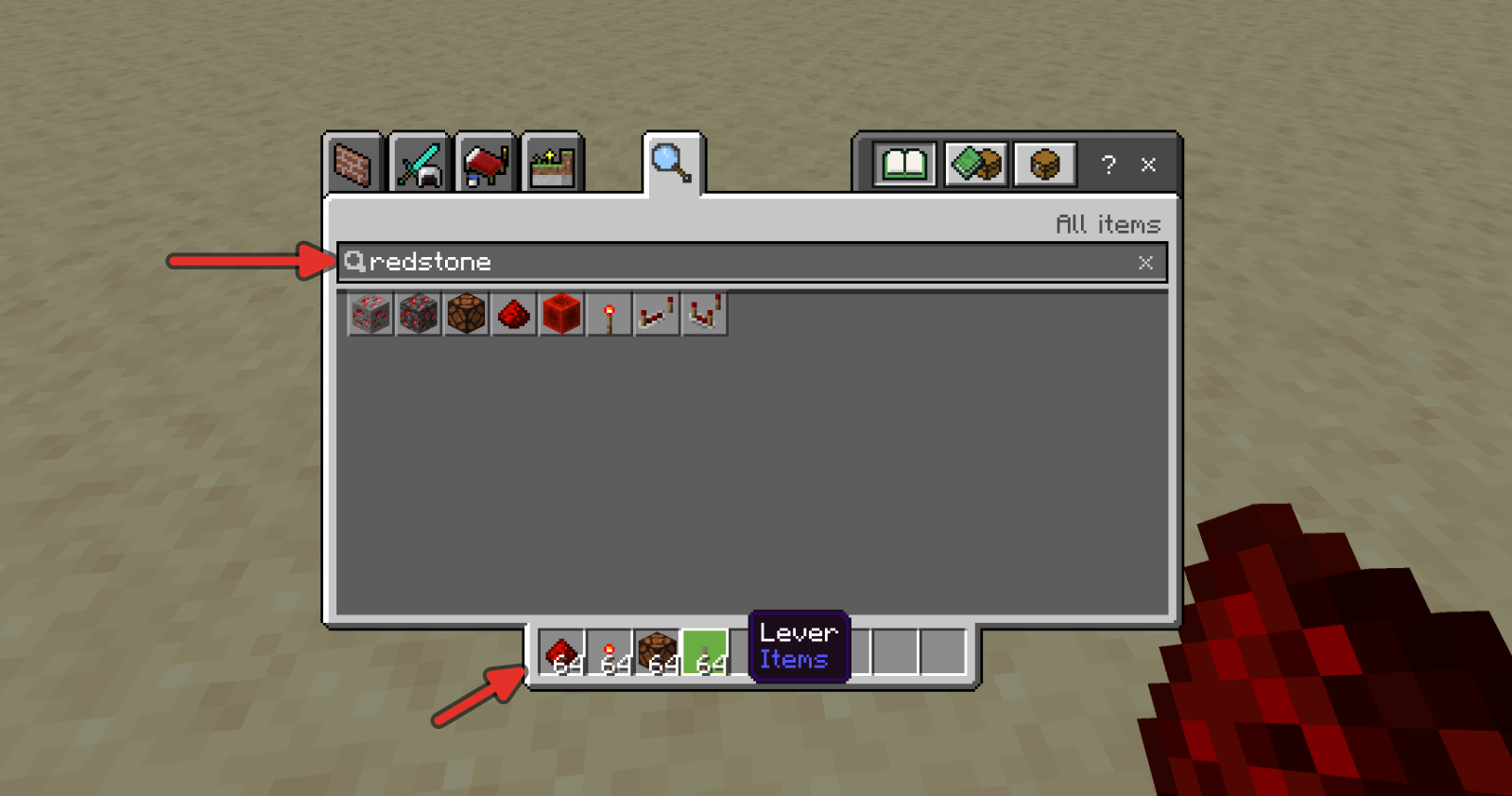
Put these in your hotbar: Redstone Dust, Lever, Redstone Lamp and Redstone Repeater.
7.3.1A light switch#
-
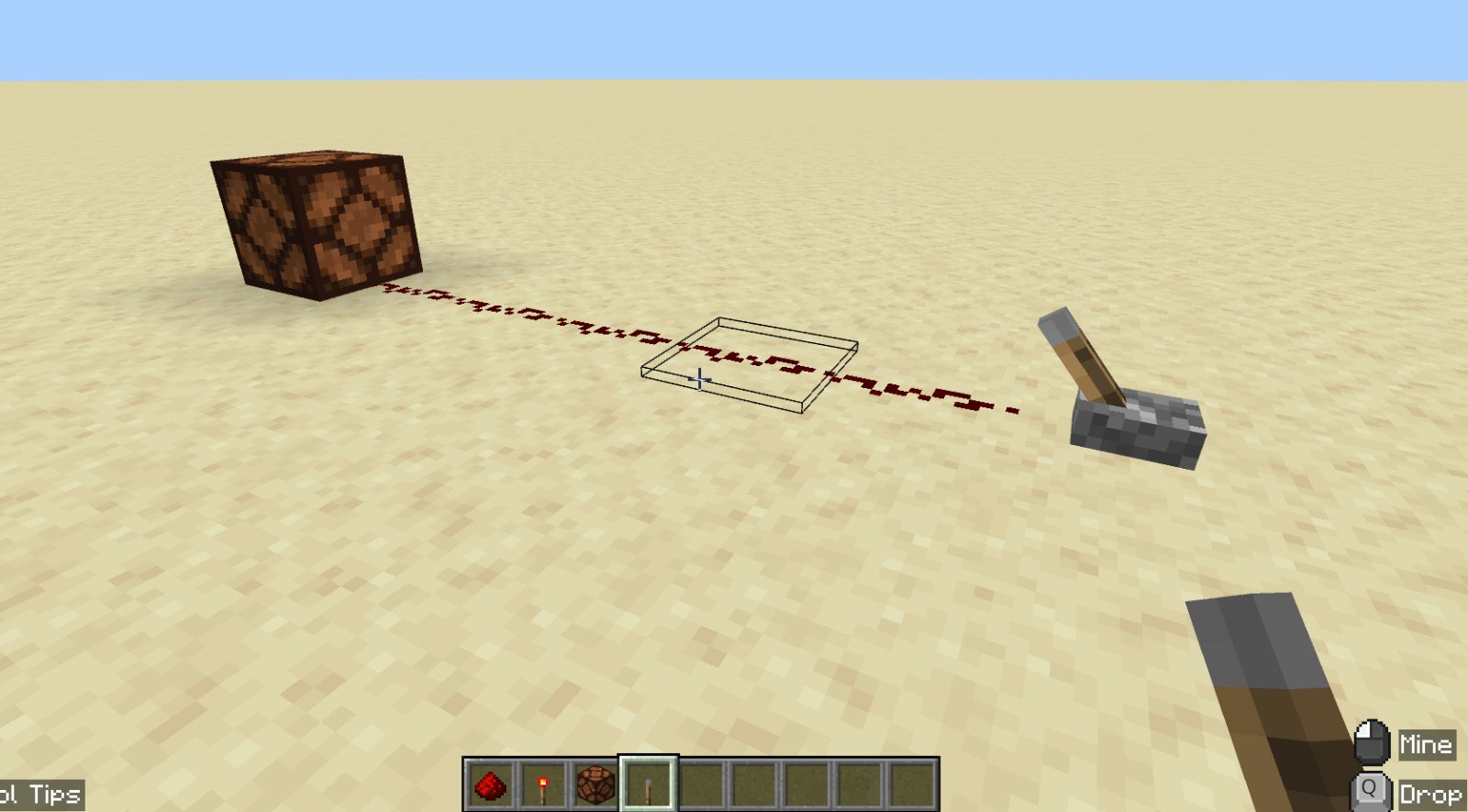
Place a Redstone Lamp on the ground.
-
Count 5 blocks away from the lamp and place a Lever on the ground.
-
Place Redstone Dust on the ground in a line from the lever to the lamp. Each piece of dust joins on to the one beside it.
-
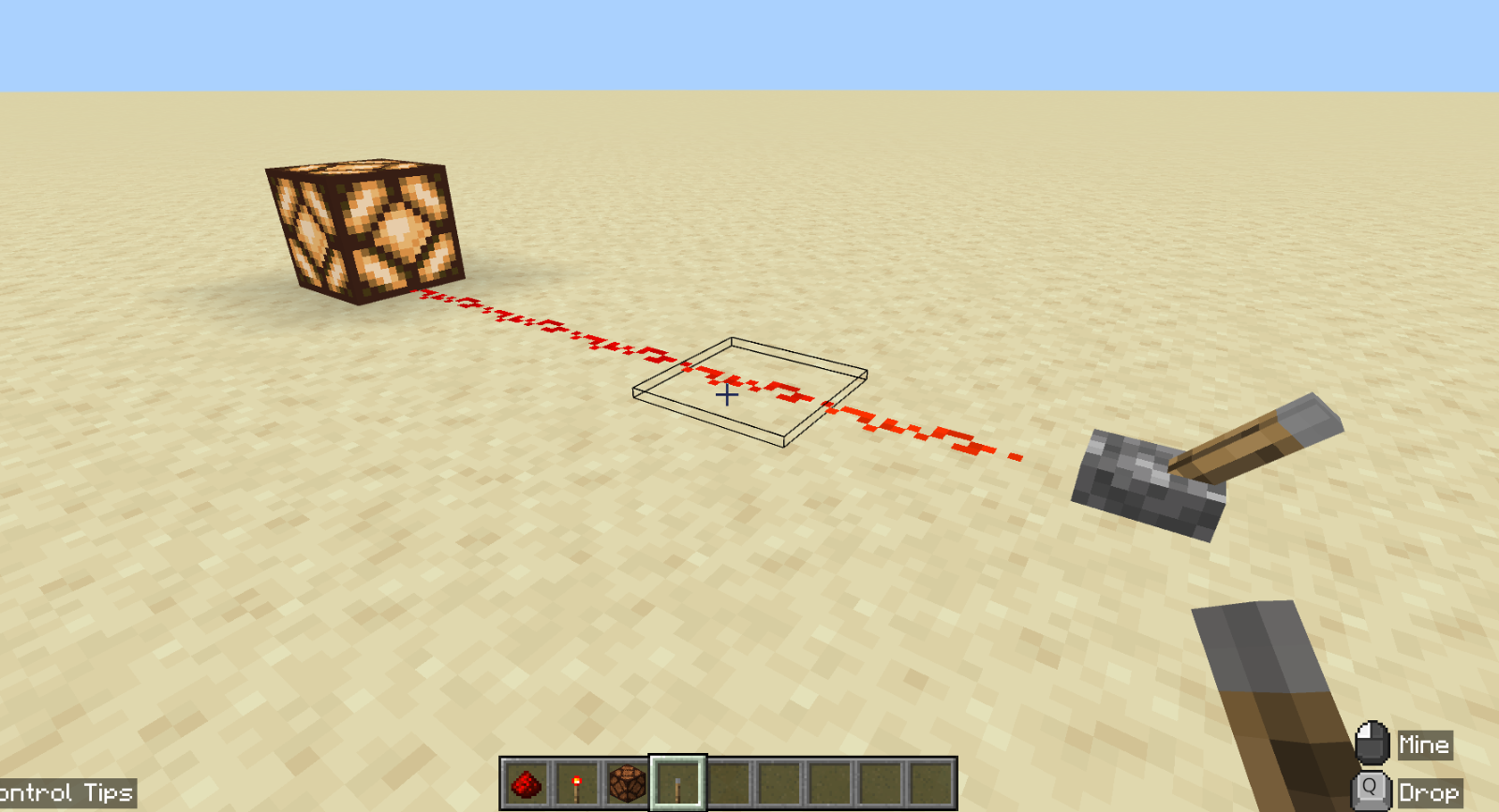
Right click the lever to flip it on. The dust turns bright red and the lamp lights up.
-
Flip the lever off again. The lamp turns off.
The lever is the input, the dust is the wire, and the lamp is the output.
7.3.2Signal Strength#
-
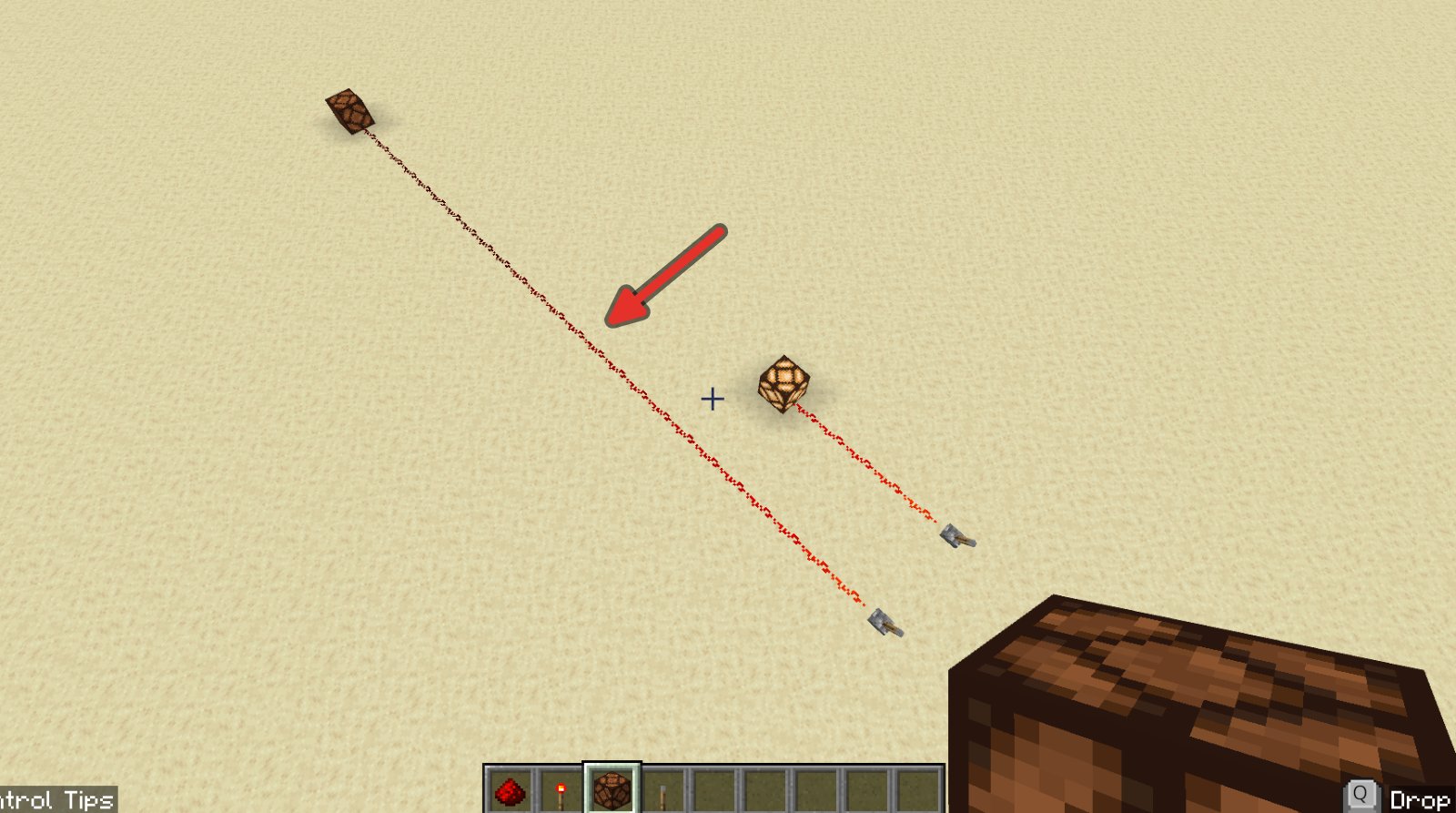
Build a second light switch, but make the line of dust 20 blocks long.
-
Flip the lever on. The dust gets darker the further it is from the lever, and the lamp stays off. A redstone signal only travels 15 blocks of dust.
-
Break the piece of dust that is about 10 blocks from the lever. Face the lamp and place a Redstone Repeater in the gap.
-
The lamp lights. A repeater sends the signal on at full strength.
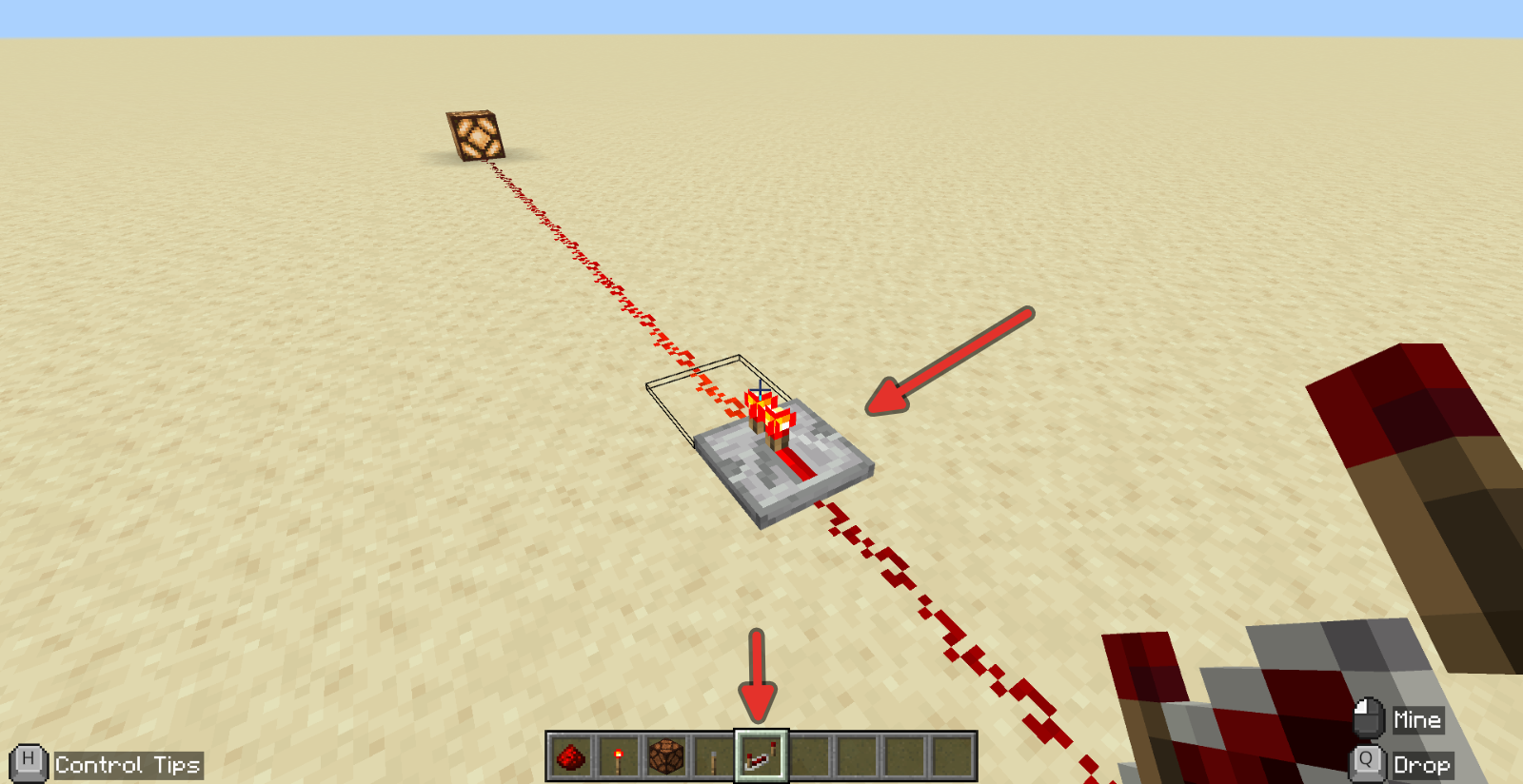
If the lamp still does not light, the repeater is facing the wrong way. Break it, face the lamp, and place it again. A repeater always faces the direction you are looking when you place it.
7.3.3Keep wires apart#
-
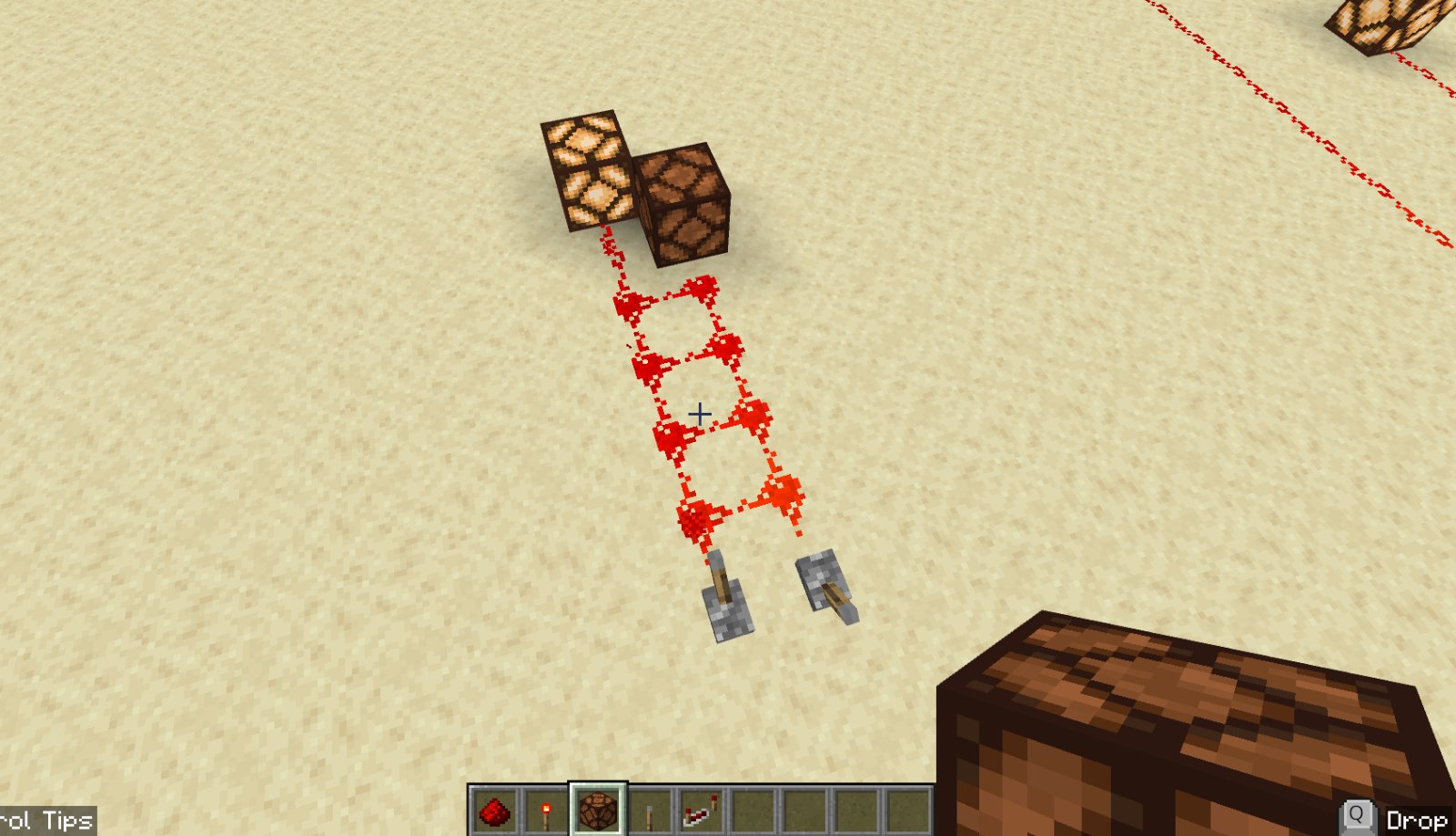
Build two light switches side by side, with their lines of dust right next to each other.
-
Flip one lever on. Both lamps light, because dust that touches joins into one wire.
-
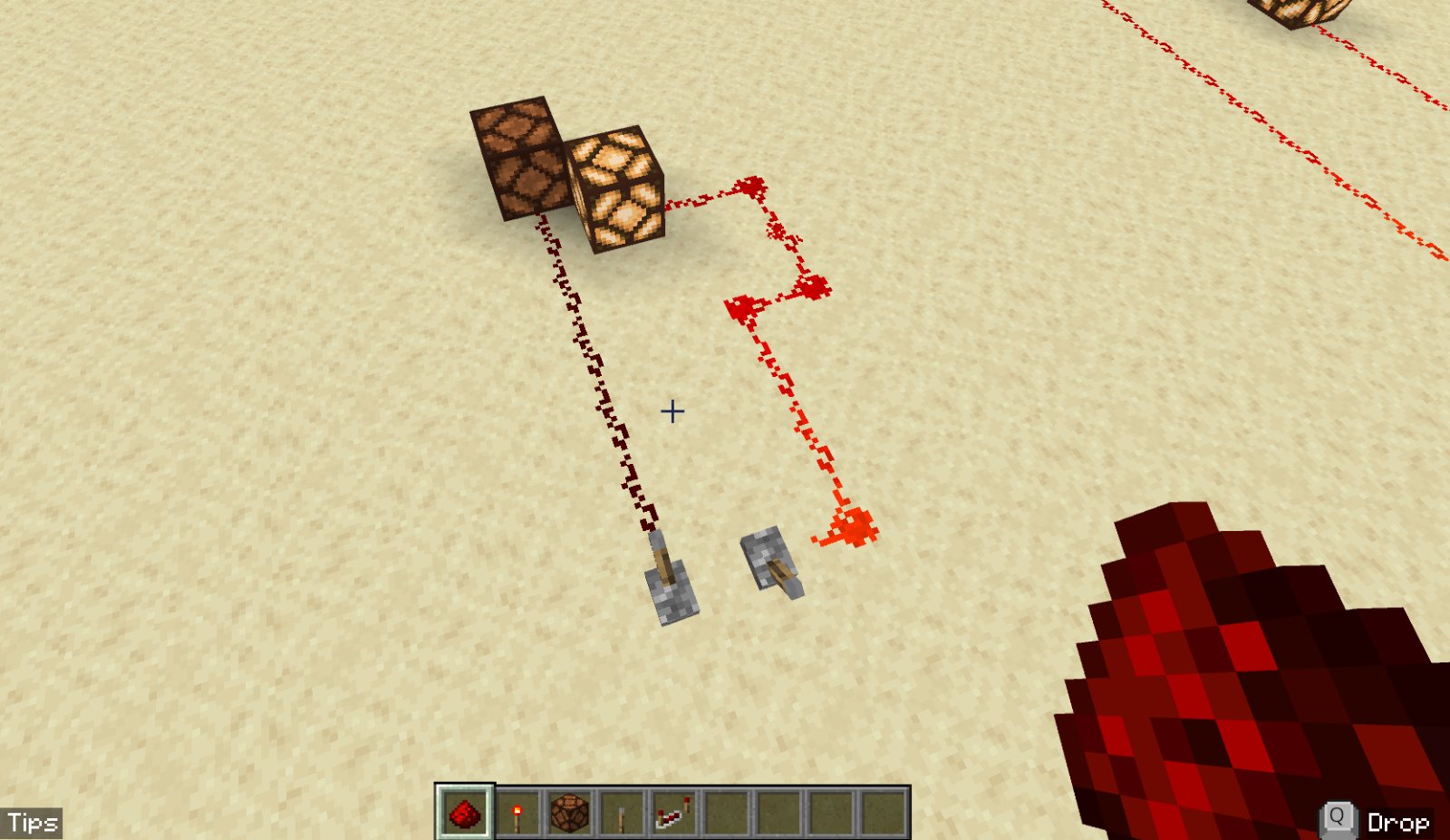
Move one of the lines over so there is one empty block between them. Now each lever lights only its own lamp.
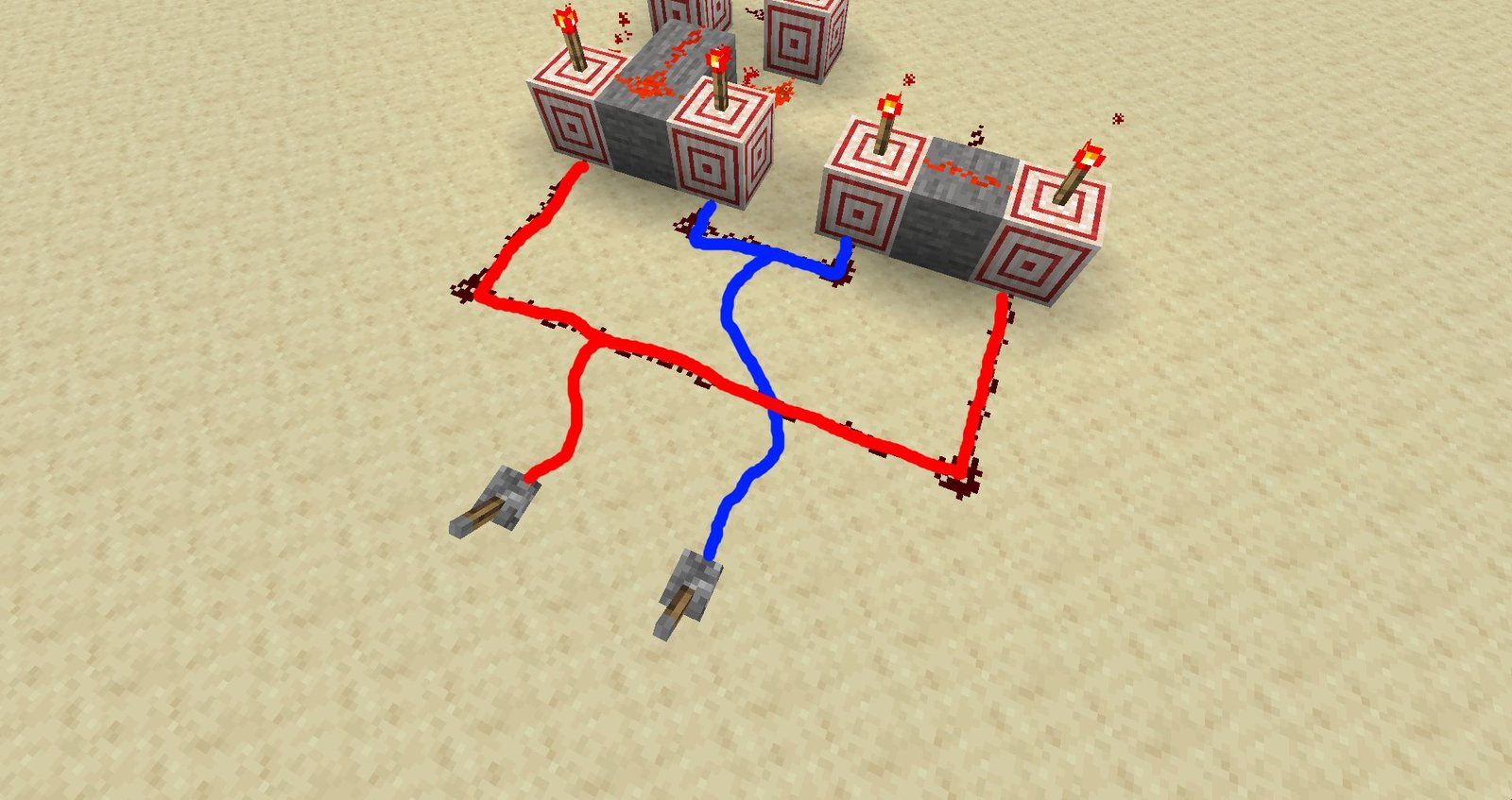
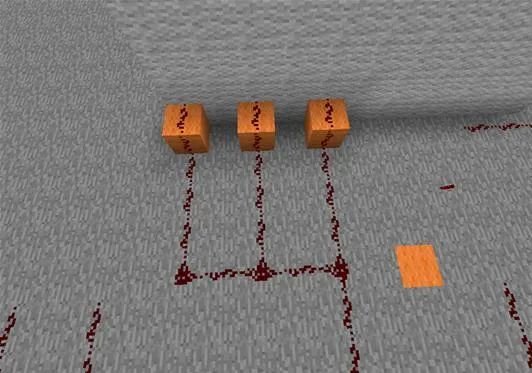
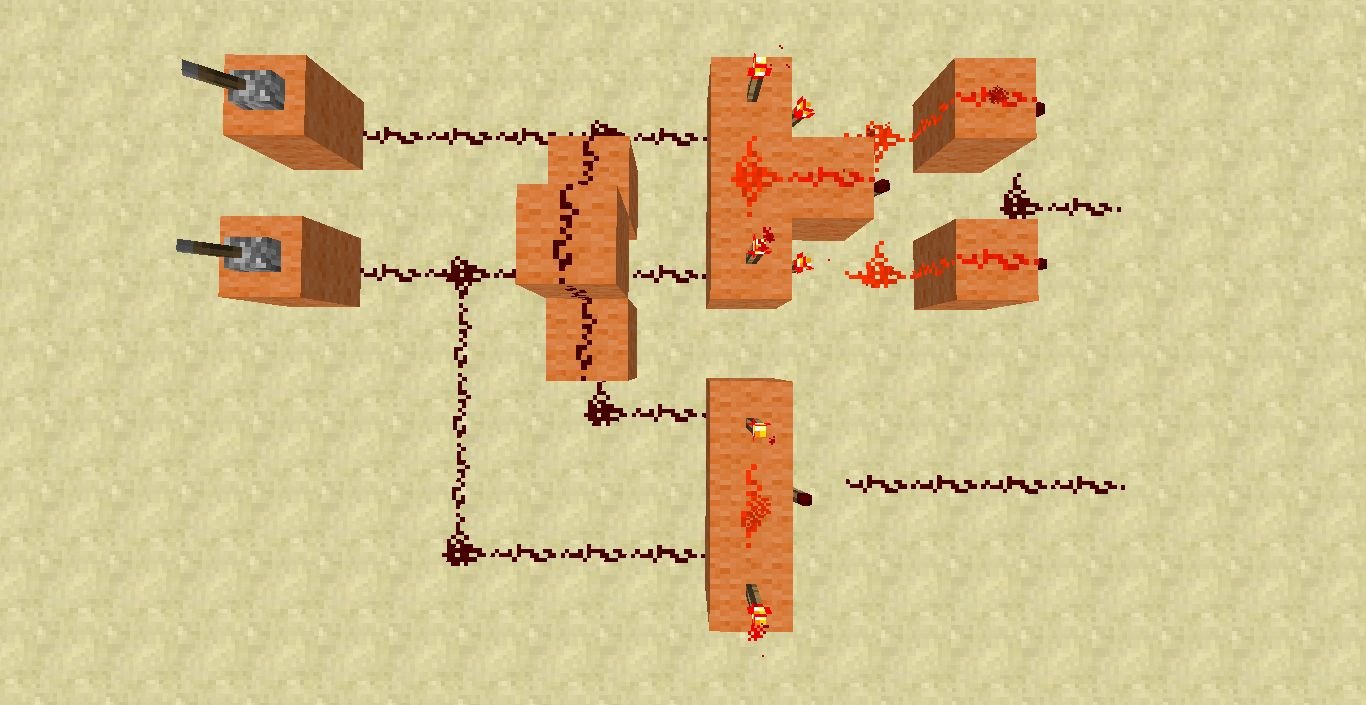
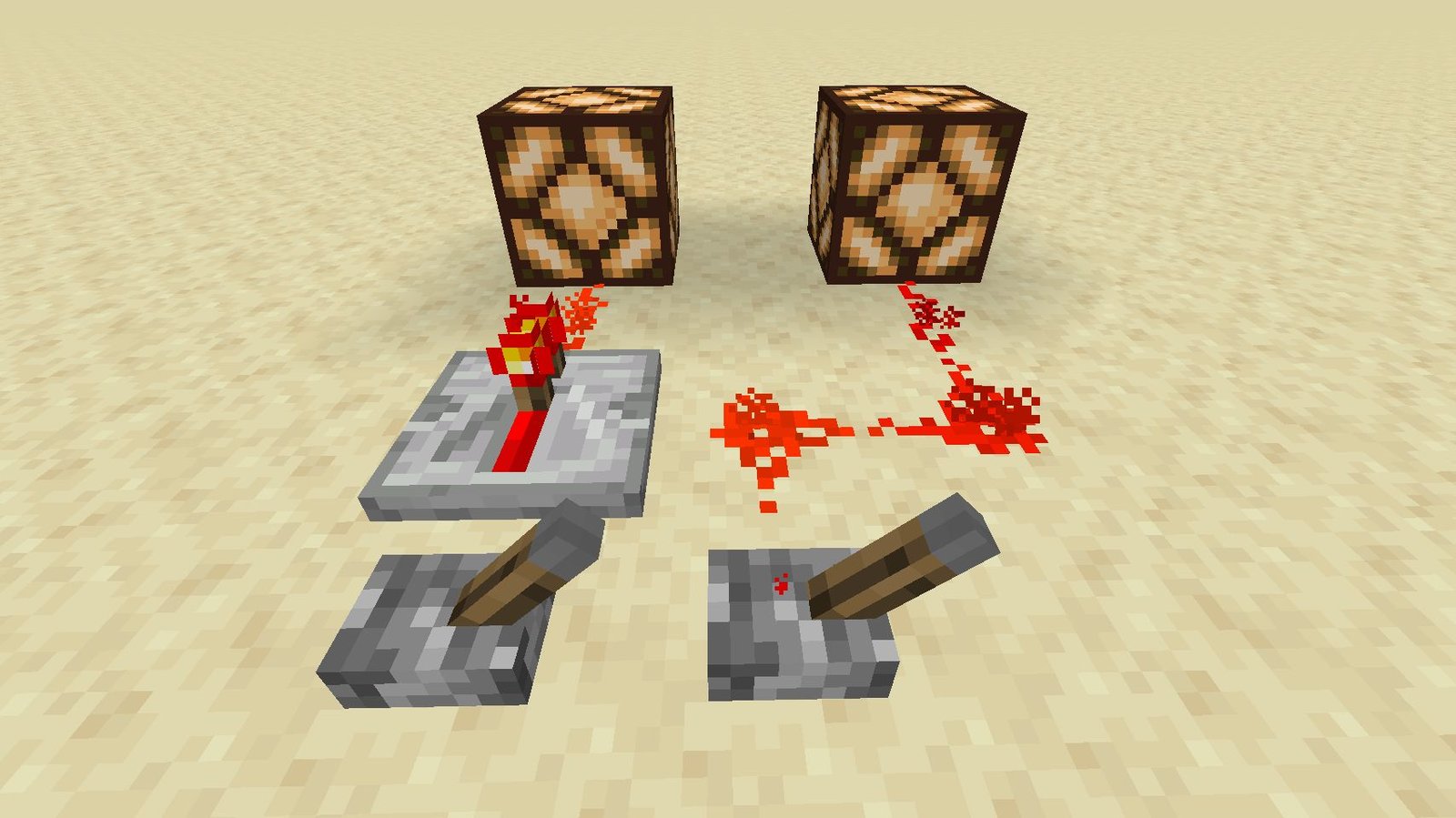
7.3.4Bridging Wires#
When one wire has to cross another, run the wire up and over on top of (or under beneath) the blocks.
7.4Inputs#
An input is anything that sends a signal into a circuit.
7.4.1A lever#
You have used a lever to create your light switch earlier. Try each of these in its place.
Put these in your hotbar: Stone Button, Stone Pressure Plate and Observer. Your hotbar has 9 slots. When it is full, drag the new block on top of one you are finished with.
7.4.2A button#
-
Build a new light switch, or break the lever on one you already have.
-
Place a Stone Button on the ground where the lever was.
-
Right click the button. The lamp turns on, then turns off by itself after about a second.
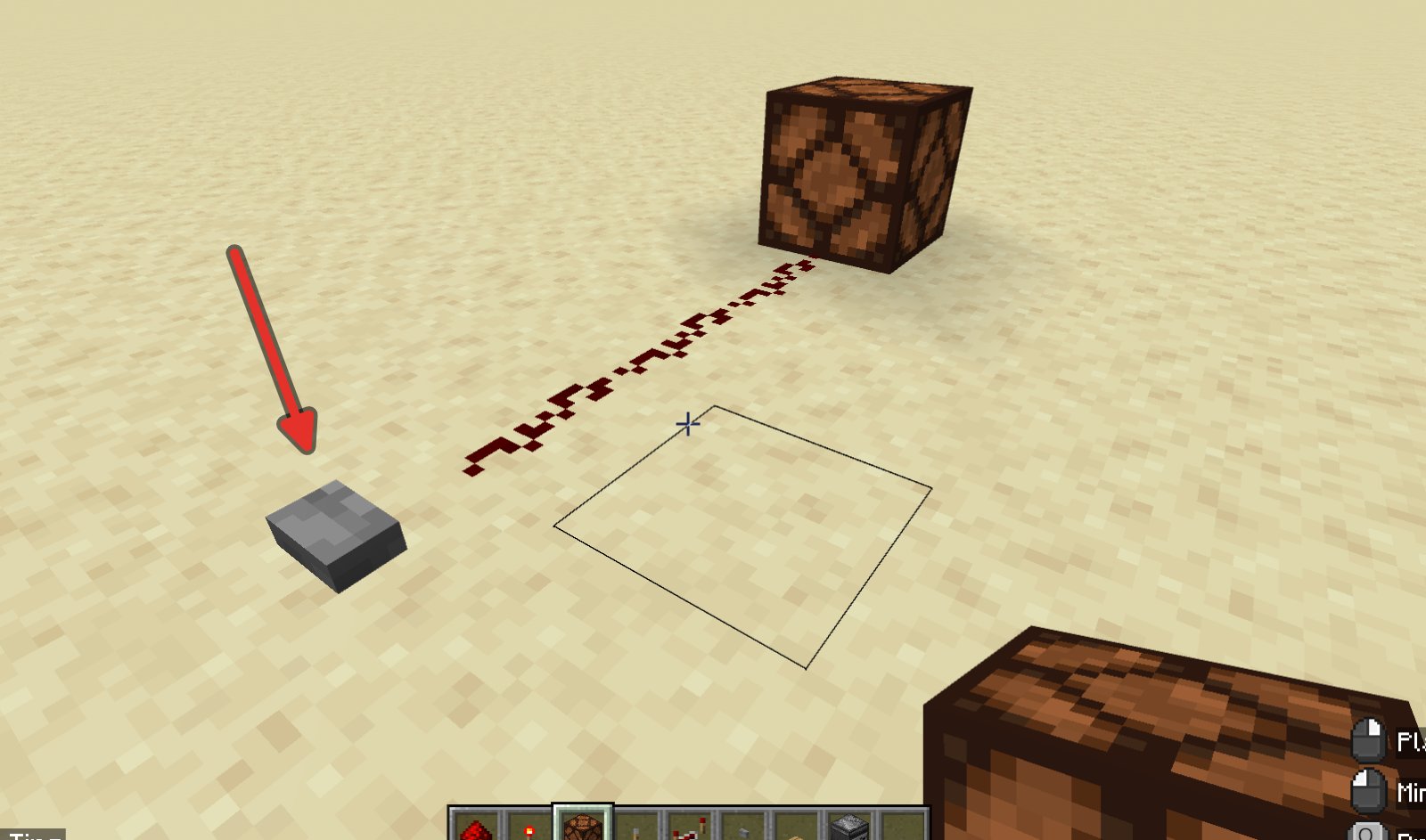
A lever stays on until you flip it back. A button only sends a short pulse.
7.4.3A pressure plate#
-
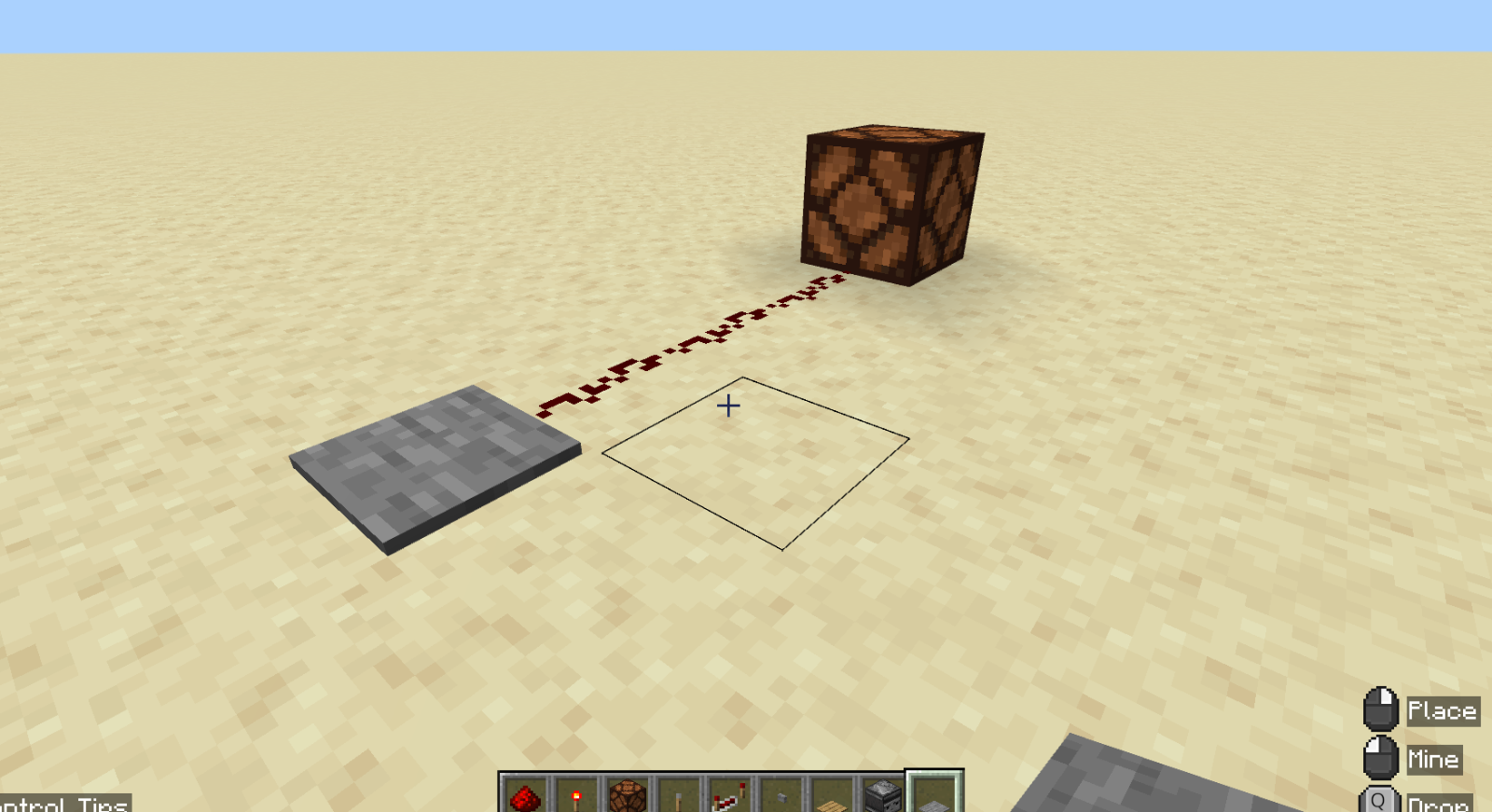
Break the button and place a Stone Pressure Plate where it was.
-
Walk onto the plate. The lamp turns on while you stand on it, and turns off when you step off.
7.4.4An observer#
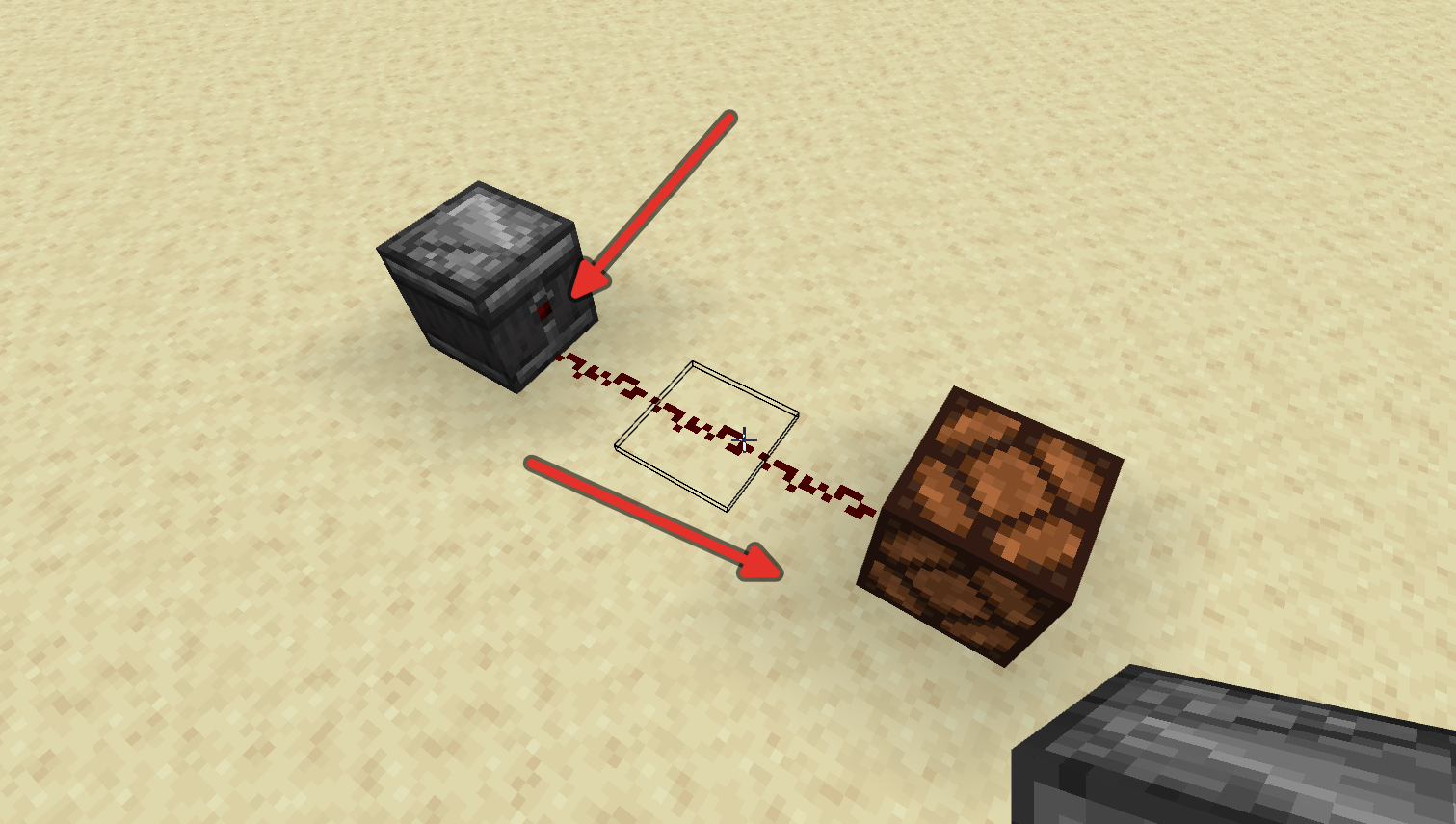
An observer watches the block in front of its face. When that block changes, the observer sends a pulse out of its back.
-
Break the pressure plate. Place an Observer where it was, so the side with the red dot touches the dust and the face points away from the wire.
If the face points the wrong way, break it and place it again from the other side.
-
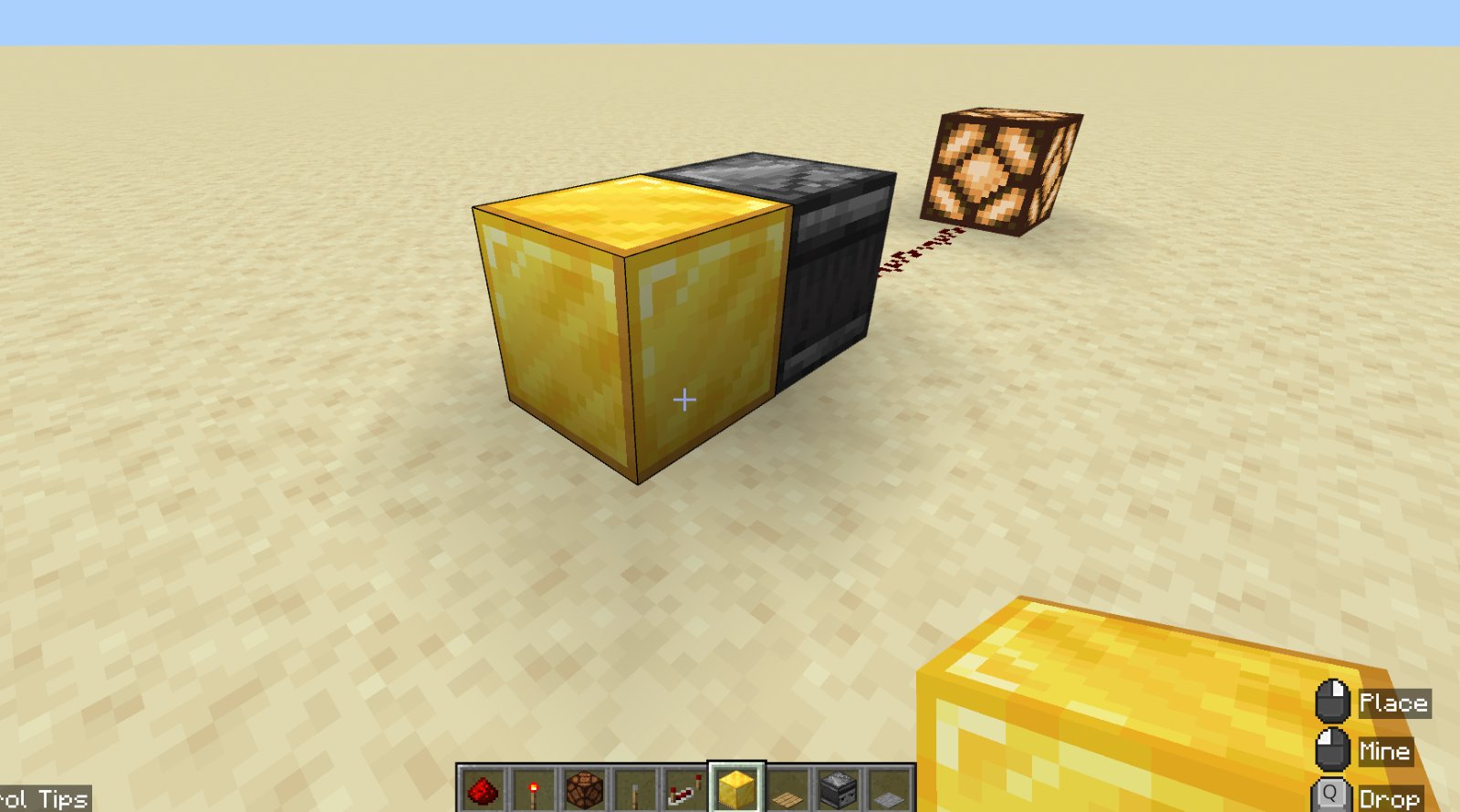
Place any block in front of the observer’s face. The lamp flashes.
-
Break the block. The lamp flashes again.
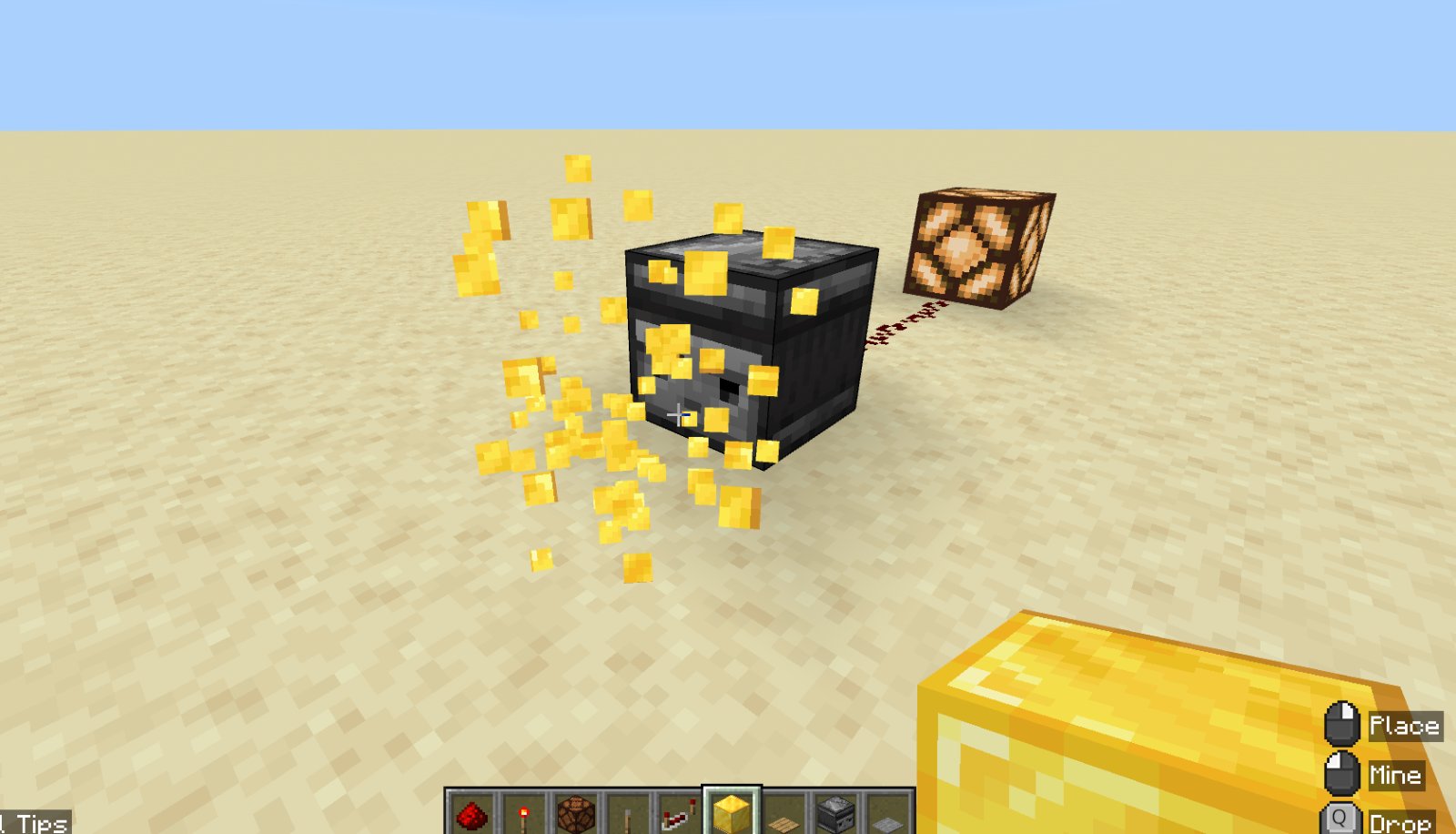
An observer can notice almost any change, like a door opening or a crop growing.
7.4.5Other Inputs#
An input is any device that “listens” for a stimulus from the world and sends an impulse if an event has happened. Try out the following blocks on your own to see how they work:
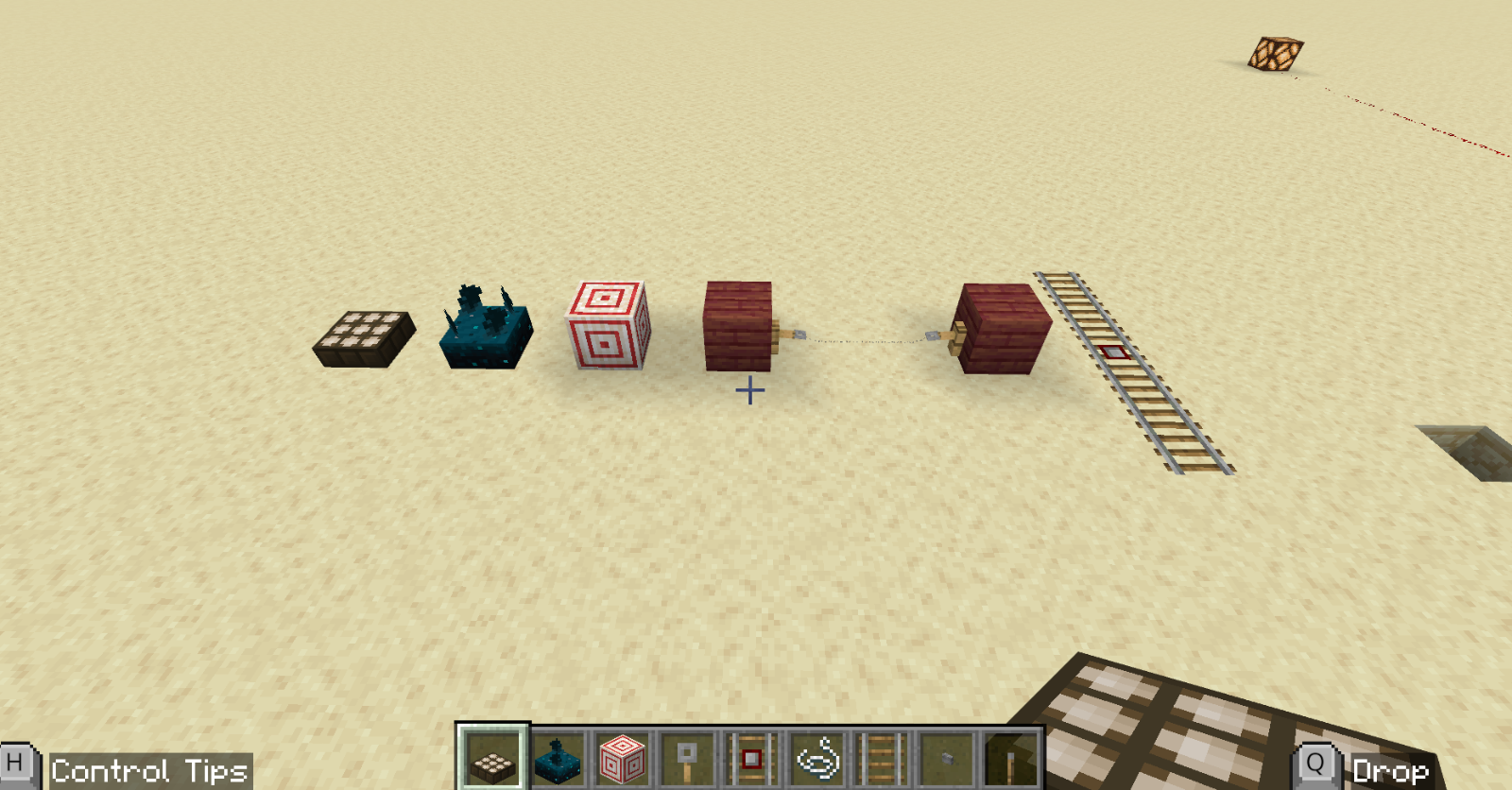
| Block | What it senses |
|---|---|
| Lever | A permanent toggle of ON or OFF |
| Button | A timed toggle of 1 second (1.5 seconds for wooden buttons) |
| Pressure Plate | A player or object on top of it |
| Observer | Block updates directly in front of it |
| Daylight Detector | An analog signal that outputs a signal strength based on how bright it is |
| Sculk Sensor | Vibrations (sounds and actions) from nearby players |
| Target Block | The accuracy of a projectile (like an arrow) |
| Tripwire | A player crossing/interrupting the connection |
| Detector Rail | A minecart rolling over it |
7.5Outputs#
An output does something when a signal reaches it.
7.5.1Lamp#
You have used a lamp in the previous examples. The lamp turns on if it receives a signal and turns off if not.
Put these in your hotbar: Sticky Piston, Black Wool, Iron Door and Note Block.
7.5.2A sticky piston#
-
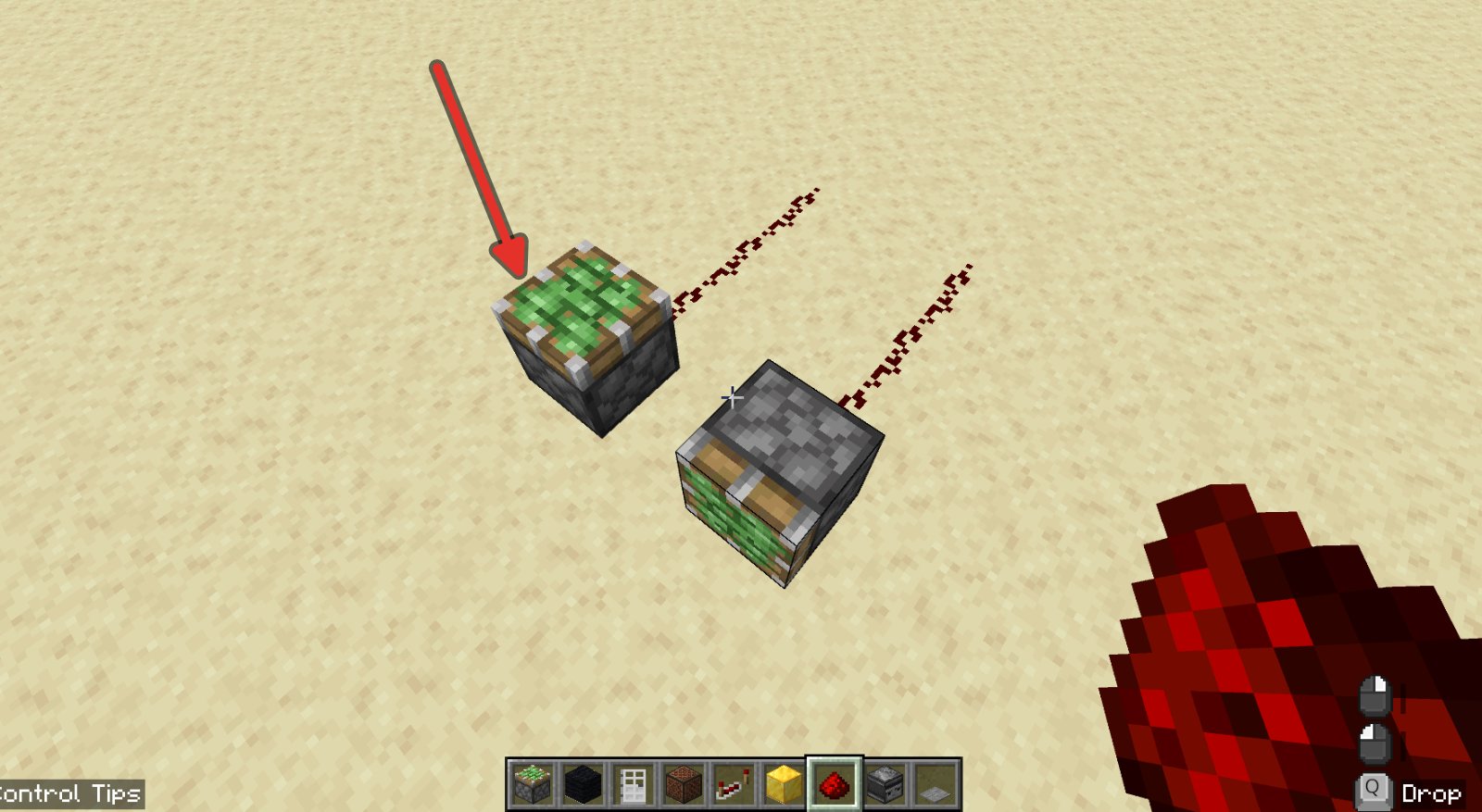
Look straight down at the ground and place a Sticky Piston. Its green face should point up.
-
Place a block of Black Wool (or any solid block) on top of the piston.
-
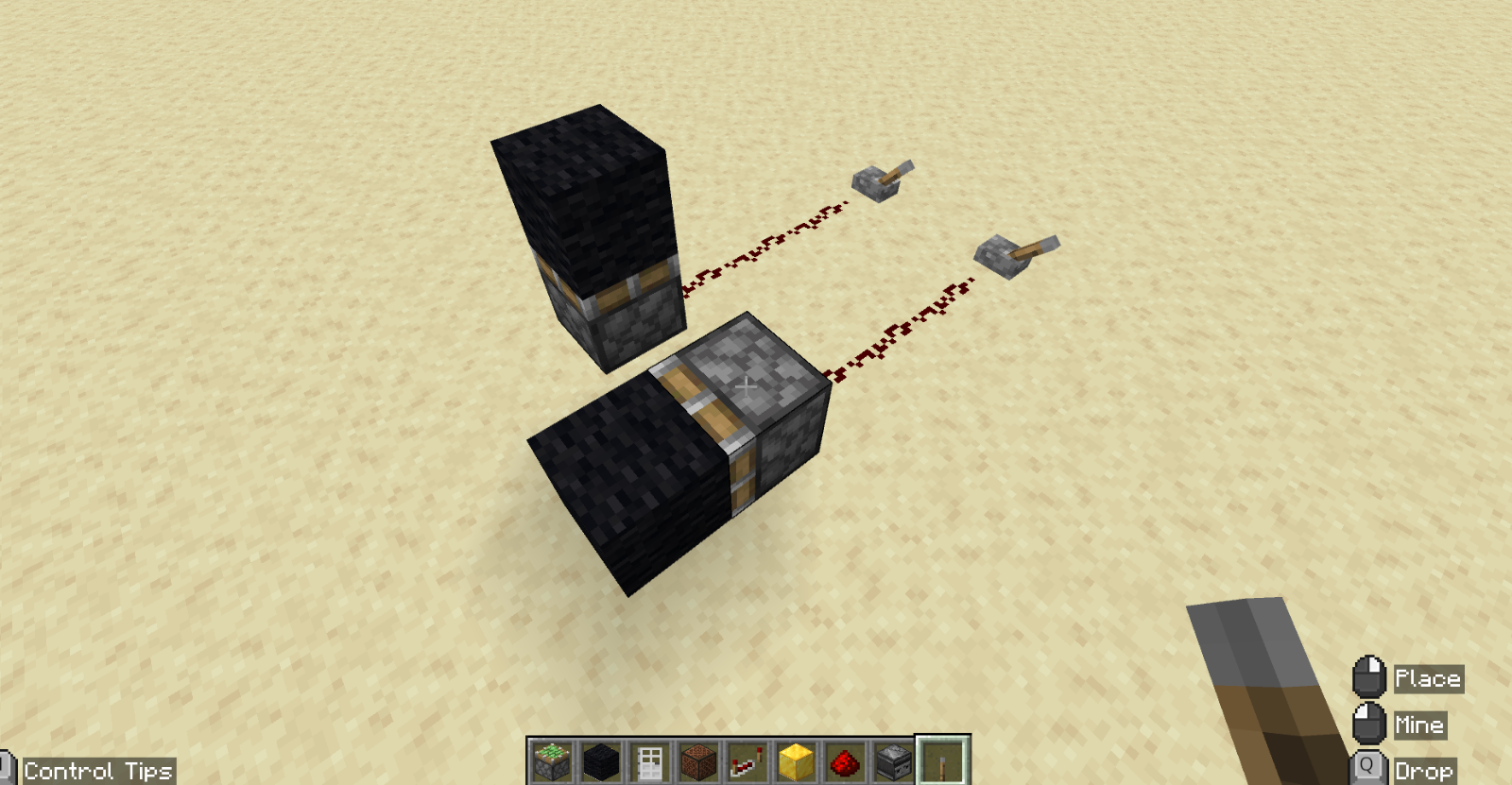
Place a Lever on the ground right beside the piston.
-
Flip the lever on. The piston pushes the wool up one block. Flip it off, and the sticky piston pulls the wool back down.
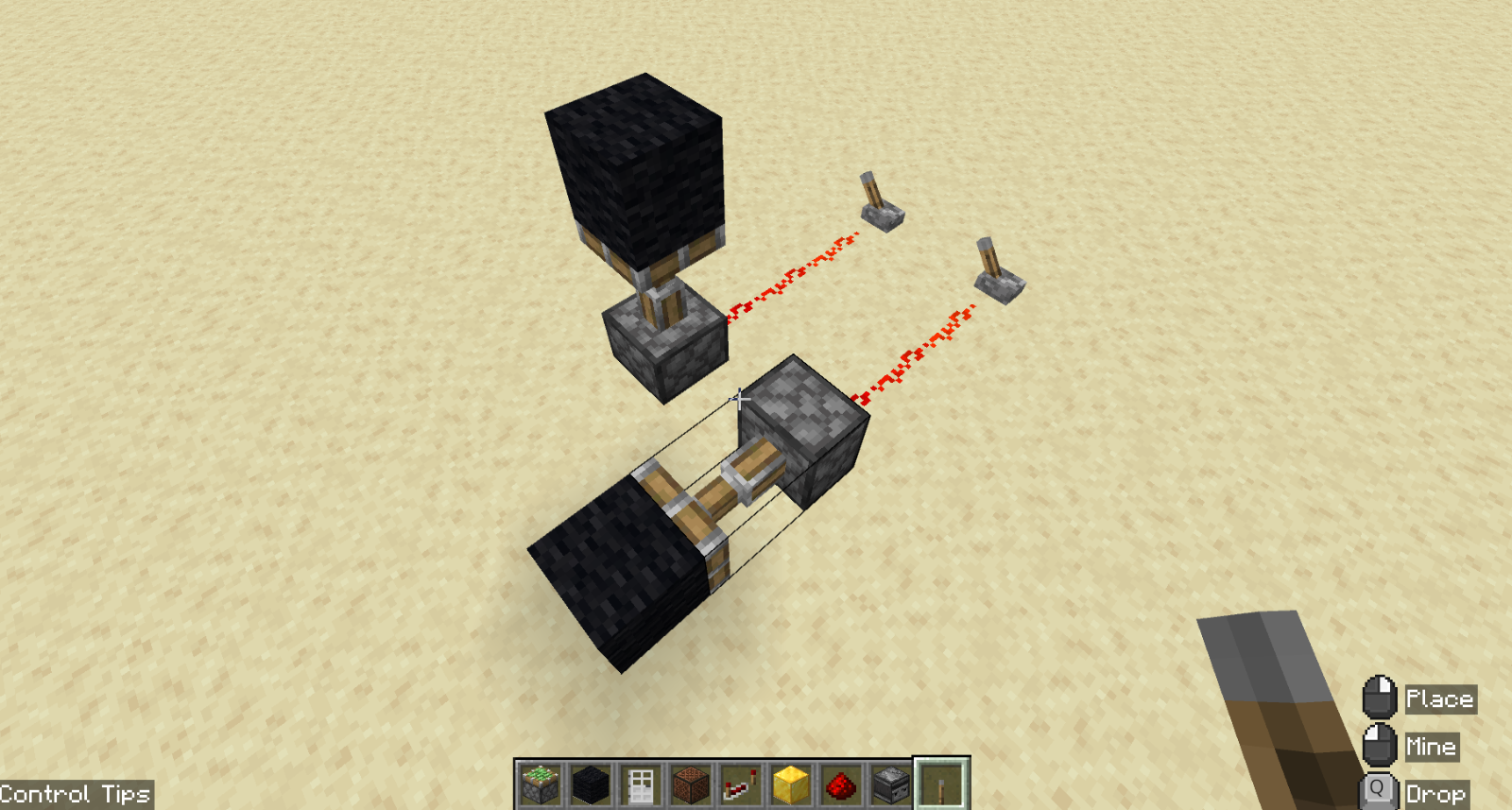
A regular Piston pushes too, but it leaves the block behind when it pulls back.
7.5.3An automatic door#
-
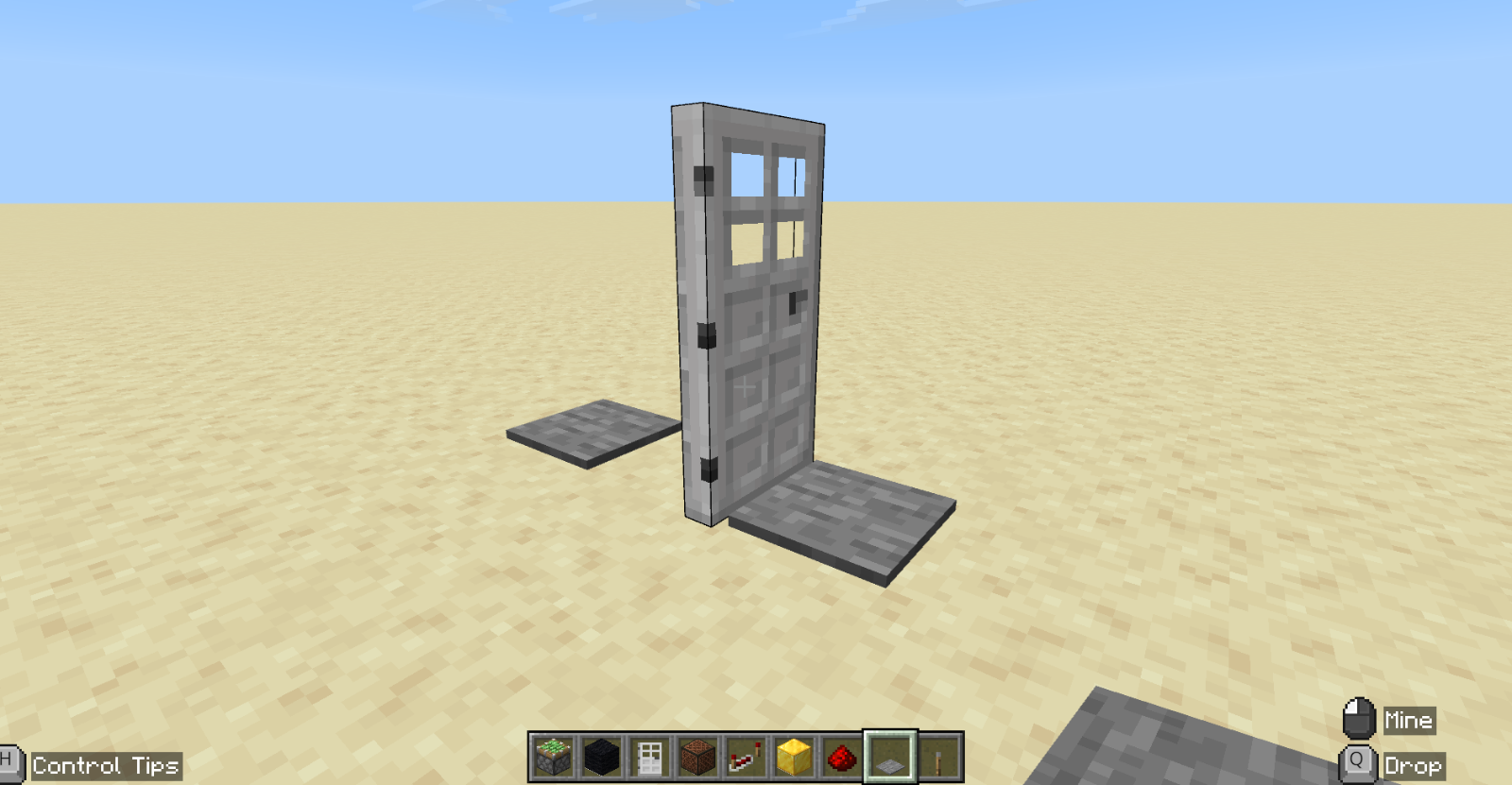
Place an Iron Door on the ground.
-
Right click the door. Nothing happens, because an iron door only opens with a redstone signal.
-
Place a Stone Pressure Plate on the ground right in front of the door, and another right behind it.
-
Walk onto the pressure plate. The door opens, lets you through, and closes once you step off the plate on the other side.
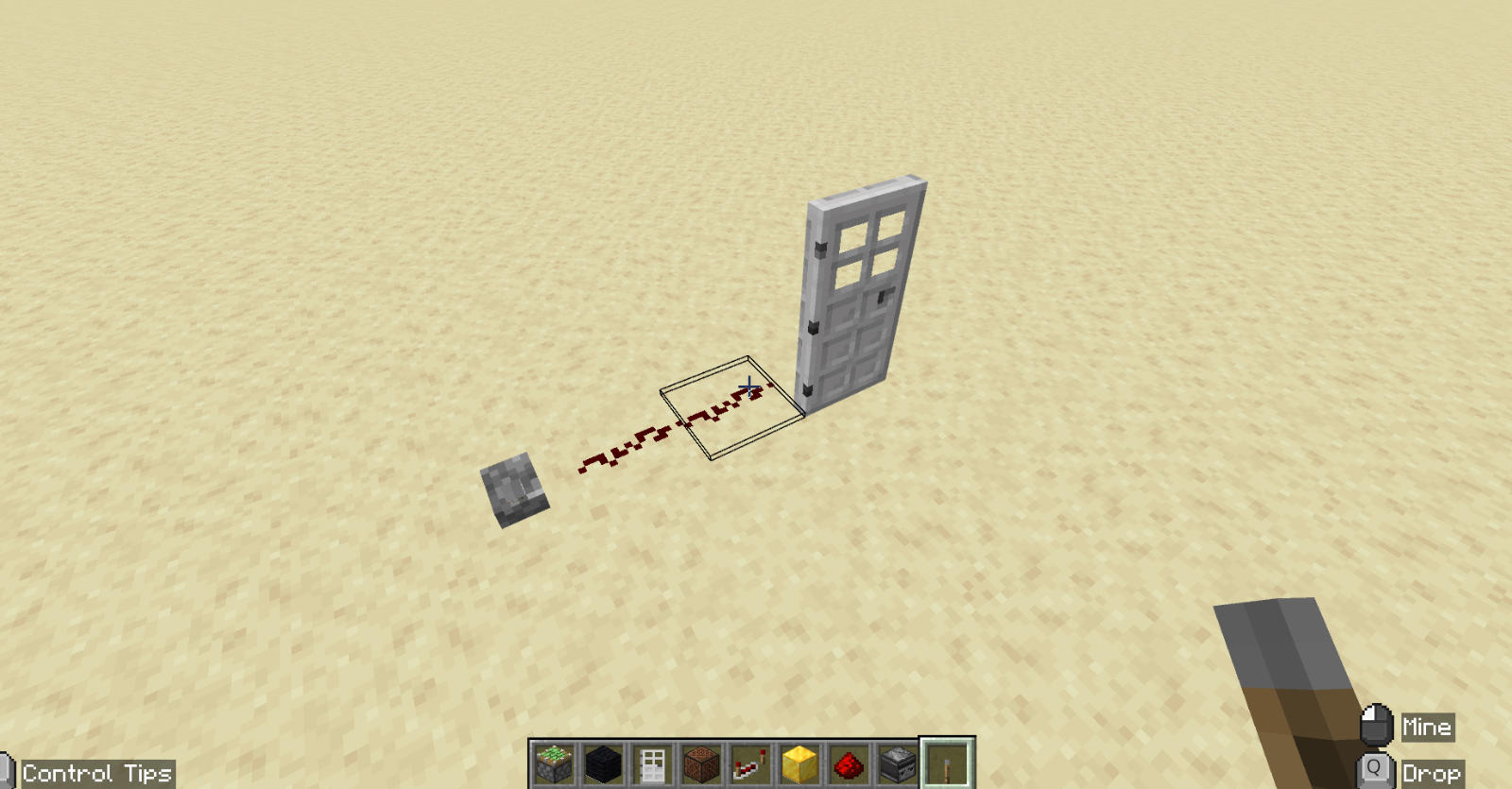
The pressure plates are the inputs and the door is the output. There is no wire, because each plate is right beside the door, but you can add redstone wire to extend a signal and use different inputs, such as a lever, to control the mechanism.
7.5.4A note block#
-
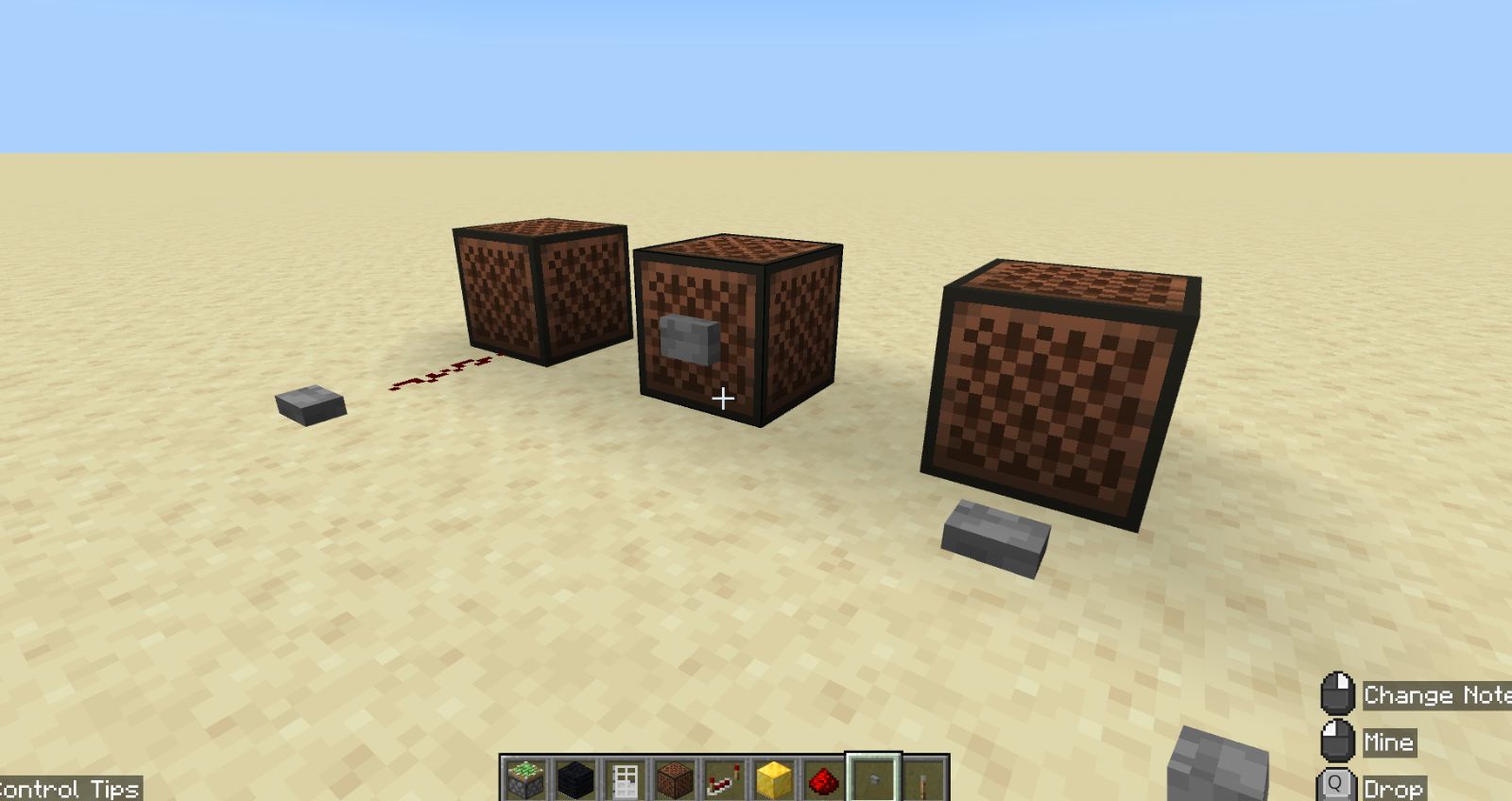
Place a Note Block on the ground.
-
Hold Shift and right click the side of the note block to place a Stone Button on it. Without Shift, right clicking a note block plays it instead.
-
Press the button. The note block plays a note.
-
Right click the note block. Each click plays the next note up.
The block under a note block decides which instrument it plays. Try a note block on top of Wool, Glass or a Gold Block.
7.5.5Other output devices#
An output is any device that “speaks” a stimulus into the world from a signal it recieved. Try out the following blocks on your own to see how they work:
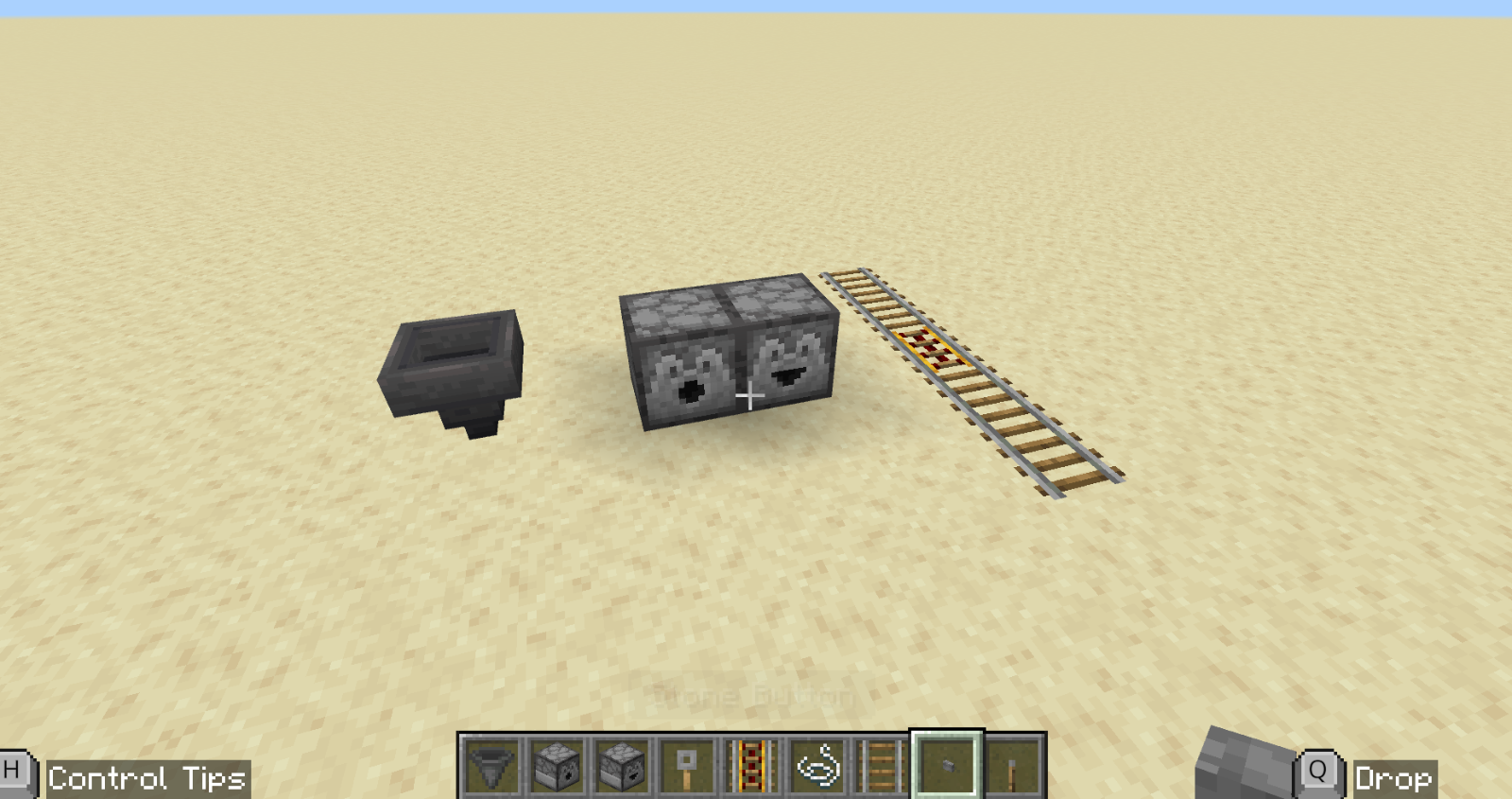
| Block | What it produces |
|---|---|
| Lamp | Light |
| Piston/Sticky Piston | If powered, it extends, pushing forward any block in front of it. If unpowered, it retracts (sticky pistons pull the block back). |
| Iron Door/Trapdoor | An open door if powered, closed if unpowered |
| Note Block | Sound |
| Hopper | Moves items floating in the world, but stops this if it receives a signal |
| Dispenser/Dropper | When it receives a signal, it drops items or shoots projectiles |
| Powered Rail | Boosts minecarts that are travelling over it |
7.6Branching Signals#
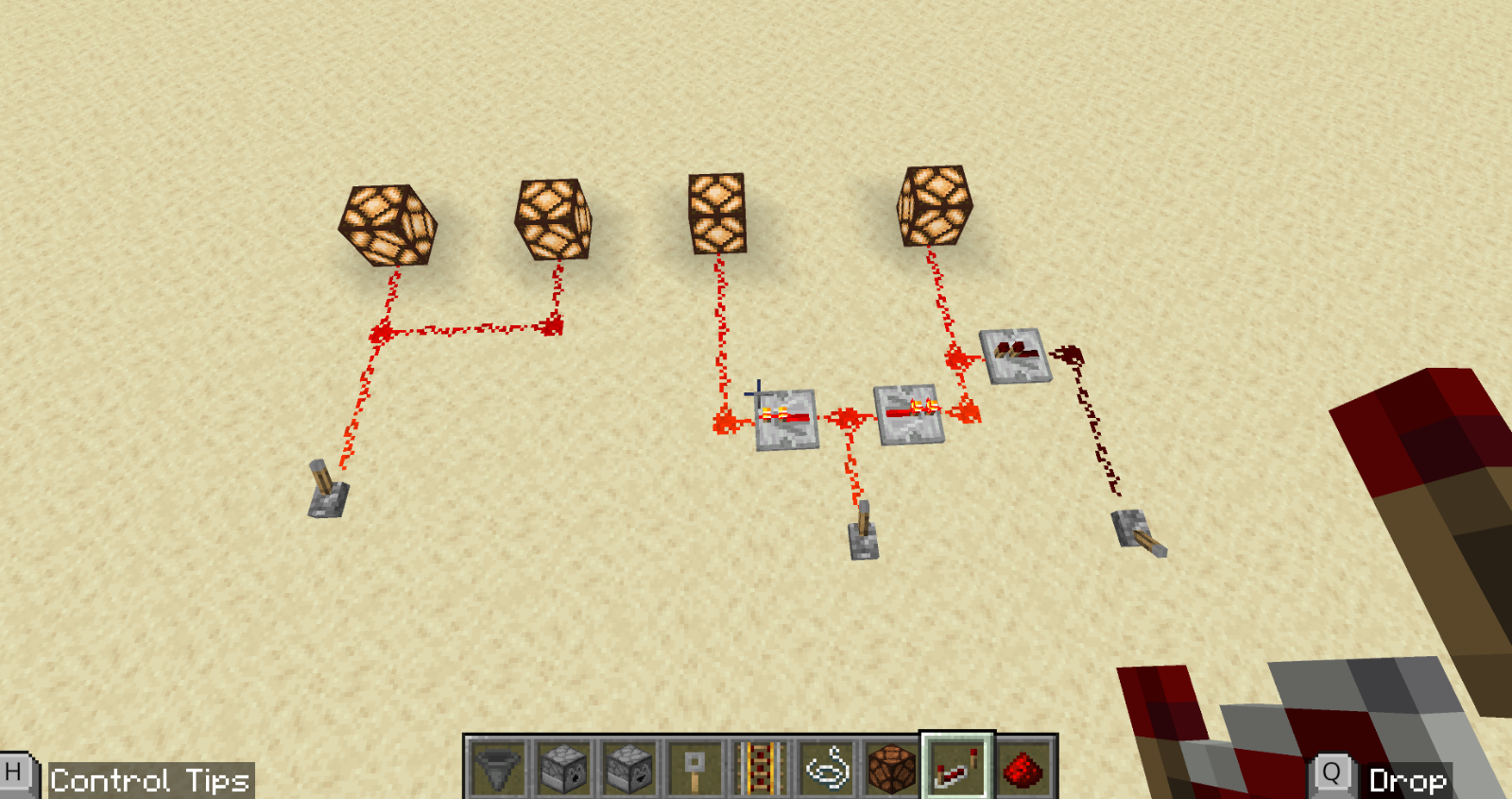
Redstone signals can be branched to power multiple different outputs by adding a line of dust perpendicular to an existing wire. To prevent a signal from “backflowing” you can place a repeater in the direction you want the signal to flow.
7.7Sign-off#
Call your teacher over when you are ready to show it off. For each circuit, you should be able to point to the input and the output.
- A light switch that reaches a lamp more than 15 blocks away
- A button, a pressure plate and an observer, each turning on a lamp
- A sticky piston that pushes a block up and pulls it back down
- An iron door that opens when you step on a pressure plate
- A note block that plays when you press a button
- A device that activates TWO different outputs from a single input
- One example of an input and an output from the other tables
7.8Exporting your world (only if your host will be away)#
If someone in your group is hosting, the world only exists on their account. If they are away, nobody can get in. To prevent this, you can export the world at the end of each class:
-
Host: leave the world, click Play, then My Worlds, select your world, then choose Manage (called Settings in some versions) and Export World.
-
Save the file in a shared Google Drive folder, with the date in its name.
If the host is away, anyone in the group can download the newest file, open it with the Import button on the Play screen, and host. Only one person hosts the world at a time, and whoever hosted it exports it at the end of class.
7.9Level Up#
- Use an observer to make a lamp flash every time a door opens.
- Make one button play 3 different note blocks, one after another, using repeaters to delay the signal to each one.
- Use sticky pistons to build a wall, 2 blocks tall, that opens like a door when you press a button.
- Build a structure to conceal your redstone circuit.
- Try some of the other Redstone input and output devices: Daylight Detector, Tripwire Hook, Detector Rail, Calibrated Sculk Sensor, Target Block, Dispenser, Dropper, Powered Rail, Iron Trapdoor