1Setting Up Google Sites
How to set up a site to create a portfolio your work.
In this course, you will document almost everything you do, creating a portfolio of your work that emphasizes the process and procedures you learned and developed each day.
Documentation, at its core, is just a series of instructions, written as you go. When read back, it should allow your reader to reproduce your work with an appropriate level of accuracy.
You will set this up once at the beginning of the course and add to it all year. This is how you are graded in the class.
1.1Make the site#
-
Go to sites.google.com and sign in with your TDSB Google account.
-
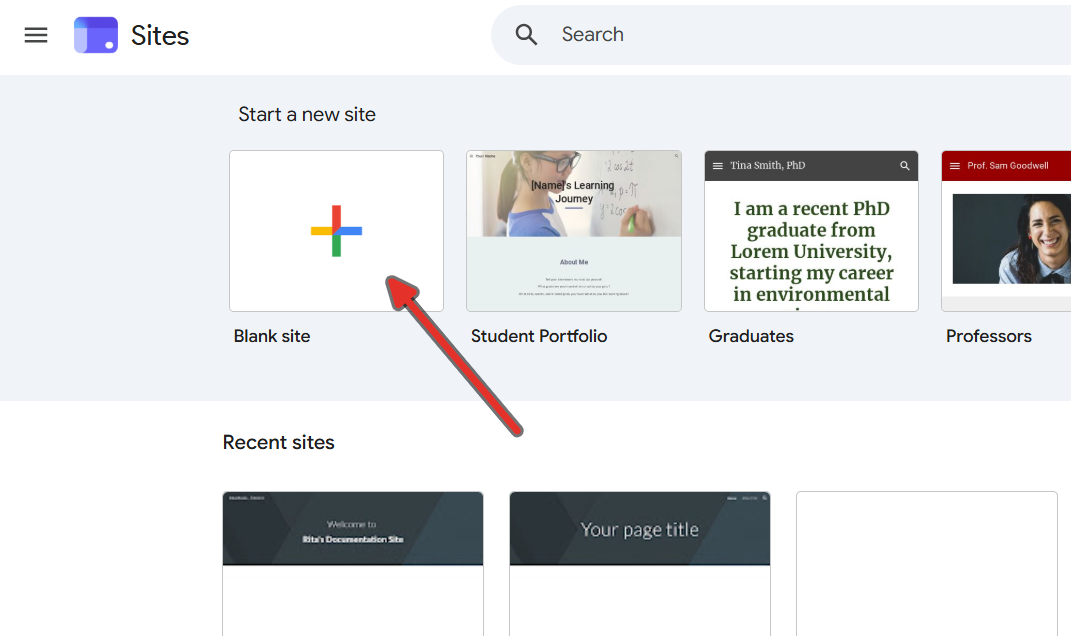
Click Blank to start a new site.
-
Click the site name at the top left — it says Untitled site — and change it to
Firstname Lastname — Course Name.Grade Course code 9 TAS1O 10 TAS2O 11 TEJ3M 12 TEJ4M 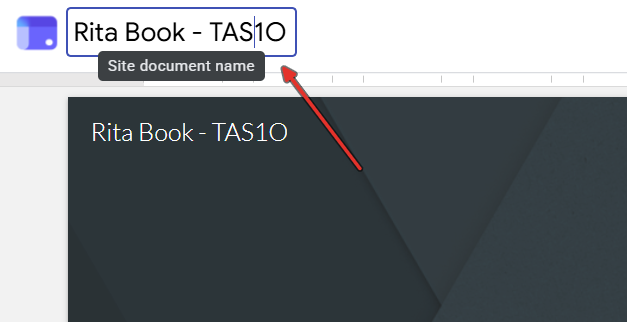
-
Give the page a title by clicking the big Your page title text. This is where you get to start personalizing things, think of a catchy name for your website. You can change this later, and if you’re not sure what to write you can call it
My Documentationfor now.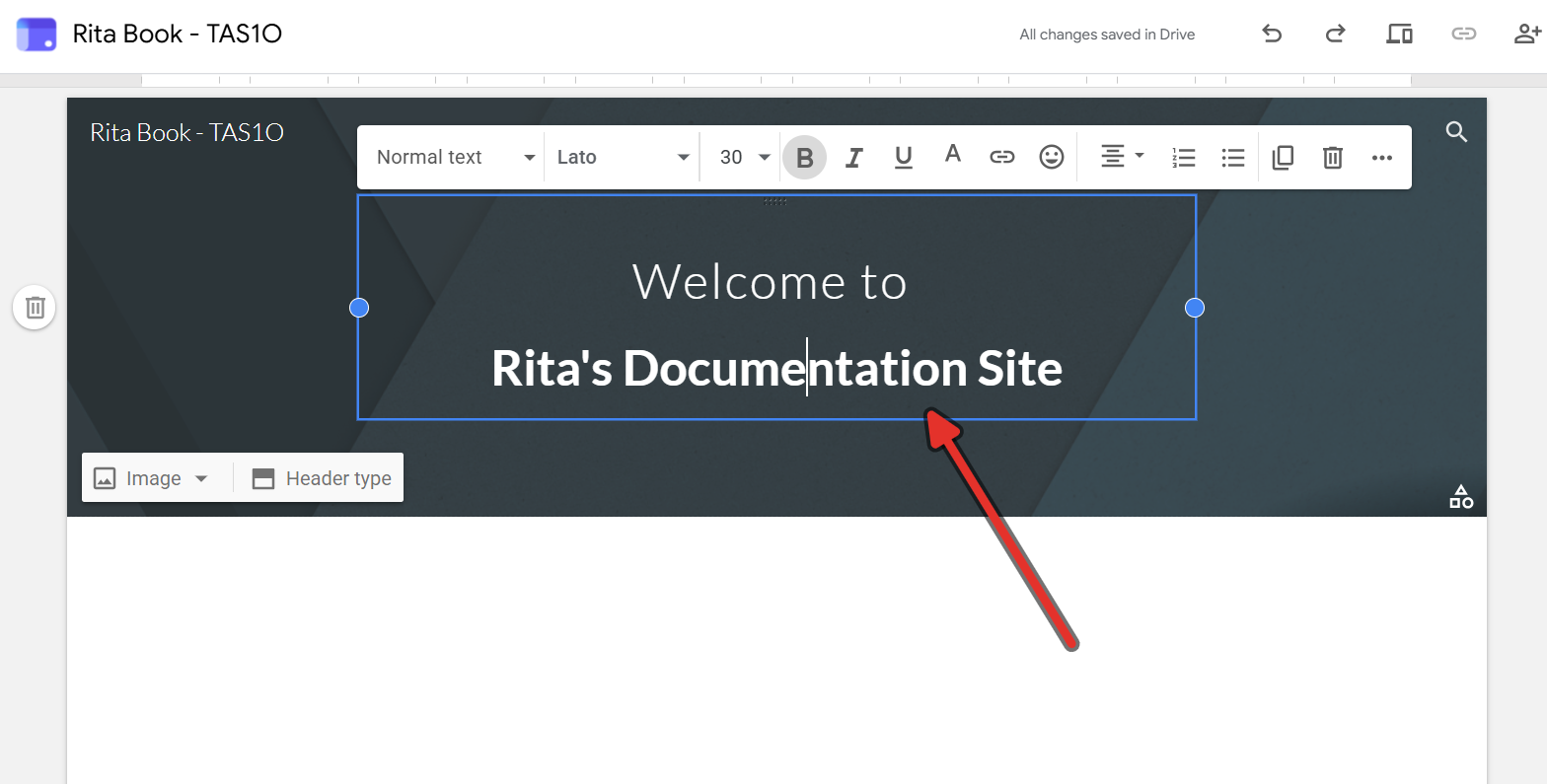
1.2Set up the pages#
You want one page per project, plus an About Me page, and a home page.
-
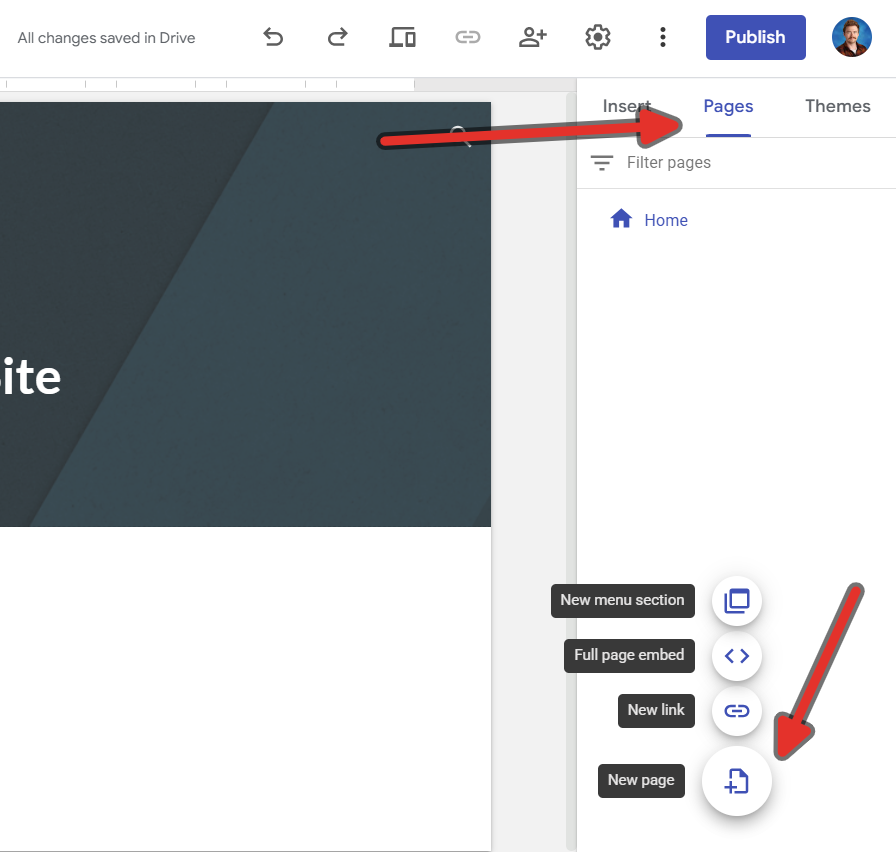
Open the Pages tab on the right-hand panel.
-
Hover over the bottom of the panel and click the + button to add a page.
-
Your first page you will make is
About Me.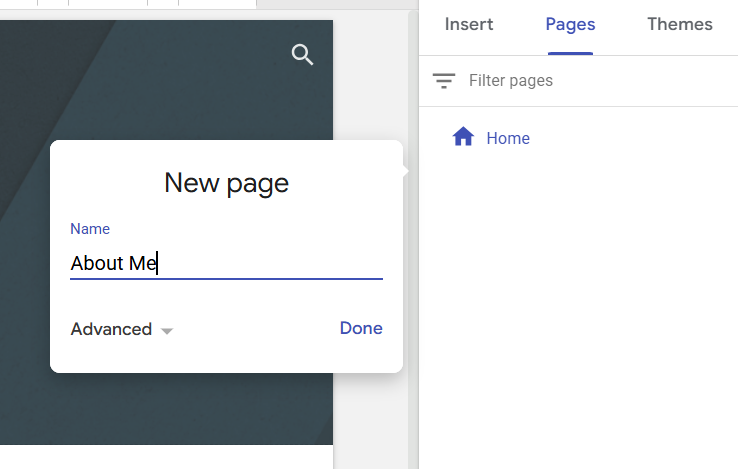
-
Create another page called
Journal. - Create another page called
Project 1. - Create another page called
Project 2. -
Create another page called
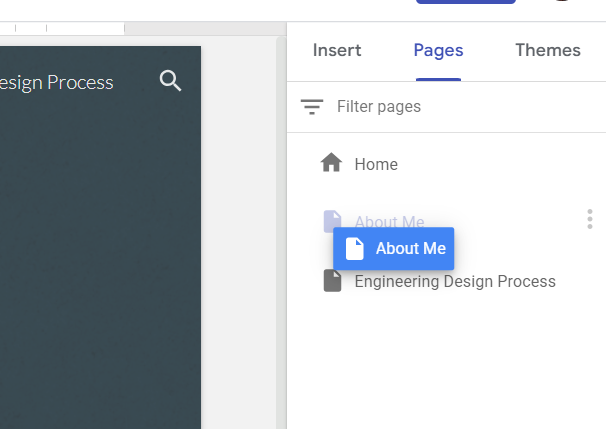
Culminating.You can reorder pages by dragging them around in the Pages tab.
1.3What each page is for#
Those five pages are the whole site. You will be adding to them all semester.
| Page | What goes on it | When you write it |
|---|---|---|
| About Me | Who you are and how you like to work | Now, once. Feel free to update it as much as you’d like. |
| Journal | Short reflections after a class discussion | Whenever you are given a journal prompt in class |
| Project 1 | The full story of building your Cycle 1 device | Every class you work on it |
| Project 2 | The full story of building your Cycle 2 device | Every class you work on it |
| Culminating | The full story of building your culminating project | Every class you work on it |
You do not document the tutorials
When you finish a tutorial (like this page), make sure you have finished the checklist at the bottom of the page, and then call your teacher over to have it signed off in class. When following a tutorials, you do not need to document your progress unless you used it in a project, in which case it belongs in that project’s page.
1.4Fill in your About Me Page#
Navigate to your newly created About Me page. We are going to create a page where your teacher and your peers can learn more about you and your learning process.
1.4.1Add Text#
-
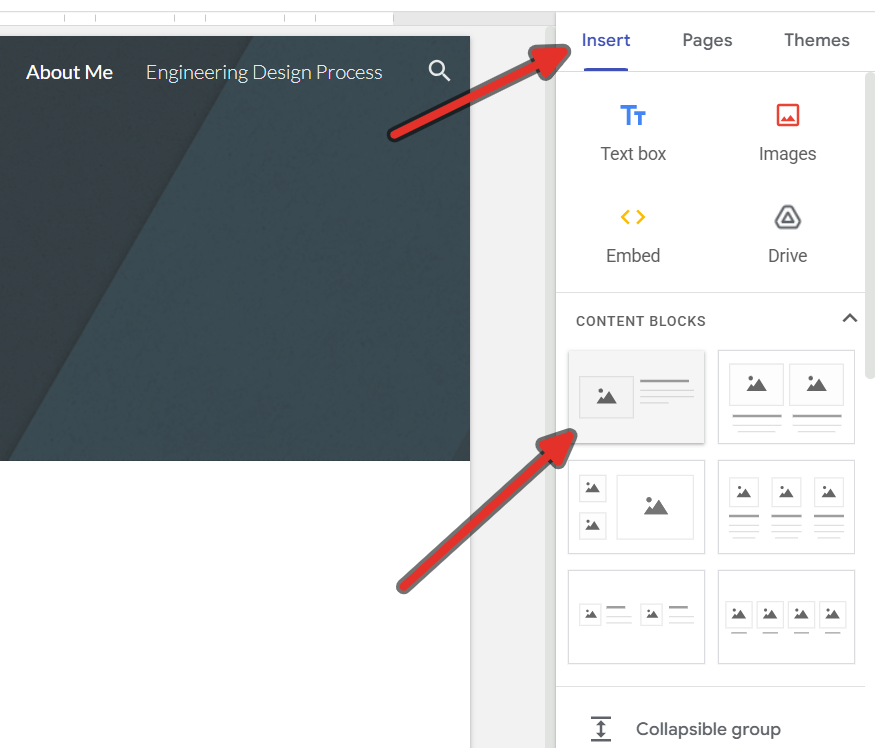
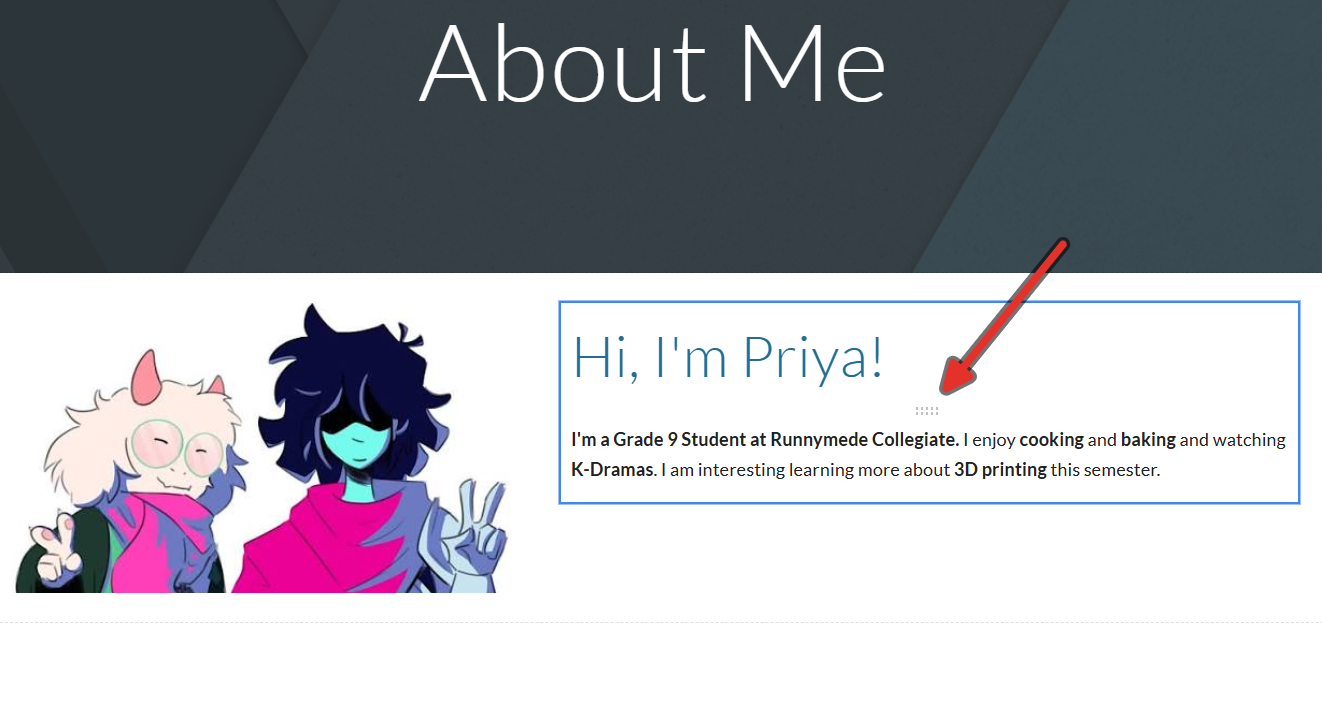
Open the Insert tab on the right-hand panel. The row of thumbnails at the top is the content blocks section. These are ready-made layouts that drop text boxes and image frames onto the page for you.
-
Click the first content block. It gives you two text boxes and a photo frame, already arranged.
-
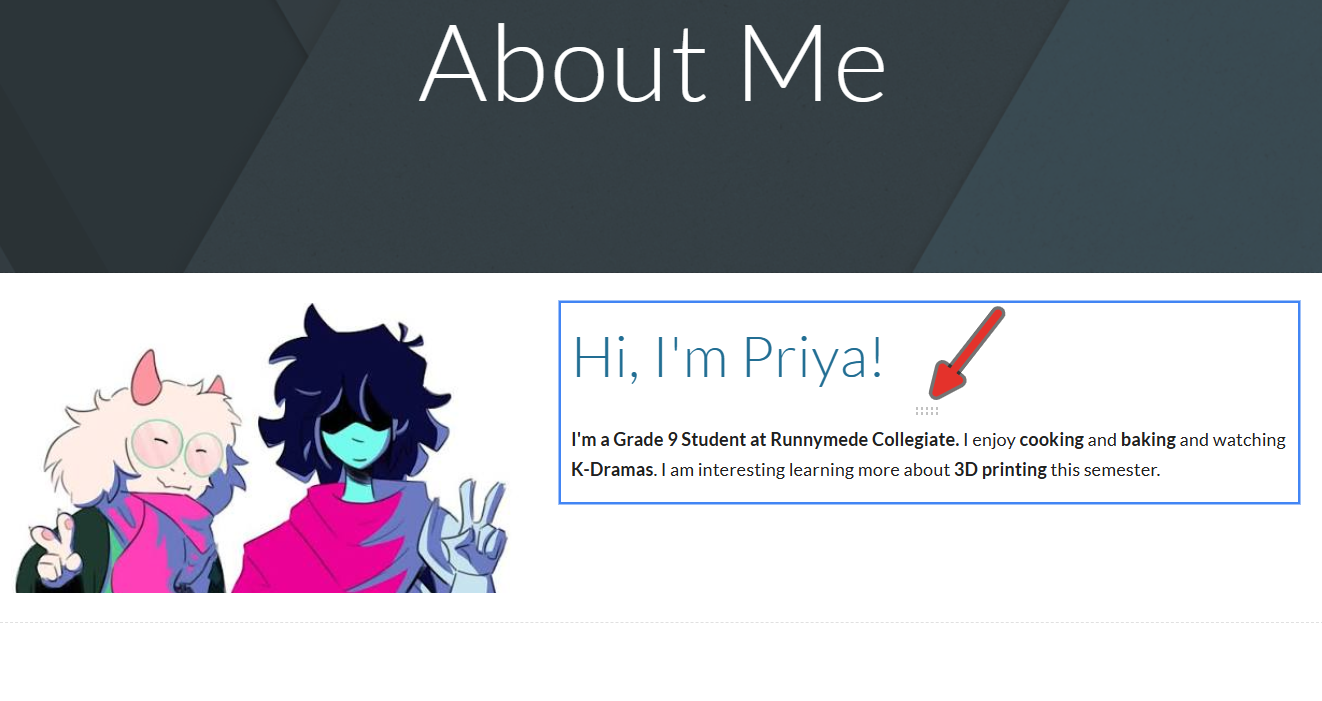
In the first text box, write one short sentence introducing yourself: your name, and what school you go to or came from. Italicize your name.
Hi, I’m Priya, a Grade 9 student at Example Collegiate!
-
In the second text box, tell us about yourself, your favourite things to do, your hobbies. Write two or three sentences. Bold three words that either define you the best or describe an activity you enjoy.
I spend most of my free time skateboarding or taking apart old electronics to see what is inside. I am the person my family calls when the printer stops working, so I am fairly experienced with fixing things. This year I want to learn more about soldering.
-
You can change the placement of what content goes in each block by clicking and dragging the small rows of dots that appear when you hover over an item. Sometimes you need to click the content once or twice to select the items within a group to fully separate them. Watch the blue outline to see what you have hold of.
1.4.2Add Photos#
For your About Me photo, find a photo that you think best represents yourself. It doesn’t need to be a photo of yourself, but you are more than welcome to upload one.
-
In Sites, click Insert, then Images, then By URL or Drive, and pick your photo.
-
Drag the corner handles to resize. Aim for about half the page width — big enough to see detail, small enough that the page is still readable.
-
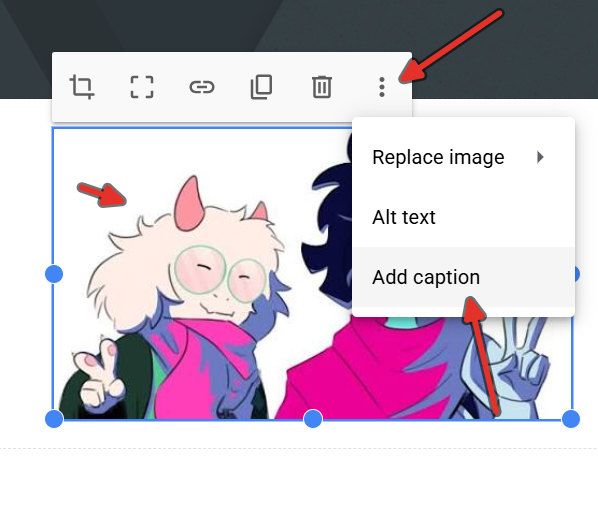
Click the image, then the caption area underneath, and write what the photo shows. Captioned photos help users with visual impairments still understand what is on your website using screen readers.
Photos of other people
Do not put photos of classmates on your site without asking them first. Photos of hands, benches and workpieces are fine.
1.4.3Personalize Your Site#
-
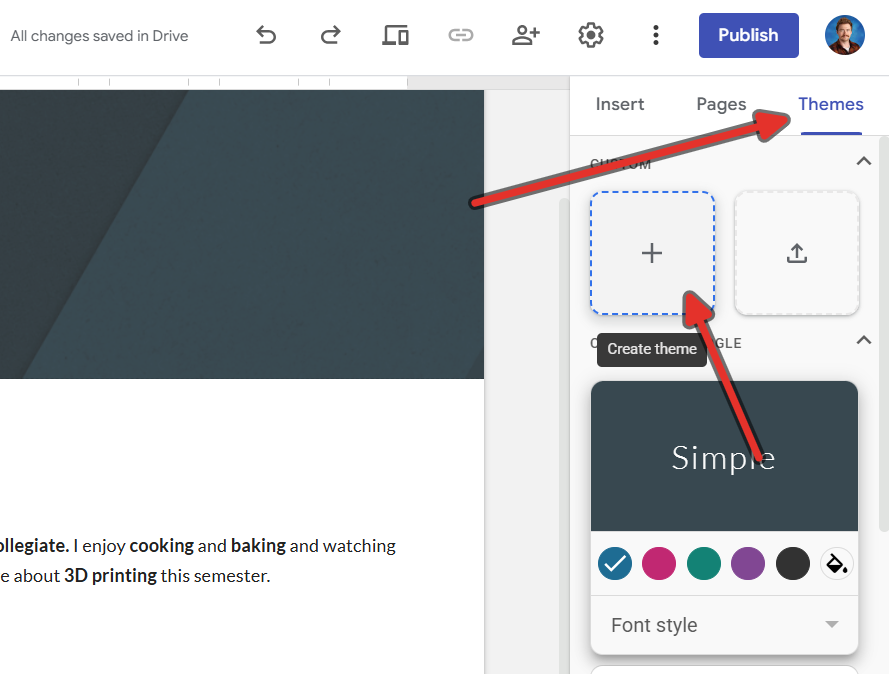
Open the Themes tab on the right-hand panel and pick a starting theme. Each one is only a preset, you will change it next.
-
Click the pencil or Customize icon on your chosen theme to open the colour and font options.
-
Choose your own colours and fonts. You can set the heading font and the body font separately.
-
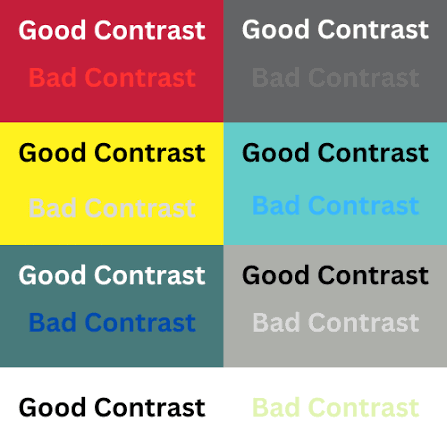
Make sure your site is still legible. Use dark text on a light background, or light text on a dark background. Do not pick a colour for your text that sits close to your background colour. If you have to lean in to read it, your reader will not bother.
-
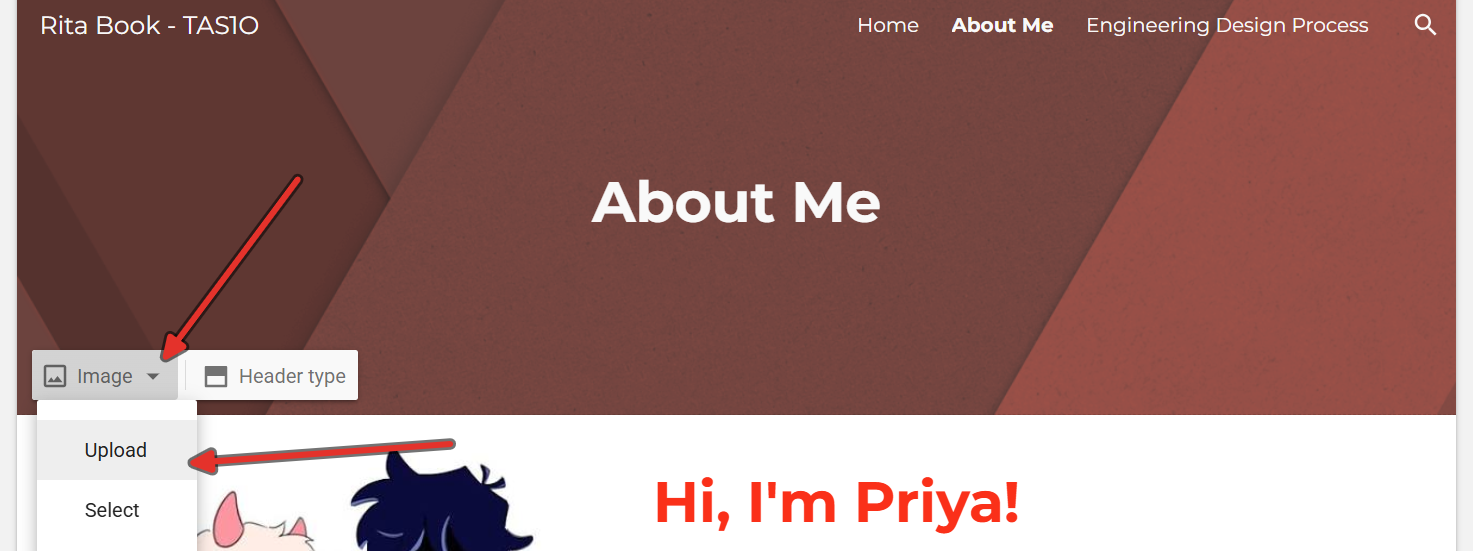
Add a banner image to your header. Hover over the page title banner, click Change image, then Upload or Select image. Pick something related to the course or to you, like a workshop, a circuit board, or a photo you took.
-
With the banner selected, use Header type to switch between Cover, Large banner, Banner and Title only until the title sits legibly on top of your image.
1.5Publish it#
This is the step people forget, and an unshared site marks as zero because I cannot open it.
-
Click Publish at the top right.
-
For the web address, use
firstname-lastname-coursecode. It has to be unique, so add a number if it is taken.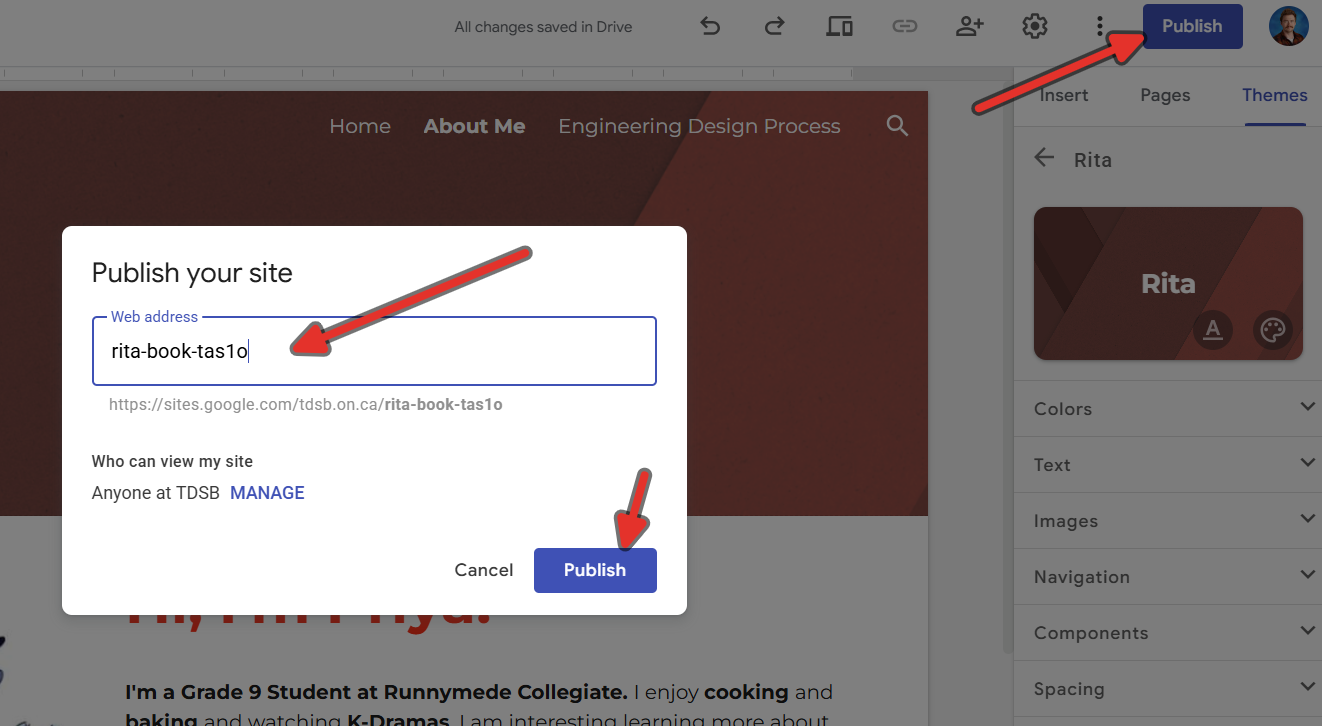
-
Under Who can view my site, click Manage, and set it so anyone in the TDSB with the link can view. Do not set it to fully public.
-
Click Publish. Your site does not auto-update, you need to click Publish each time you want new work to appear on your site.
Check it the way I will see it
Ask a classmate to open your link on their own account. If they can see every page and every image, your sharing is right. If they hit a “You need access” screen, go back to step 3. You can also paste the link into a private or incognito window. It will ask you to sign in with a TDSB account, which is what should happen. If the site loads without asking you to sign in at all, you’ve set it to public by accident.
-
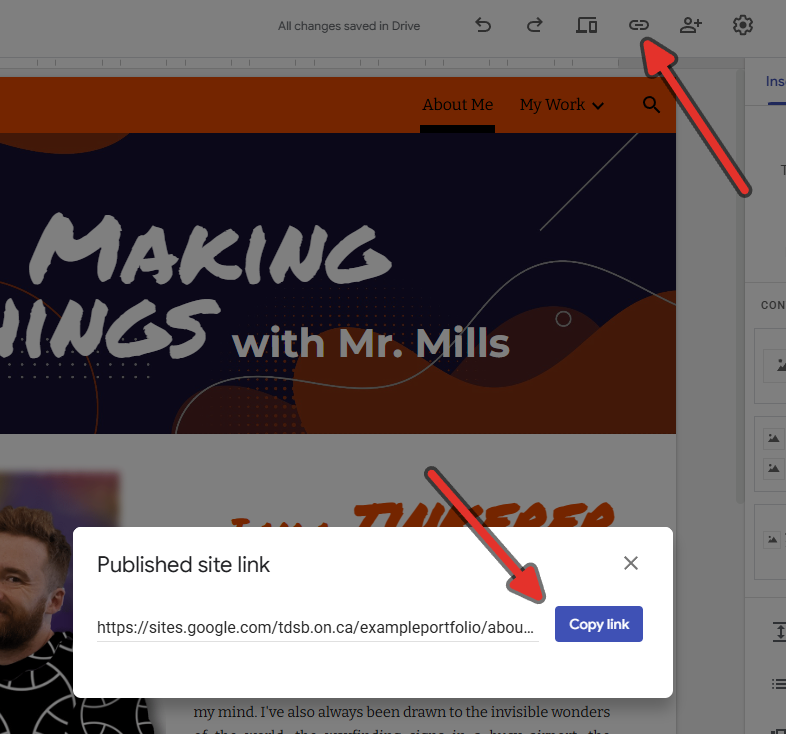
Copy the published link and add it to the class spreadsheet.
1.6Sign-off#
- Site and URL named with my name and the course code
- A home page, an About Me page, Journal page, Project 1 page, Project 2 page, and Culminating Page
- In my About Me page: two text blocks, a captioned photo, and my own theme
- Published, not just saved
- Link checked by a classmate to confirm it actually works
- Link added to the spreadsheet
Once you’ve completed these tasks, you may get the attention of your teacher to get credit for completing this tutorial.
1.7Examples#
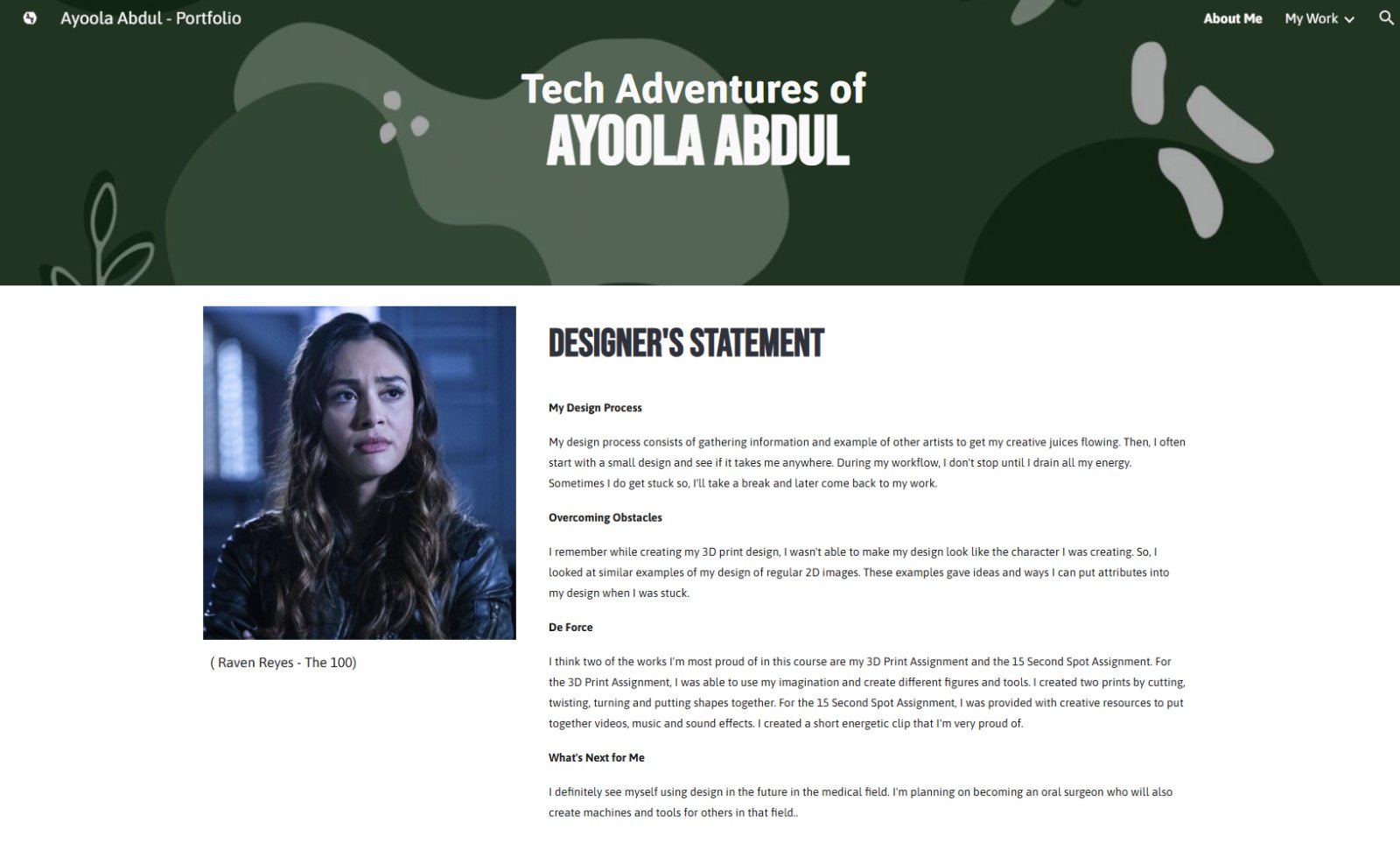
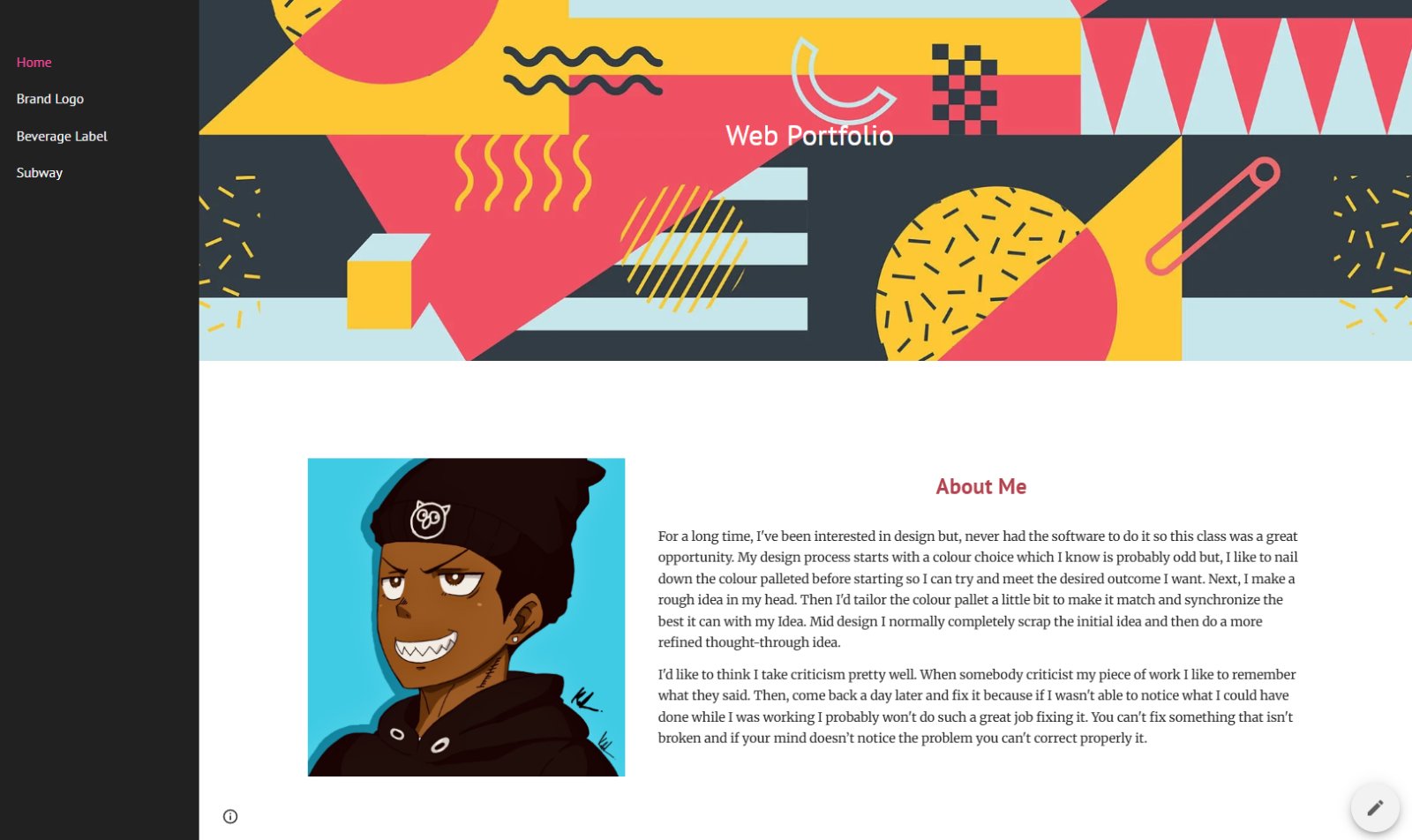
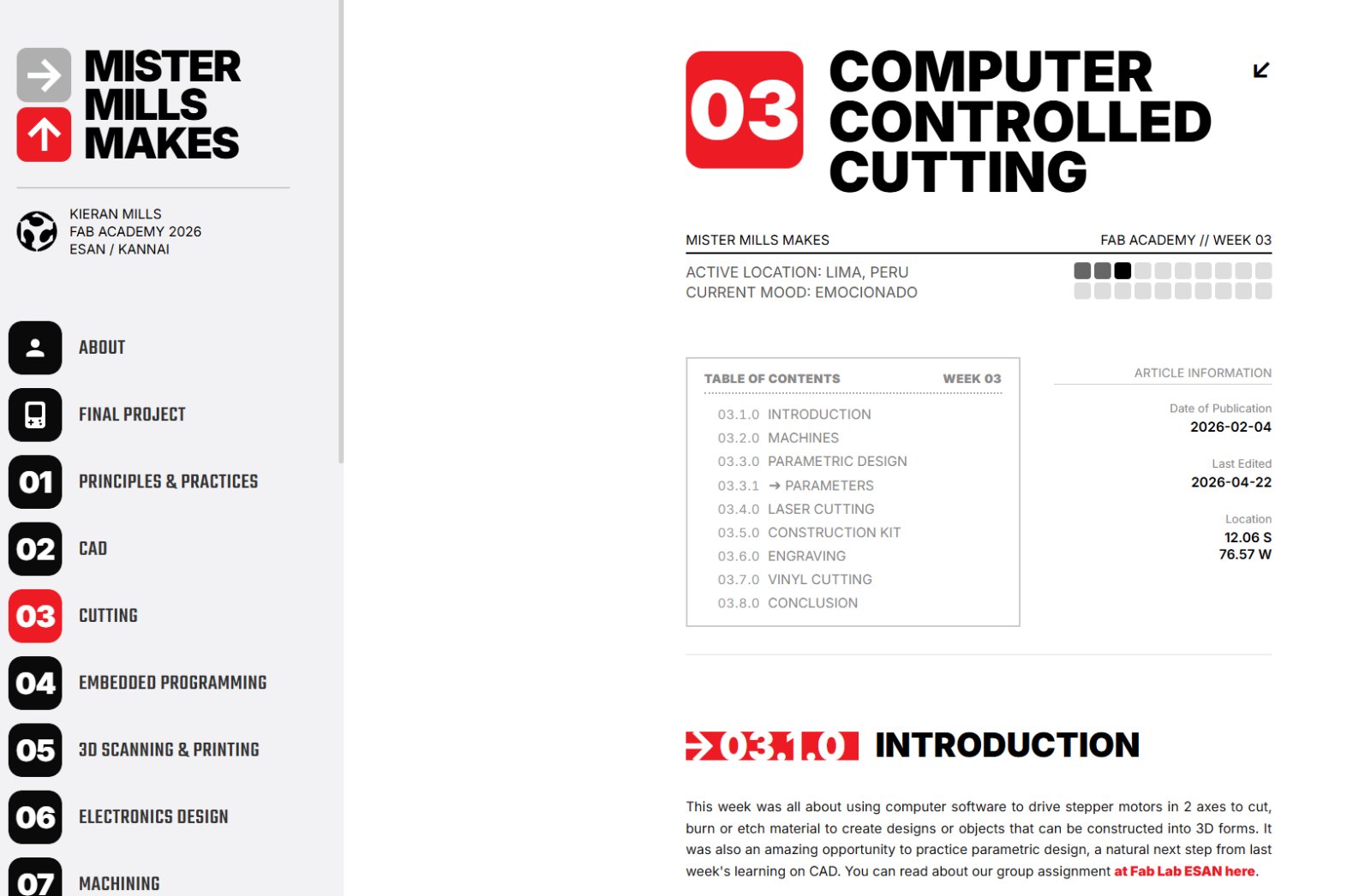
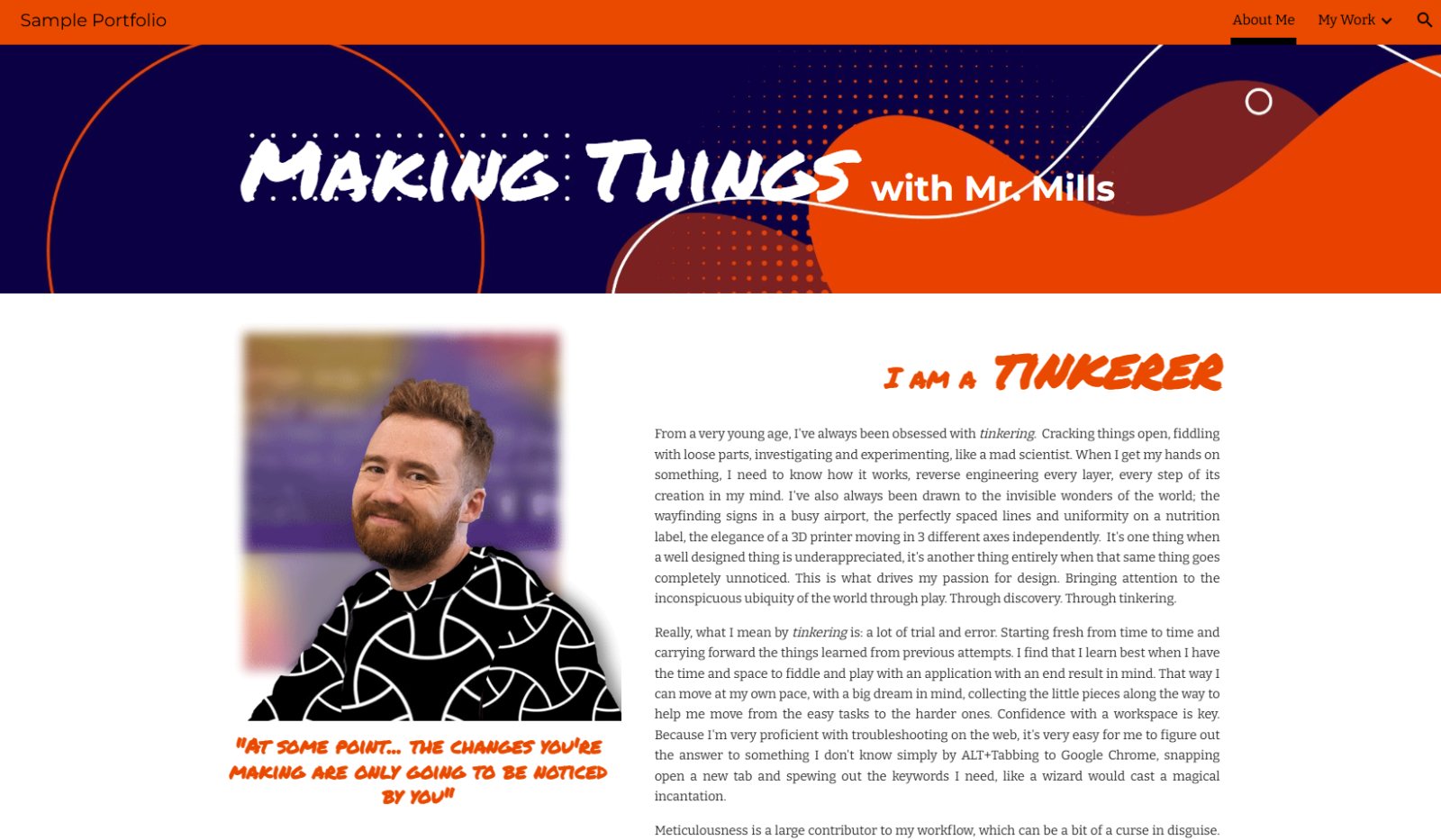
The following are examples of different kinds of documentation websites. They are not templates nor do they include all of the information you may need for your site. Use these as inspirational resources to give you ideas about how to format and structure your own site.