Using School Printers
Adding a classroom printer to a school Windows computer so you can print to it.
Classroom printers are installed from a shortcut on the desktop of every school Windows computer. You only need to do this once on each computer you log in to.
Windows school computers only
This will not work on your personal computer, your phone, a Chromebook or a Mac. Log in to one of the desktop school computers first. You can transfer the file from another device via Google Drive.
Install the printer#
-
On your desktop (the default “home screen” when no windows are open), double-click on the Runnymede Collegiate Institute Classroom Printers icon. In some cases the icon is a blank white page instead of a printer.
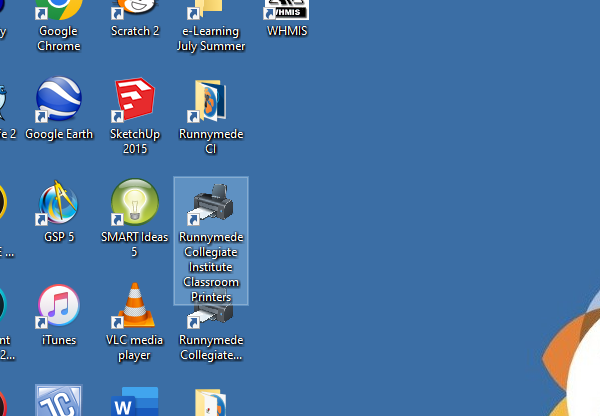
The Runnymede Collegiate Institute Classroom Printers icon on a school desktop. -
A new window will open. Double-click on the file Printers.qds within this folder.
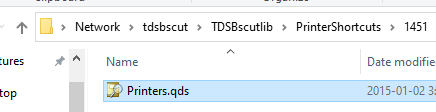
Printers.qds, inside the PrinterShortcuts > 1451 folder. -
A second window will open, listing the printers in the school. Find the room you are in under the Location column, then double-click on that row.
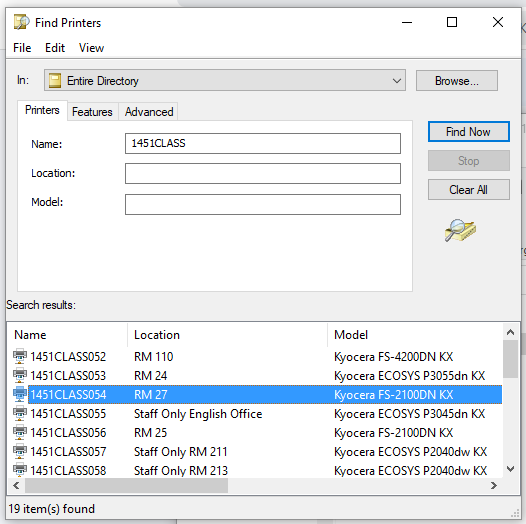
Every classroom printer starts with 1451CLASS. In this example, 1451CLASS054 is the printer in Room 27. -
A third window will open. Let it complete the task. When it closes by itself, you have successfully installed the printer. Close all windows.
If you’re working on the hobby knife tutorial, return to those instructions now.
Printing a File#
-
Open your file in Google Chrome and select Print.
-
Under Destination, select the printer you just installed. Its name starts with
1451CLASS. -
If it is your first time printing on this computer, the printer may not be in the list yet. Click See more… to find it.
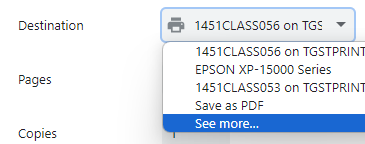
Chrome's Destination list. See more... is at the bottom.
Troubleshooting#
| Problem | Fix |
|---|---|
| The printer is not in the Destination list, even under See more | Close the print window by clicking Cancel, then open it again |
| There is no printers icon on the desktop | You are not on a school Windows computer. Move to one of the desktop computers |
| You cannot tell which row is your room | Check the room number outside the door. Rooms are written as RM in the Location column |
| The printer was installed on another computer, but is missing on this one | Install it again. Printers are added to each computer separately |
| You still don’t see the printer in Google Chrome, even after clicking See more | Fully close the print dialog window, reopen your file, and try printing again. |