33D Modelling in TinkerCAD
Measuring a real 2x2 LEGO brick with calipers, modelling it to those dimensions in Tinkercad, and printing a copy that clips to the original.
LEGO bricks are one of the most expensive pieces of plastic you can buy, not because the plastic is anything extraordinary, but because LEGO bricks are machined with a very high degree of precision. Every LEGO brick ever made should be able to fit perfectly with every other LEGO brick manufactured, across different countries, regions and sets.
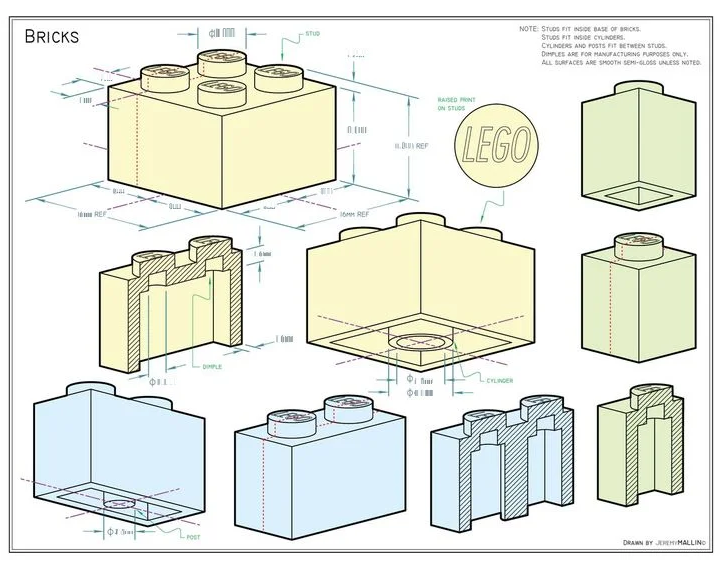
In this tutorial, you’re going to try to replicate that precision by measuring a 2x2 LEGO brick using calipers and recreating it in 3D CAD (computer aided design) software. For this class, we’ll be using a free browser-based application called TinkerCAD.
You will need
- A 2x2 LEGO brick
- Vernier calipers
- A sheet of paper for sketching and recording measurements
- A pencil and a ruler
- A computer with Tinkercad
3.1What you are making#
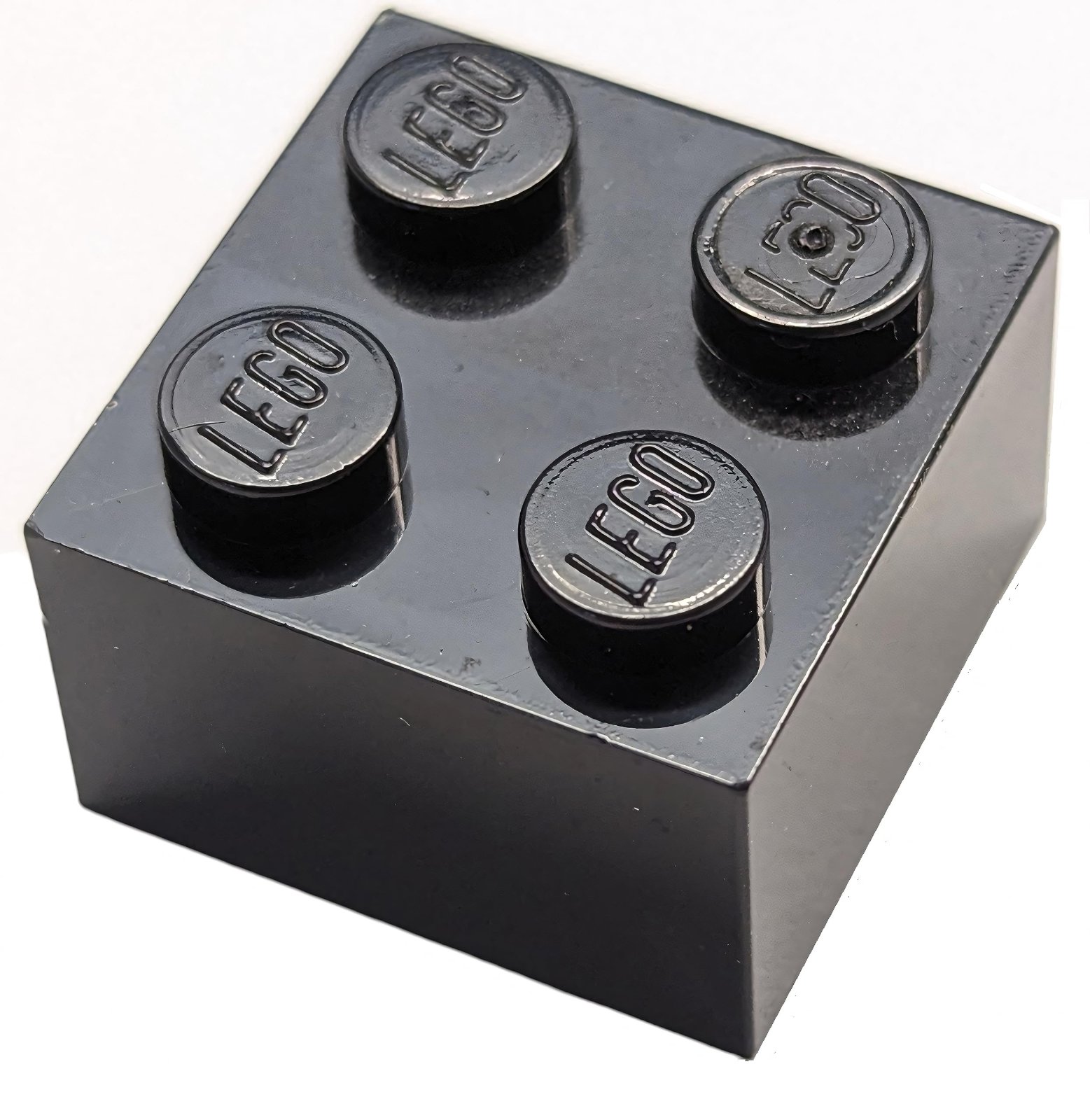
A LEGO brick is a hollow box with four studs on top and one tube inside. The tube and the walls grip the studs of the brick below it. That grip is the whole design, and it is why the dimensions matter. Being off by even 0.1mm can mean your brick does not fit snuggly.
The workflow is the one used for any reverse-engineered part:
- Sketch it, so you know what you need to measure.
- Measure it, and record every measurement on the sketch.
- Model it from the numbers on the sketch.
- Print it and test whether the real part fits.
3.2Sketch It#
Do this before you touch the calipers. The sketch is what tells you which measurements you need, and drawing it forces you to look at the part properly.
-
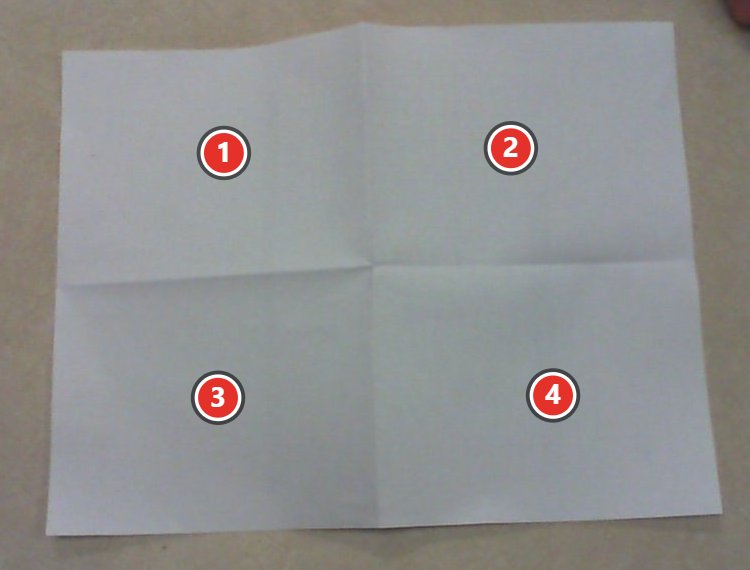
Fold a full size piece of paper in half, and then in half again. Unfold your paper to reveal 4 evenly sized sections you can now work in.
-
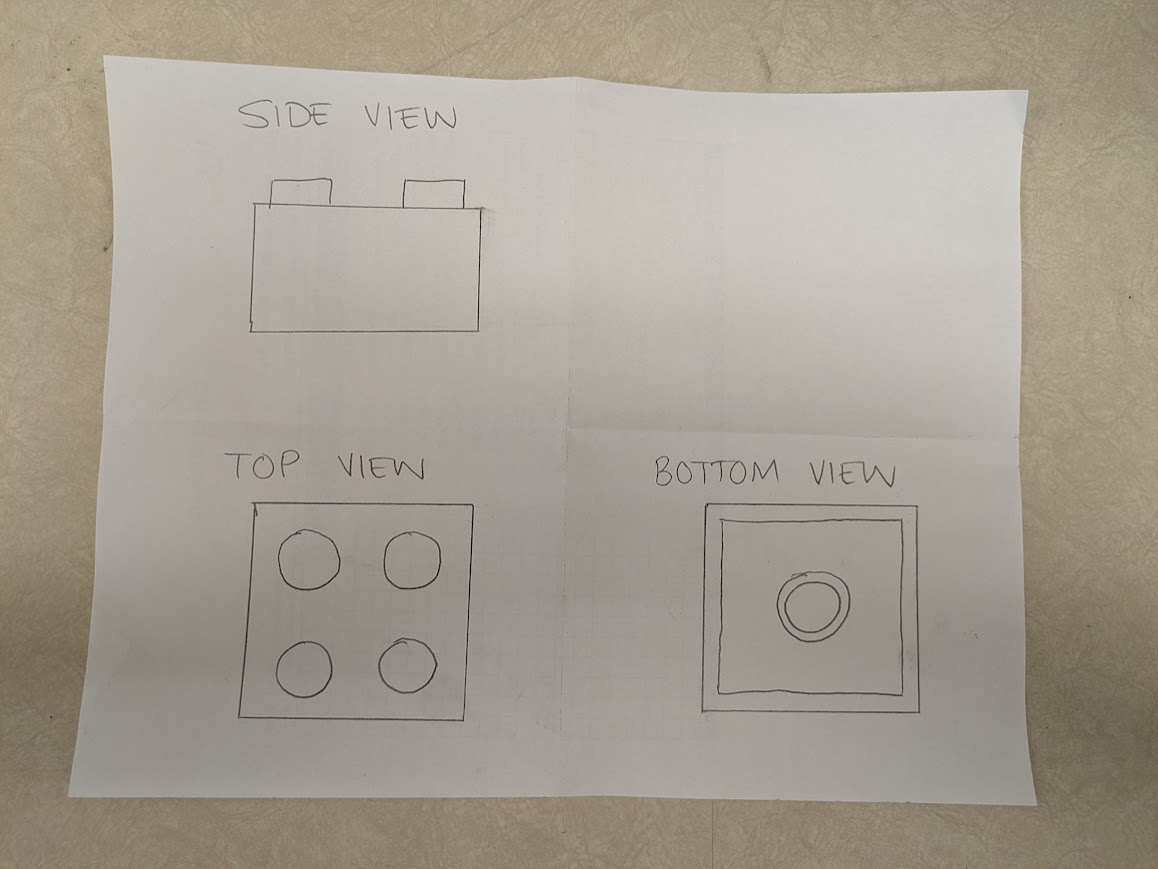
Using a ruler, draw the brick in three views, front, top and side. Use one section of your paper for each view. Leave the 4th section empty. Your drawing does not need to be perfect, but it should at least have the correct proportions. Leave space around every view for numbers, but make sure you are drawing large enough
3.3Measure it#
Take every measurement below and write it on your sketch, next to the feature it describes.
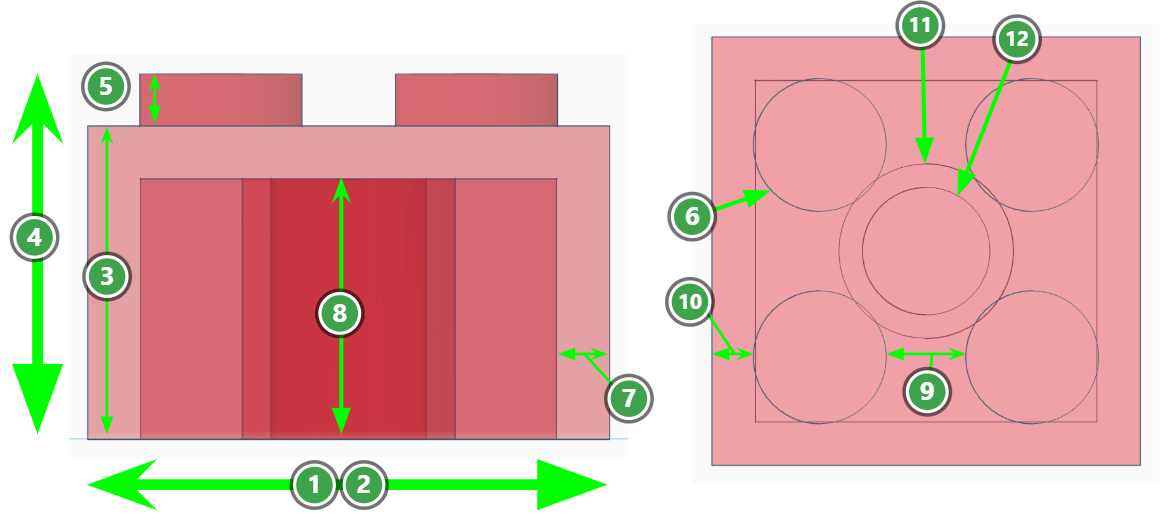
| # | Measurement | Description | Technique |
|---|---|---|---|
| 1 | Brick width | Length, Across the body | Outside jaws |
| 2 | Brick depth | Width, the other direction, should be the same number as #1 | Outside jaws |
| 3 | Brick height, body only | From the bottom to top surface, not including the studs | Outside jaws |
| 4 | Whole height, including studs | Top of stud face to bottom of brick | Outside jaws |
| 5 | Stud height above the brick face | Depth rod, check this answer by subtracting #3 from #4 | Depth rod |
| 6 | Stud diameter | Wrap around a single stud, distance across | Outside jaws |
| 7 | Brick wall thickness | Flip piece upside down and clamp the thin walls | Outside jaws |
| 8 | Cylinder inner depth | Into the hollow cylinder underside | Depth rod |
| 9 | Stud spacing, centre to centre | Outside jaws across two studs, then subtract #6 twice | Outer jaws + math |
| 10 | Stud position from the edge | Measure edge to the near side of the stud | Step depth |
| 11 | Inner tube outer diameter | Clamp the wall of the inner cylinder | Outer jaws |
| 12 | Inner tube inner diameter | Inside the tube | Inside jaws |
You may assume the following, so you do not have to measure them:
- The wall thickness is the same on all four sides, so measurement 7 covers all of them.
- The hollow inside the studs does not need to be modelled.
- The inner tube depth is the same as the brick inner depth, measurement 8.
Measure each one three times
THIS IS IMPORTANT! YOUR FIRST ATTEMPT WILL FAIL IF YOU ARE NOT ACCURATE. Take the caliper off the brick between readings and completely read the measurement again, or compare it with an identical feature. If your three readings differ by more than 0.2 mm, your technique is the problem, not the brick. Try it again until you get numbers that are more consistent. Consult the previous tutorial on Using vernier calipers if you forget.
Check your numbers against each other
Your measurements should be internally consistent. Whole height minus brick height should equal stud height. Two stud spacings plus the edge distances should add up to the whole width. If they do not, at least one measurement is wrong, and finding out which is easier now than after you have printed it.
3.4Make a TinkerCAD Account#
-
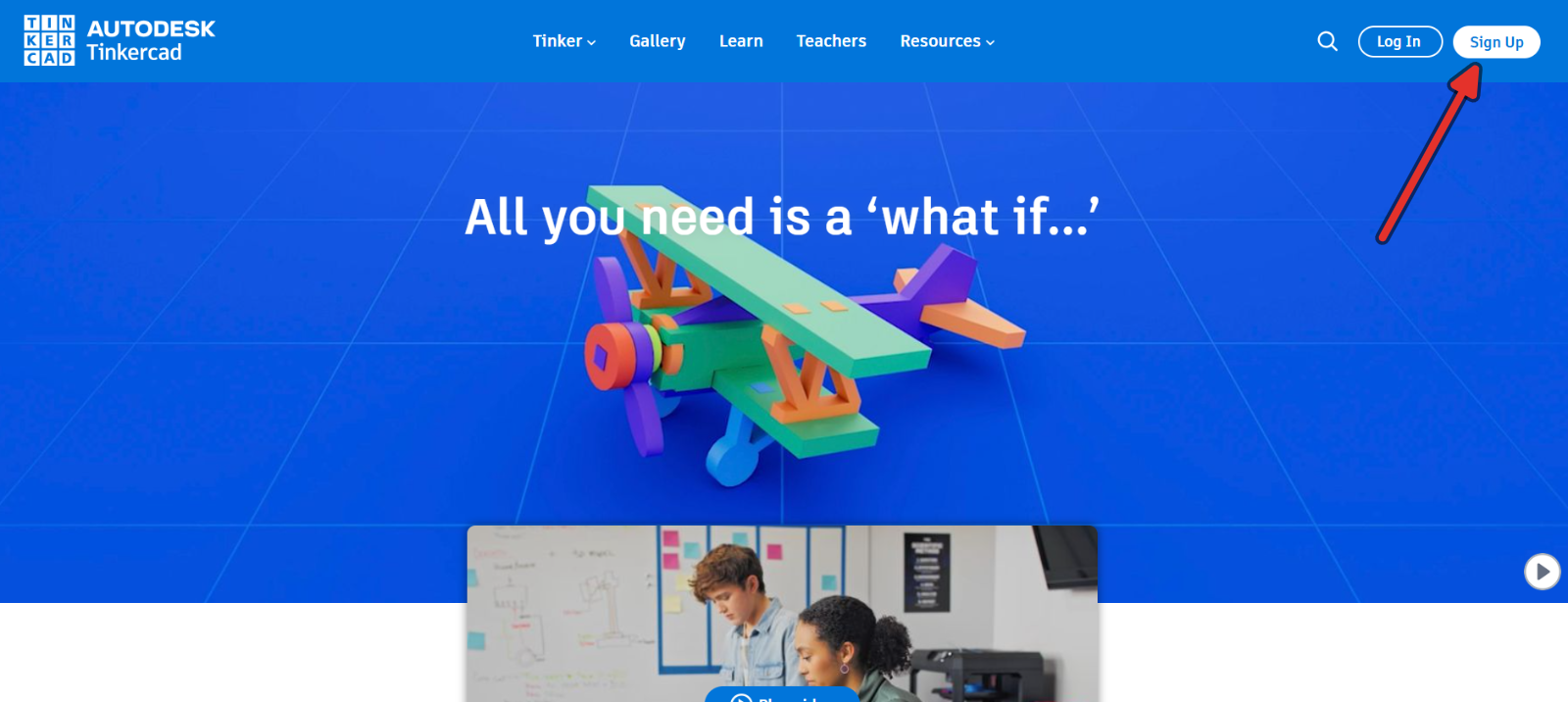
Visit https://www.tinkercad.com/ and click Sign Up
-
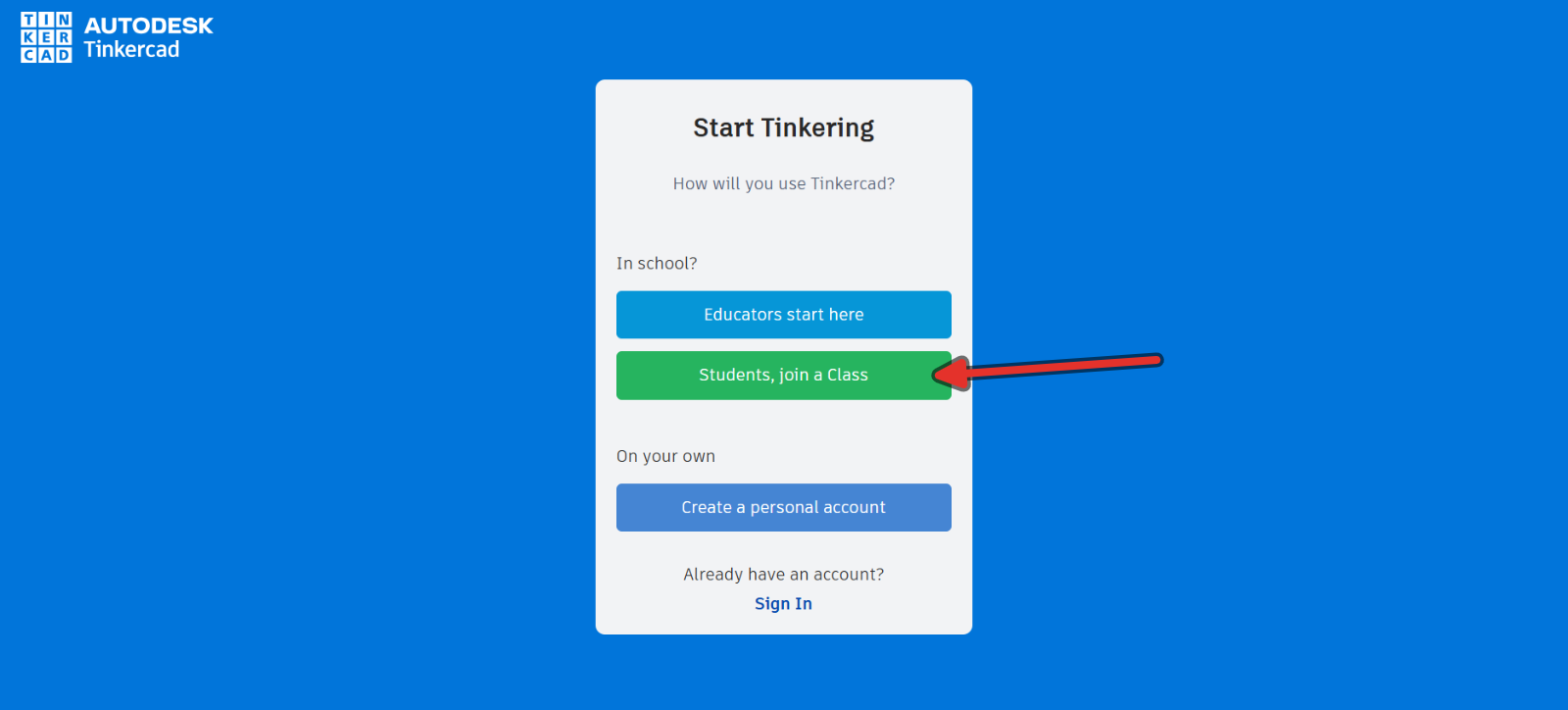
Click “Students, join a class”, locate the class code that is written on the whiteboard.
-
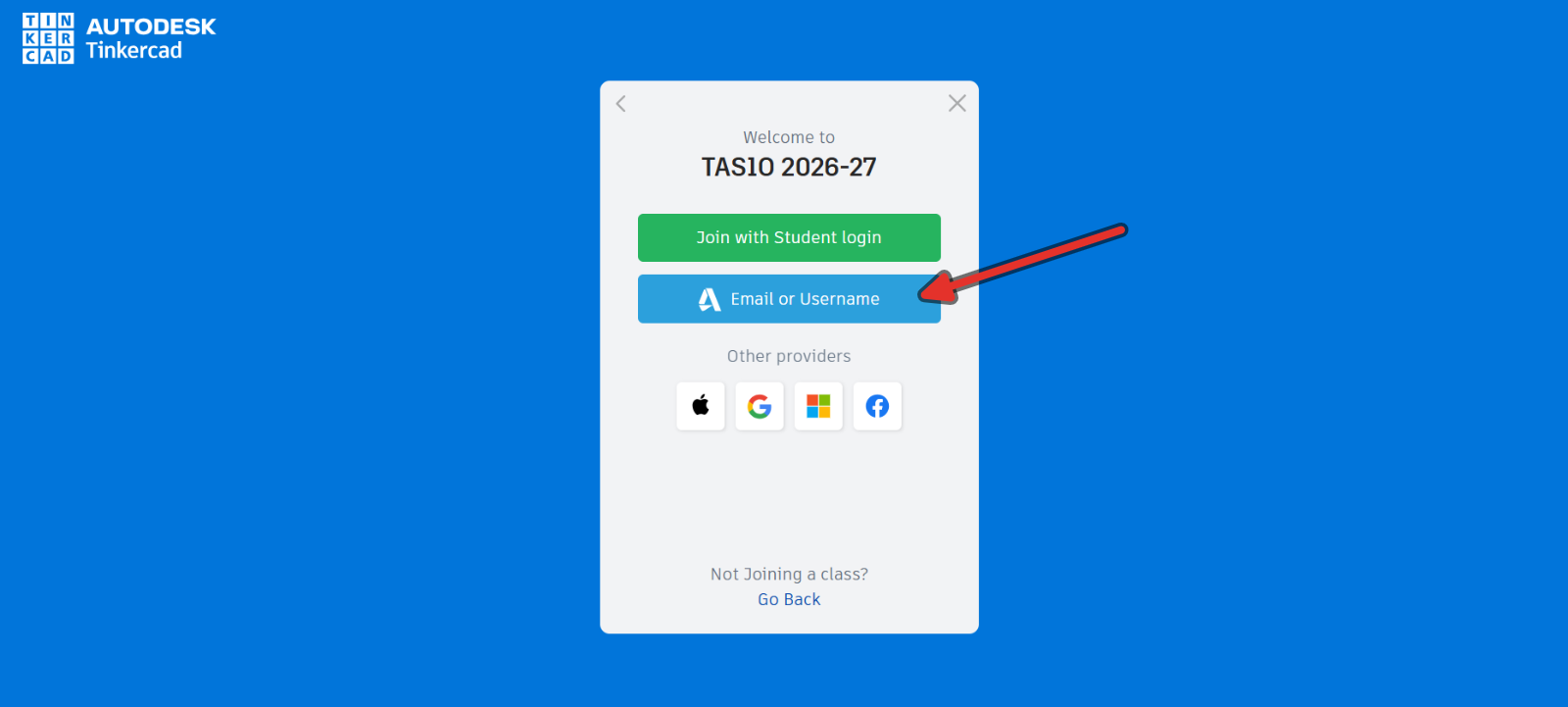
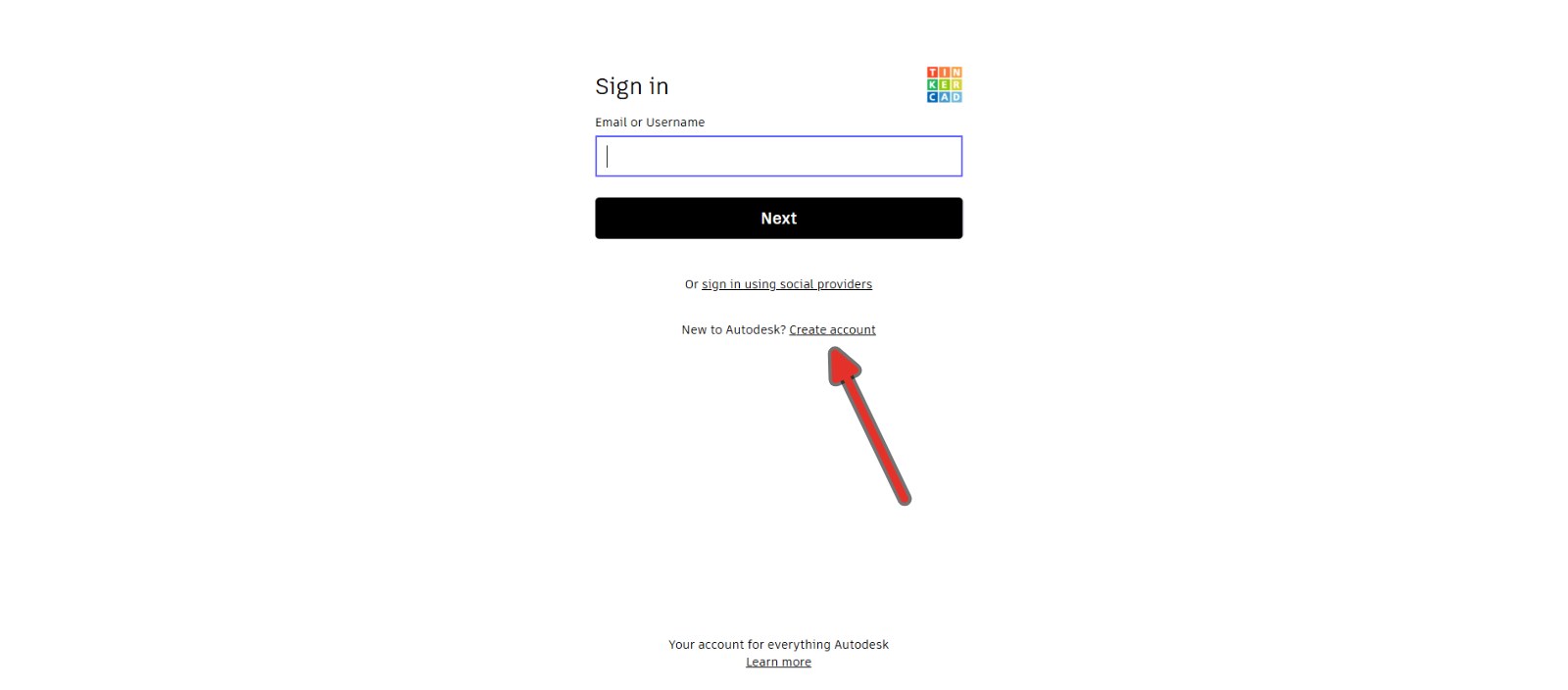
If you have an account already, you may sign in with it. Otherwise, click on “Email or Username”, then click on “Create account”. When signing up, do not provide your real name or real date of birth.
3.5Model It#
-
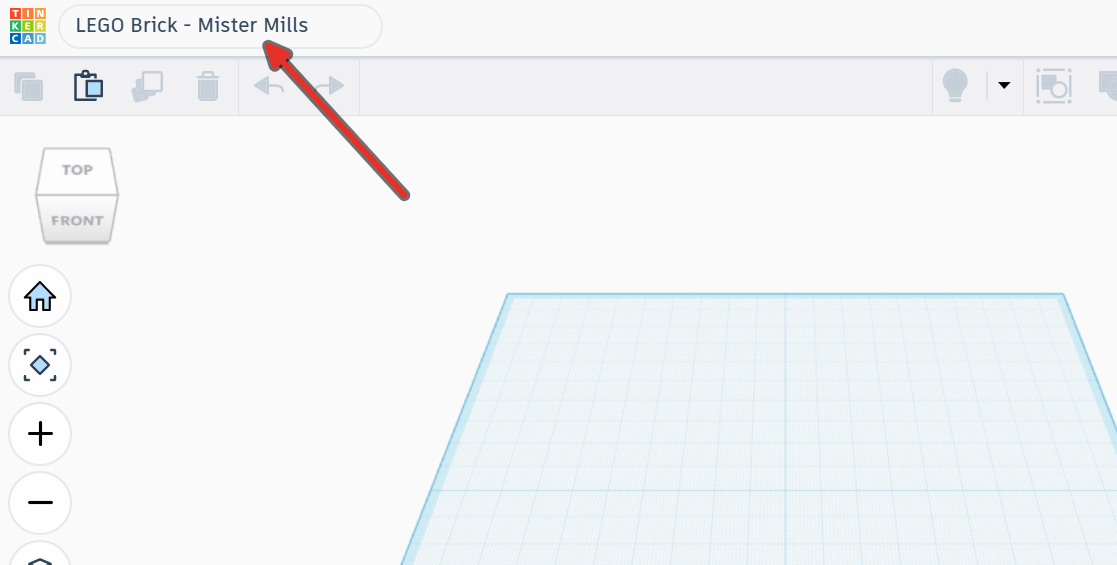
Open TinkerCAD, create a new 3D design, and rename it
LEGO brick - your name.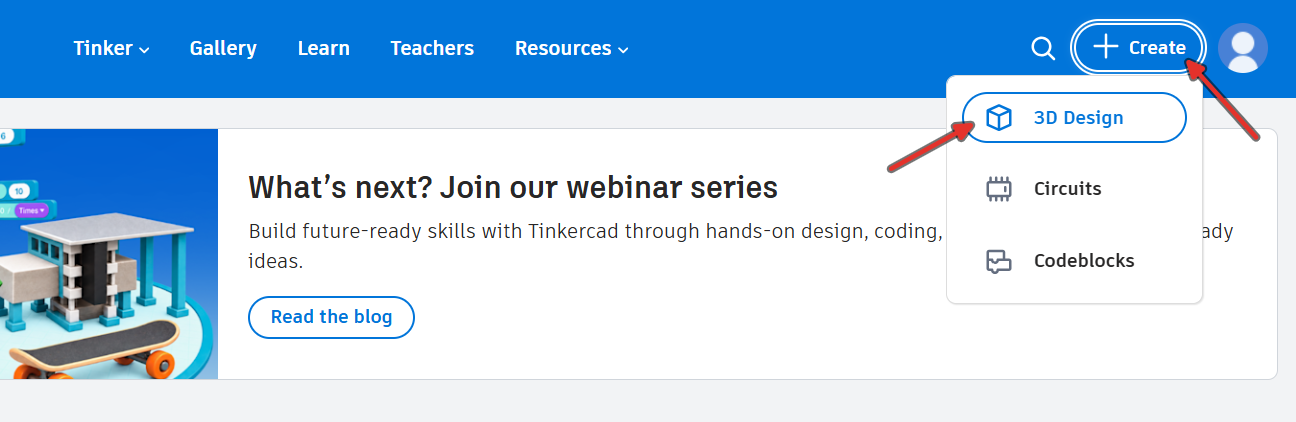
-
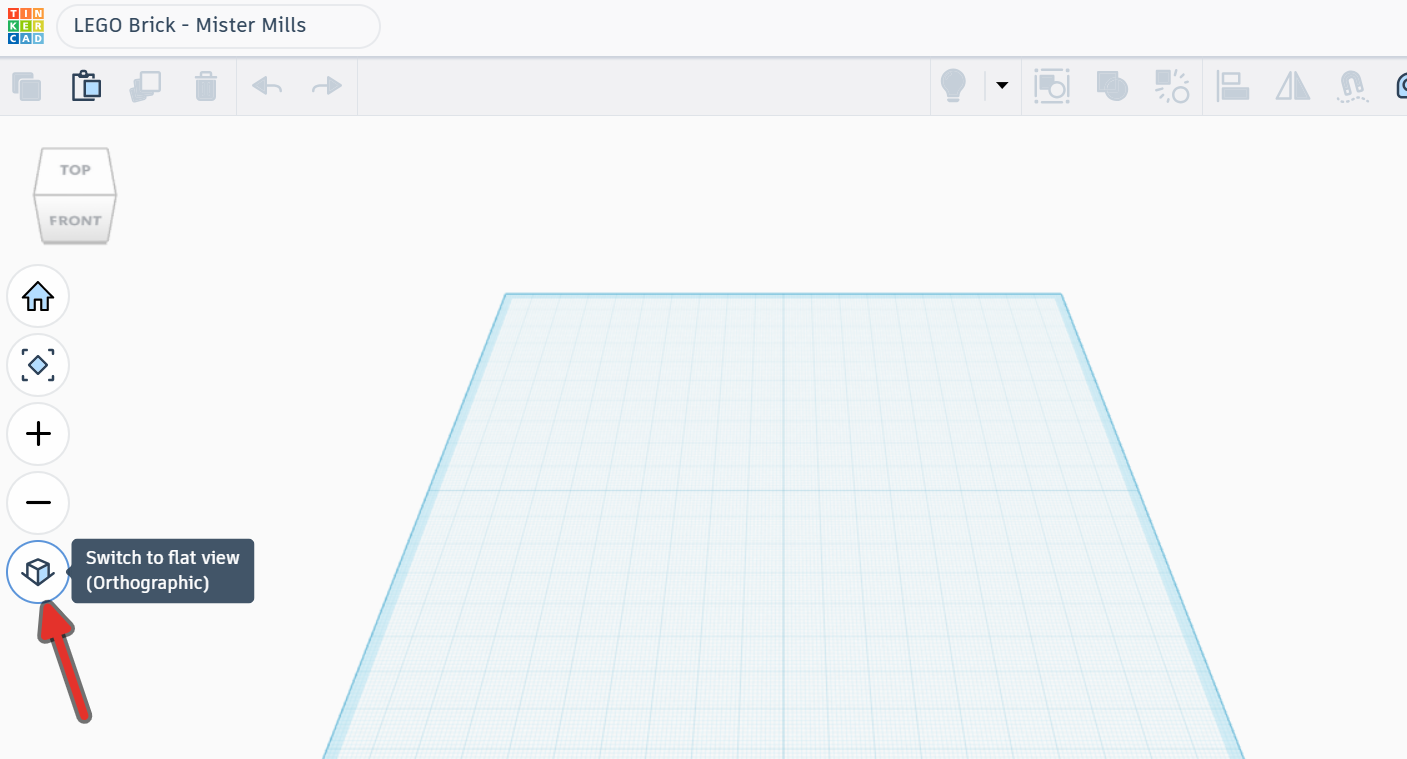
Switch the view to “Orthographic”. For this class, you do not want to be using the “Perspective” view.
-
Set the snap grid, bottom right, to 0.1 mm. The default of 1 mm is far too coarse for this. You will be typing most values, but the snap affects dragging too.
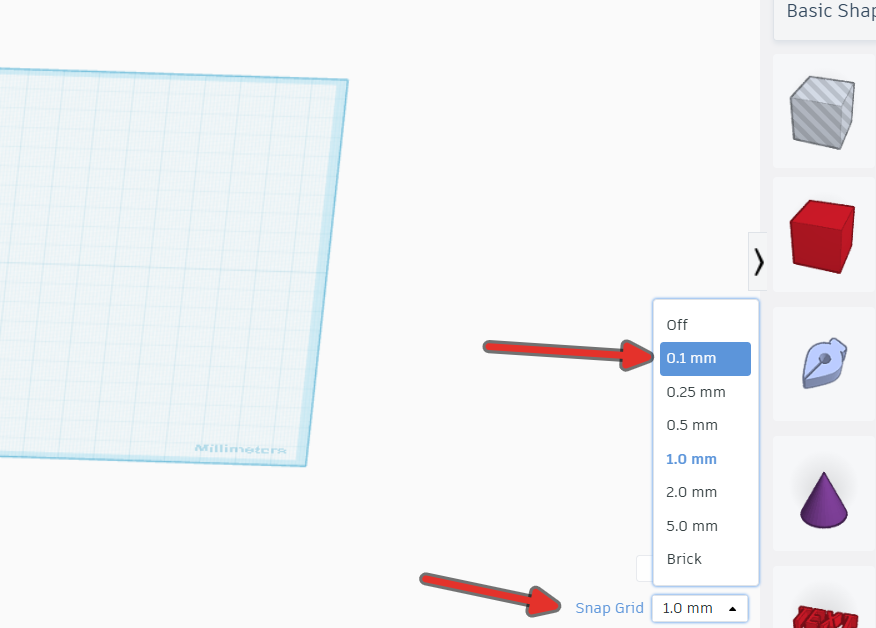
3.5.1Creating a Primitive#
Terminology
A “primitive” is the name we use to describe a basic shape/polyhedra. We create more complex shapes, called assemblies by combining simple primitives together, either by adding them together, or by subtracting them. This is called a Boolean operation and is the core way we build shapes in Constructive Solid Geometry (CSG) computer aided design programs, such as TinkerCAD.
-
Drag a Box primitive onto the workplane.
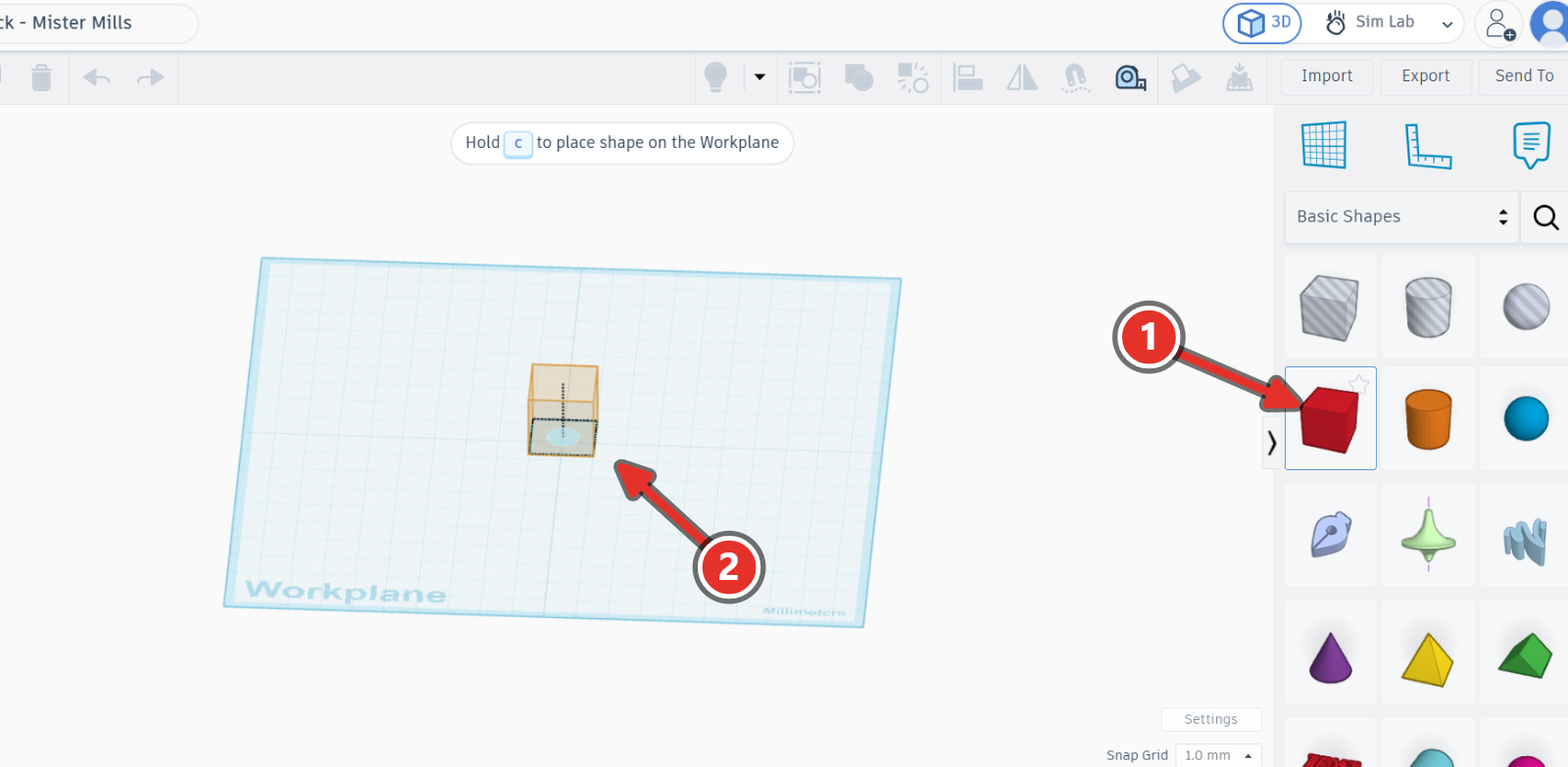
-
Using your measurements recorded from earlier, with the box selected, click each dimension handle in the properties panel and type the number. Set the width to measurement #1, its depth to measurement #2, and its height to measurement #3, the brick body height. Not the whole height.
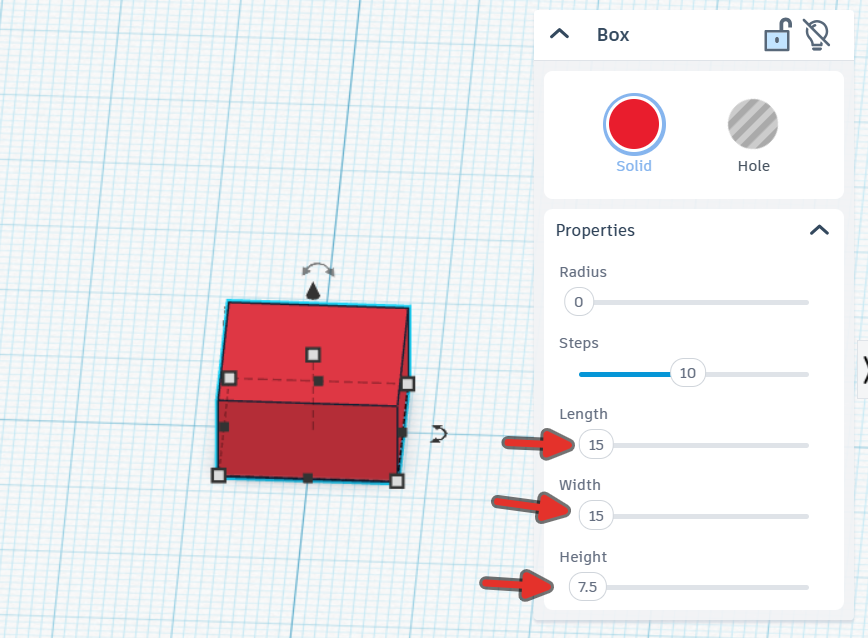
3.5.2Hollow It Out#
-
Drag a second Box out and switch it to Hole in the shape inspector.
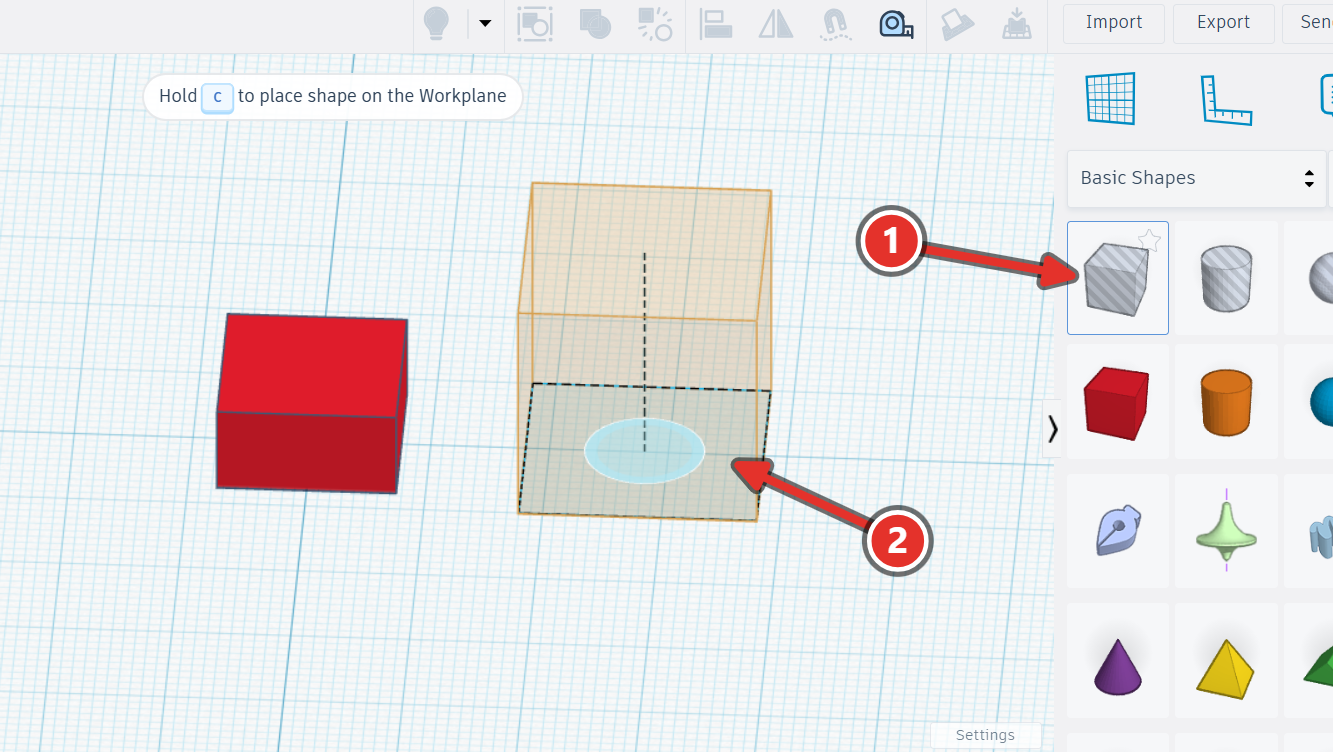
-
Work out its dimensions from your measurements rather than guessing:
Hole box dimension Calculation Width Measurement 1 minus twice the wall thickness Depth Measurement 2 minus twice the wall thickness Height Measurement 8, the inner depth The wall is subtracted twice from width and depth because there is a wall on each side. It is subtracted once from the height because there is a wall on top but not on the bottom.
-
Set the hole box’s height above the workplane to 0, so it opens out of the bottom face. You can also select the object and press D to drop it to the workplane. This may already be the case for your object, but it’s good to double check.
-
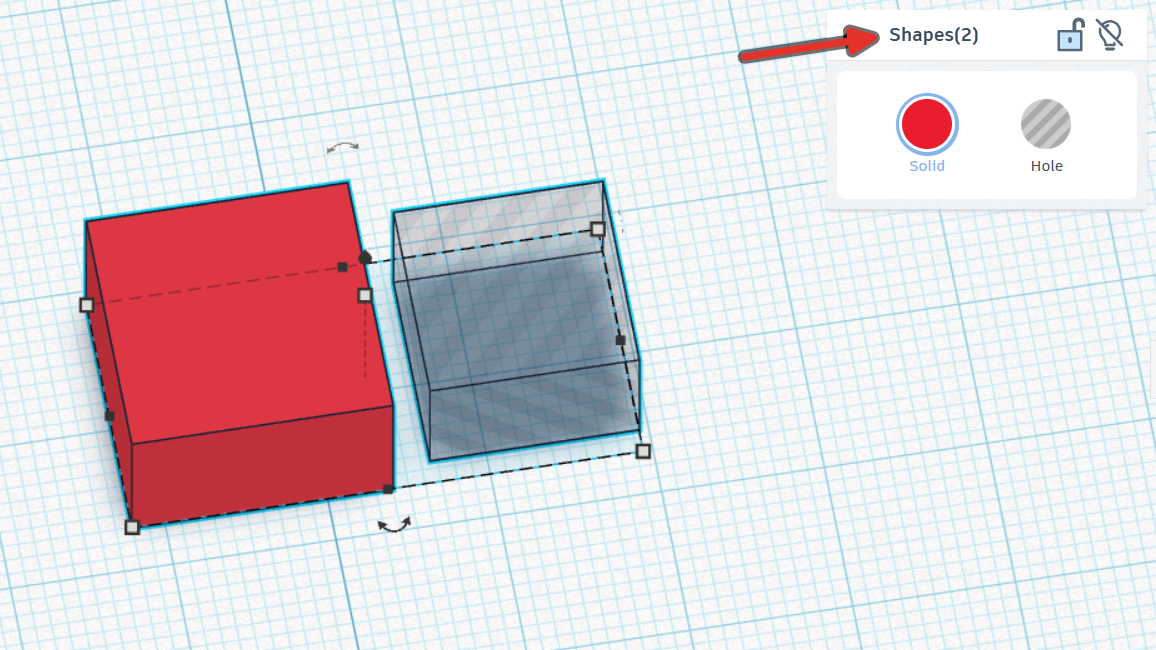
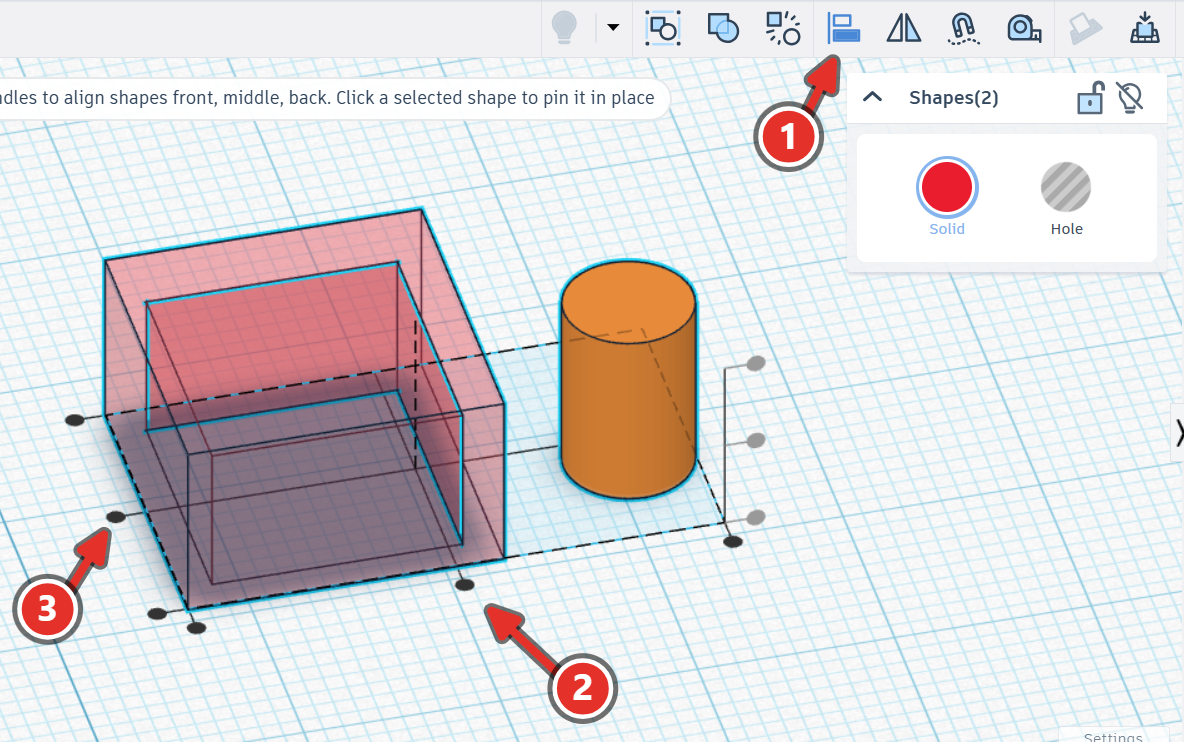
Select both boxes by clicking and dragging a selection box around them (or by holding SHIFT and clicking on each box once where they do not overlap), then press L or the Align button in the toolbar.
-
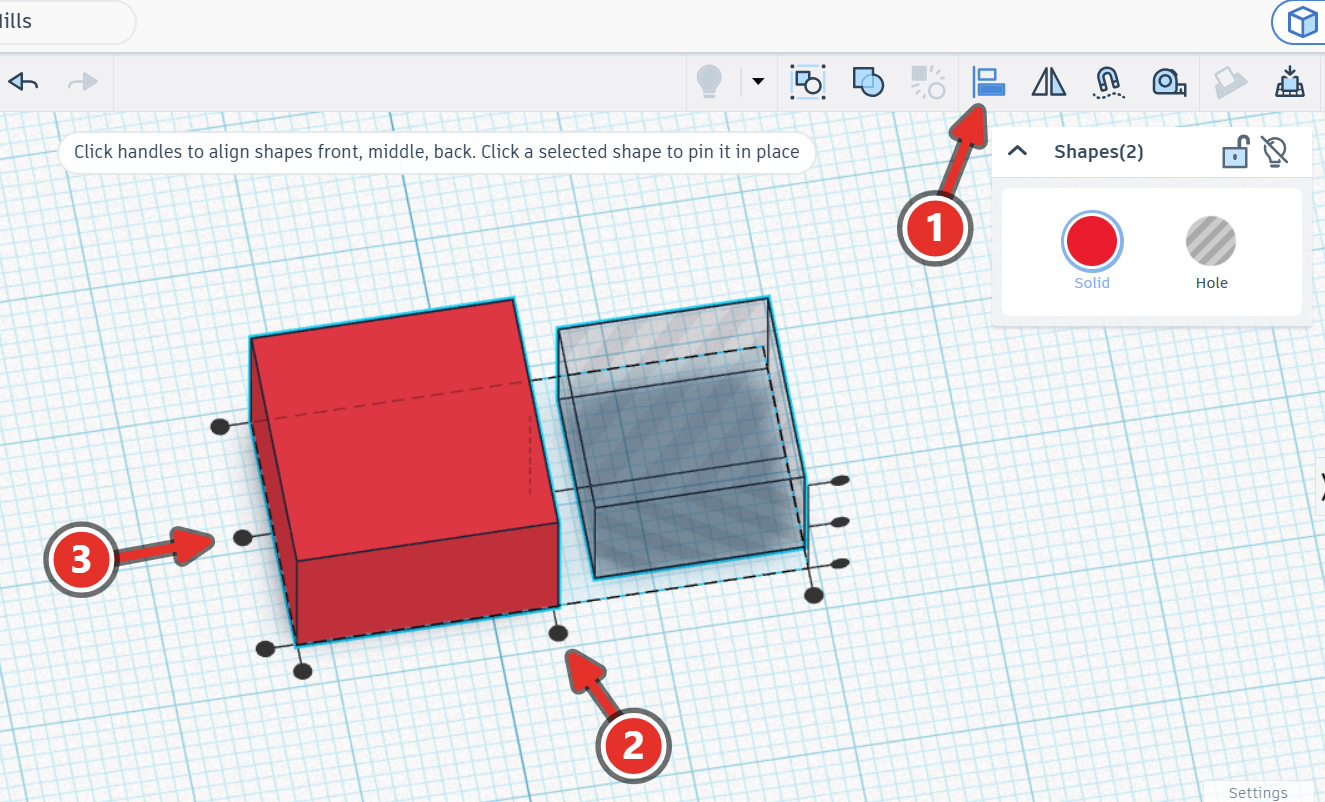
Using the Align tool (L), centre them on both horizontal axes. (See the image for what to click) Leave the vertical alignment alone.
-
With both still selected, press Ctrl + G to group or click the Group button in the toolbar. This applies a mathematical function and cuts any “hole” primitives out of “solid” primitives.
-
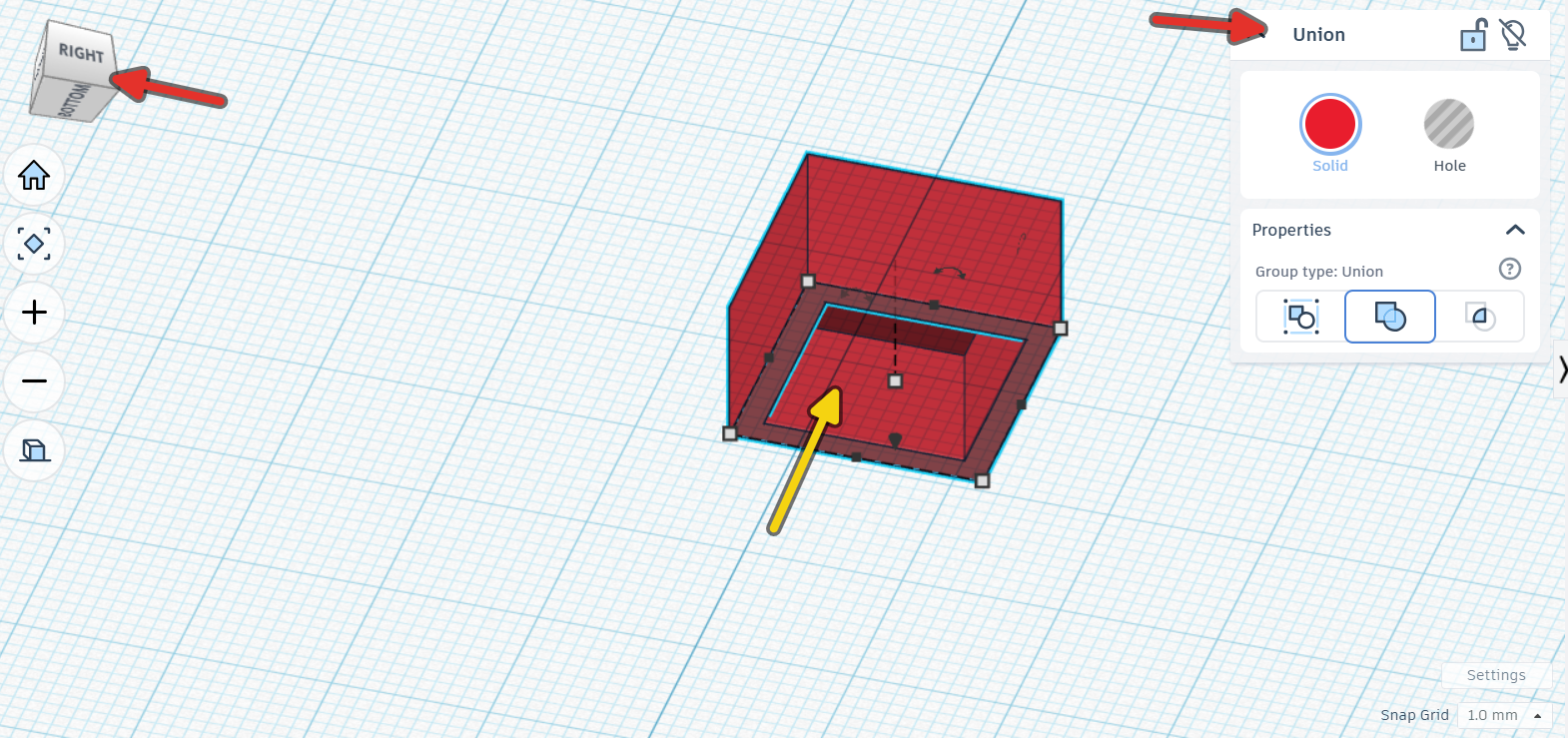
Turn the model over and check, you can move the camera with your right mouse button or by left clicking and dragging the view cube in the top left corner.
-
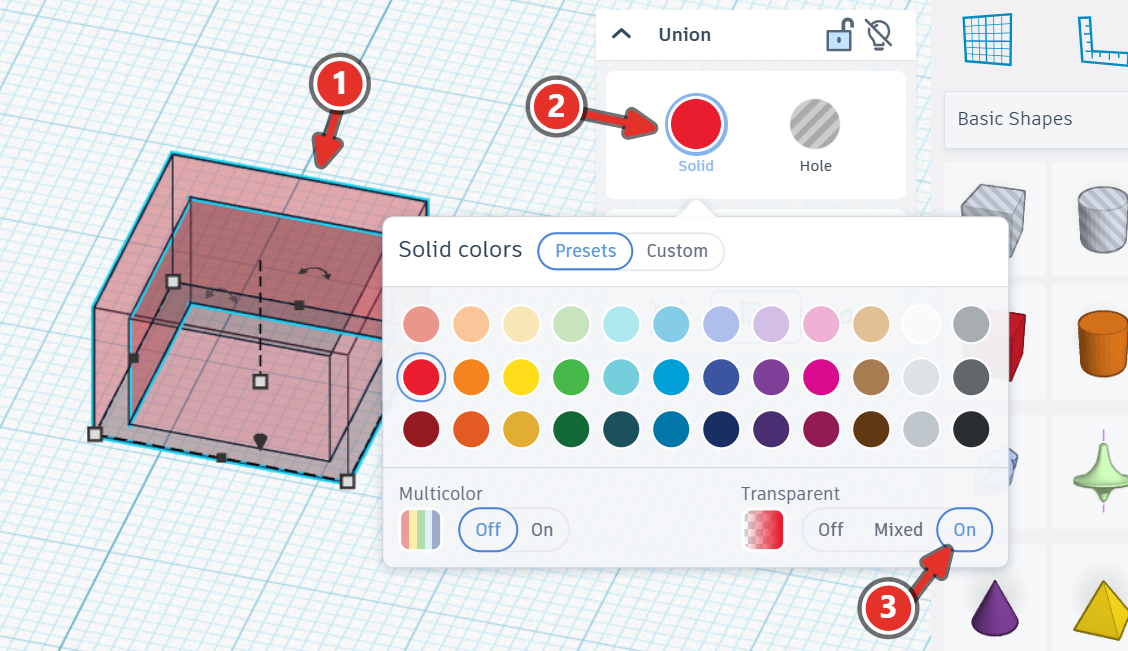
Click on your object, in the properties panel, select “Solid” and then turn on “Transparent”
3.5.3The Inner Cylinder#
-
Drag a Cylinder primitive out. Set it’s Sides to 64 for a smooth surface.
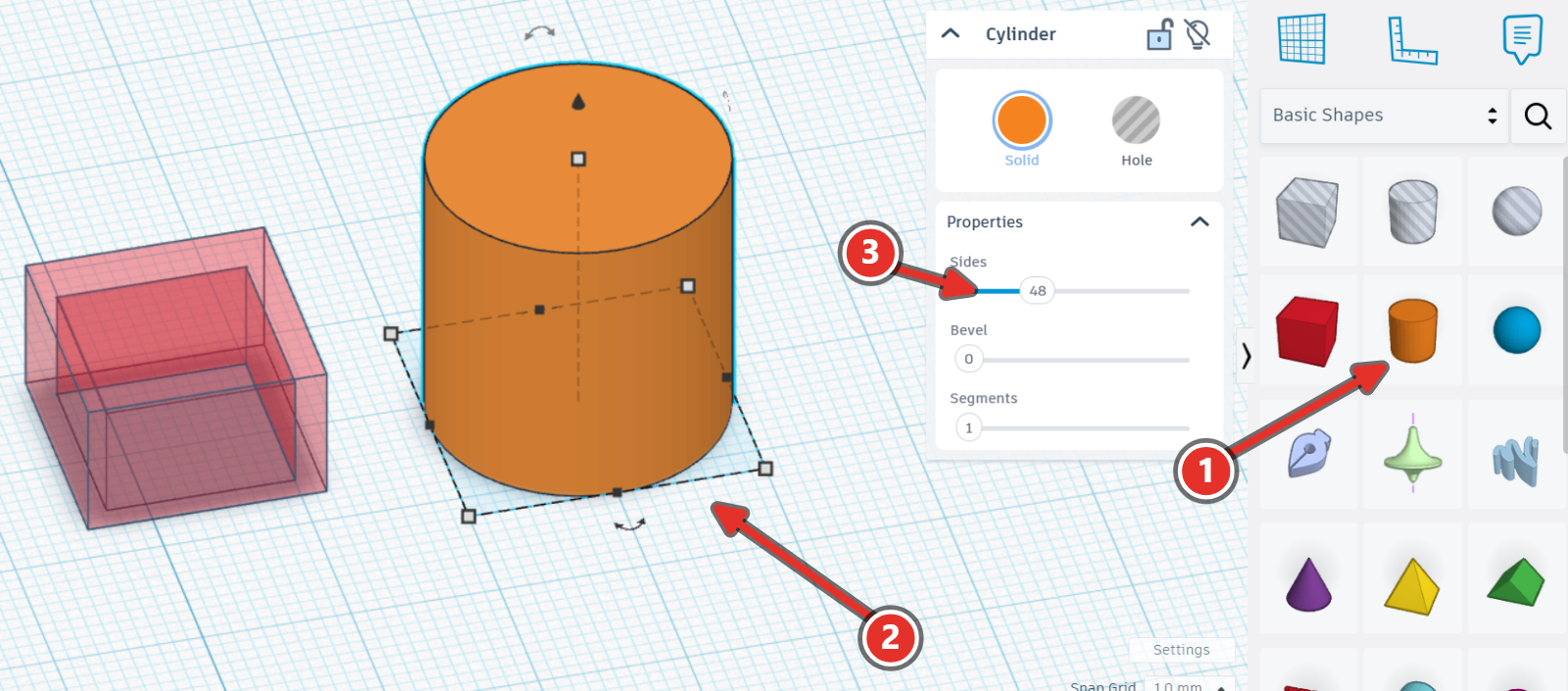
Cylinders don’t normally have this many sides?
Normally a cylinder doesn’t have “sides” along it’s lateral face, but in 3D modelling on a computer, everything needs to be made out of polygons, so we increase the number of faces it has to make it appear more like a real cylinder. We don’t want to add too many sides though, as it will slow down the rendering speed of your software. 64 sides at this scale is so small that it basically behaves as a circle. Try experimenting though and see what happens when you decrease the number of sides!
-
Click on the black boxes that represent the cylinder’s length and width and manually enter the stud diameter, measurement 11, in to the textbox.
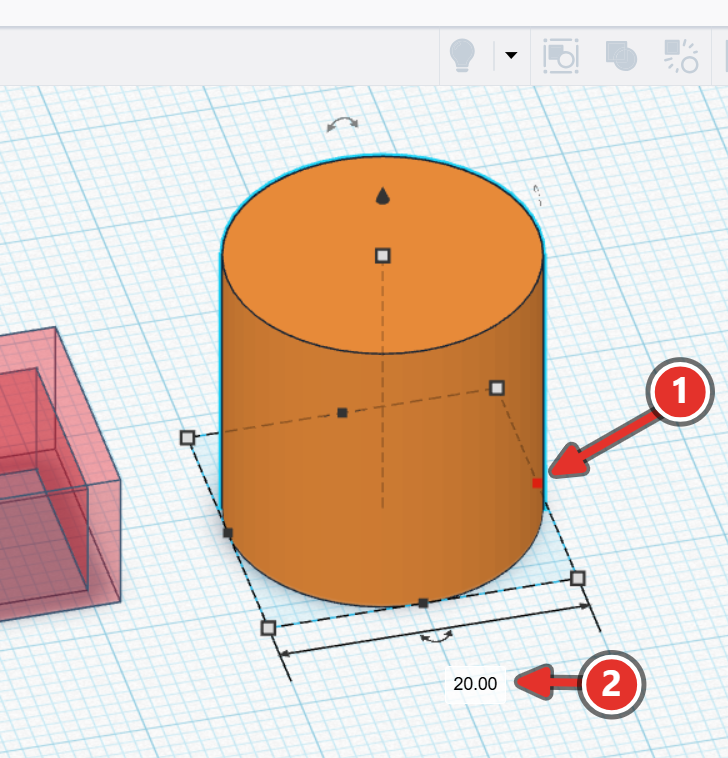
-
Click on the black box above the cylinder to set its height to the full brick body height, measurement 3.
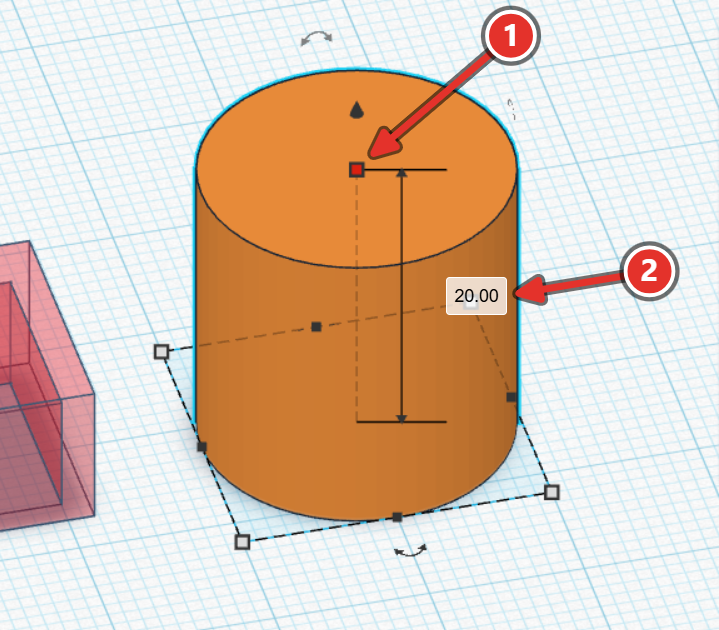
-
Drag another Cylinder, switch it to Hole, and set its diameter to measurement 12, the tube inner diameter.
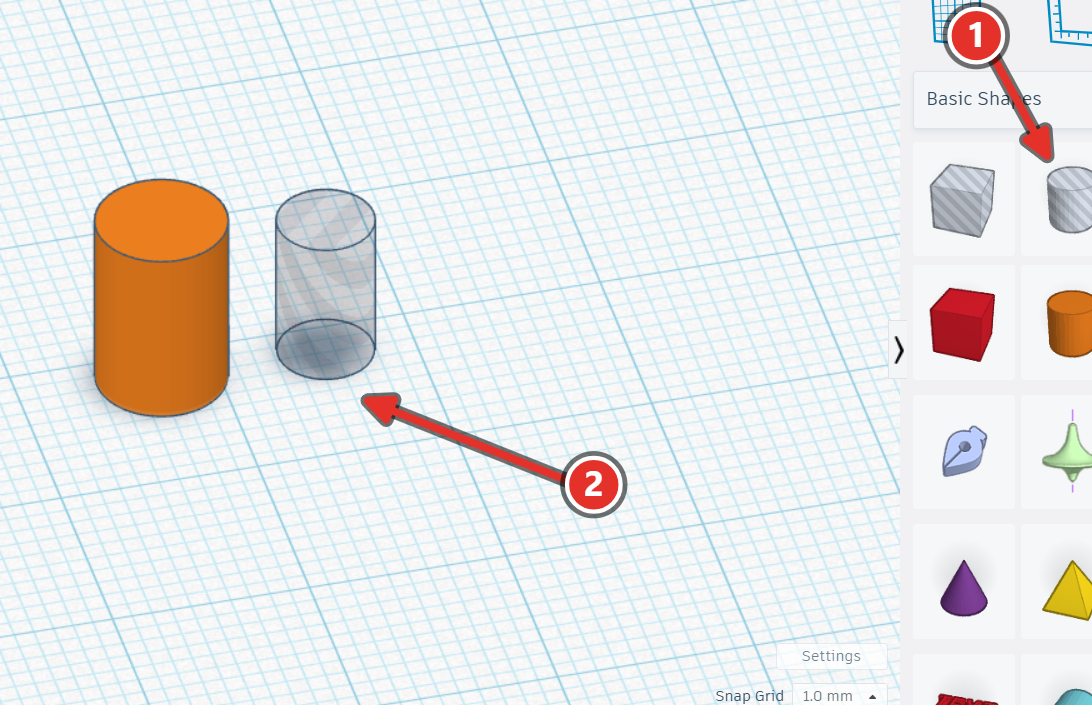
-
Set the hole cylinder’s height to the inner depth, measurement 8, and its height above the workplane to 0, so it opens out of the bottom.
-
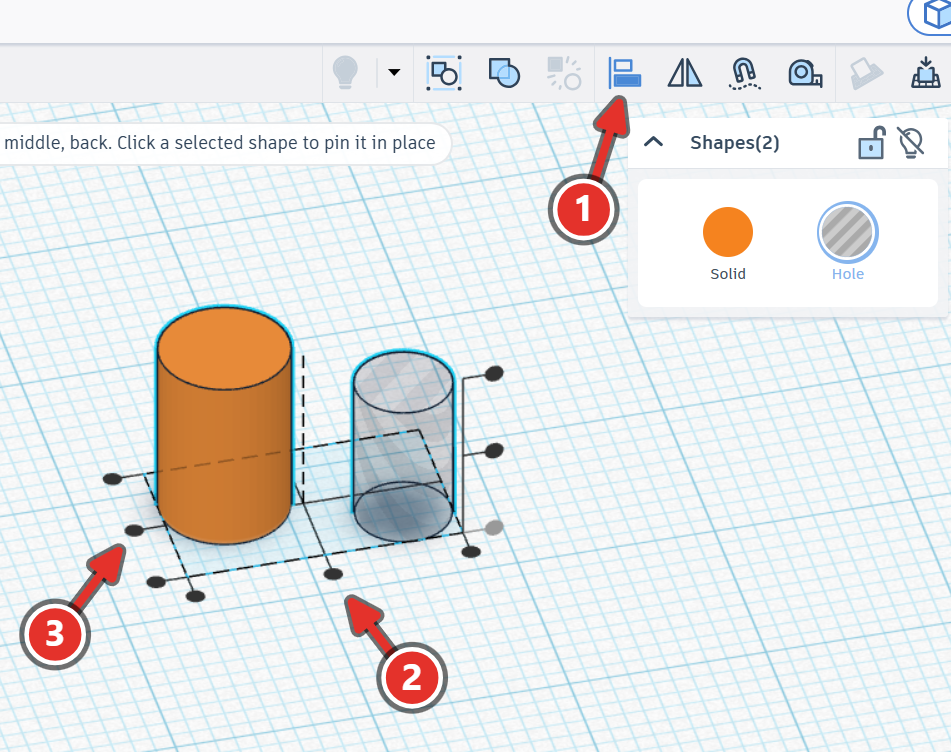
Select both cylinders by clicking and dragging a selection box around them (or by holding SHIFT and clicking on each box once where they do not overlap), then press L or the Align button in the toolbar. Align the two cylinders using the Align tool L on both horizontal axes
-
With both cylinders still selected, group them with the Group tool Ctrl+G to cut the hole out of the primitive.
-
Select the cylinder assembly and box assembly and use the Align tool. Centre the brick body on both horizontal axes, then group both assemblies with the Group tool.
3.5.4The Studs#
-
Drag a new Cylinder primitive out. Set its diameter to measurement 6, its height to measurement 5, the stud height, and its Sides to 64.
-
Ensure the cone is dropped to the workplane by tapping D and then click on the little cone that appears above the cylinder and raise it up slightly so a text box appears. Enter the height height above the workplane to measurement 3, the brick body height.
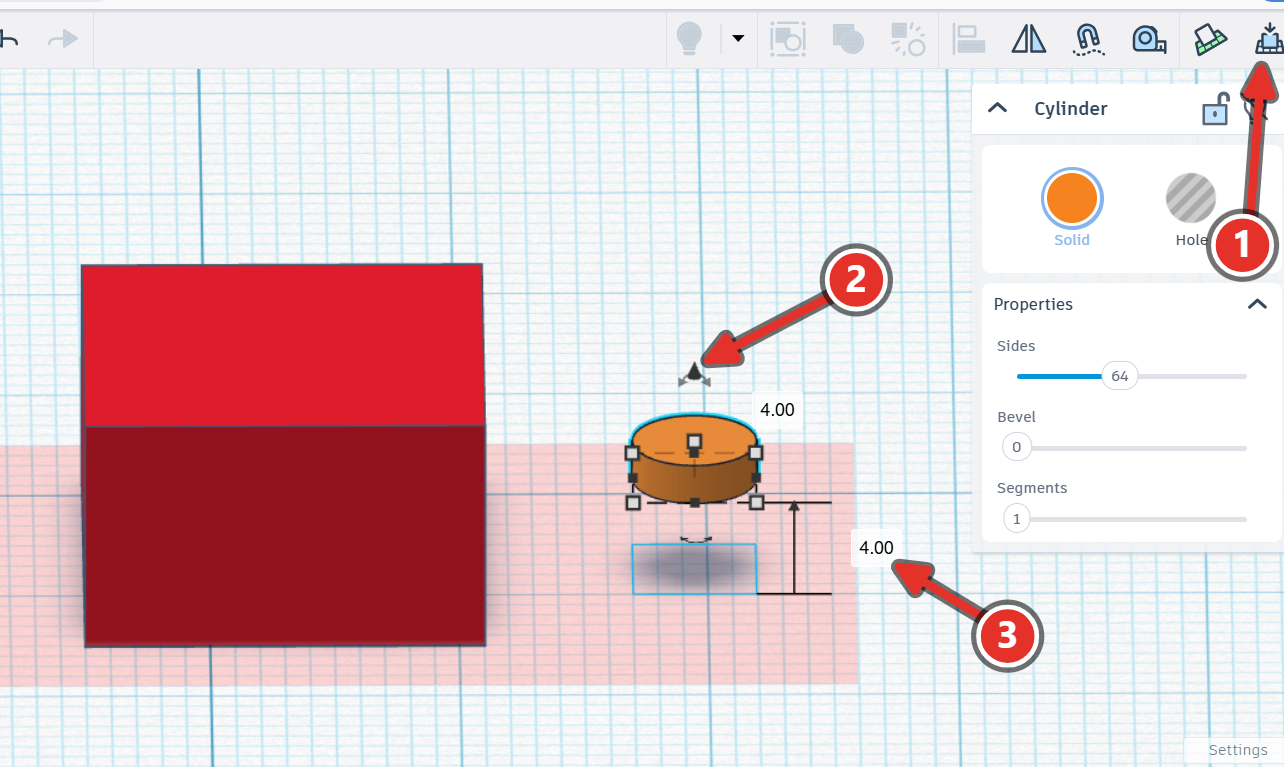
If you can't get the textbox that arrow #3 is pointing to, try dragging the cylinder arrow #2 up just a little bit and then manually enter the number -
With the stud selected, press Ctrl + D three times to make three duplicates, giving four studs in total.
-
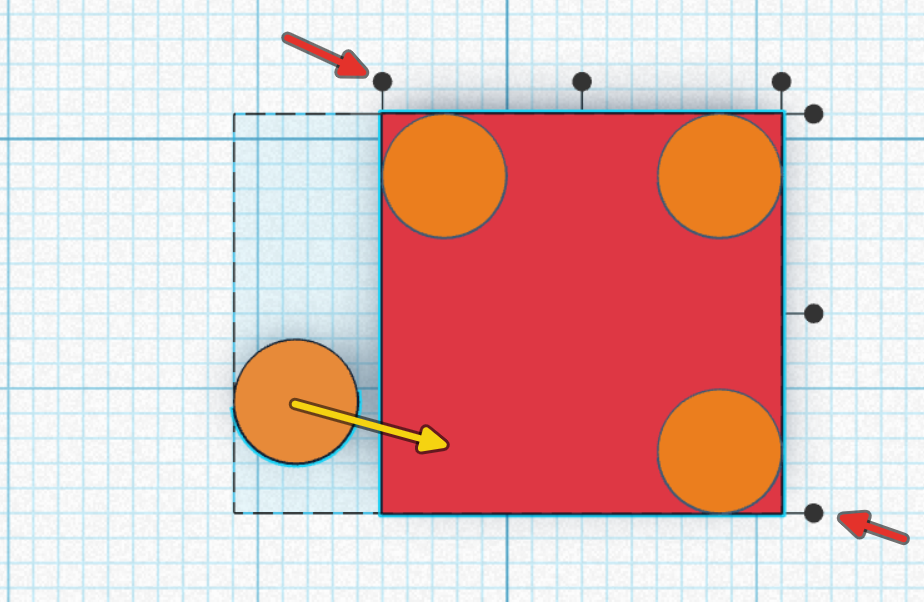
Position each stud, one at a time, in each of the four corners of the brick assembly using the align tool. You need to click on different axes for each stud.
Check your numbers against each other
When you align two shapes together, the default behaviour is to average the distances of the two shapes, moving both shapes in the process. For the studs, you want the brick to stay stationary and only move the studs in to place. To do this, you need to select both shapes, open the align tool, and then click on the brick once. You’ll notice the black align tools shift to focus on the brick, rather than the average of all of your shapes.
-
Move each stud inward by measurement 10, the edge distance, on each horizontal axis and vertical axis. When you move the cylinder, a text box should appear that you can type the correct value into rather than having to eye ball it. Repeat for the other three studs, into the other three corners. You will need negative values for two of the directions.
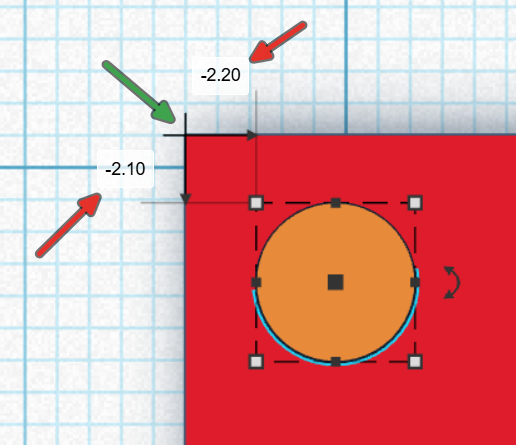
Make sure the black arrows are originating from the corner when you click and drag
3.6Brand It#
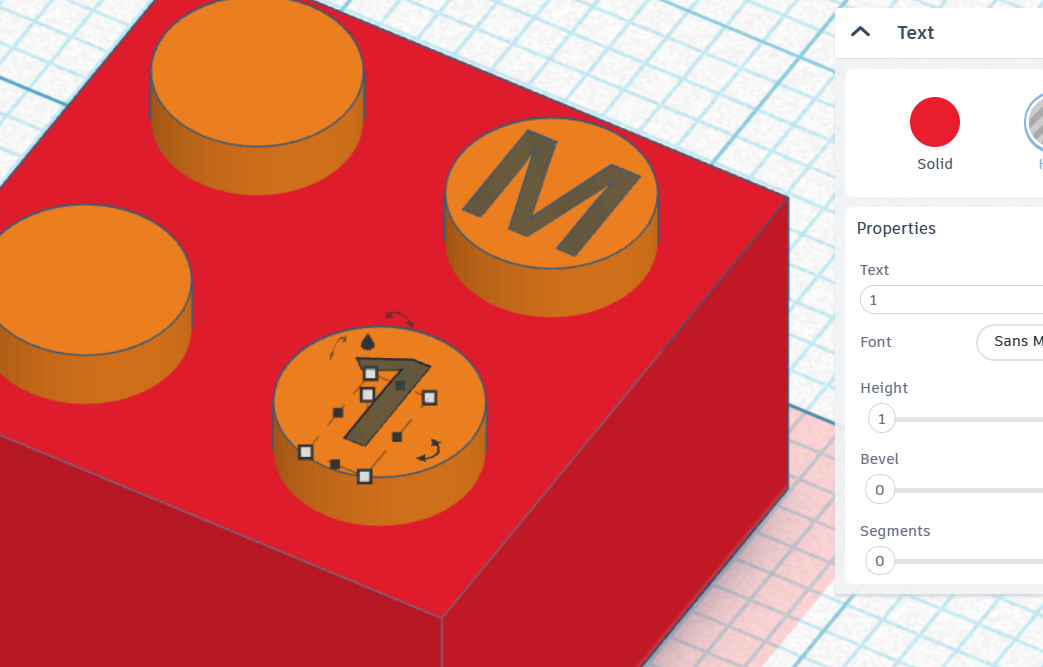
LEGO bricks have a little bit of text embossed on each stud. Our 3D printers won’t be precise enough to get that level of detail, but they will be able to handle a single bold letter and a number that indicates which version your brick is.
-
Double click on your brick assembly, this opens an editor that views all of the primitives and assemblies inside
-
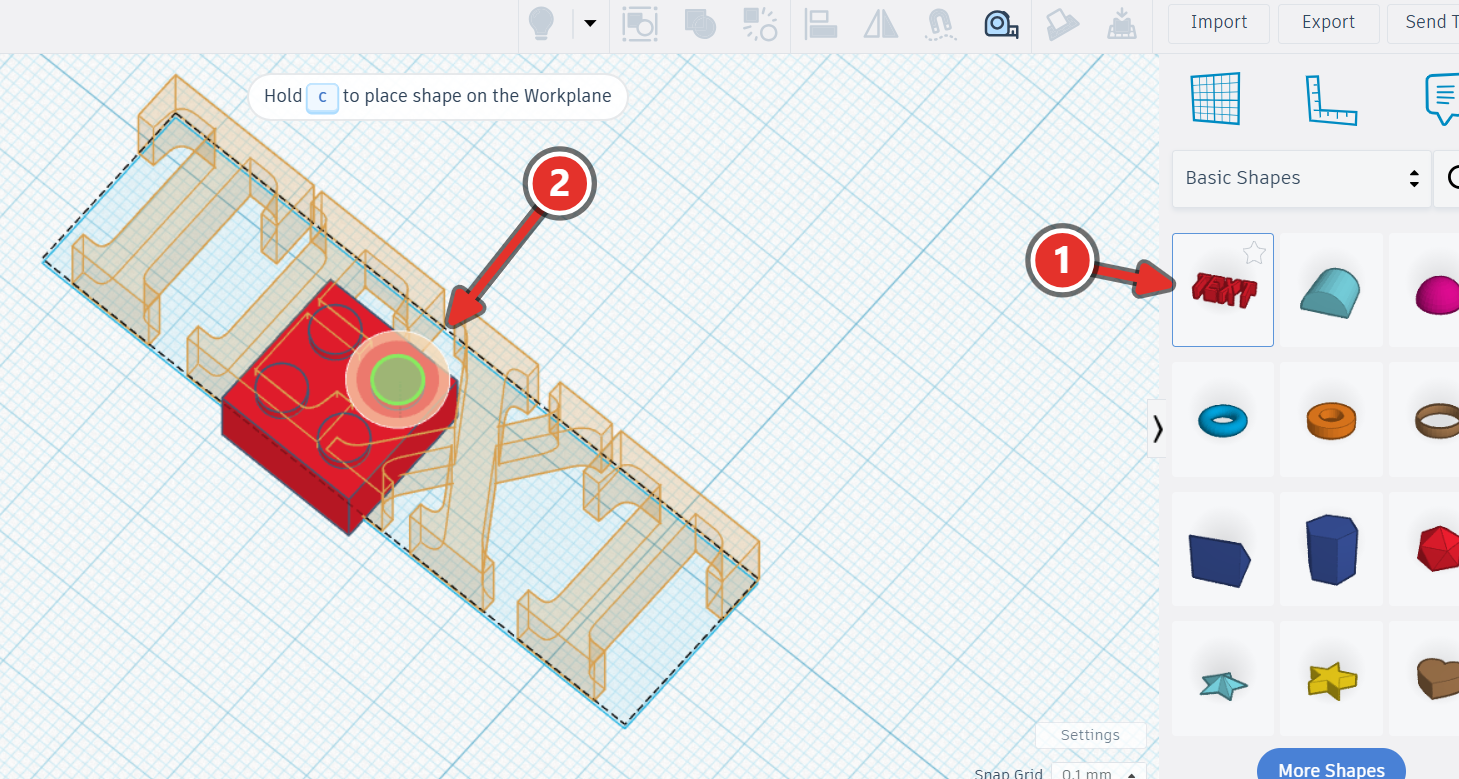
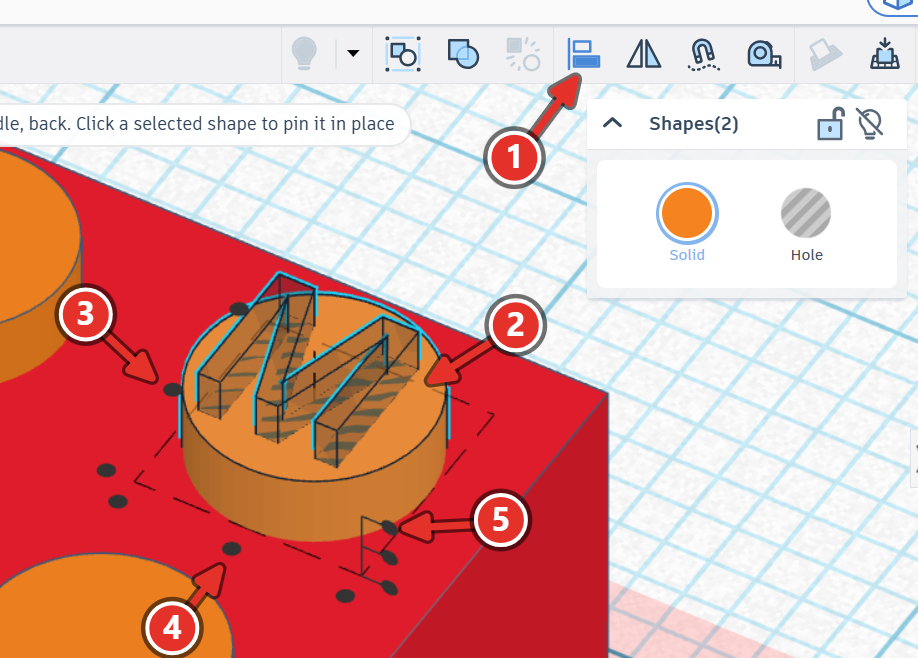
Click and drag a “Text” primitive on to the surface of your stud.
-
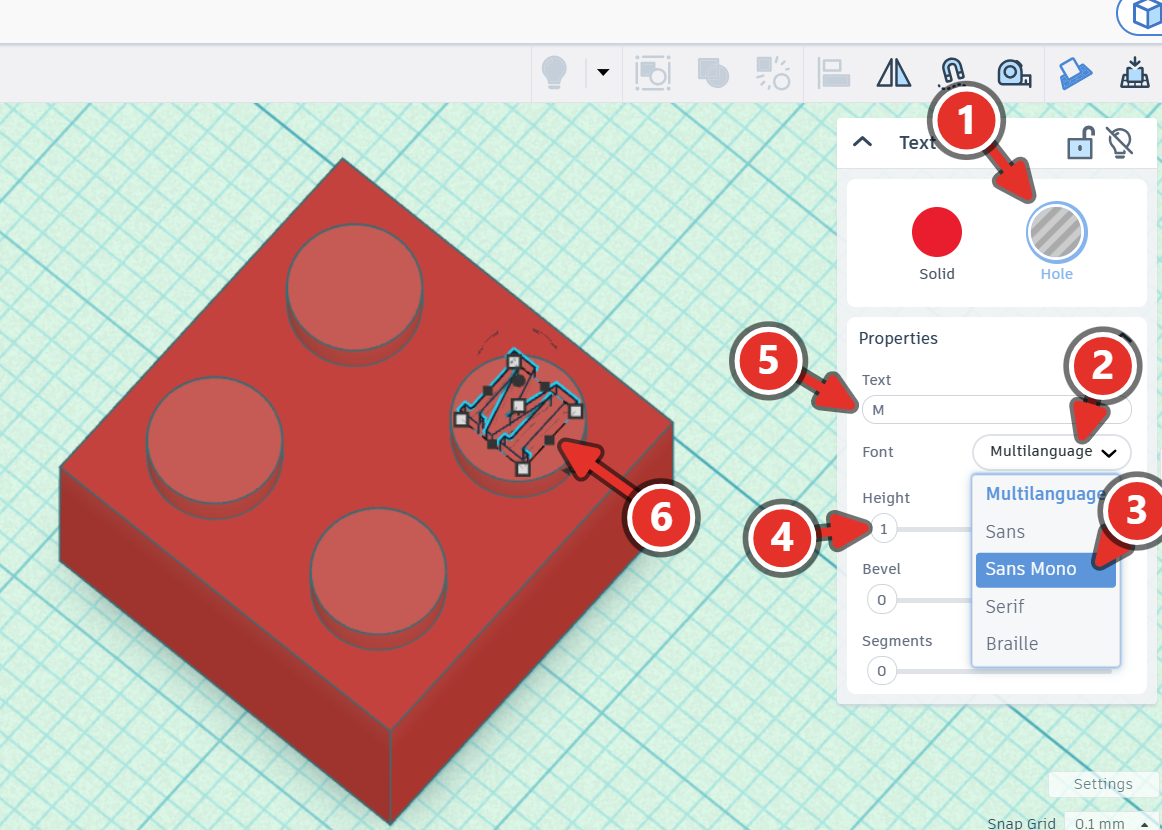
Change the property to “Hole” and then font to “Sans Mono”, then change the text to first letter of your first name. Set the height to 1mm.
-
Click on the primitive, then click on the side black squares to edit the dimensions. Set both the width and length to 3mm.
-
Duplicate the text primitive and add it to another stud. If this is your first brick, change the text to “1”. If this is a subsequent attempt, change the number to reflect which version is to be printed.
-
Remember to group the text hole primitives to their respective cylinders and then double click in a blank area to close the assembly.
3.7Group and Review#
-
Select everything with Ctrl + A and group with Ctrl + G.
-
Everything becomes one colour. If it does not, set the colour from Multicolour to a single colour in the properties panel.
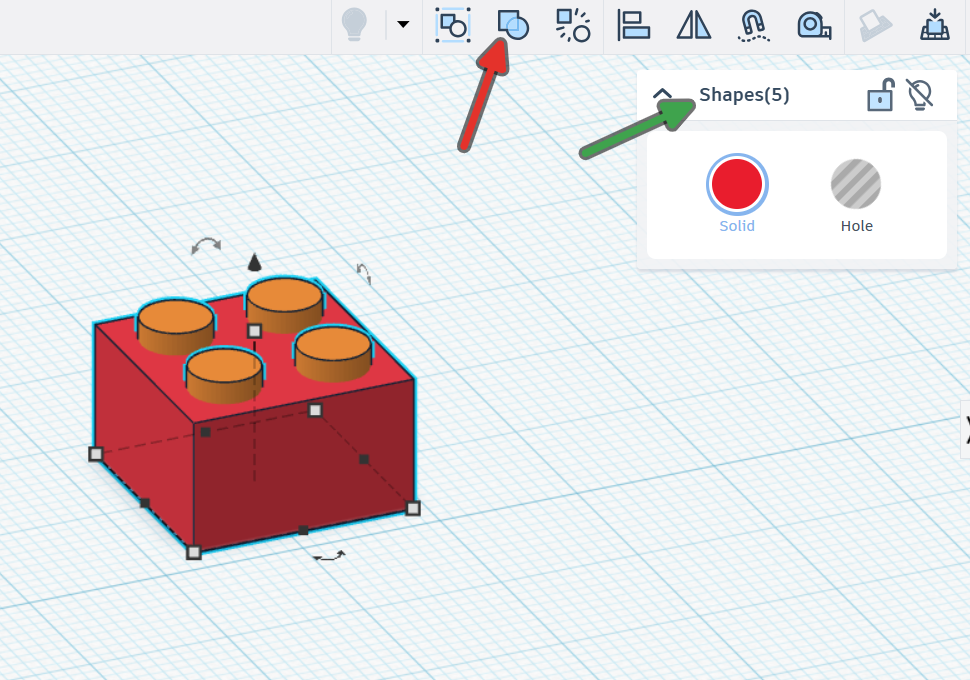
If you've done it correctly, Ctrl+A should select 5 shapes. -
Switch the view to transparent (if it is not already) and inspect from every angle.
- Four studs, all the same height, all fully attached to the top face
- Cavity open at the bottom, closed at the top
- Inner tube present, hollow, and centred
- Wall thickness even on all four sides
- Bottom face flat on the workplane at Z = 0
- Nothing floating separately from the body
3.8Export It#
-
Rename the design so the filename is meaningful: your first name, the word
BRICK, and a version number. -
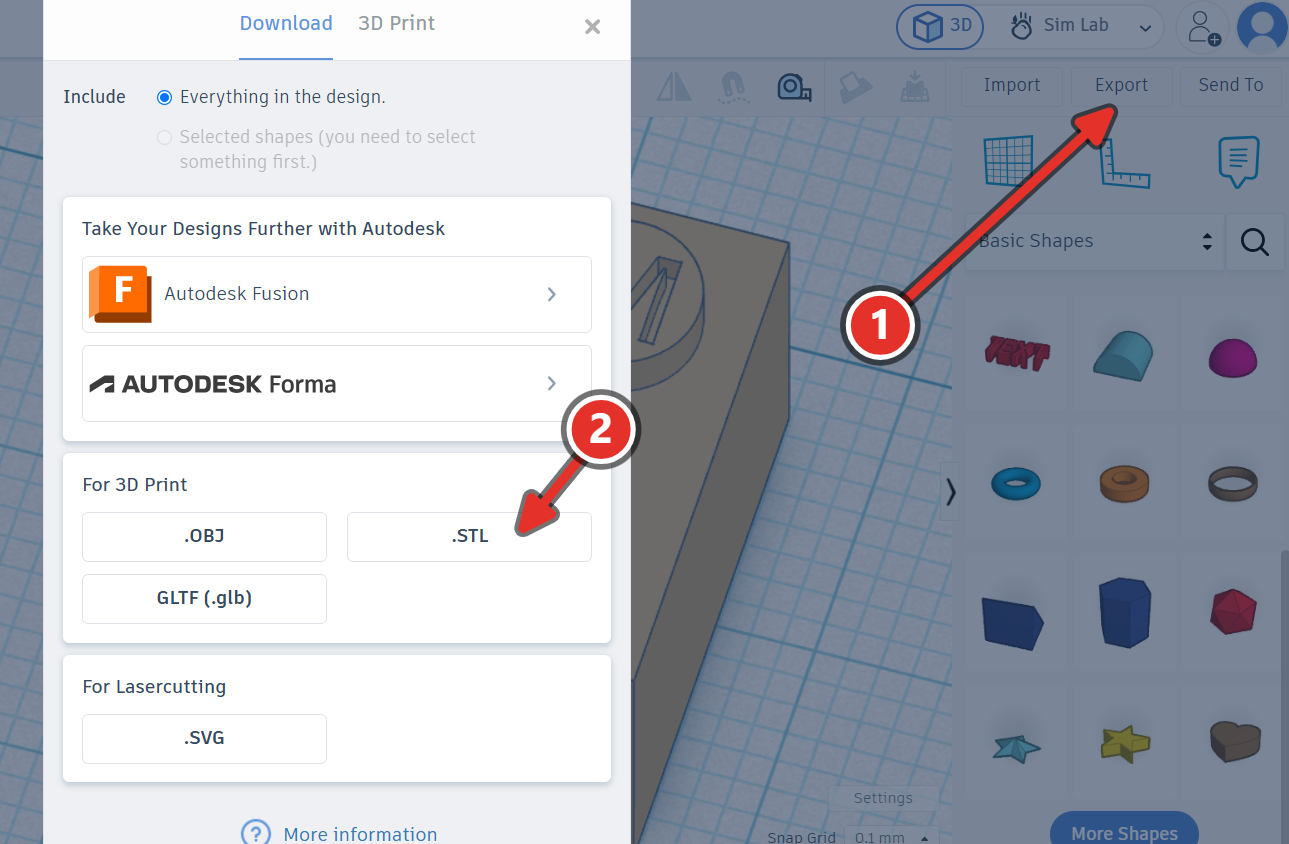
Click Export, choose Everything in the design, then .STL. A file will appear on your computer in your downloads folder.
-
The file should be named like
John BRICK v1.stl. Rename it if it is not. -
Send an email to me with your file attached. In a new email message, click and drag the new file from your Downloads folder into the email. Complete the rest of the email with:
- A subject line with
LEGO Brick, your name and version number e.g.LEGO Brick - John - v1 - A greeting addressing your teacher
- A sentence saying what you are sending me. If this is a new version, describe what changes you made.
- Your name at the end
- The STL attached, correctly named
3.9Check It#
You can use this tool to check the similarity of your brick’s geometry against a real LEGO brick. Your brick won’t be 100% similar since you branded yours with your initials. You can click on the different boxes in the right panel to review the sections where your brick perfectly overlaps, where there is more material on your brick, or where there is missing material on your brick. Keep in mind, if your brick is misaligned, you may end up with a worse score but your brick might actually be more similar.

3.10Sign-off#
- Every dimension measuring from the calipers and is written down
- Show your written diagram (on paper) to your teacher
- The model is built to the numbers you measured
- The model is downloaded as an .STL file and emailed to your teacher
3.11Level Up#
Once you’re finished modelling your 2x2 brick, you now have a workflow for copying any real object into CAD. Try any of these:
-
Model a different LEGO piece. A 2x4 brick, a 1x2, a flat plate, or a piece with an odd feature on it. Which of your measurements carry over unchanged, and which have to be taken again?
-
Design a personal LEGO piece that works with the real system: an adapter, a bracket that clips to a brick, a mount for something in this room. It has to clip to genuine LEGO to count.