GitHub Portfolios
Get your Markdown portfolio set up for publishing. The STEM extension version of the Google Sites tutorial.
This is the STEM extension version of the documentation portfolio.
What is GitHub?#
GitHub is the industry standard for sharing code and documentation. It is a platform that allows programmers to share their work, work collaboratively, and keep track of all of the changes they’ve made. GitHub has a lot of very advanced features that you may use one day if you’re interested in STEM. For now, we’ll just get started on making one of the simplier things on GitHub: a documentation page.
Make a GitHub account#
Skip this if you already have one. Use the account you have rather than making a second.
-
Go to github.com/signup.
-
Sign up with a personal email address. It cannot be your TDSB email.
-
Pick a username you would be happy showing an employer later down the line. This is an account that might be useful to you if you’re looking to go into STEM after high school. Avoid using your full name.
-
Enter the verification code GitHub emails you.
Tell me your username, then accept the invitation#
Your portfolio is something called a repository, which is just a folder of files that lives on a website called GitHub, which is a platform developed to share code and documentation. Your portfolio will be created in a coding language called HTML, but thankfully you are not building it from scratch, and you don’t need to learn any code to make it. You will be provided with a template that converts a special kind of text document, called a Markdown file into HTML for you.
-
Send me an email with the name of your account. I will create your repository.
-
You should get an email from GitHub inviting you to a repository called something like
portfolio-priya-g. Click View invitation, then Accept invitation.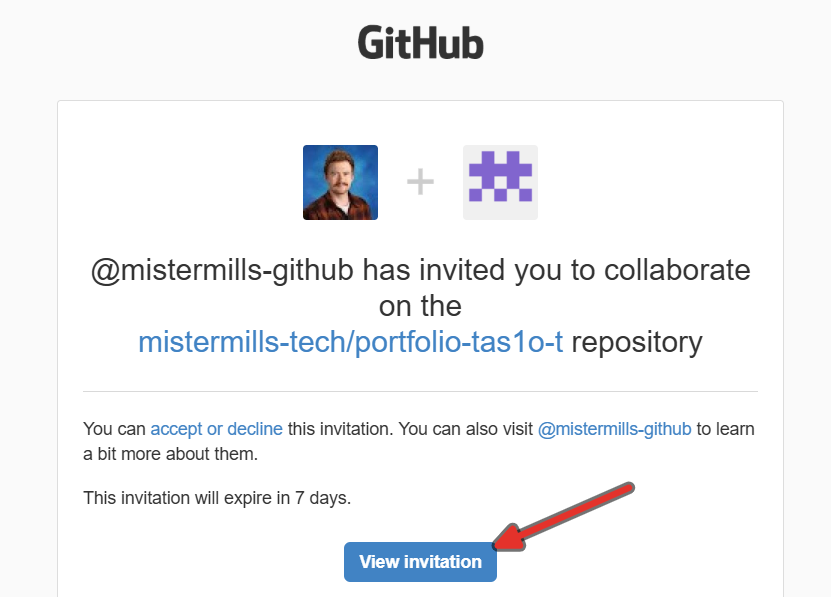
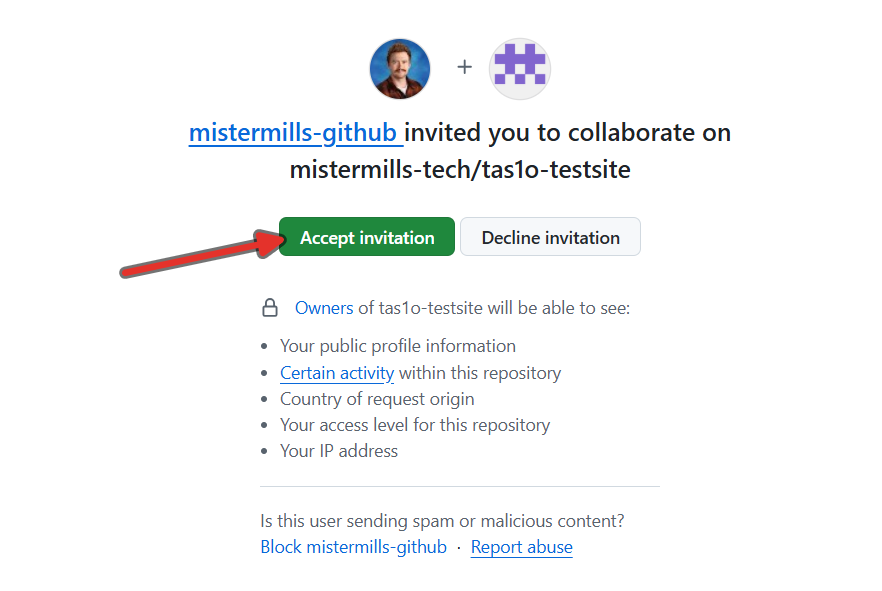
-
You are now looking at your own portfolio. Bookmark it. This is the one link you need all year.

Your site is already switched on, so there is nothing to configure. The address is on the right-hand side of this page under Deployments, and in Settings, then Pages. Bookmark that too.
Put your name on it#
-
Go back to the Code tab and click on
_config.yml.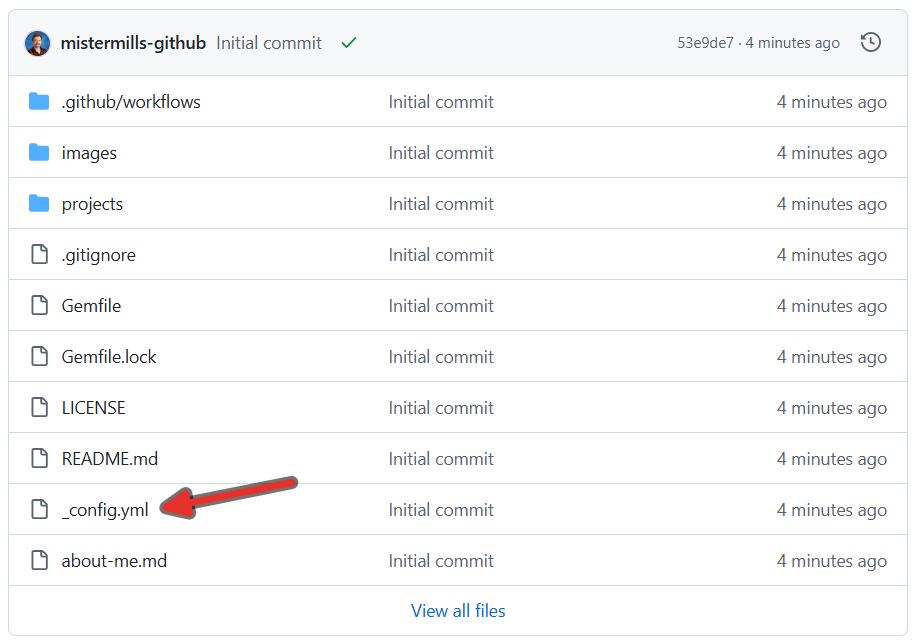
-
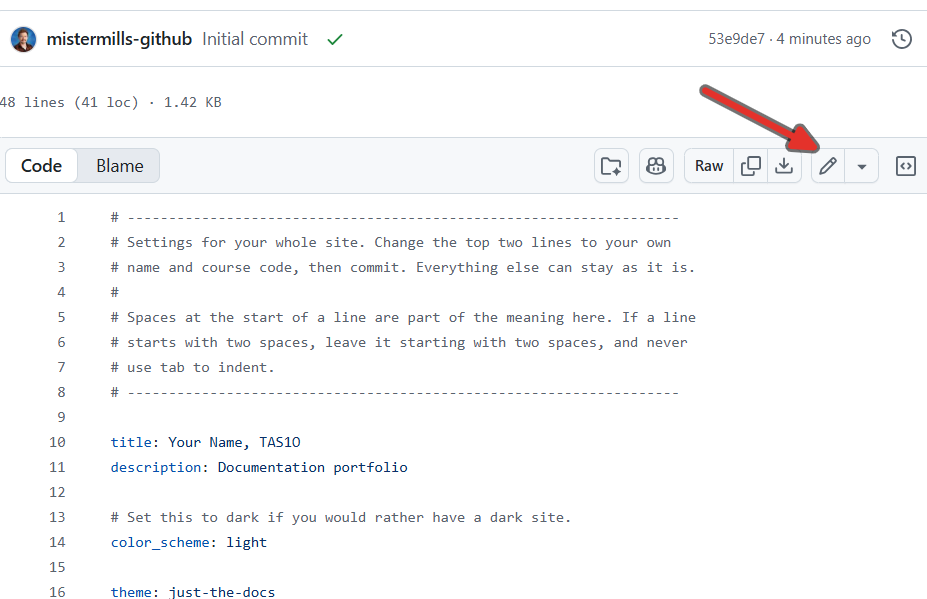
Click the pencil icon at the top right.
-
Change the first two lines to your own name and course code. First name only, do not include your last name.
Grade Course code 9 TAS1O 10 TAS2O 11 TEJ3M 12 TEJ4M -
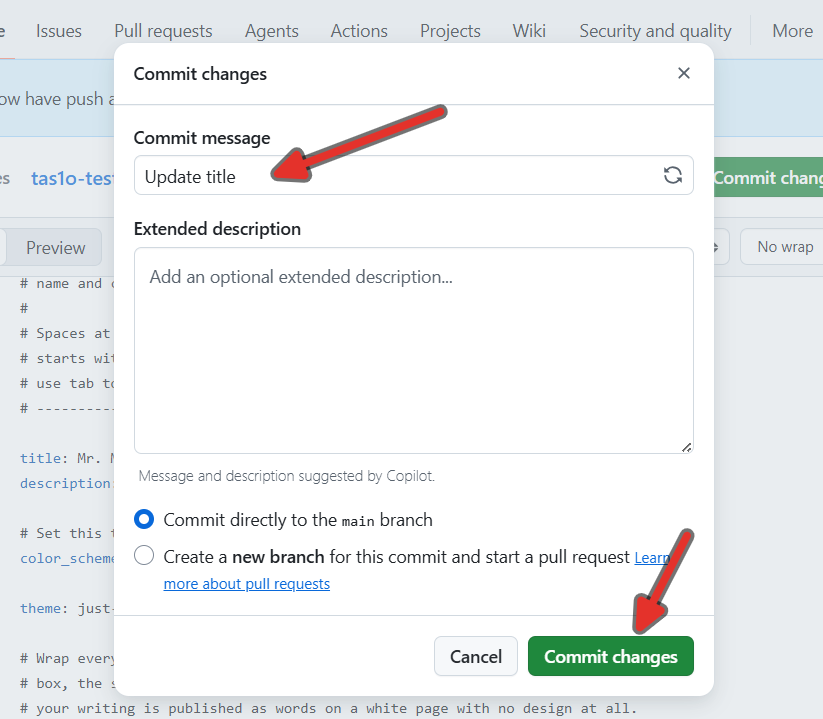
Click the green Commit changes button, type a short message saying what you changed, and leave Commit directly to the main branch selected.
-
Click Commit changes again.
Committing is what you do to save a file on GitHub, it does not happen automatically. The neat thing is that every commit is kept, so if you ever commit something that breaks your site, you can just revert your changes back to a previous commit, so experiment freely.
Watch the spaces in _config.yml
Indentation is part of the meaning in that file. If a line starts with two spaces, leave it starting with two spaces. You may need to add back spaces. Check the version history if you’re unsure.
Check that it worked#
-
Click the Actions tab at the top of your repository.
-
Look at the entry at the top of the list. A yellow dot means it is still building, so wait a minute and refresh. A green tick means your site is up to date.
-
Open your site address. The URL should be
mistermills-tech.github.io/{your-username}. You should see your own name at the top of the site if it updated.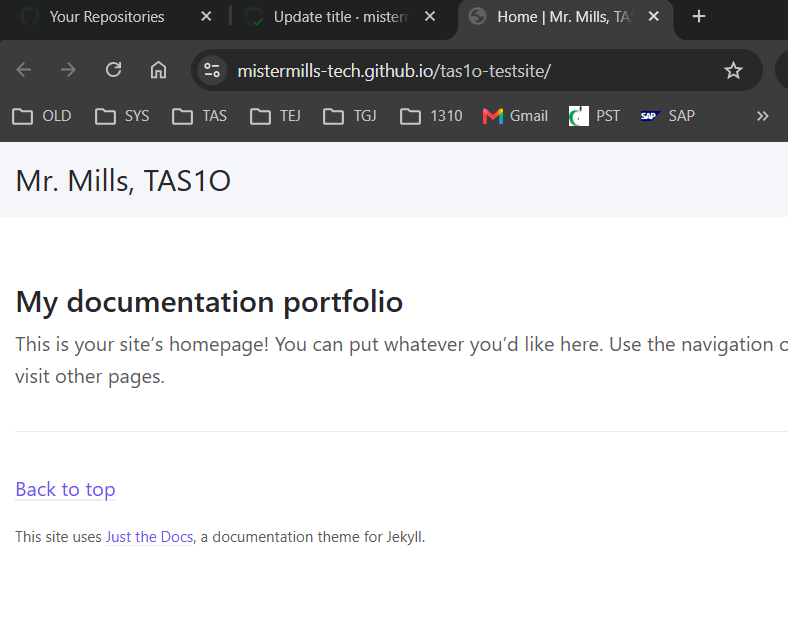
If you get a red X instead, click it and then click the failed step to read the error. It is nearly always the block of dashes at the top of a page, or a tab character in _config.yml. Fix the file, commit again, and it rebuilds on its own. Your old site stays up the whole time.
Adding Content to Your Pages#
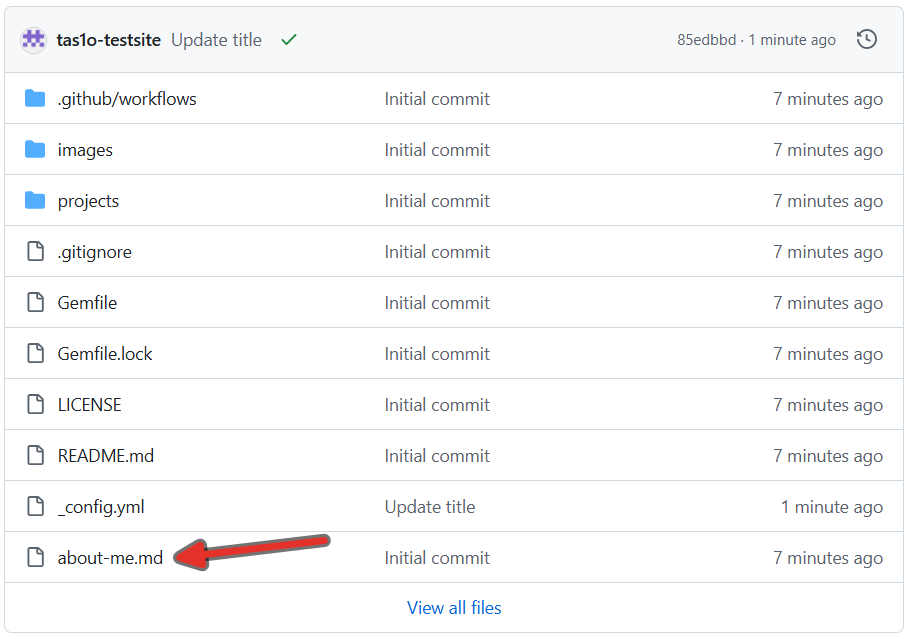
Open the front page of your repository, or click the “Code” tab if you’re lost. Navigate to your about-me.md and click edit. We are going to create a page where your teacher and your peers can learn more about you and your learning process.
How markdown works#
Markdown is plain text with a few punctuation marks that mean something. You type the marks, the site turns them into formatting when it builds. Nothing to install, no buttons to learn, and the file still reads perfectly well as text if the formatting ever goes away.
| What you want | What you type | What you get |
|---|---|---|
| Bold | **soldering** |
soldering |
| Italic | *Priya* |
Priya |
| A link | [my school](https://example.com) |
my school |
| A section heading | ## What I am good at |
The words, larger, with a gap above them |
| A bullet | - Taking things apart |
A bulleted item |
| A numbered step | 1. Cut the wire to length |
A numbered item |
| A photo |  |
The photo, with a caption behind it |
Two rules cover most of the mistakes people make on their first day:
- Blank lines separate paragraphs. Two lines of writing with no blank line between them get joined into one paragraph. If you want a gap, leave a blank line.
- The marks have to touch the word.
**bold**works.** bold **does not, and you will see the asterisks on your published site.
Open the file#
-
On the front page of your repository, click
about-me.mdin the file list. -
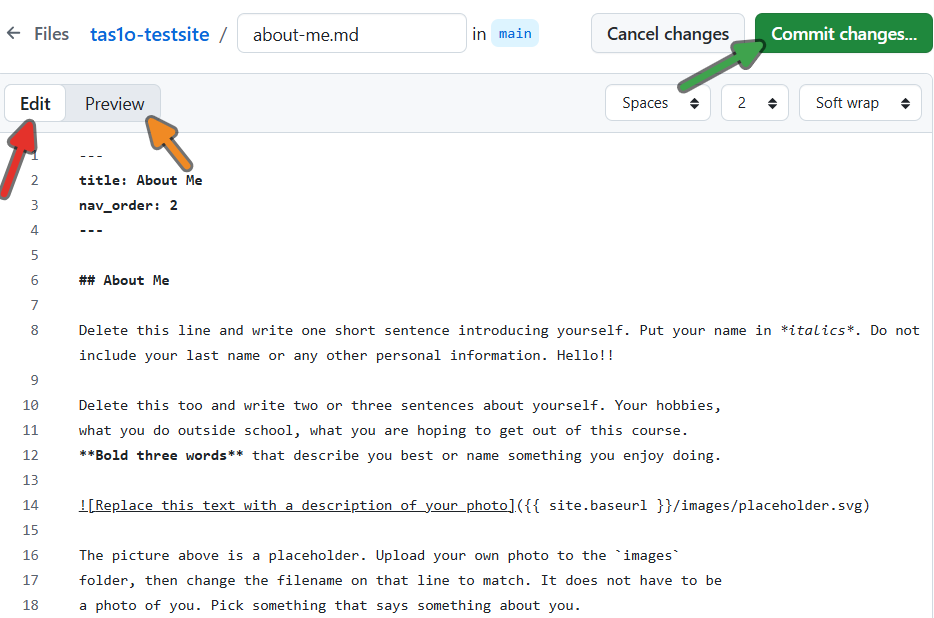
Click the pencil icon at the top right to start editing.
-
At the very top of the file is a block of dashes with a line or two between them. Leave it exactly as it is. It tells the site what to call the page and where to put it in the menu. Everything you write goes underneath it.
---
title: About Me
nav_order: 2
---
-
Above the editing box are two tabs, Edit and Preview. Preview shows you the formatted version. Click between the two as you work, rather than committing and hoping.
There’s more to Markdown!
The README in your repo is a cheat sheet you can use to add more content to your site. It has info on how to add a photo, how to start a new project page, what to do when something breaks. It stays there all year. Consult it to figure out how to format your site. Feel free to google other examples of markdown usage if you want to add more formatting options to your site.
Write your introduction#
- Write one short sentence introducing yourself: your name, and what school you go to or came from. Put your name in italics by wrapping it in single asterisks.
Hi, I'm *Priya*, a Grade 9 student in TAS1O.
- Leave a blank line, then write two or three sentences about yourself: your favourite things to do, your hobbies, what you want out of this course. Bold three words that either define you best or describe an activity you enjoy. Bold is two asterisks each side.
I spend most of my free time **skateboarding** or taking apart old electronics
to see what is inside. I am the person my family calls when the printer stops
working, so I am fairly experienced with **fixing things**. This year I want to
learn more about **soldering**.
- Leave another blank line, then add a heading and a short list under it. Use it for what you are already good at, or what you want to learn this year. A heading is two hashes and a space. A bullet is a hyphen and a space, one per line.
## What I want to learn

- Soldering without burning the bench
- Reading a technical drawing
- Making something that actually turns on
- Click Preview. Your asterisks and hyphens should have disappeared and left formatting behind. If you can still see the marks themselves, there is a space between a mark and its word, or one of them is missing its pair.
Save it#
Nothing on GitHub saves by itself. This is the step people forget.
-
Click the green Commit changes button at the top right.
-
Type a short message saying what you did, like
wrote my about me page. This isn’t going to break your site if you don’t do it, but it’s a good thing to get in the habit of. -
Leave Commit directly to the main branch selected, then click Commit changes.
Add a photo#
Find a photo you think represents you. It does not have to be a photo of you, though you are welcome to use one.
Uploading images takes a few more steps than what you might be used to. The file needs to go into your repository first, and then you write a line that points at it. Before you begin, make sure the image you want is saved on your computer. If it is an image on a website, right click on it and click “Save images as…” and then save it to a familiar location.
-
Rename the file on your own computer before you upload it. Lowercase letters, hyphens instead of spaces, and keep the
.jpgor.pngon the end. You can rename by right clicking > Rename or selecting the file and pressing F2 on your keyboard.Bad file names Good file names IMG_4471.JPGskate-park.jpgMy Photo (1).pngmy-photo.png -
Go to the Code tab and click into the
imagesfolder.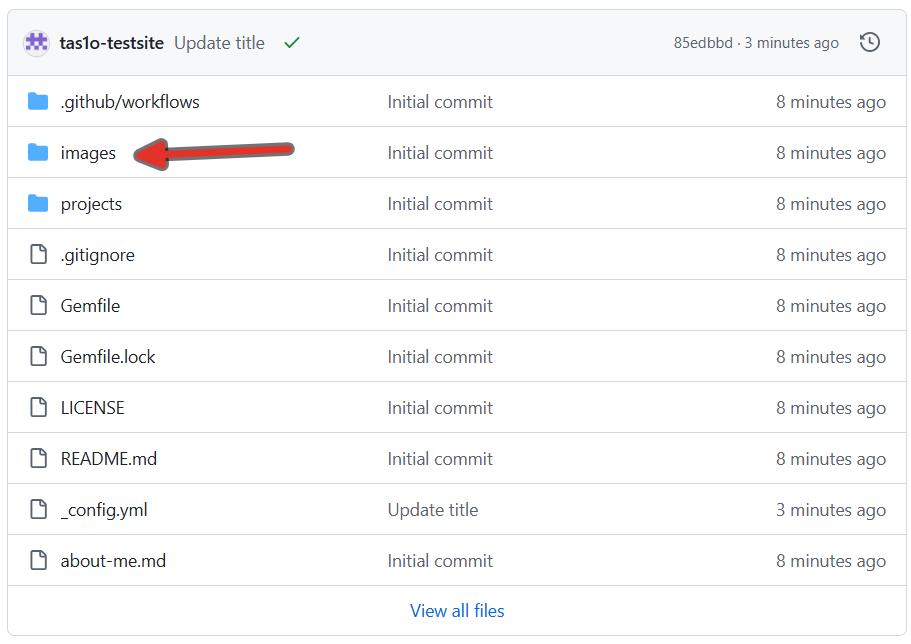
-
Click Add file, then Upload files, and drag your photo into the box.
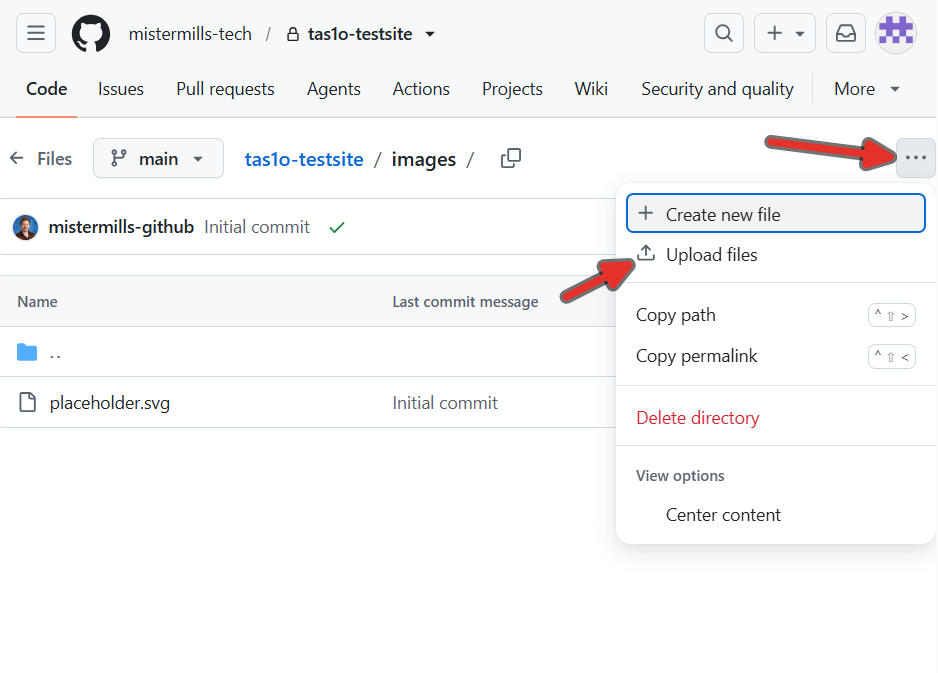
-
Scroll down, type a message like
added my about me photo, and click Commit changes. Your photo is in the repository now, but nothing shows it yet. -
Open
about-me.mdagain and click the pencil icon. -
On a line of its own, with a blank line above it, write the image line. Change the words in the square brackets to describe your photo, and change the filename at the end to yours.

Four parts, and all four matter:
| Part | What it does |
|---|---|
! |
Makes it a photo. Without it you get a link instead. |
[ ... ] |
Your caption. Screen readers read this out, so describe what the photo shows rather than typing photo. |
{{ site.baseurl }} |
Fills in your site’s address for you. Copy and paste it exactly, spaces, curly brackets and all. |
/images/skate-park.jpg |
Where the file is. It has to match what you uploaded character for character, capitals included. |
- Commit the change the same way you did before.
The photo looks broken in Preview, and that is fine
Preview does not fill in the {{ site.baseurl }} part, so you get a broken image icon there
even when the line is perfectly correct. Check the photo on your published site instead of in
the editor.
Photos of other people
Do not put a photo of a classmate on your site without asking them first. Photos of hands, tables and workpieces are fine. Anyone with your link can read your site, so keep recognisable faces, your last name, and anything that says where you live off it.
Check it the way I will#
-
Click the Actions tab and wait for the green tick beside your most recent commit.
-
Open your site address, go to your About Me page, and read it back. Paste the address into a private or incognito window if you want to see exactly what everybody else sees.
-
If the photo is missing, the filename in your image line does not match the file you uploaded, nine times out of ten. Open the
imagesfolder and compare the two character for character.Skate-Park.JPGandskate-park.jpgare different files as far as the server is concerned, even though Windows treats them as the same.
The rest of your pages#
Your Journal, Project 1, Project 2 and Culminating pages are already in the file list. You do not need to create them. When you start a project, open that page, click the pencil, and write in it exactly the way you just did here.
Review the README on the front page of your repository for more details on how to format.
Copy the published link and add it to the class spreadsheet.
Sign-off#
- Site and URL named with my name and the course code
- A home page, an About Me page, Journal page, Project 1 page, Project 2 page, and Culminating Page
- In my About Me page, filled out using markdown with text and a photo
- Check to see if the GitHub action published the site (green checkmark)
- Link added to the spreadsheet