3D Printing
How to operate a 3D printer safely and get the best prints possible.
Additive Manufacturing#
There are two basic ways to turn raw material into an object. You can add material, a little at a time, until the object exists. Or you can start with more material than you need and remove everything that is not the object. Sawing, drilling, sanding and cutting vinyl on the Cricut are all subtractive. A 3D printer is additive.
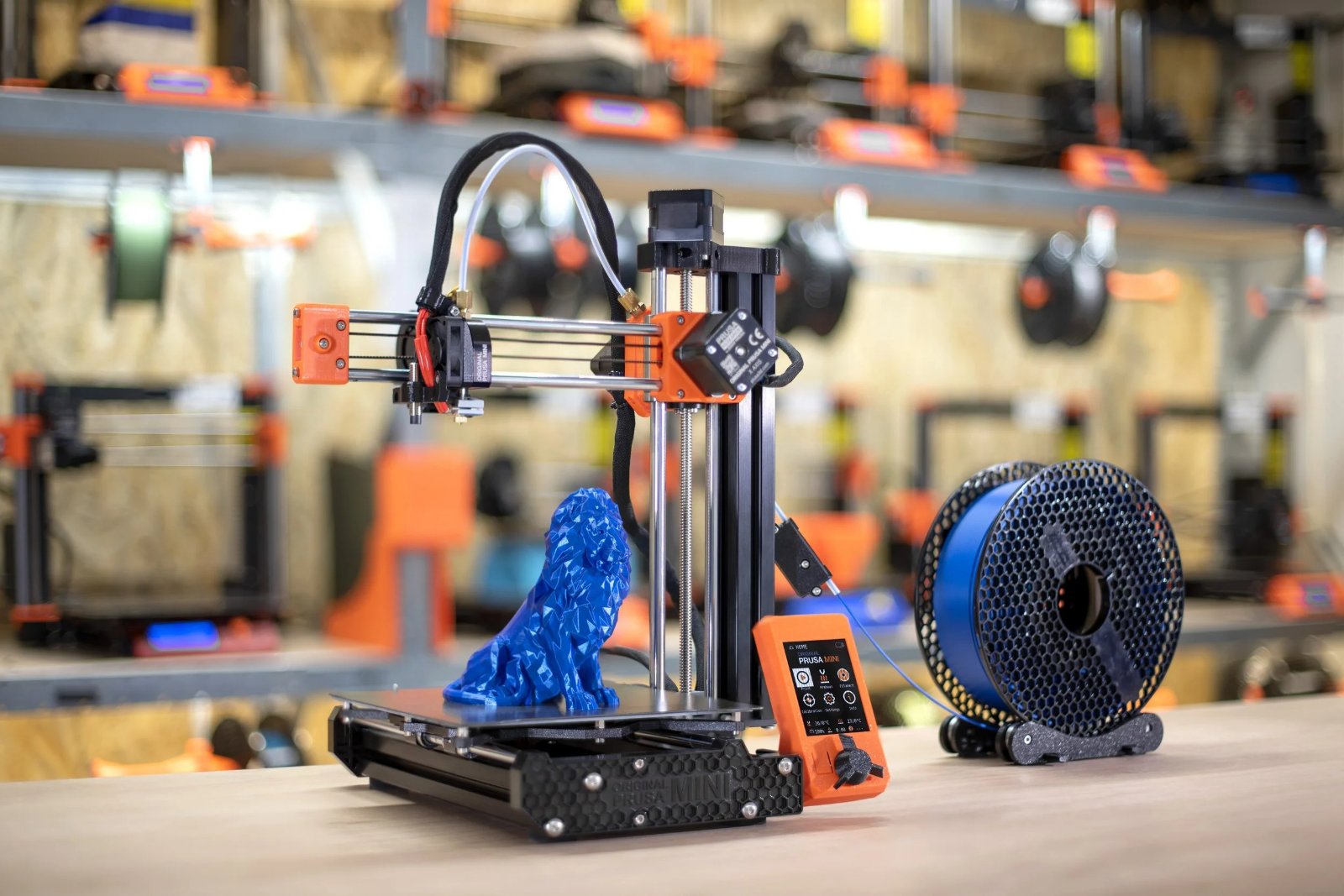
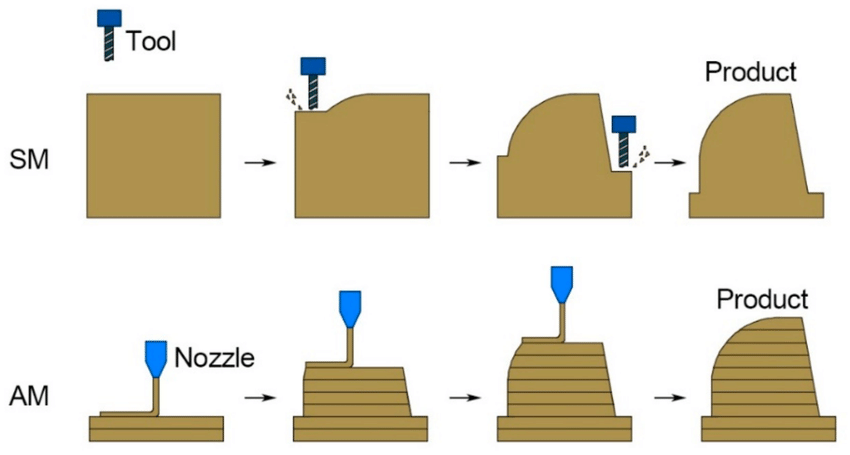
At its core, 3D printing is a process of adding material (in this case: plastic) to a surface in very thin (almost 2D) layers. Think of it like building with tiny bricks, one on top of the other, until your object is complete. In our classroom, we use a specific type of 3D printing called FDM, which stands for Fused Deposition Modelling. This just means we’re melting plastic and carefully placing it in these layers. Very precise motors are able to move a nozzle (called a “hot end”) to a location and deposit the liquid plastic where it solidifies quickly.
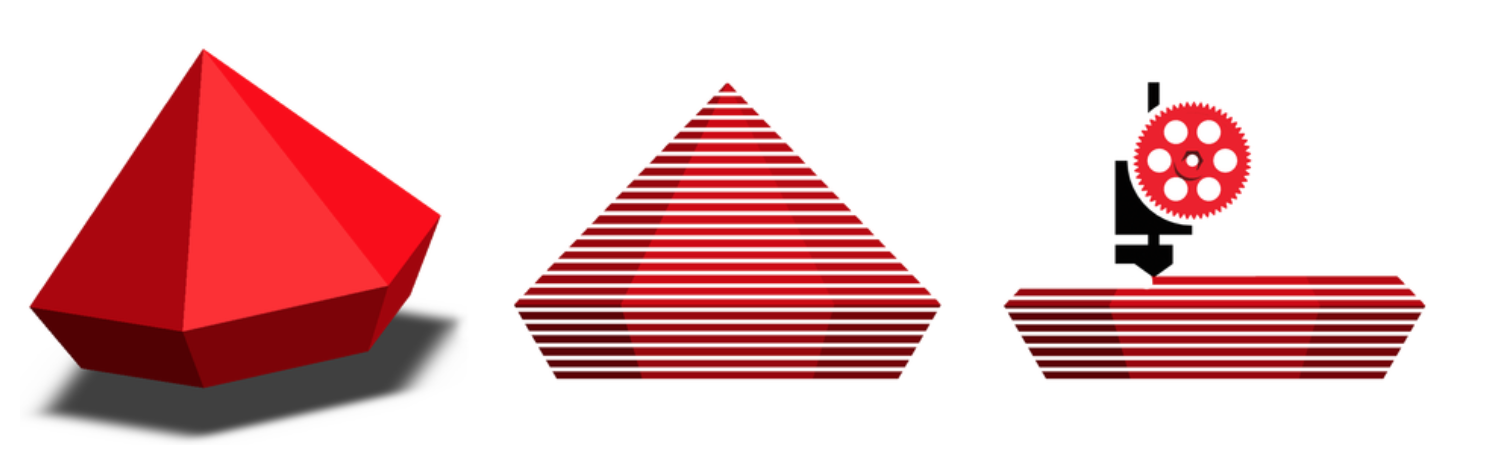
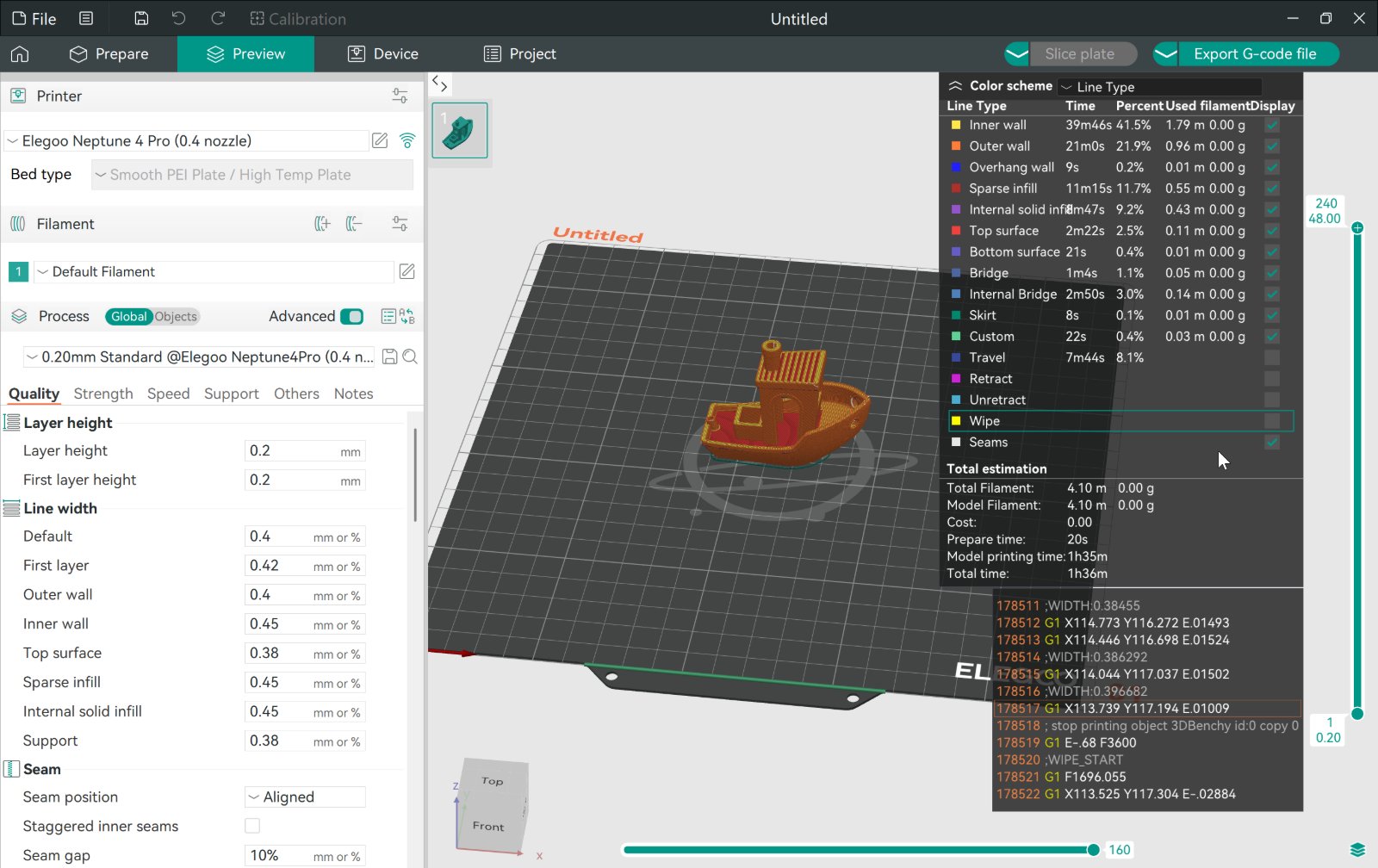
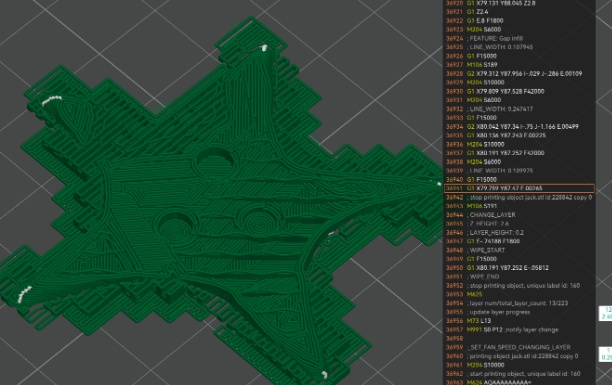
When you design something in CAD, you export it as an .stl file. This file describes the exact shape of your 3D object. Your .stl file is like a blueprint, but a 3D printer can’t read a blueprint directly. It needs specific instructions to control the motors and flow of plastic. That’s where slicer software comes in. In our room, we use OrcaSlicer. This software “slices” your 3D model into hundreds or even thousands of super-thin horizontal layers. For each layer, the slicer figures out exactly where the printer’s nozzle needs to move and how much plastic to squirt out. The slicer then translates all these instructions into a language the printer understands called G-code. These instructions tell the printer exactly:
- Where to move (X, Y, Z coordinates)
- How fast to move
- What temperature the hot end should be
- How much plastic to push out (extrude)
| Stage | What you are working in | What comes out |
|---|---|---|
| Design | TinkerCAD or Fusion | .stl |
| Slice | OrcaSlicer | .gcode.3mf |
| Bambu Lab A1 mini | The part |
FDM Printing vs. SLA Printing#
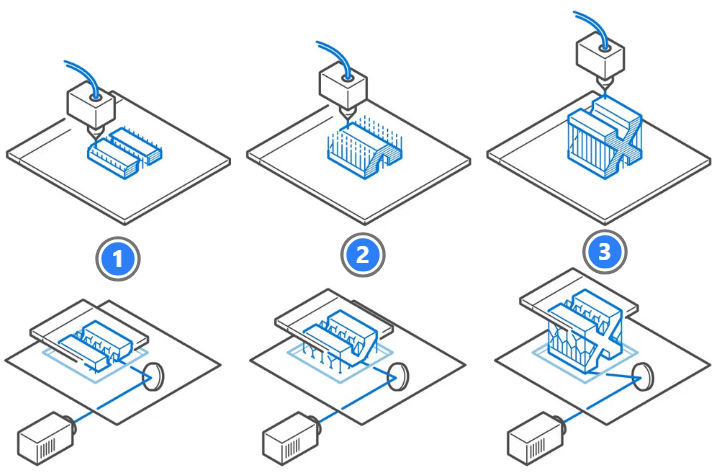
Both build a part one layer at a time. They differ in what the layer is made of and how it is formed.
| FDM | SLA | |
|---|---|---|
| What it stands for | Fused Deposition Modelling (sometimes also called FFF Fused Filament Fabrication) |
SteroLithogrAphy |
| How a layer is made | Melted plastic is pushed through a nozzle and drawn as lines | A light source cures a layer of liquid resin |
| Material | Filament on a spool | Liquid resin in a tank |
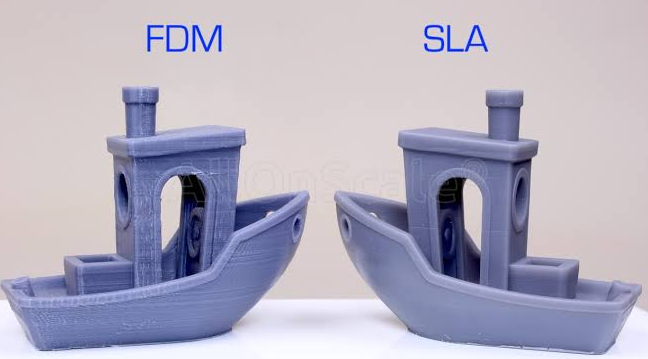
| Detail in X and Y | Limited by the nozzle, 0.4 mm on ours | Limited by the pixels of the light source, so far finer |
| Build direction | Bottom up, the part sits on the plate | The plate rises out of the tank, so the part prints upside down |
| Straight off the machine | Snap the supports off and it is finished | It comes out wet and still soft |
| Handling | Safe to touch | Uncured resin is a skin and eye irritant |
| Cost per part | Low | High, and the resin has a shelf life |
| In our room | Bambu Lab A1 mini | None |
FDM Printing and Filament#
FDM stands for Fused Deposition Modelling, which describes “fusing” the model together by depositing something called filament. Filament is the “ink” of our 3D printer, a long string of plastic wound onto a spool. It is 1.75 mm across, which is the standard for almost every desktop machine. The extruder pulls it off the spool and pushes it into the hot end faster than it can leave the nozzle, and that pressure is what forces the melted plastic out.
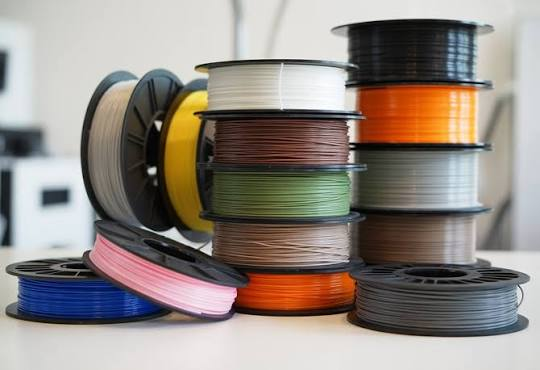
We use PLA (Polylactic Acid) for everything in this course. It is made from plant starch, melts at around 220 °C, barely smells, and does not warp the way other plastics do. It is also stiff, which is why a PLA part snaps rather than bends when you push it too far.
| Filament | What it is like | Why we do or do not use it |
|---|---|---|
| PLA | Stiff, prints at a low temperature, holds fine detail | Our default. Cheap, forgiving, and it stays flat on the plate |
| PETG | Tougher and slightly flexible, survives heat and sunlight | Good for parts that live outdoors. Stringier and fussier to print |
| ABS | Strong and heat resistant | Gives off fumes that need a sealed enclosure and extraction. Not used in this room |
| TPU | Rubbery, bends and springs back | Has to be printed slowly, and it cannot be fed from the AMS lite |
Match the profile to the spool
The filament setting in OrcaSlicer sets the nozzle temperature, the bed temperature and how much plastic is pushed out. Selecting PETG while PLA is loaded will ruin the print. Check what is physically on the machine before you slice.
SLA Printing and Resin#
SLA stands for stereolithography. Instead of melting a solid, an SLA printer shines a light through the bottom of a tank of liquid photopolymer resin. Wherever the light lands, the resin hardens. The build plate lifts by one layer and the next layer cures underneath it, so the part grows downwards out of the tank, hanging upside down.
Resin holds much finer detail than FDM because nothing is limited by the width of a nozzle. That is why resin gets used for miniatures, jewellery patterns and dental models.
The cost of that detail is in the handling. Parts are printed on an angle rather than flat, so liquid resin runs back into the tank instead of pooling on the cured surface. A finished print comes out wet and soft. It has to be washed in isopropyl alcohol and then cured under UV light before it is hard and safe to touch.
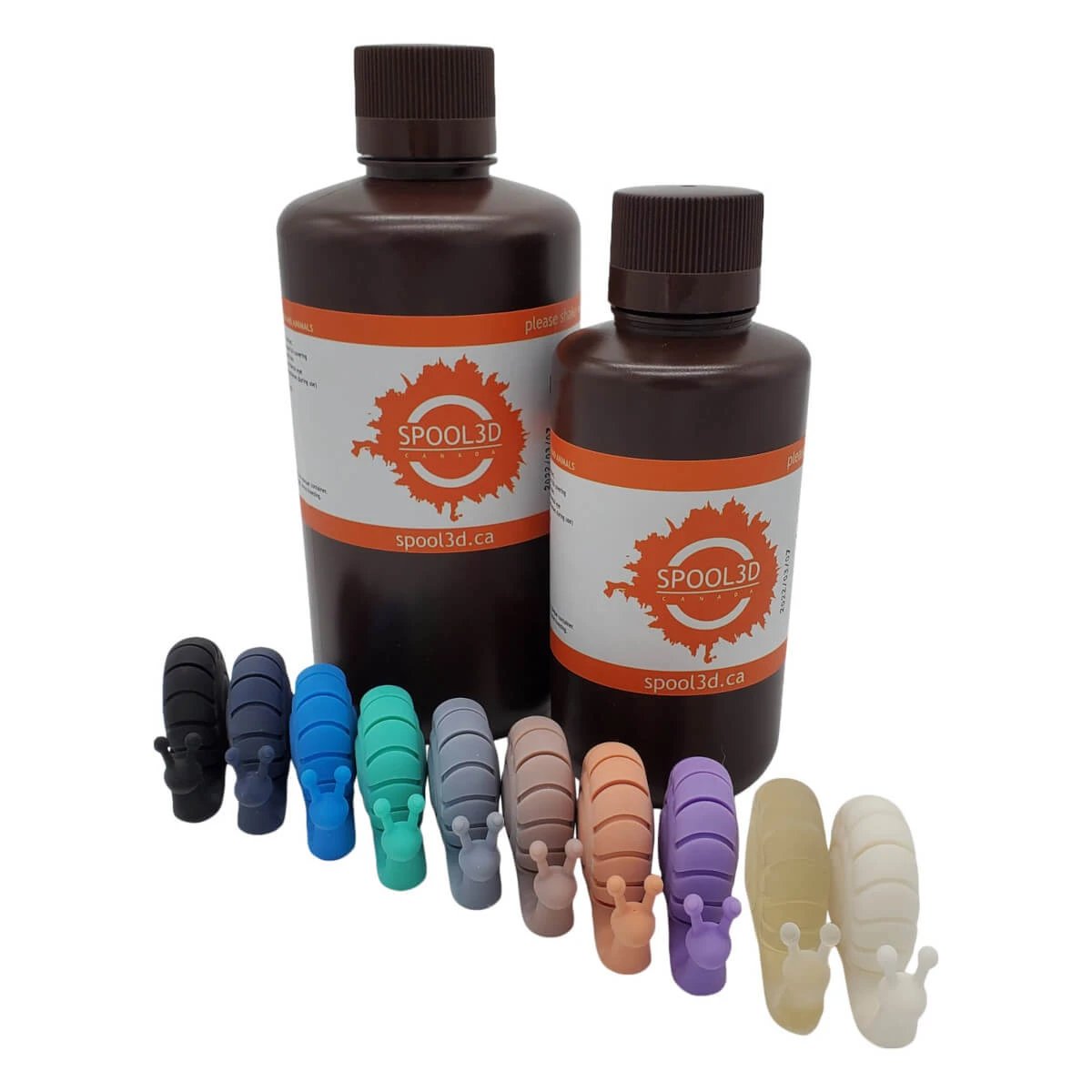
Resin
Uncured resin irritates skin and eyes, and the fumes need ventilation. It is handled in nitrile gloves and it never goes down a drain. We do not have a resin printer in this room, so this is background rather than something you will do here.
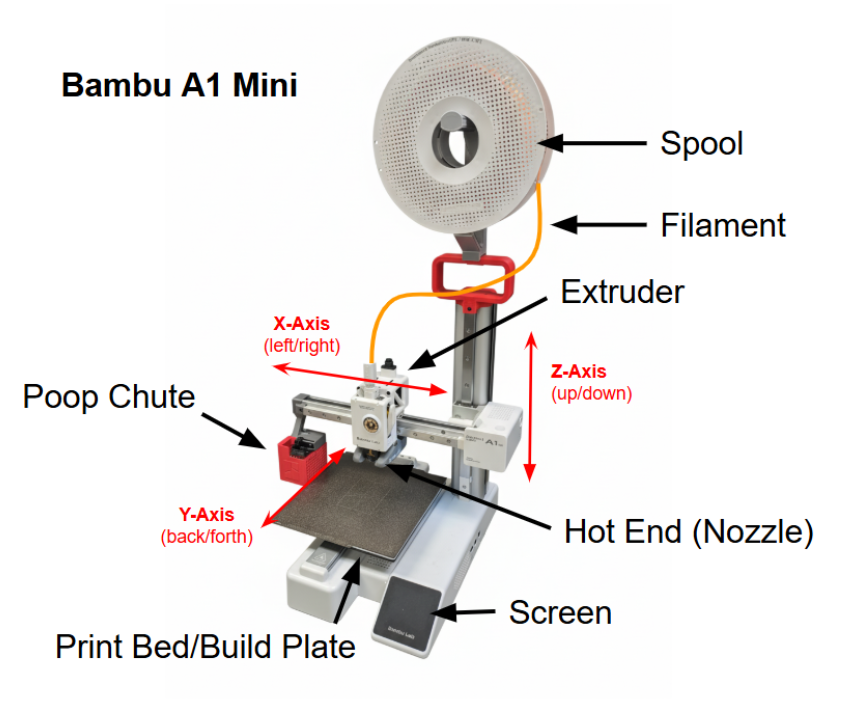
Anatomy of the A1 mini#
The printers in our room are Bambu Lab A1 minis. The A1 mini is a bed slinger, which means the build plate itself moves back and forth underneath the nozzle. Anything left on the bench behind the printer will get hit.
Terminology#
Filament: The long string of plastic wound onto the spool, feeding down into the machine through the white PTFE tube.
Extruder: A motor that grips the filament and pushes it into the hot end.
Hot end and nozzle: The hot end heats the filament until it melts. The melted plastic comes out of a tiny hole in the nozzle, which is usually less than a millimetre wide. Ours are 0.4 mm.
Print bed / build plate: The flat surface where your object is built. It is heated to help the first layer stick, and the plate itself is a thin sheet of spring steel held down by magnets.
Motors and belts: Very precise motors move everything into place. The toolhead moves side to side (X), the build plate moves front to back (Y), and the whole gantry moves up (Z) after each layer is finished.
Poop: These printers self-clean. Before a print, and between colours, the printer flushes out the filament still sitting in the nozzle, producing a small coil of plastic that the community calls “poop”. On the A1 mini it is pushed out the back. Put it in the bin when you collect your print.
| Term | What it means |
|---|---|
| Toolhead | The part that moves across the gantry. It holds the extruder, hot end, nozzle and cooling fans |
| Build volume | The biggest part the printer can make. The A1 mini’s is 180 x 180 x 180 mm |
| Textured PEI plate | The removable build plate. Spring steel with a rough PEI coating. Flex it once it has cooled and prints pop off |
| AMS lite | The Automatic Material System lite. A stand that holds up to four spools and feeds them one at a time, so a print can use more than one colour |
| Quick-swap nozzle | The A1 mini’s nozzle and hot end come out as one piece by opening a clip, without tools |
| Filament runout sensor | Detects when the spool runs out and pauses the print so it can be reloaded |
| Bed levelling | Before a print starts the nozzle taps the bed in a grid of points to measure how flat it is, then adjusts every layer to match |
| Flow Dynamics Calibration | A short test that measures how the filament flows out of the nozzle, so lines stay even as the toolhead speeds up and slows down |
| Access code | An eight character code on the printer’s screen. OrcaSlicer needs it to send a print to that machine |
.gcode.3mf |
The file a Bambu printer actually prints. G-code packaged together with a preview of the plate |
Keep calibration on
Leave Bed levelling and Flow Dynamics Calibration turned on when you send a print. They add a minute or two at the start, and they are the reason the first layer comes out right.
Designing for 3D Printing#
The printer builds from the bottom up and every layer has to land on something. Most of what decides whether a print succeeds is settled in CAD, long before the file reaches the slicer.
How you sit the part on the plate decides three things at once: which surfaces become overhangs, which direction the part is weakest in, and which face gets the good finish. Turning a model 90 degrees is free. Adding supports is not.
Overhang#
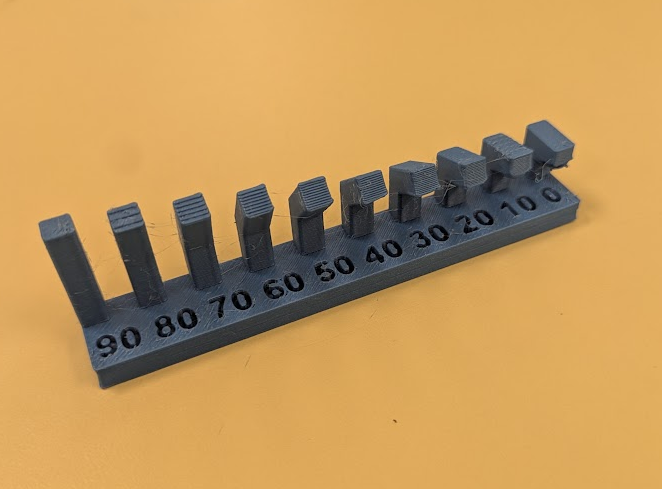
Parts of a model that extend outward without direct support from below. Generally a 90 degree angle into another axis won’t print well, but you may have some limited success if the printed filament can solidify and cool quickly enough for the next layer to be printed on top, provided there is some amount of contact with the previous layer.
The working rule is 45 degrees from vertical. At 45 degrees each new line is still sitting half on top of the line below it, so it has something to hold on to. Past that, more and more of every line hangs over open air, and it droops.
Bridging#
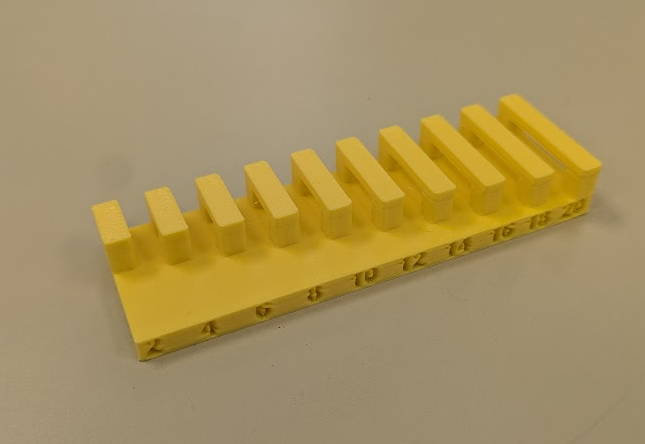
Horizontal spans between two points that can be printed mid-air if the distance is short enough for the plastic to cool quickly. Think of it like the little angel hairs you get from using a hot glue gun. You can dab those points across a gap and the material in between can cool and solidify straight if the length is short enough.
Both ends of a bridge have to exist already. The nozzle pulls a strand from one side to the other and the cooling fans set it before it has time to fall. A long bridge sags in the middle, so keep spans short, or break a long one up with a pillar that is part of the design.
Supports#
Supports are temporary structures that the slicer creates and the printer prints to hold up the overhanging parts. Once the print is finished, you snap or peel the supports away. Think of them as temporary scaffolding for your print.
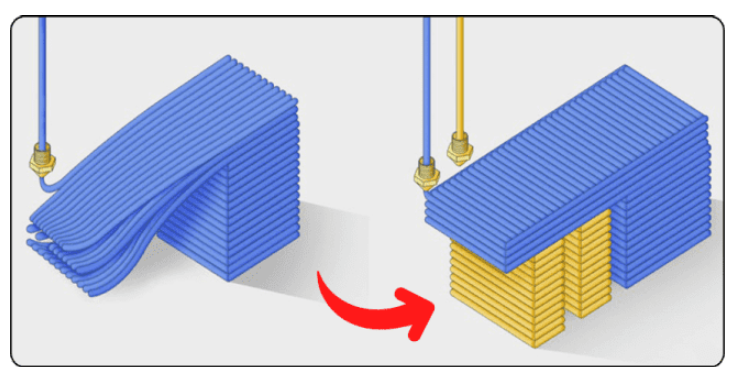
Supports cost plastic and time, and they leave a rough scar on whatever surface they touched. A design that does not need them is a better design, so before you turn them on, try rotating the part. An overhang that faces the sky after a rotation may not need anything at all.
When in doubt, move some supports around and reslice
Support placement is not something you get right by reading about it. Slice, look at the preview, see where the supports landed, and move the part if they are sitting on a face you care about.
Layer Height#
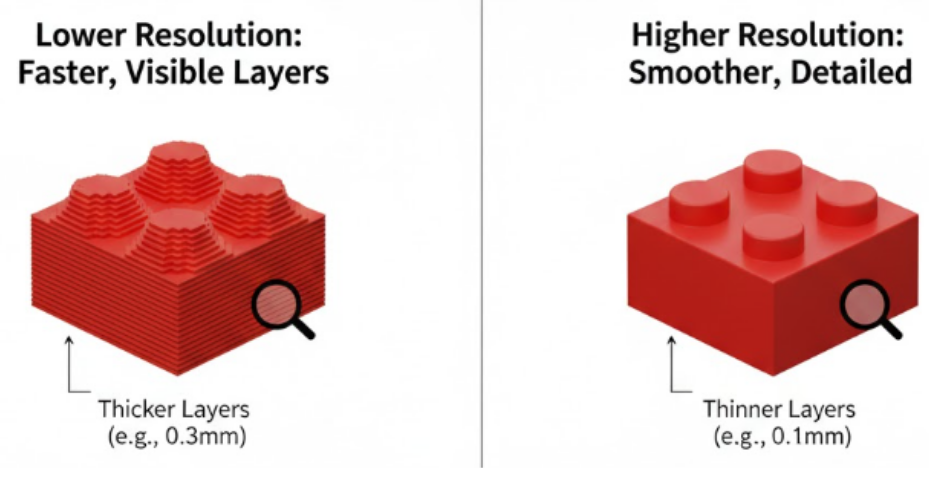
The level of detail on the X and Y axes is determined largely by the diameter of the nozzle installed on the printer (generally it’s 0.4 mm), but you can change how thick layers are in the Z axis. Thinner layers produce less noticeable layer lines, but it takes much longer to print, because you are effectively making more layers for the tool path to follow.
Layer height only buys detail going up. It does nothing horizontally, because the nozzle is still 0.4 mm wide whatever the layers are set to. A hole 0.3 mm across cannot be printed on this machine at any layer height.
Our default for class work is 0.28 mm. Drop to 0.16 mm only for the final version of something that has to look good, and expect it to take roughly twice as long. The full table is in 3D Printing with OrcaSlicer.
Infill and Wall Thickness#
Infill is the internal structure that provides strength and saves material. You can adjust the pattern type and the percentage depending on what you’re printing, but it’s generally okay to use 15% infill with a crosshatch pattern. Wall thickness dictates how many “loops” of material get printed before the infill begins.
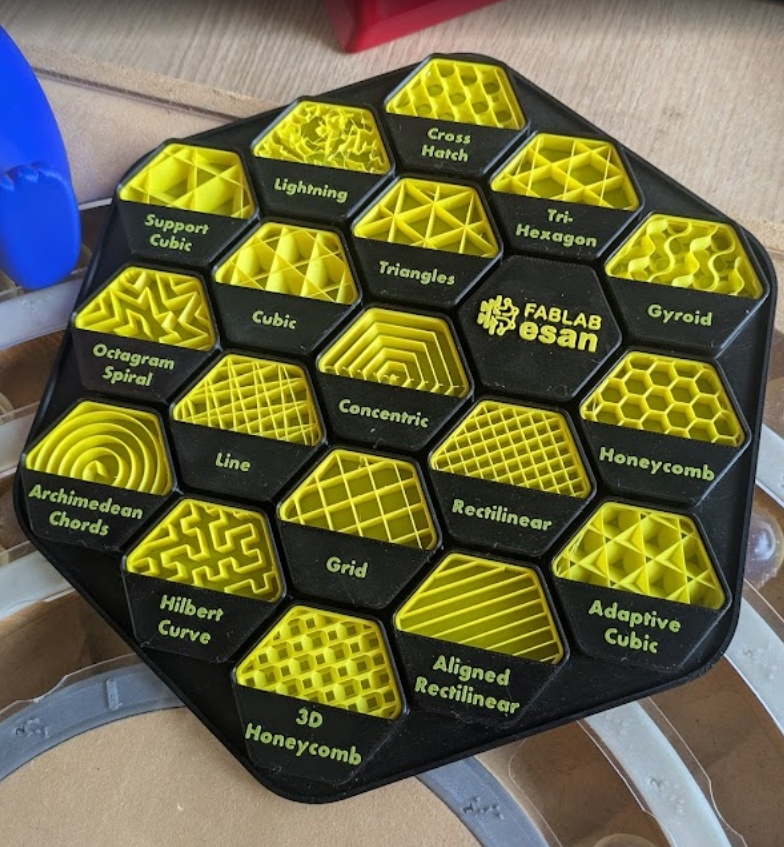
Walls do more for strength than infill does. Going from 15% to 50% infill adds a lot of time for very little gain, while adding one more wall loop costs almost nothing and makes a real difference.
Because every wall is drawn by a 0.4 mm nozzle, wall thicknesses should be multiples of 0.4 mm. Model a wall at 0.8, 1.2 or 1.6 mm and it comes out as exactly two, three or four clean lines. Model it at 1.0 mm and the slicer has to round it off, leaving either a gap down the middle or a wall thicker than you asked for.
| Feature | Smallest that works |
|---|---|
| A wall or a rib | 0.8 mm, which is two lines |
| A pin or a peg | 1.6 mm across, and it will still be fragile |
| Raised or engraved text | 1 mm stroke width, 0.6 mm deep |
| A hole | 2 mm, and expect it to come out slightly undersized |
Clearance#
Plastic shrinks and expands under the heating and cooling during printing, so if you want an intentional gap between moving parts, you need to add a little more to ensure your moving parts don’t fuse together during a print. The same applies to prints that you’re trying to interface with other objects (including other 3D prints).
A good rule of thumb is that your print will shrink about 1% of your original model size.
Bed Adhesion#
You need a sufficient amount of flat surface to actually begin your print’s first layer. If the part comes loose partway through, the nozzle drags it around and you get a bird’s nest of plastic instead of a model.
Put the largest flat face of your model down on the plate. If the design has no large flat face, that is a reason to change the design or split the part, not a reason to start the print and hope.
Slicers can add extra material around the base to help:
| Addition | What it does |
|---|---|
| Skirt | A loop printed near the part but not touching it, to prime the nozzle before the real first layer starts |
| Brim | A flat flange attached around the base of the part, adding contact area and holding the corners down |
| Raft | A full platform printed under the part, giving it a flat base to sit on |

Warping is the related problem. As plastic cools it shrinks slightly, and if different parts of a print cool at different rates the corners curl up off the plate. PLA is much better behaved than ABS here, but a large flat part with sharp corners can still lift.
Never touch the plate surface with your fingers
Skin oil is the single most common cause of prints not sticking, and it transfers instantly. Handle the plate by its edges.
Pausing Prints#
You can tell your 3D printer to pause midway through a print so you can add non-plastic components like magnets or RFID tags. Just be sure to include a hollow section in your model to fit your part.
The pocket has to be modelled deliberately. Size it using the clearance figures above, work out which layer the pocket is fully open on, and set the pause there. The layers printed afterwards bridge straight over the top of whatever you dropped in, so keep the opening narrow enough to bridge.
Multicolour and Multimaterial#
With some printers it’s possible to print with many different filament spools at the same time, which means you can use multiple colours of the same filament type, or even different filament types all together. This means you can print fully modelled figures of characters in place with a single print job. The reality of this, however, is that when you are using a printer with only one nozzle, there is a lot of waste generated from needing to flush out each colour on every single layer. In this class, we will not be doing any multicoloured print jobs where multiple colours appear on several layers. Instead, we can create designs that allow us to set full layers to one of four colours.
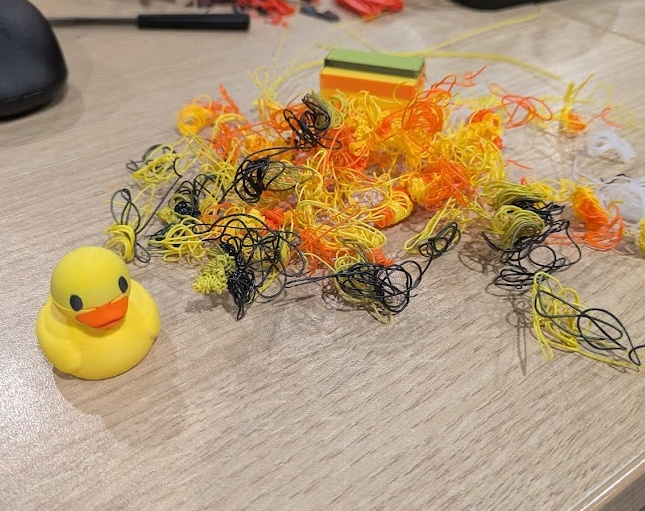
For anything more complicated than that, split the model up instead. Separate your design into the different colours you want, print each piece on its own, then slide them together and add a touch of glue. It generates no purge material at all, and the pieces fit if you have set your clearances properly.
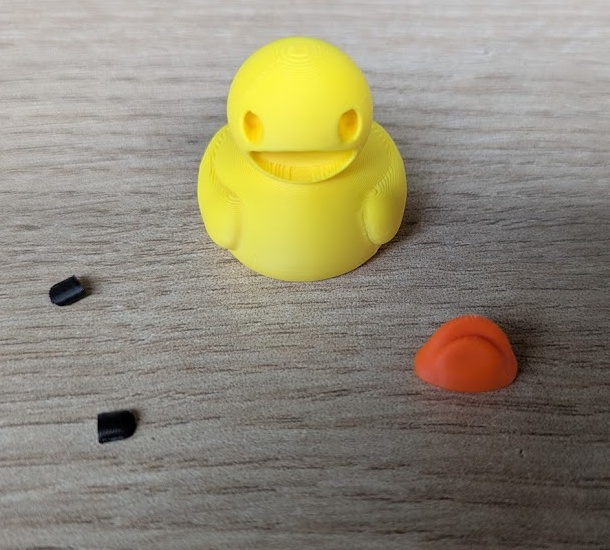
Multimaterial prints are interesting because you can work with the different properties of two or more materials. For example, PETG (another filament type) does not bond perfectly to PLA, which allows you to use either material as a support interface that will still support overhangs but remove easily and leave minimal scarring.
Post Processing#
Very few prints come off the plate finished.
| Method | What it is for | Watch out for |
|---|---|---|
| Removing supports | Taking the scaffolding off | Use flush cutters, not your fingers, and cut away from yourself. Bits fly |
| Sanding | Knocking down layer lines and support scars | Work up through the grits, 180 then 320 then 600. Sanding wet keeps the dust down and stops the PLA melting under the friction |
| Filing | Cleaning up a single hole or edge | A needle file is far more controllable than sandpaper on a small feature |
| Gluing | Joining parts that were printed separately | Superglue works on PLA. Dry fit everything before any glue comes out |
| Painting | Colour without a multicolour print | Sand first, then prime. Paint on bare unsanded PLA peels off in sheets |
| Heat set inserts | Putting a real metal thread into a printed part | The insert is pressed in with a soldering iron, so the hole is modelled slightly undersized |
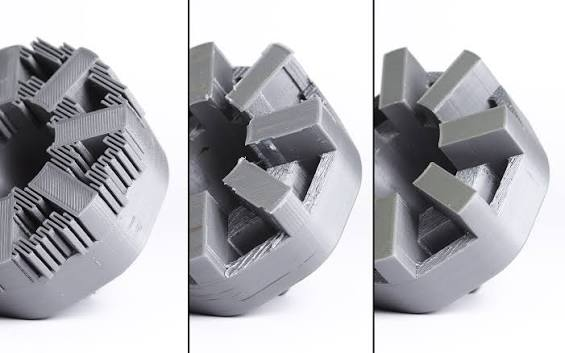
Cutters
Support material is stiff and under tension. When it releases it goes somewhere. Cut with the part held down on the bench rather than in mid-air, and keep your face out of the line of the cut.
Slicer Settings#
Please review: 3D Printing with OrcaSlicer.
When things go wrong#
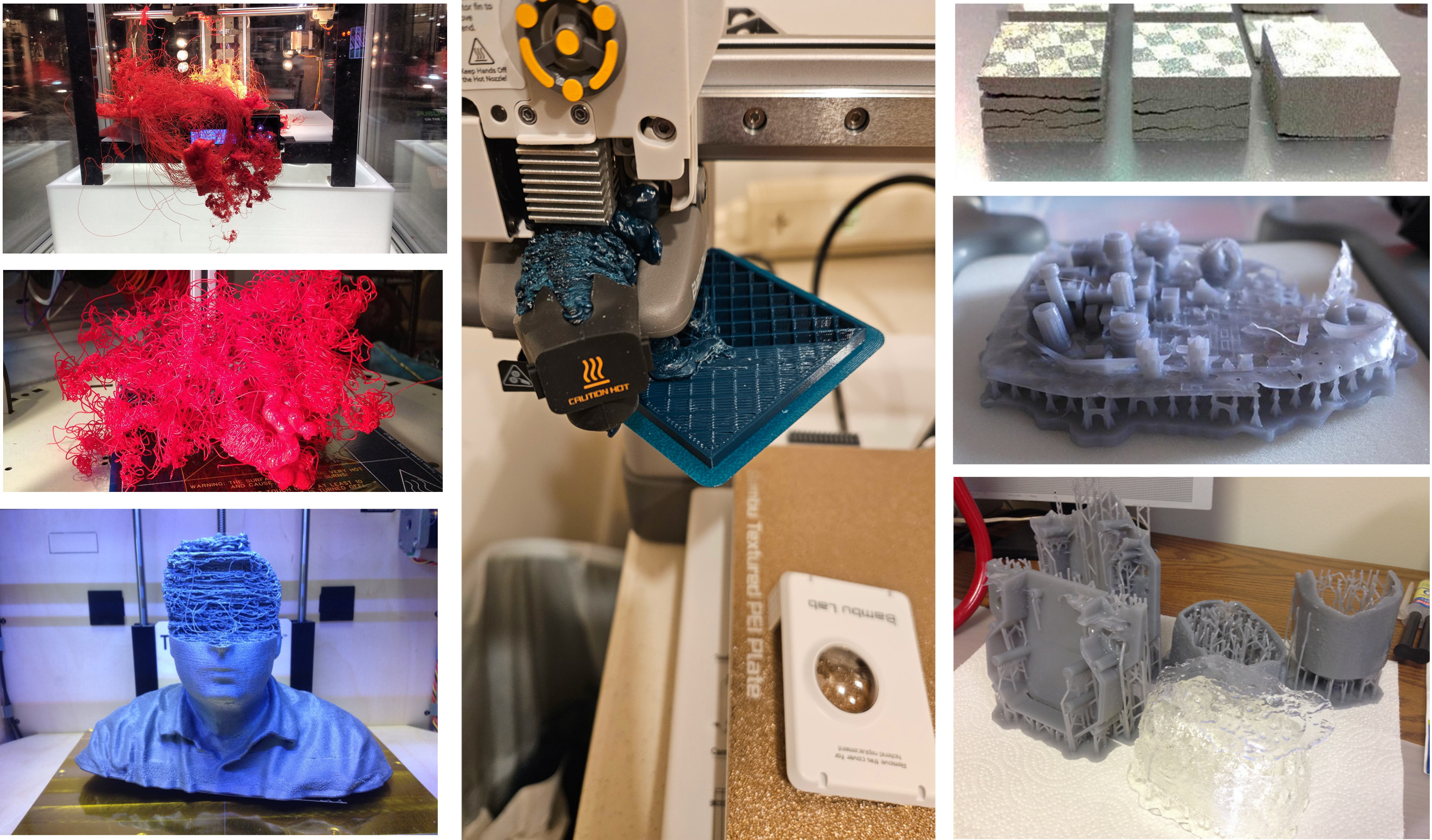
A failed print is data. Work out what it is telling you before you reprint it, or you will get the same result twice.
| What you see | What it usually means |
|---|---|
| A bird’s nest of plastic and nothing on the plate | The first layer never stuck, or the part came loose and got dragged around |
| A corner lifted and the bottom is curved | Warping. Uneven cooling, or a footprint too small to hold it down |
| The underside of an overhang is droopy and stringy | The overhang was steeper than 45 degrees with nothing under it |
| A flat span has sagged in the middle | The bridge was too long |
| Everything above a certain height is shifted sideways | The toolhead hit something and lost its position. Usually a curled corner, or something left on the bed |
| A solid blob where two parts should move | No clearance was designed in, so the parts fused together |
| Fine webs between separate parts | Stringing. Usually the wrong filament profile, or a damp spool |
| The part looks right but snaps along a layer line | Printed in the wrong orientation. A part is always weakest where two layers meet |
What to check on the machine itself, and how to fix each one, is in 3D Printing with OrcaSlicer.
The Maker Movement#
Most of the things you own were made in a factory, often on the other side of the world, then shipped, stored and sold before they got to you. That is a supply chain. It works well for making millions of the same thing. It works badly when you need one specific part quickly and don’t want to pay an arm and a leg to have it shipped from wherever in the world it is being made.
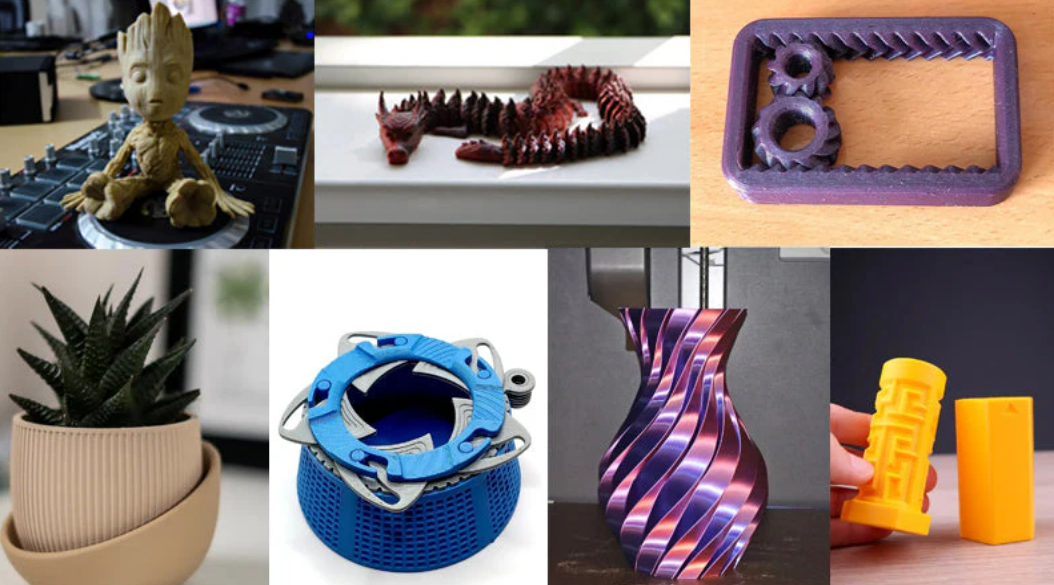
Instead of shipping a part across the world, you can model the part yourself, or find someone else who has modelled it and shared it with others, and then make the part wherever there is a machine to make it. This is called distributed manufacturing.
Remixing and DIY: With 3D printers, you’re not just a consumer, you’re a creator. You can download existing designs, modify them to fit your needs (that’s “remixing”), and print them yourself. This fuels a huge do-it-yourself and maker culture, where people create custom parts, toys, tools and art.
Fixing things: Need a specific bracket to fix something broken at home? Instead of buying a whole new product, you might be able to design and print the replacement part. Being able to measure a broken part with calipers, model it in CAD and print a replacement means you are not stuck waiting for a company to sell you one, or throwing out something that only needed a $0.10 piece of plastic.
When supply chains fail: In the spring of 2020, at the start of the COVID-19 pandemic, hospitals ran short of protective equipment because the normal supply chains could not keep up. Makers, schools and libraries around the world used their 3D printers to make face shield frames and donated them locally.
Access: You don’t need to own a printer to do this. Makerspaces, schools and public libraries have them, including the Toronto Public Library’s Digital Innovation Hubs. The skills you learn in this room work on any of those machines.
None of this works if people keep their files to themselves. The reason you can download a replacement part for something you own is that somebody modelled it and published it for free. MakerWorld and Thingiverse are the two largest places that happens. Designs are posted under a licence that says what you are allowed to do with them, and crediting the person whose model you remixed is part of the deal.